Migrate templates to a new license space
With Contract Express 8.8 or higher, you can copy templates, profiles, locales and categories from one license space to another using the Template migration feature.
Import or export of templates can be run from the Admin menu, available to administrators in Contract Express 8.8, against a target license space that must be on version 7.3 or higher.
This guide outlines the steps for setting up the connection and scheduling the template migration job.
note
Contract Express administrator level of access is required in both license spaces to set up the connection for template migration.
Configure connection in the Target License Space
Target license space is the license space that we want to connect to for the import or export of templates from the main license space where the job will be run.
To enable connection follow these steps:
- In the Admin tab, go to Data connections and click on API Clients.
- Click Add Client button and complete the fields as follows:
- Give the connection a name to differentiate it from any other connections.
- Enter a number for Client ID.
- For Redirect URI enter:https://NNNN/admin/template-migrationwhere NNNN is the link to the main license space where the migration job will run.
noteAn example of redirect URI could be: https://eu1.contractexpress.com/app/admin/templatemigration - Click Save and copy the Client ID and Client Secret details.
- In the Admin tab, click on the About menu option at the bottom of the menu and take note of the Services URL link provided there.
Configure connection in the Main License Space
Main license space will be used to run the template import or export job. Follow these steps to establish connection for the migration job.
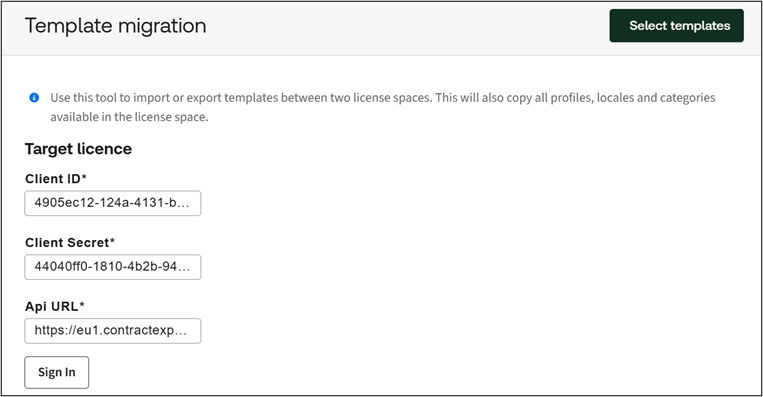
- In the Admin tab, in the Templates and questionnaire section, click onTemplate migration.
- Enter Target License details noted in the previous step:
- Client ID
- Client Secret
- API URL (Services URL)
- ClickSign Into connect.
Schedule Template migration job
- After successful Sign In you can clickSelect Templatesbutton in the top right corner.
- In the drawer, chose the type of template migration.
- SelectPush to targetto export from the main license space to the target license space.
- SelectPull from targetto import from the target license space into the main license space.
- Select the templates to migrate.noteYou can chose to migrate some or all templates. The most recent published version of the template will be added to the new license space. In the new license space the template will be added as Unpublished.Each migration job will also copy across all profiles, locales and categories available in the license space.
- ClickQueueto schedule the job.
Migration job status
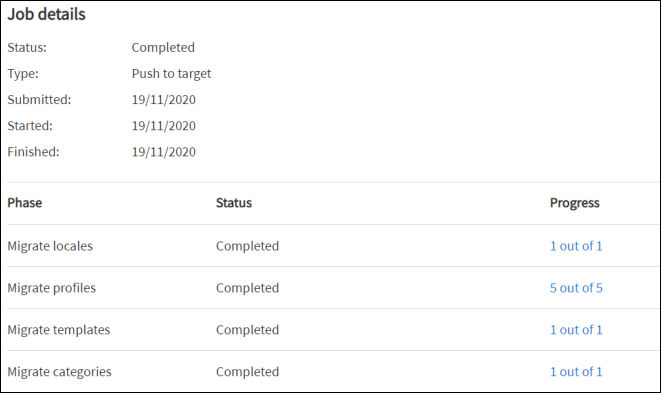
Template migration page will show its status and the start and finish details. Once the job is completed, the Progress column will display links with the details of the completed steps and any errors encountered.