
Point in time Reports
Administrators can access process reports by selecting the Reports tab on the Analytics page.
Point in Time reports allow you to view snapshots of user and document activity for the chosen period. Below are the different reports you can build using the point in time related templates.
Total Documents Created by User
This report details the total number of document sets that have been created by selected users broken down by these users. The report can be built for users, groups or subsites.
To build the report:
- Set the input parameters for the report:
- Report Category: Point in Time.
- Report Type: Total Documents Created by User.
- Scope: by Users/ Groups/ Subsites. Depending on the chosen value, you will be able to specify either the list of users, of groups, or of subsites, for which the report should be built.
- Users/ Groups/ Subsites: Select the required users/ groups/ subsites by clicking+ Add users/ groups/ subsites. You can select up to 20 users/ groups/ subsites.
- Templates: Select the required templates by clicking+ Add templates.
- Period: Select the period from the list of pre-set periods. If you need to choose a specific period, select Custom period value and specify the Start Date and the End Date.
- Exclude Suspended Documents: Select this checkbox if you want to exclude Documents marked as ‘Suspended’ from the report. (see Suspending documents for more information about suspending a Document).
- Exclude Deleted Documents: Select this checkbox if you want to exclude deleted Documents from the report.
- Include sub-templates and generated document count: Select this checkbox if you want the report to list all sub-templates that generated separate documents, in addition to the main template used to initiate the questionnaire. The document count will reflect individual documents rather than grouped document families (Contract IDs).
- Include document generation date: Select this checkbox if you want the report to display the date each document was generated. For reports without sub-template details, the date shown will be when the document family (Contract ID) was created. If sub-template information is included, the date will reflect when the first generated document was created.
- Include Contract ID: Select this checkbox if you want to include the Contract ID in the report. This ID identifies the document family that is created upon completing a questionnaire.
- ClickRun report.
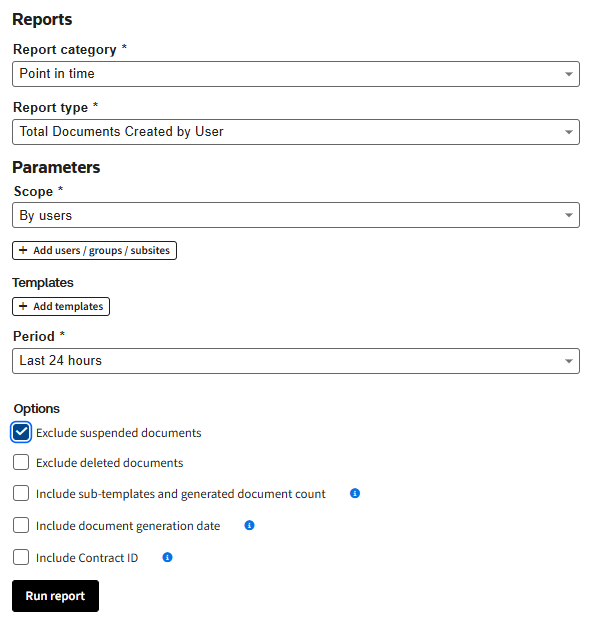
The report will contain a graph and a table with the data.
The graph demonstrates, how many documents have been created by users during the chosen period, broken down by template. You can toggle the graph view using Grouped/ Stacked control.
The table contains filterable representation of the same data. Click on the filter icon to enable filtering. You can collapse or expand the sections of the table by clicking on a user’s name or to collapse/ expand the whole table use the
Expand
and Collapse
buttons.By clicking on the number in the
Total
row you can view the corresponding distribution report “Distribution of Documents Created by User” pre-filtered with the input parameters of the initial report and by the chosen user/ group/ subsite.Total Documents by Template
This report shows the total number of document sets that have been created from the selected templates.
To build the report:
- Set input parameters for the report:
- Report Category: Point in Time.
- Report Type: Total Documents by Template.
- Templates: Select the templates you are interested in, or choose all of them by clicking+ Add templates.
- Period: Select the period from the list of pre-set periods available from the dropdown list. If you need to choose a specific period, select ‘Custom period’ value and specify Start Date and End Date.
- Exclude Suspended Documents: Select this checkbox if you want to exclude the documents marked as ‘Suspended’ from the report. (see Suspending documents for more information about suspending a Document).
- Exclude Deleted Documents: Select this checkbox if you want to exclude deleted documents from the report.
- ClickRun Report
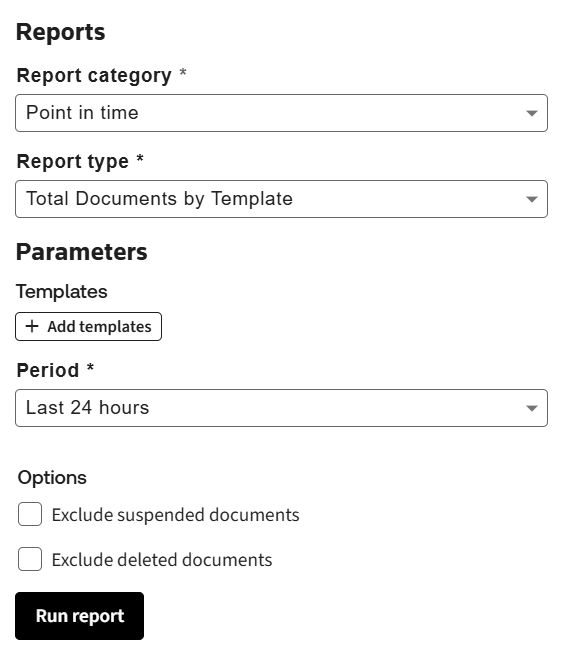
The report will contain a graph and a table with the data.
The graph demonstrates how many documents have been created from the selected templates during the chosen period.
The table contains filterable representation of the same data.
By clicking on the number in the
Total Number of Generated Documents
column, you can view the corresponding distribution report “Distribution of Documents Created by Template” pre-filtered with the input parameters of the initial report and by the chosen template.Total Documents by Status
This report represents the snapshot of the number of documents in different statuses by a particular date.
To build the report:
- Set input parameters for the report:
- Report Category: Point in Time.
- Report Type: Total Documents by Status.
- Templates: Select the templates you are interested in, or choose all of them by clicking+ Add templates.
- Statuses: Select document statuses you are interested in, or choose all of them by clicking+ Add statuses.
- By date: Select the date, by which the number of documents in chosen statuses should be calculated. Choose current date, if you want to see the current number of documents in chosen statuses.
- Exclude Suspended Documents: Select this checkbox if you want to exclude the documents marked as ‘Suspended’ from the report. (see Suspending documents for more information about suspending a Document).
- Exclude Deleted Documents: Select this checkbox if you want to exclude deleted documents from the report.
- ClickRun Report
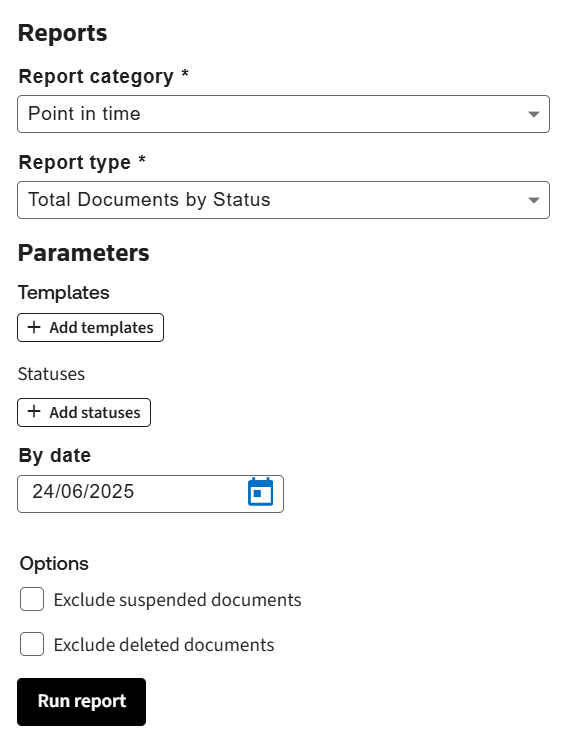
The report will contain a graph and a table with the data.
The graph demonstrates how many documents have been in particular statuses by the selected date, broken down by template. You can toggle the graph view using Grouped/ Stacked control.
The table contains filterable representation of the same data. You can collapse or expand the sections of the table by clicking on a status name. To collapse/ expand the whole table use
Expand
/ Collapse
buttons.By clicking the value in the
Total
rows, you can view the corresponding lists of Documents.Total Negotiations by Status
This report represents a snapshot of the number of negotiation tasks in different statuses by a particular date.
To build the report:
- Set input parameters for the report
- Report Category: Point in Time.
- Report Type: Total Negotiations by Status.
- Templates: Select the templates you are interested in or choose all of them by clickingAdd templates.
- Negotiation Status: Select negotiation statuses you are interested in or choose all of them by clickingAdd statuses.
- By date: Select the date, by which the number of negotiation tasks in chosen statuses should be calculated. Choose current date, if you want to see the current number of negotiation tasks in chosen statuses.
- Exclude Suspended Documents: Select this checkbox if you want to exclude the documents marked as ‘Suspended’ from the report. (see Suspending documents for more information about suspending a Document).
- Exclude Deleted Documents: Select this checkbox if you want to exclude deleted documents from the report.
- ClickRun Report.
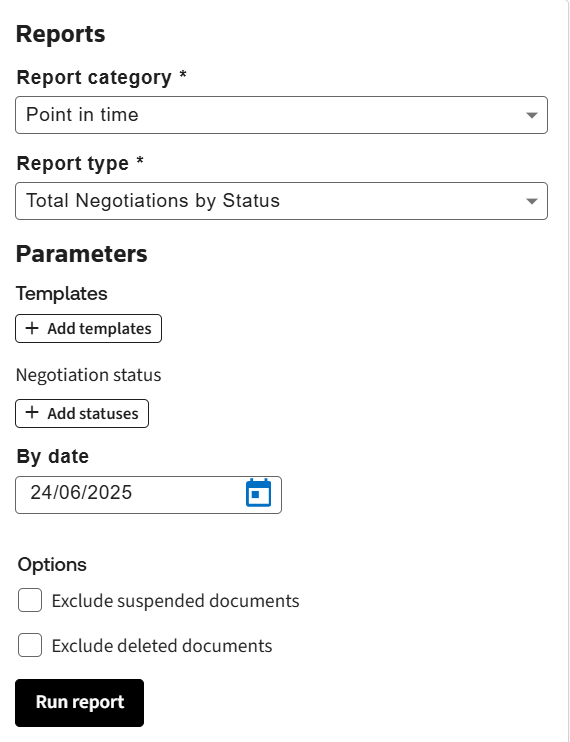
The report will contain a graph and a table with the data.
The graph demonstrates how many negotiation tasks have been in particular statuses by the selected date, broken down by template. You can toggle the graph view using Grouped/ Stacked control.
The table contains filterable representation of the same data. You can collapse or expand the sections of the table by clicking on a status name. To collapse/ expand the whole table use
Expand
/ Collapse
buttons.Time at Current Status
This report illustrates how many documents are now in the selected statuses and for how long.
To build the report:
- Set input parameters for the report:
- Report Category: Distribution report
- Report Type: Average Negotiation Cycle Time
- Templates: Select the templates you are interested in, or choose all of them by clicking+ Add templates.
- Statuses: Select the document statuses you are interested in or choose all of them by clicking+ Add statuses.
- Exclude Suspended Documents: Select this checkbox if you want to exclude the documents marked as ‘Suspended’ from the report. (see Suspending documents for more information about suspending a Document).
- Exclude Deleted Documents: Select this checkbox if you want to exclude deleted documents from the report.
- ClickRun Report
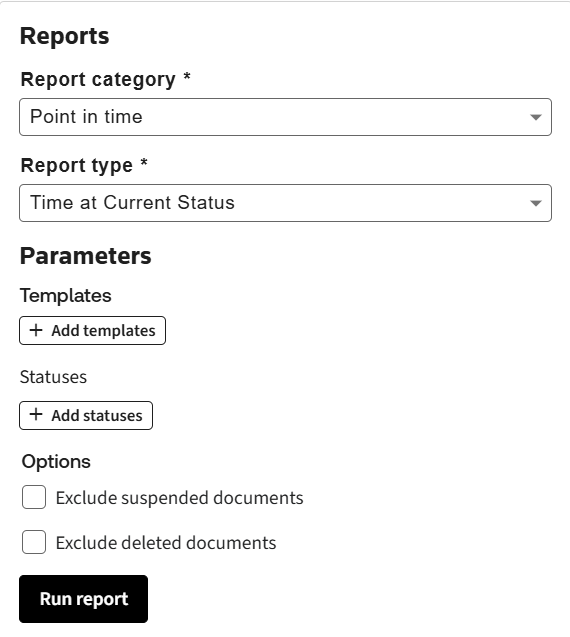
The report will contain a graph and a table with the data. Each value in the report illustrates, how many documents are currently in a particular status for the indicated time period (1 day, 2 days … >4 weeks).
By clicking the value in the report table, you can view the corresponding list of Documents.
Total Age of Documents by Status
This report represents the age of the documents and how many of them are now in the selected statuses.
To build the report:
- Set input parameters for the report:
- Report Category: Distribution report.
- Report Type: Total Age of Documents by Status.
- Templates: Select the templates you are interested in, or choose all of them by clicking+ Add templates.
- Statuses: Select the document statuses you are interested in or choose all of them by clicking+ Add statuses.
- Exclude Suspended Documents: Select this checkbox if you want to exclude the documents marked as ‘Suspended’ from the report. (see Suspending documents for more information about suspending a Document).
- Exclude Deleted Documents: Select this checkbox if you want to exclude deleted documents from the report.
- ClickRun Report
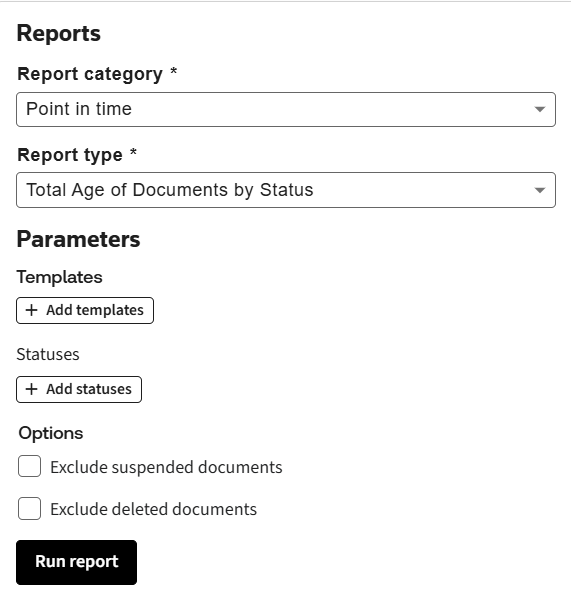
The report will contain a graph and a table with the data. Each value in the report illustrates, how many documents are currently in a particular status, and how long ago they have been created (1 day, 2 days … >4 weeks).
By clicking the value in the report table, you can view the corresponding list of Documents.
Total Approver Activity
This report displays a selected approver’s tasks, both completed and pending, within a user-defined period ending on the current date.
To build the report:
- Set input parameters for the report:
- Report Category: Point in Time.
- Report Type: Total Approver Activity.
- Approvers Scope: by Users/ Groups. Depending on the chosen value, you will be able to specify either an individual approvers or approvers groups, for which the report should be built.
- Approver: Select the required users/ groups by clicking+ Add approvers.
- Period: Select the period from the list of pre-set periods available from the dropdown list. If you need to choose a specific period, select ‘Custom period’ value and specify the Start Date The End Date is always a current date.
- Exclude Suspended Documents: Select this checkbox if you want to exclude the documents marked as ‘Suspended’ from the report. (see Suspending documents for more information about suspending a Document).
- Exclude Deleted Documents: Select this checkbox if you want to exclude deleted documents from the report.
- ClickRun Report
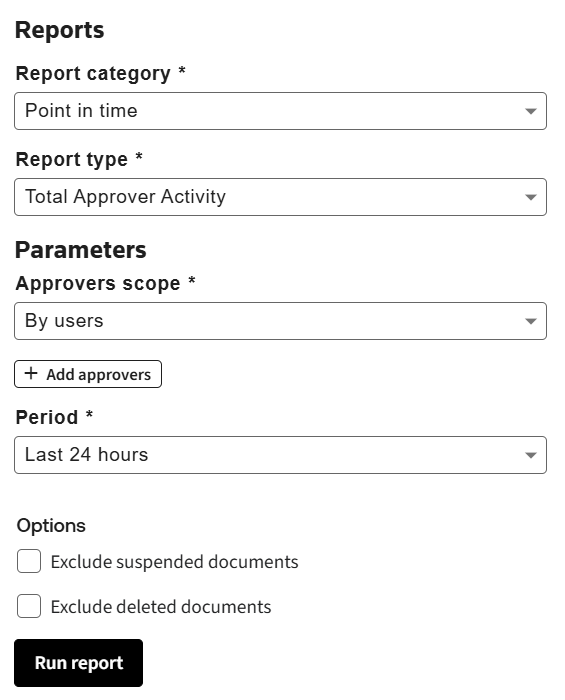
The report includes a graph and table showing the number of approvals by status (Waiting, Approved, Rejected) for the selected approver or group. The table mirrors the graph data, focusing on approvals where the selected approver is the primary for '
Waiting
' status.You can view the Documents under approvals by clicking on the Document names.
Last logged in users
The Last logged in user’s report illustrates the statistics on users logging into the system during the specified period.
To build the report:
- Set input parameters for the report:
- Report Category: Point in time.
- Report Type: Last logged in users.
- Number of days: The number of days before today that will be considered by the report. If left blank the days are unconstrained.
- Number of logins: The report will include a user who has logged in this many times or fewer. If left blank the number is unconstrained.
- ClickRun Report
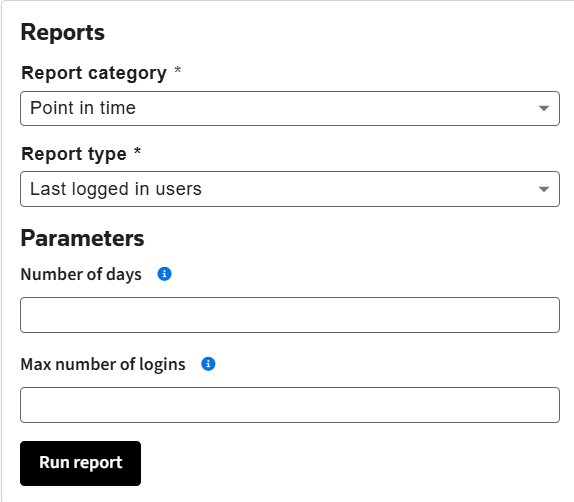
The report will contain a table with the users that correspond to the input parameters you defined. For each user their email, role, account creation date and last login date are specified.