CCH User account setup for Outsource service

Firms using CCH Axcess Tax need to perform the following steps to set up SurePrep's Outsource service.

Step 1: Create a User Account

Follow the steps below to enable a User account:
  1. Log in to
    CCH Axcess Dashboard
    .
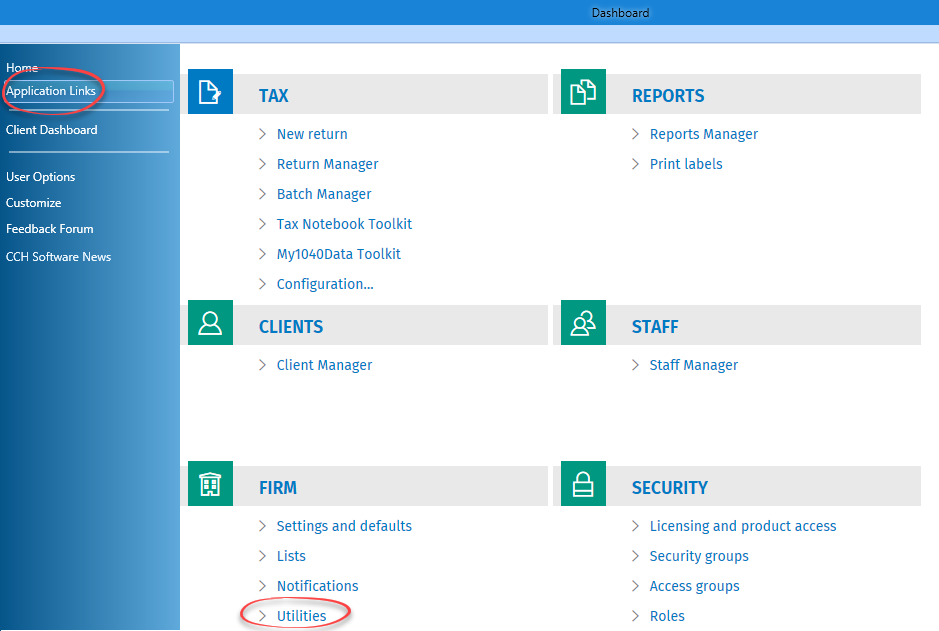
  2. Go to 
    Application Links
    Staff
    , then 
    Staff Manager
    .
    Application Links section
    note
    If you previously created any SurePrep users, then locate the user and remove/delete the SurePrep outsource user from your firm list.
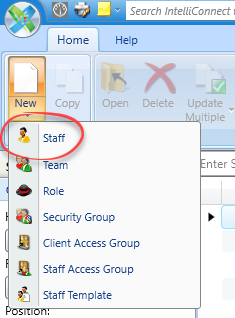
  3. In the 
    Staff Manager
    window, select 
    New
    then 
    Staff
    .
    Select Staff
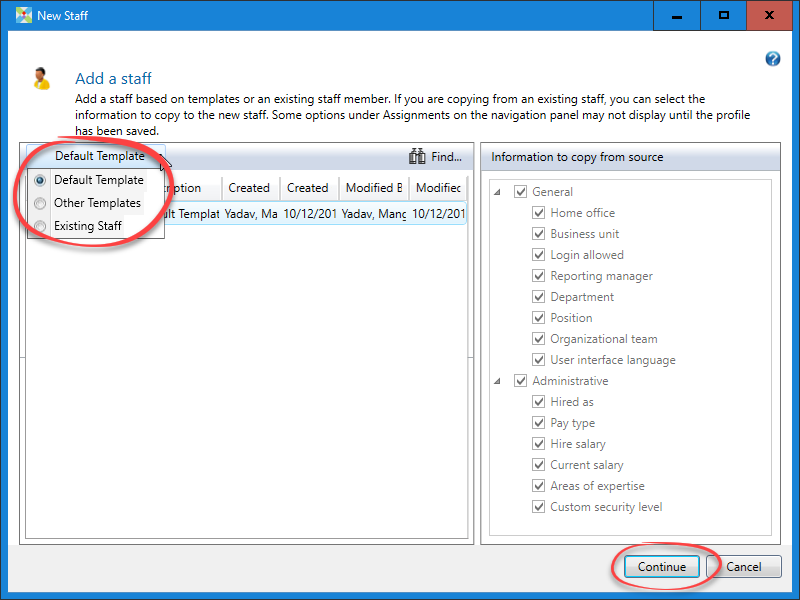
    When the 
    New Staff
    window opens, choose the required template and select 
    Continue
    .
    Select the required template
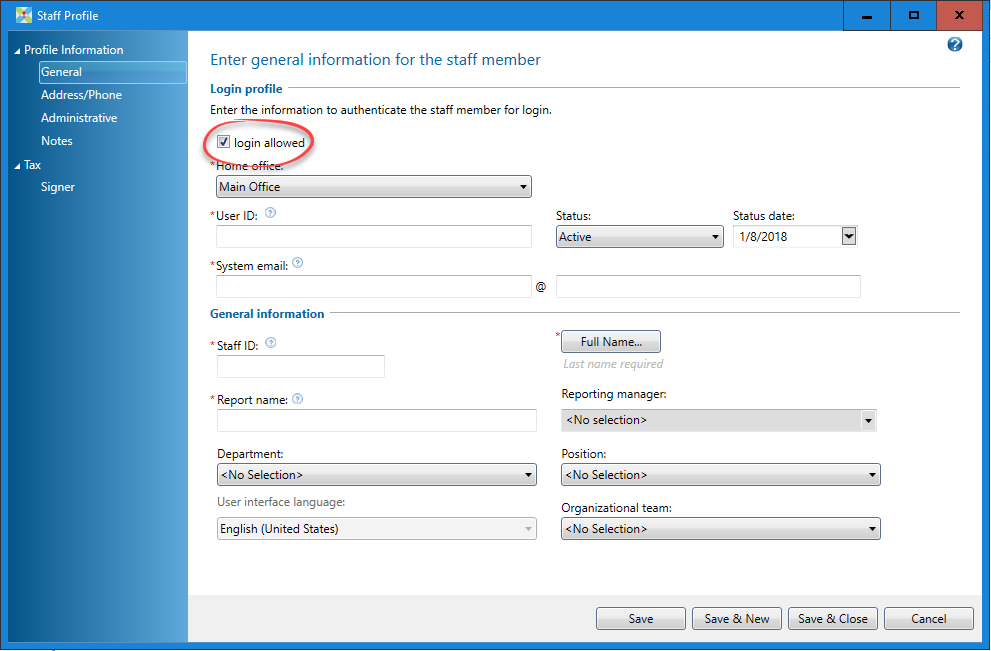
  4. In the 
    Staff Profile
    window, fill all the required fields based on the information provided below.
    Enter information in the required fields
    1. Select the
      Login allowed
      checkbox.
    2. For the
      Home Office
      field, select the staff member's main office location. If you only have rights to 1 office, then that office is automatically selected.
    3. Add a user account by filling out the remaining fields based on the following information. If you're using Outsource Onshore or Offshore, create a user ID name that includes if the user is an onshore or offshore user. For example:
      1. Onshore users can be OnshorePreparer1, OnshorePreparer2, etc.
      2. Offshore users can be OffshorePreparer1, OffshorePreparer2, etc.
    User ID
    System Email
    Staff ID
    Reporter Name
    First Name
    Last name
    [Domain ID].OnshorePreparer1
    Create a dedicated email address at your firm as:
    [Domain ID]-OnshorePreparer1@[Your Firm's email domain].com
    [Domain ID].OnshorePreparer1
    Onshore/Offshore Preparer 1
    Onshore/Offshore Preparer 1
    Onshore/Offshore Preparer1
    Example:
    BL-01.OnshorePreparer1
    Example:
    BL-01-OnshorePreparer1@BL&Associates.com
    Example:
    BL-01.OnshorePreparer1
    Example:
    OnshorePreparer1
    Example:
    OnshorePreparer1
    Example:
    OnshorePreparer1
    If you previously created any SurePrep users, then locate the user and remove/delete the SurePrep outsource user from your firm list.
  5. Next, set up a phone number to allow multi-factor authentication. Navigate to the
    Profile Information
    tab and select
    Address/Phone
    .
    Select Address/Phone then add Phone numbers.
  6. Use the following phone number according to the Outsource Onshore or Offshore returns:
    Phone Numbers
    Outsource Preparer
    Select Country
    Phone number
    Onshore
    United States
    9494183589
    Offshore
    India
    734-973-7632
    Check Phone Number window.
  7. Save and close the window.
    note
    SurePrep will then set up a password and security question. SurePrep Support team may reach out to you if there are any issues or concerns.
  8. If your firm uses Tax File Activation using Credential Authentication(Login Mode), skip to creating an email rule in Outlook.
    If your firm uses Tax File Activation on web (for example, Token Authentication ADFS/SSO) to integrate with SurePrep, setup a Service User. After the service user is setup create an email rule in Outlook.
Additional Users
If you are requested to add additional users, then you can add them by using the following format:
  • [Domain ID]. + [Onshore or Offshore] + Preparer + Incremental User Count = BL.OnshorePreparer1
Example:
Format for adding additional users
User ID
System Email
Staff ID
Reporter Name
First Name
Last Name
Create a dedicated email address at your firm as
[Domain ID].Preparer2
[
Domain ID
]-OffshorePreparer2@[
Your Firm's email domain
].com
[Domain ID].OffshorePreparer2
OffshorePreparer2
OffshorePreparer2
OffshorePreparer2
[Domain ID].Preparer3
[
Domain ID
]-OffshorePreparer3@[
Your Firm's email domain
].com
[Domain ID].OffshorePreparer3
OffshorePreparer3
OffshorePreparer3
OffshorePreparer3

Step 2: Create email rule in Outlook

Create an email rule to share incoming emails with the outsource team.
  1. Log in to the designated outsource email you created earlier during the user account setup process (for example, BL-OnshorePreparer1@BL&Associates.com, BL-OffshorePreparer1@BL&Associates.com).
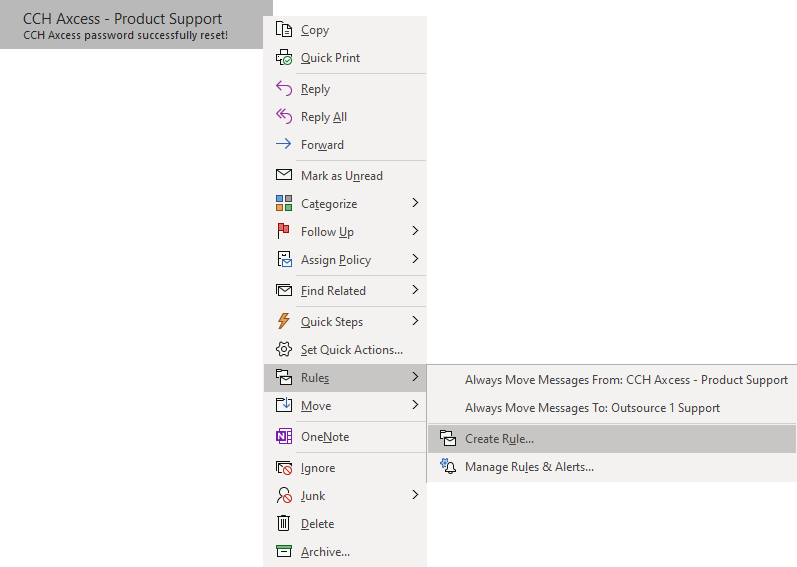
  2. Right-click the email you receive from CCH Axcess, select
    Rule
    then
    Create Rule
    .
    From
    : noreply@cch.com
    Select Rules then Create Rule
  3. Select
    Advanced Options...
    Select Advanced Options
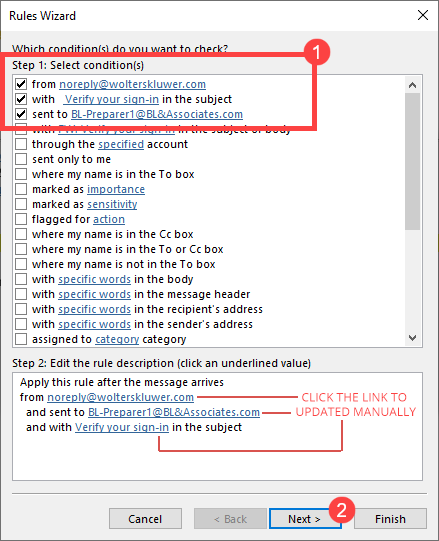
  4. Select the
    From
    ,
    With
    , and
    Sent to
    checkboxes, then select
    Next
    .
    Select the necessary conditions then Next
  5. Select the
    forward it to people or public group
    checkbox, then in the Step 2 section, select the
    people or public group
    link.
    Select "forward it to people or public group"
  6. On the
    Rule Address
    window, enter sp.OutsourceSupport@thomsonreuters.com then select
    OK
    .
    Enter the email to send to
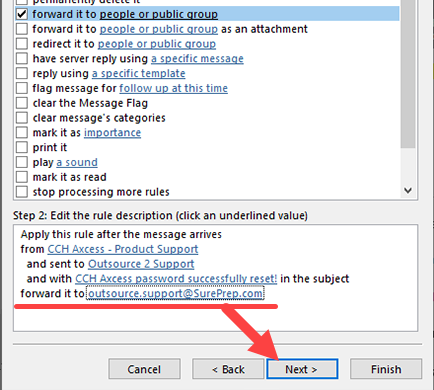
  7. In the
    Step 2
    section, you should now see the updated email address. Select
    Next
    to continue.
    Select Next
  8. On the next step, select
    Next
    to skip the exception rules.
    Select Next
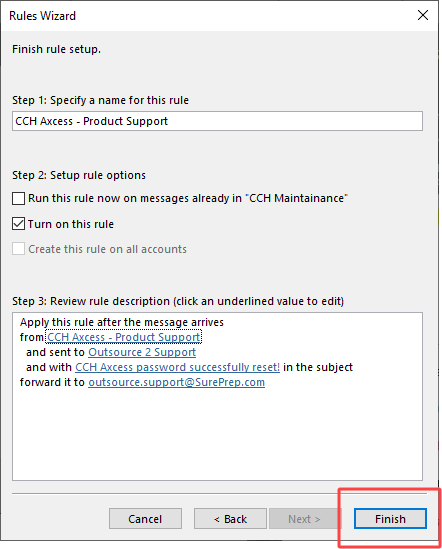
  9. Select
    Finish
    to complete making the Outlook rule.
    Select Finish
  10. In the same user's account setup process (for example, BL-Preparer1@BL&Associates.com), locate the following email:
    Subject
    :
    Verify your sign-in
    After locating the new verification email, scroll up to step 1 and follow the same steps again to create a new rule.
    Select Next after all of the conditions are selected

Step 3: Setting up a Service User (ADFS/SSO Only)

note
This section is only required if your firm uses CCH Axcess Tax- Integrated with SurePrep via Tax File Activation on web (Token Authentication) using Active Directory Federated Services(ADFS) or Single Sign-On(SSO).
Firms using ADFS/SSO for Outsource services must disable AD Sync in CCH Axcess Tax. Disabling AD sync will alter the way a firm manages their user accounts in CCH and may involve some downtime. Please contact CCH Support to disable AD Sync.
If your firm is integrated with SurePrep through login mode (e.g., providing username and password) then skip to creating an email rule in Outlook.
You only need to set up a Service User if you are using ADFS/SSO to log in. If you log into CCH using your login credentials then you don’t need to follow these instructions.
  1. Before starting user account setup, please make sure you are able to access
    Application Links, Firm, Utilities, then Configure Service User
    . If you're unable to view the
    Configure Service User
    option in the
    Utilities
    window, then please contact contact CCH Axcess Support to enable this option.
  2. Log in to the
    CCH Axcess Dashboard
    and go to 
    Application Links
    Firm
    , then 
    Utilities
    .
    Select Utilities
  3. In the window that opens, select 
    Configure Service User
    .
    Select Configure Service User
    note
    If you're unable to view this option in the
    Utilities
    window, please contact CCH Axcess Tax Support to enable this option.
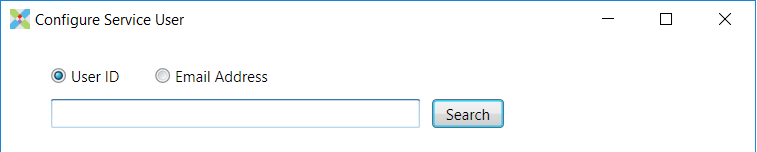
  4. Search for the user using either 
    User ID
    or 
    Email Address
    and then select 
    Search
    .
    Enter your user information
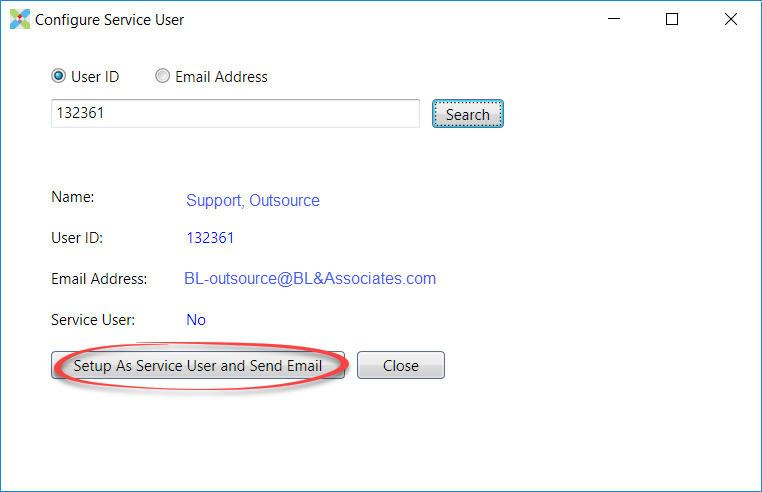
  5. Once the user is found, select 
    Setup As Service User and Send Email
    .
    Select Setup As Service User and Send Email
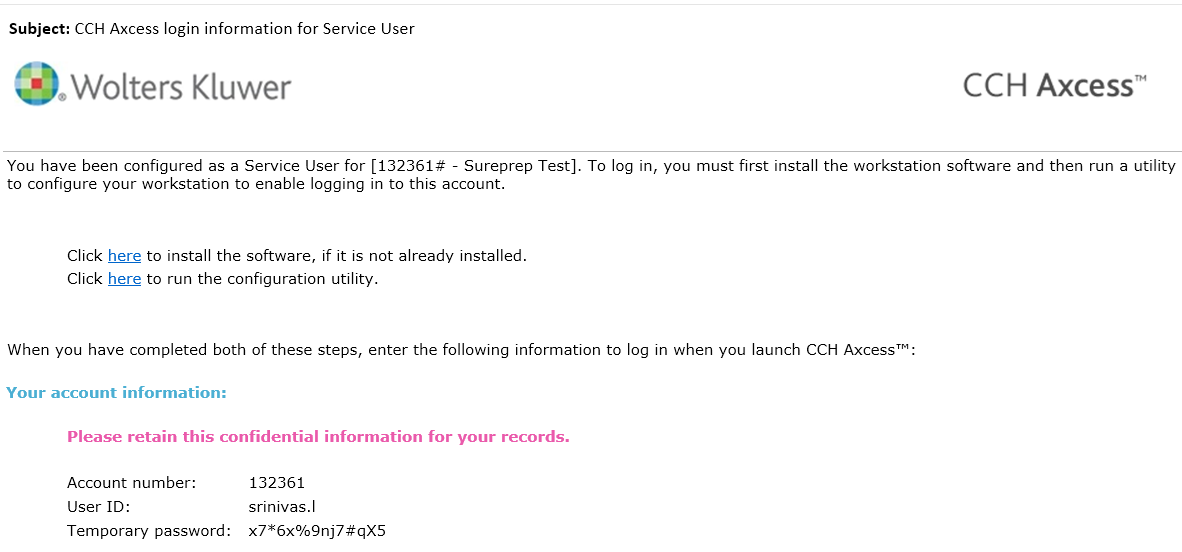
  6. An email will be sent with a link to download the software and run the configuration utility.
    Email containing download link
  7. Forward this email to SurePrep, and we’ll install the application. A SurePrep user will need to run the Service User configuration utility to enable/register the service user login on a specific machine.

error-icon

Triva isn't available right now.

Check out the support page for our phone number and hours

error-close