Tax File Activation (CCH)

Tax File Activation lets you integrate the tax software with SurePrep services. CCH Axcess Tax customers using Active Directory Federated Services (ADFS) or Single Sign-On (SSO) mode to sign in must use Tax File Activation on the web page to integrate CCH Axcess Tax with SurePrep (that is, Token Authentication). The
Token
authentication method lets SurePrep use API requests on behalf of a customer without acquiring a username and password. 
note
CCH Axcess Tax users using the legacy authentication method must switch to using the
Token
authentication method to integrate CCH Axcess Tax with SurePrep services. Legacy authentication was deprecated on November 5, 2021.
CCH Axcess customers connected with SurePrep using username and password (Tax File Activation window) may switch to OIP Token Authentication, however, it is not a requirement as of now.
note
Firms using Credential Authentication (that is, User ID and password) in the Tax File Activation window may switch to Token Authentication. However, you must first delete the Credential Authentication method before using the Token Authentication method.
Select the CCH Axcess Tax tab
If you are using SurePrep's OutSource service for 1040, 1041, and BTR (Business Tax Returns), then continue using the Tax File Activation window.

Connecting CCH Axcess Tax with SurePrep

Follow these steps to turn on CCH Axcess Tax for your firm:
  1. Sign in to FileRoom.
  2. Go to
    FileRoom > Admin > ACCOUNT SETUP > Tax File Activation Web
    .
    Select Admin, ACCOUNT SETUP, then Tax File Activation Web
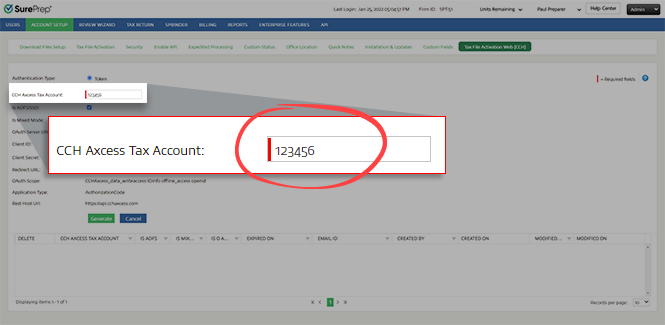
  3. Enter all the required fields with a red border. Enter your firm's
    CCH Axcess Tax Account
    number.
    Enter the CCH Axcess Tax Account
    note
    Your CCH Axcess Tax account number should have a maximum of 6 digits only. 88 account numbers are issued to CCH Customers for evaluation purposes only. You won’t be able to create a binder if there are more than 6 digits.
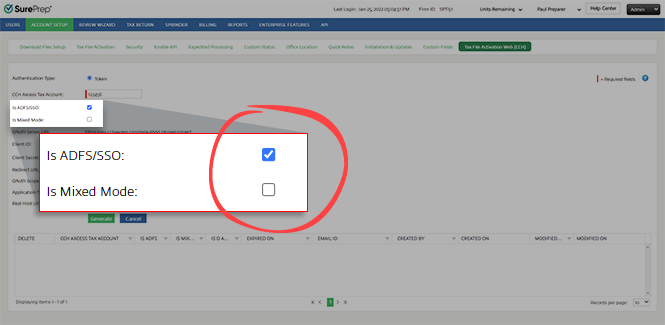
  4. If necessary, select
    Is ADFS/SSO
    .
    Select the ADFS/SSO checkbox as necessary
  5. Select
    Is Mixed Mode
    only if your firm meets the following requirements:
    • The firm uses Outsource service.
    • The firm uses ADFS/SSO.
    • The firm has a service user to use to generate tokens.
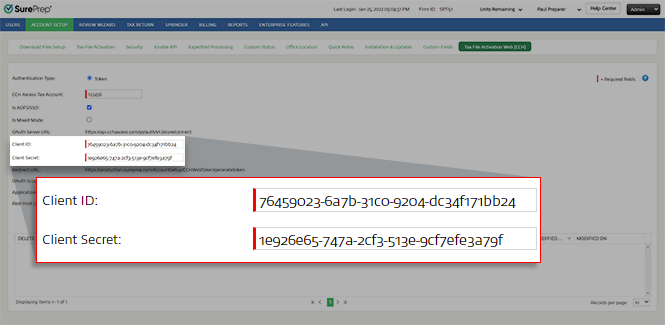
  6. Copy and paste the following
    Client ID
    and
    Client Secret
    based on the
    Authentication Type
    you selected earlier.
    Authentication Type
    Client ID
    Client Secret
    Token
    76459023-6a7b-31c0-9204-dc34f171bb24
    1e926e65-747a-2cf3-513e-9cf7efe3a79f
    Client ID and Client Secret in FileRoom
  7. Select
    Generate
    to turn on your CCH Axcess Tax account.
    Select Generate
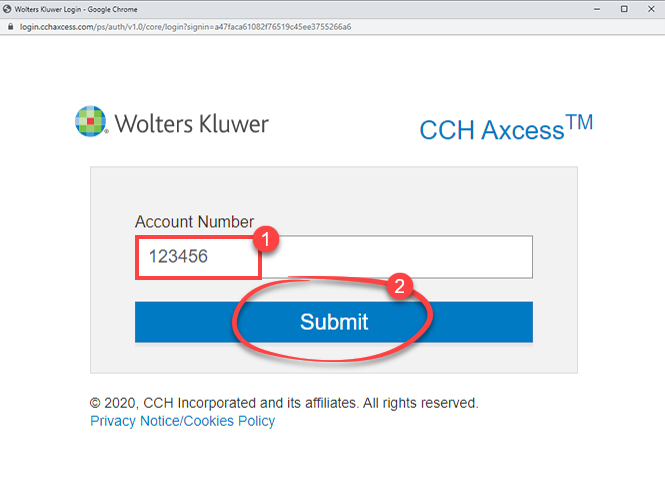
  8. A new verification window will appear. Enter your CCH Axcess
    Account Number
    , then select
    Submit
    .
    Enter your account number, then Submit
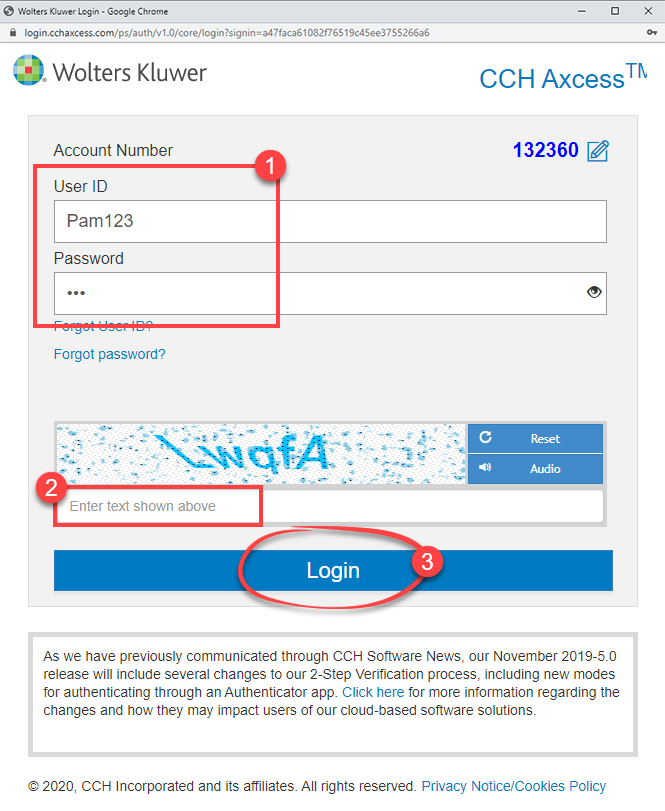
  9. Sign in to CCH Axcess Tax.
    Sign in using your User ID and Password
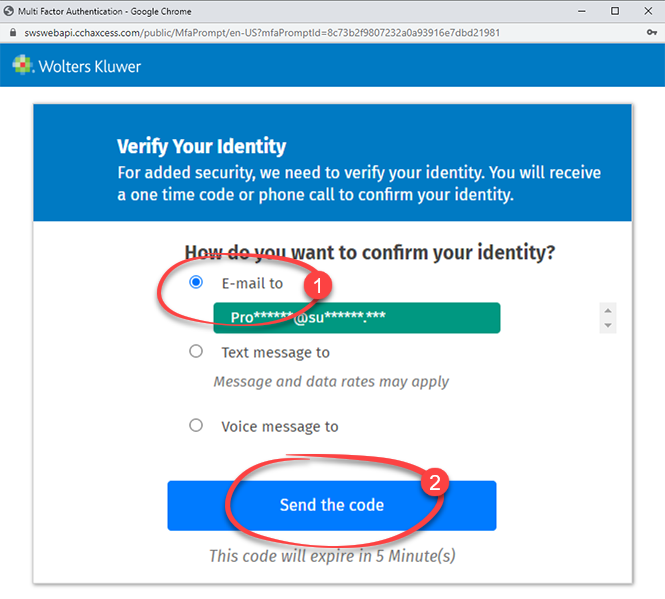
  10. CCH requires you to verify your identity. Select your verification method, then select
    Send the code
    .
    Select Send the code to the provided email
  11. Based on your previous selection, you will receive a verification code via email, SMS, or voice message. Copy or note down the code.
    Sign-in verification code email
  12. Enter the verification code, then select
    Submit
    .
    Enter the verification code then select Submit
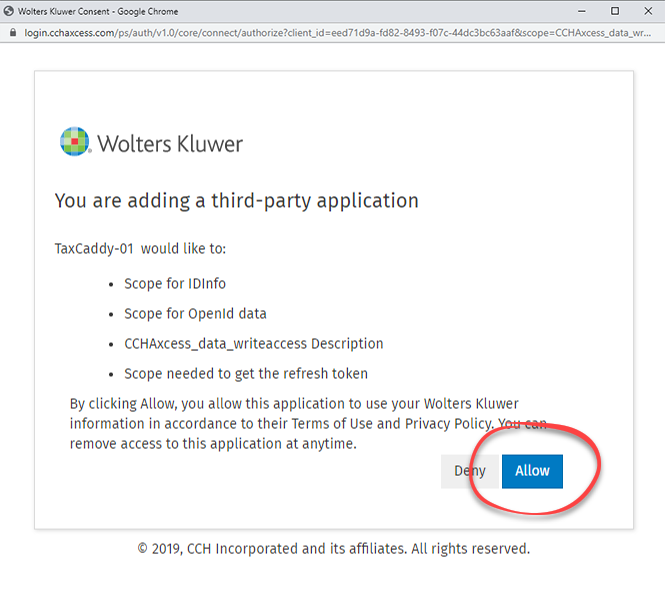
  13. Select
    Allow
    to connect your firm domain with CCH Axcess Tax.
    Select Allow
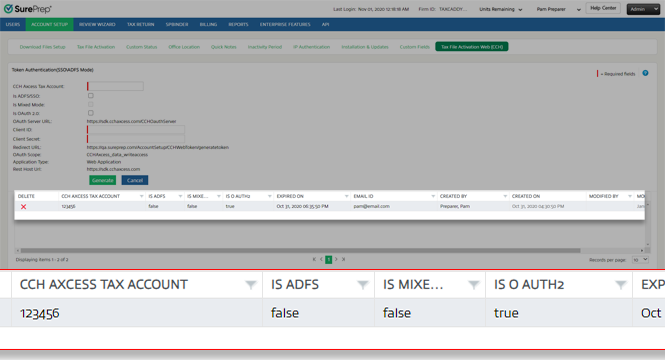
Once you generate the access token, details will display at the bottom of the window and the following column details will generate automatically: 
  • Expired On
    : This column displays the date on which the token expires.
  • Email ID
    : The FileRoom user’s (who is setting up the token generation process) email ID is populated by default in this column. This email ID is stored in SurePrep's database, and an email notification is sent to the user and SurePrep Support when the token is about to expire.
  • Created By
    : This column displays the name of the user who has generated the token.
  • Created On
    : This column displays the date and time when you generate the token.
  • Modified By
    : This column displays the name of the user who regenerated the token after the initial setup.
  • Modified On
    : This column displays the date and time when you regenerate the token.
CCH Axcess Tax account records

Token Authentication (SSO/ADFS mode)

Authentication type and records in FileRoom
To enable Token Authentication, enter the following details (highlighted in red):
  • Authentication Type
    :
    Token
    : Select the
    Token
    option. You will be able to use SurePrep's provided Client ID and Client Secret to turn on your account. All new SurePrep clients using SSO must select this checkbox.
  • ** CCH Axcess Tax Account
    : Enter your unique account number with CCH Axcess.
  • Is ADFS/SSO
    : Mark this checkbox if you're using ADFS (Active Directory Federation Services) Login mode or SSO (Single Sign On). You can use ADFS Login mode only when you have enabled third-party client applications that let you sign in (for example, via portal). Don’t use select this checkbox if you're using CCH sign in mode (that is, CCH Tax is installed on your computer).
  • Is Mixed Mode
    : Select this checkbox only if your firm is using Outsource service, with ADFS/SSO, and has a service user you can use to generate a token. You can add a service user if you are using mixed mode.  .
  • OAuth Server:
    This column will display the CCH Axcess Server URL.
  • ** Client ID
    : Use the Client ID provided by SurePrep:
    If you selected
    Token
    authentication, then enter: 76459023-6a7b-31c0-9204-dc34f171bb24
  • ** Client Secret
    : Use the Client Secret provided by SurePrep:
    If you selected
    Token
    authentication, then enter: 1e926e65-747a-2cf3-513e-9cf7efe3a79f
  • Redirect URL:
    The
    Redirect URL
    is hosted by SurePrep and is where CCH Axcess will provide the access token for the CCH account. You can copy and paste the
    Redirect URL
    address in
    CCH Axcess Dashboard
    while generating
    Client ID
    and
    Client Secret
    .
  • OAuth Scope:
    SurePrep exports data to the tax return with the following settings:
    • CCHAxcess_data_writeaccess
      : Lets SurePrep read or write CCH Axcess data.
    • IDInfo
      :  Required to obtain the ID token that is used for sign out.
    • offline_access
      : Required to obtain a refresh token.
    • opened
      : Required to have sub-claims.
    When creating Client ID and Client Secret in CCH Axcess, you must select the listed options.
  • Application Type:
    This will default to
    Web Application
    .
  • Rest Host URL:
    This URL is the CCH Axcess live server URL.

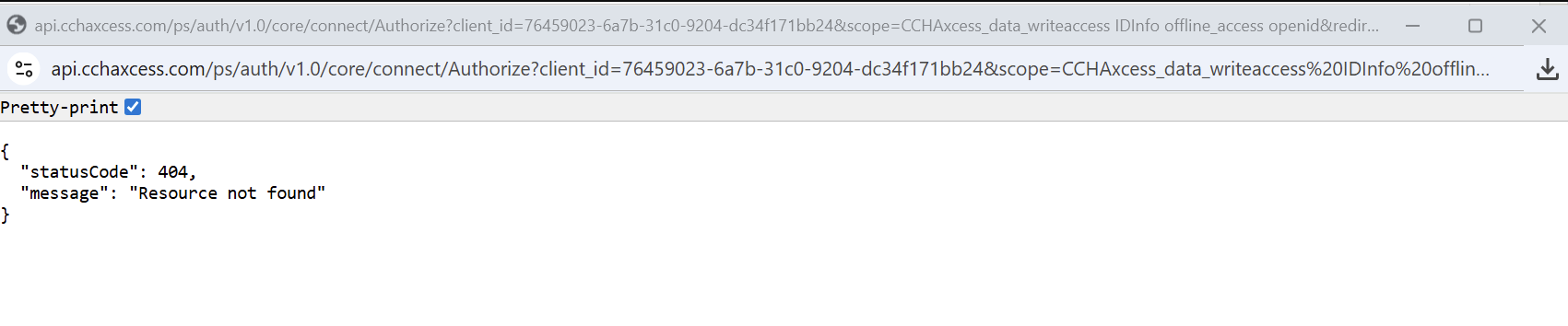
CCH Web Integration Error: “statusCode”: 404, “message”: “Resource not found”

404 Error message
If you encounter this error while trying to integrate CCH Web with SurePrep, try the following steps:
  1. Clear your browser cache, cookies, and history.
  2. If the issue persists, try using your browser’s Incognito/Private mode, which automatically bypasses cached data.
  3. If still unresolved, switch to a different supported browser and attempt the integration again.
After performing the above steps, the integration should complete successfully, and you will be able to create and resubmit binders without error.
Still need help? If the 404 error continues after the steps above, capture a screenshot of the error and the time it occurred, then contact Support and mention the steps you've tried.

error-icon

Triva isn't available right now.

Check out the support page for our phone number and hours

error-close