

Triva isn't available right now.
Check out the support page for our phone number and hours

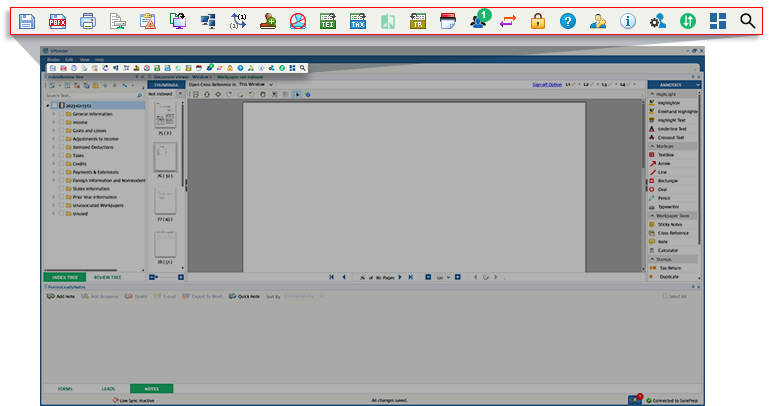
Icon/List | Name | Description |
|---|---|---|
 | Save | Saves all changes made to SPbinder. note
SPbinder saves data automatically as soon as the user performs a function in SPbinder (for example, references an amount or uses an annotation). |
 | Save as PBFX | Saves your binder's PBFX to a desired location locally. You can use the PBFX file to directly access your binder without opening FileRoom. |
 | Print Page(s) | Facilitates the printing of source documents or Excel sheets. |
 | Add Documents | Process additional documents In-house or resubmit the return for more work to be done by SurePrep. note
You can also add additional documents to a binder from FileRoom without opening the binder. |
 | View Diagnostics | Reviews possible input problems or inconsistencies on a tax return. |
 | Restore Pages | Restores blank Compensation Breakdown Workpapers, Foreign Tax Reconciliation Workpapers, PPT Workpapers as well as any deleted pages. |
 | Open in New Window | Opens the source document in a new document viewer window. |
 | Hide Original Page numbers | Hides the original page numbers displayed in brackets below each image in the Thumbnail and Index/Review Tree section. |
 | Select Stamps | Allows you to add new stamps to the Annotation toolbar. |
 | Hide Annotations | Hides all annotations placed on the Workpapers. |
 | Tax Exempt Interest | Exports all tax-exempt information to an Excel file. |
 | Export to Tax Software | Transfers all the referenced data from SPbinder to the tax software. Please exit out of your tax software before you select this button. |
 | Import TR | Imports the tax return amounts into the Leadsheets. |
 | Compare TR | Compares Leadsheet amounts with the tax software. Only visible for binders using Leadsheets with Live Sync. |
 | Send For Print | Creates DreamWorkpapers or SPbinder PDF. |
 | Assign Members | Assigns members to your binder. |
 | Transfer Ownership/ Update Status | Transfers the binder ownership to another user. |
 | Ratings | For 1040SCANverify and Outsource Onshore/Offshore binders, you can rate the preparation and add a comment for reference. |
 | Lock Binder | Locks the binder, which will disable any editing functionality for this binder. The Lock can be toggled on or off. |
 | Help Center | Connects to the Help Center where you will be able to chat with SurePrep Support Personnel. |
 | Grant SurePrep Support Access | Gives access to SurePrep Support for a selected amount of days. |
 | Binder Information | Displays detailed binder and client information. You can also review which Tax Return Options and Verification Rules are set for the current binder. |
 | Preferences | Sets confirmation preferences. |
.png/jcr:content/renditions/original) .png/jcr:content/renditions/original) | Enable/Disable Live Sync | Enables/Disables the Live Sync feature for the particular binder. |
 | K-1 Reclass | K-1 Reclass button is only visible for binders with leadsheets. The K-1 Reclass button is disabled if the binder doesn’t include K-1 data. |
 | Open Reviewer Dashboard | Opens the client in Reviewer Dashboard for quick access. |
 | Search | Searches PDF documents in a binder for keywords and amounts (for example, Dividends, Wages, etc.) |