SPbinder Leadsheets give you a holistic view of all the SPbinder amounts in one place. Some of the benefits of having a Leadsheet binder include:
Binder overview
- View total amounts in one place.
Reference Links
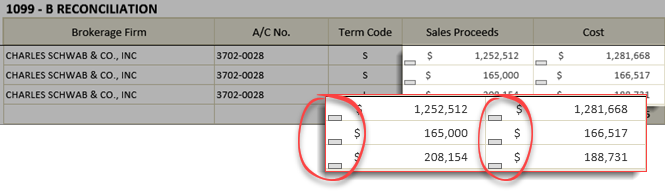
- Reference total amounts and trace them down to their individual locations and source documents. If you would like to see where 1099-MISC came from, you can select the cross-reference icon to see how much of it was from 'Company 1' and 'Company 2'.
Prior Year Comparison (i.e., Two Year Comparison)
- Compare the current year amounts with the prior year to see if there's a significant difference that needs to be evaluated.
Variances
- View the amounts in SPbinder conflict (that is, variances) with the tax software. You can also address variances with amounts and explanations.
Leadsheet sign-off
- As a part of your tax preparation, you can review amounts and sign-off Leadsheets.
You can create a binder with or without leadsheets. If you selected to create a binder with Leadsheets then you will see the
Leads
tab appear on the
Forms/Leads/Notes
panel.
The Leadsheets and reconciliations accomplish two goals:
Provide detailed support for amounts listed on the tax return, providing secondary schedules and sub-schedules based on the level of detail available for that particular line item.
Highlight variances between the raw data calculated on the leadsheets versus the tax return calculated amounts.
Accessing Leads
Select the
Leads
tab to view leadsheets. If you don’t see the
Leads
tab, select
View
, then
Forms/Leads/Notes
.
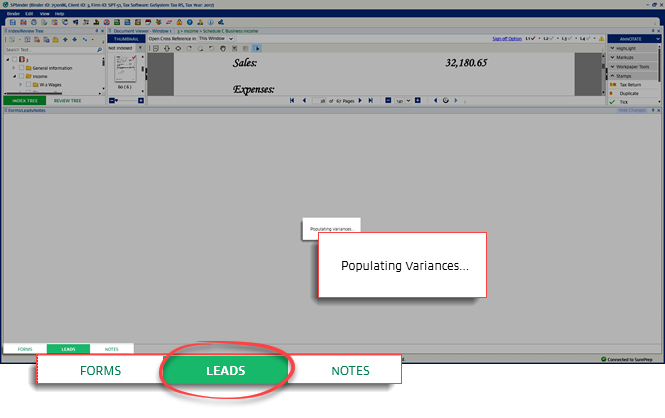
Leadsheets get calculated and downloaded on the initial open. The leadsheets get populated and a message is displayed on the status bar.
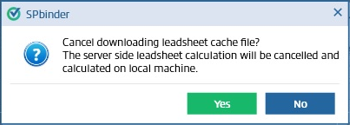
If the leadsheet calculation takes longer than expected, then you will receive an option to continue.
downloading SurePrep server-side cache file or calculate leadsheets on your local workstation.
Select
Yes
to cancel downloading the leadsheet cache file. Leadsheet will be calculated on your workstation.
Select
No
to continue downloading the leadsheet cache file.
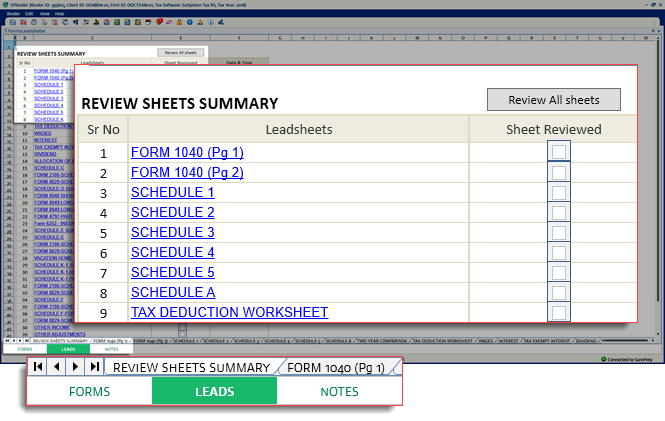
Once the Leadsheets are populated,
Review Sheets Summary
is displayed with links to different sheets (tabs). Select the blue links to go to another sheet.
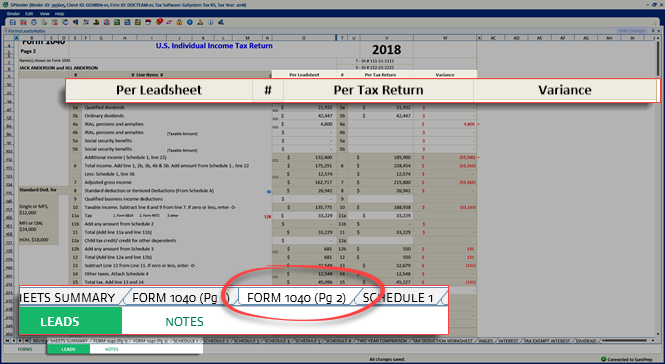
You can select the
Form 1040 (Pg 2)
link on the
Review Sheets Summary
page to see the amounts in the
Per Leadsheet
column.
Sheet Navigation
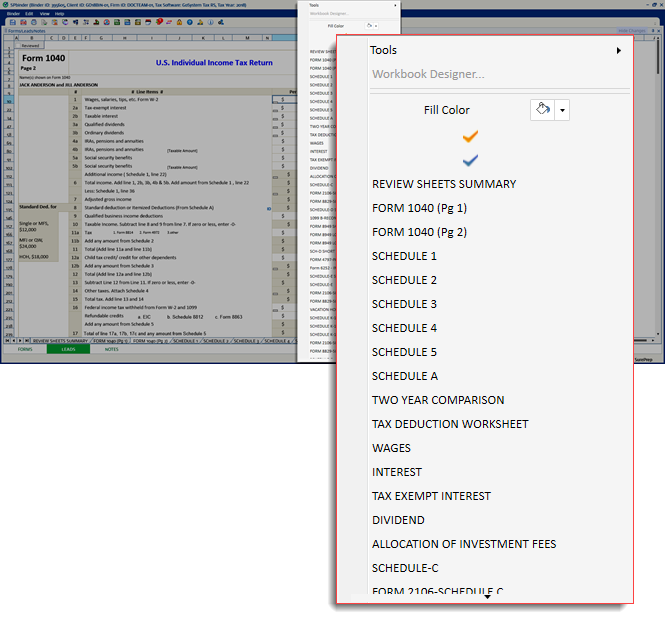
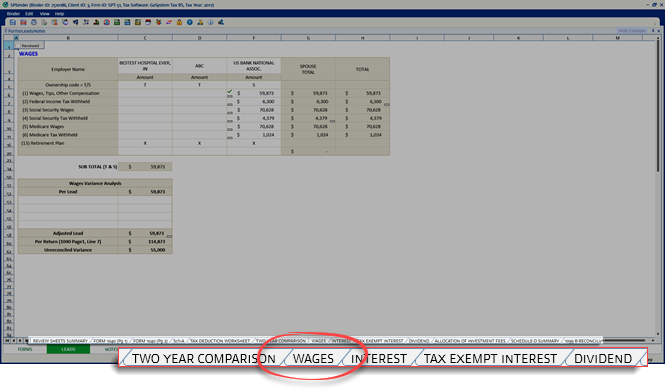
To go to another leadsheet, you can right-click the leadsheet and select the required sheet from the list of leadsheets displayed on the shortcut menu. Only generated leadsheets are displayed in the list.
You can also select the tab on the bottom to open that leadsheet.
Recalculation
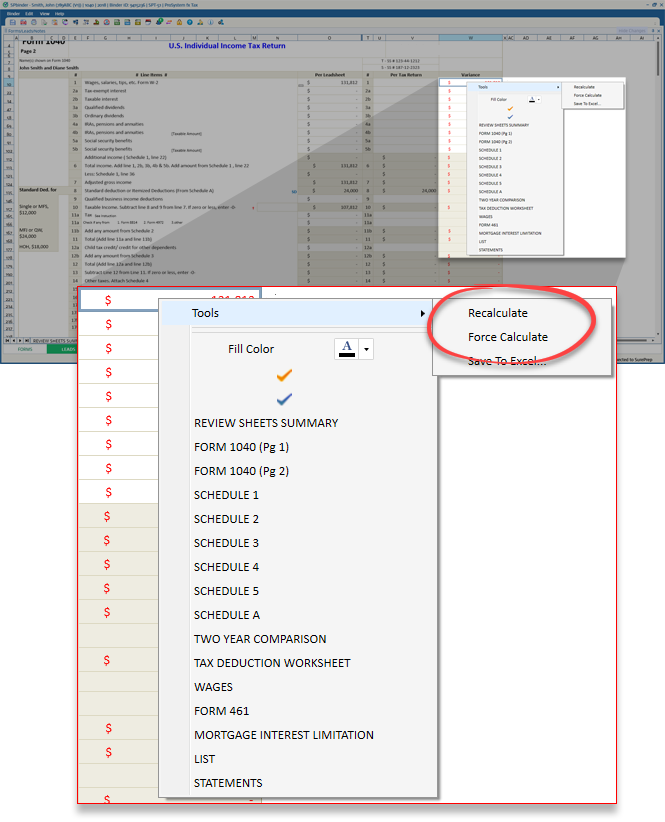
There are two ways to recalculate leadsheets:
Recalculate
: Use this option to only recalculate the changes you made. This option is recommended when you want to recalculate leadsheets.
Force Calculate
: Use this option to calculate all leadsheets regardless of any changes made. This option is much slower. You can use this option to recalculate if the updated amounts haven’t been updated after using the
Recalculate
option.
Follow these steps to recalculate
Leads
without saving referenced data in the
Forms
tab:
After data has been referenced to a particular form, instead of saving that data on the
Forms
tab, go to the leadsheets.
Right-click the
Leads
, point to
Tools
, then select
Recalculate
(Recommended) or
Force Calculate
.
note
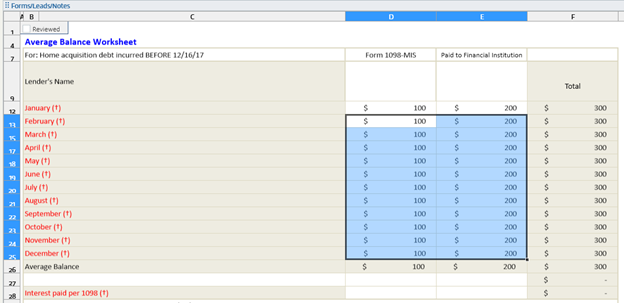
You can't copy/paste multiple cells at once to a leadsheet in SPbinder. Cells populated by bulk copy/paste will revert to a blank cell after you force recalculate leadsheets.
Save to Excel
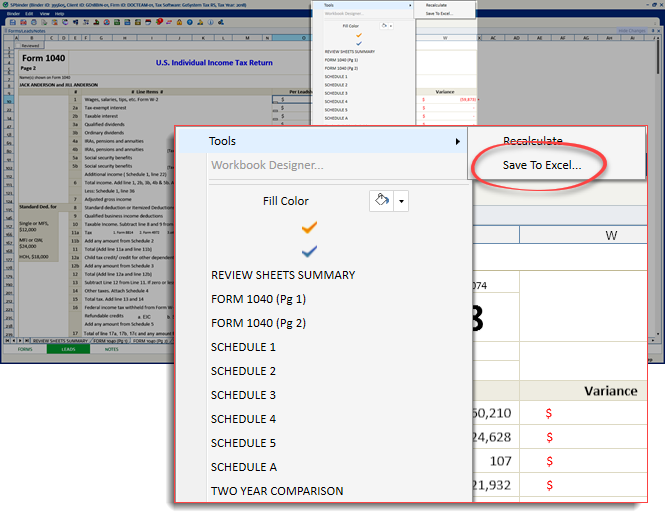
To save the leadsheets as an excel file, you can right-click the
Leads
, point to
Tools
, then select
Save To Excel
.
You can also press
F7
on the keyboard. This feature will work only when the
Leads
tab is active.
Reference Links
Reference Link helps you trace amounts to see the connection between amounts in leadsheets.
Select the
Reference Link
icon to view either the detailed leadsheet for that specific line or the source documents.
Pre-defined variance explanations
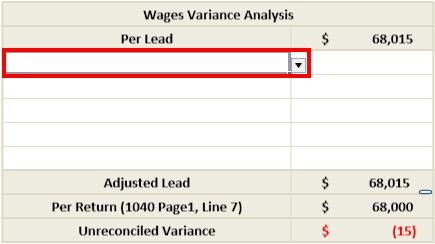
You can use a pre-defined list to explain the probable cause of incompatibility. This incompatibility between values is referred to as a variance. The pre-defined list is available for the Variance Analysis Leadsheets.
To view pre-defined explanations for the variance, go to the
Per Lead
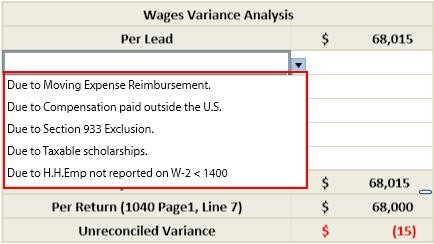
column and select the down arrow to view the dropdown menu list.
Select an explanation from the list provided in the dropdown.
If the required explanation doesn’t exist in the dropdown, then manually type the reason for the variance.


 icon to view either the detailed leadsheet for that specific line or the source documents.