Review leadsheets

If the leadsheet is linked to a source document with references placed on it, you can review the leadsheet by:
  • Reviewing Fields
  • Reviewing Sheets
LEADS tab

Review Fields

To select a field as reviewed, select to select the cell which needs to be reviewed and press
Ctrl
+
left-click
. This will place a check mark (Checkmark icon) on the cell indicating that the field is reviewed.
Checkmark placed on document
To review multiple cells at once, select and drag to select multiple cells at once, and then press
Ctrl
+ left-click
.
Review multiple cells at once
The linked reference on the document image area, the field in the input form area and the form in the
Review Tree
will automatically get reviewed when you select a field as reviewed in a leadsheets and vice-versa.
As soon as a field is marked as reviewed in a leadsheet:
A checkmark (Checkmark icon) appears at the top left of the cell indicating that the field is reviewed.
T column
The border of the reference checkbox linked to that reviewed field will change to green.
Reference checkbox on source document
The field will be reviewed and disappear from the
Unreviewed Field(s) Created By
category in the
Review Tree
.
The border of the input field box color will change to green.
Green highlight on the captured data
If all the fields on the Leadsheet have been reviewed then a check mark will appear in the
All Fields Reviewed
column in the
Review Sheets Summary
sheet.
View details on 'Review Sheets Summary
To select a field as unreviewed, select the cell which needs to be marked as unreviewed, and press/hold
Ctrl + left-click
in that cell. The reviewed check select (Checkmark icon) will get removed when the field has been marked unreviewed.
The linked reference on the document image area, the field in the input form area and the form in the Review Tree will automatically get unreviewed when you select the field as unreviewed in a leadsheet and vice-versa.
Additional check marks for reviewing
In addition to reviewing leadsheets with green check marks, you can also place orange and blue check marks in the cells. This lets users the flexibility to select cells in the Leadsheet as reviewed at multiple levels.
To place an orange or blue check select, right-click the cell and select the required checkmark.
Orange and Blue checkmarks
note
If a field is already reviewed with a green checkmark, the selected check mark will be placed to the right of the green checkmark.
To remove the check mark, right-click the cell and select the same check mark again.
The check marks placed in the
Leads
won’t impact the workpapers or the
Review Tree
.
Fill color option in Leadsheets
The
Fill Color
option in the leadsheet lets you fill the cells with a preferred background color in order to make the review process easier.
To fill color, right-click the cell and select
Fill Color
on the shortcut menu.
If you want to select a different color, select the picklist icon Picklist icon next to the paint icon Paint icon on the shortcut menu. When you view the color palette, select on a color to select it.
Select the paint icon
note
The selected color will be set as the new default. You can change the color again if required.
The fill color of the cell is reflected in the 2050 DreamWorkpapers.

Reviewing Sheets

Once all fields are verified, you can collectively select all fields on the leadsheet as reviewed.
To review a particular leadsheet, select the
Reviewed
checkmark on the upper left corner of that leadsheet.
Select the Reviewed checkbox
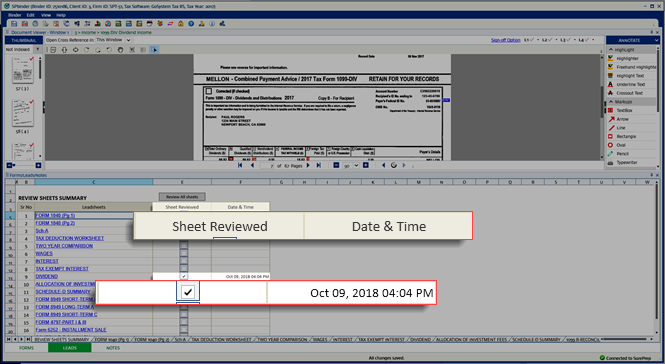
Reviewed leadsheets can also be seen in the
Review Sheets Summary
tab. Leadsheets that are reviewed will show a checkmark on the
Sheet Reviewed
column along with the date and time in the
Date & Time
column.
Date and time that the sheet was reviewed.
If the sheet is re-reviewed, then the system will update the latest reviewed date and time. This will be tracked and saved for each user.
Select here to know more about the Review Sheets Summary.
You can access
Review Sheets Summary
from any sheet when you select the leadsheet name on each leadsheet and vice versa.
Dividend income int he Review Sheets Summary
Review Sheets Summary
is the first leadsheet in the
Leads
tab. It shows a summary of all leadsheets that have been reviewed.
All the sheet names are in the form of a hyperlink, which if clicked, leads to the respective sheet. Due to page reduction process rules, if a sheet is hidden, it leads to a sheet where data is populated (for e.g., If the wages sheet is hidden, it leads to 1040 page 1 line 7).
Review Sheets Summary panel
All Fields Reviewed
If a sheet is marked as reviewed, a check mark is automatically added under the
Sheet Reviewed
column for the respective sheet. The date and time of review will be updated in the
Date & Time
column.
Selected checkboxes in the Sheet Reviewed column
To unreview a sheet, clear the
Sheet Reviewed
checkbox for that particular sheet.
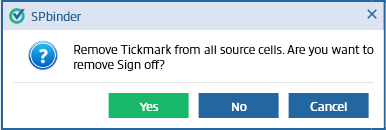
On the confirmation window, if you select
Yes
, the reviewed checkmark for that particular sheet is removed. Fields that are impacted in the related sheets are removed as well. This includes automatically reviewed cells (that is, adjusted lead and Form 1040 page 1, 2, and Schedule A).
Confirmation of tickmark removal.
Review All Sheets
To review all sheets at once, select the
Review All sheets
button in
Review Sheet Summary
.
Select Review All sheets
This will mark all the unreviewed sheets as reviewed.
All Sheet Reviewed checkboxes selected
Unreview All Sheets
Once all the sheets are reviewed, this button will change to
Unreview All sheets
. Select
Unreview All sheets
to clear the
Sheet Reviewed
check marks on all leadsheets.
Unreview All Sheets column
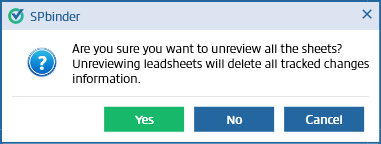
The following confirmation window appears when you select
Unreview All sheets
in the
Review Sheet Summary
tab.
Confirmation of decision to unreview.

Tracking changes in Leadsheets

Any changes made to a leadsheet after being reviewed are marked with a
Change Tracking
Change Tracking icon icon that appears next to each changed field.
A
Change Tracking
Change Tracking icon icon is placed (on Form 1040 Page 1, Form 1040 Page 2, Schedule 1, Schedule 2, Schedule 3, Schedule 4, Schedule 5, and, Schedule A of the Leadsheet) when any changes are made in the tax software after the leadsheet has been marked
Reviewed
or been imported via
Import TR
.
Per Tax Returns column
Changes made in SPbinder after the leadsheets have been reviewed will display a
Change Tracking
Change Tracking icon icon on the respective leadsheet after you recalculate.
note
To recalculate the leadsheet,
right-click
,
Tools
, then
Recalculate
.
Select the Reviewed checkbox
A
Change Tracking
Change Tracking icon icon will also appear beside the
Sheet Reviewed
checkbox in the
Review Sheets Summary
.
Change Tracking icon appearing next to an entry
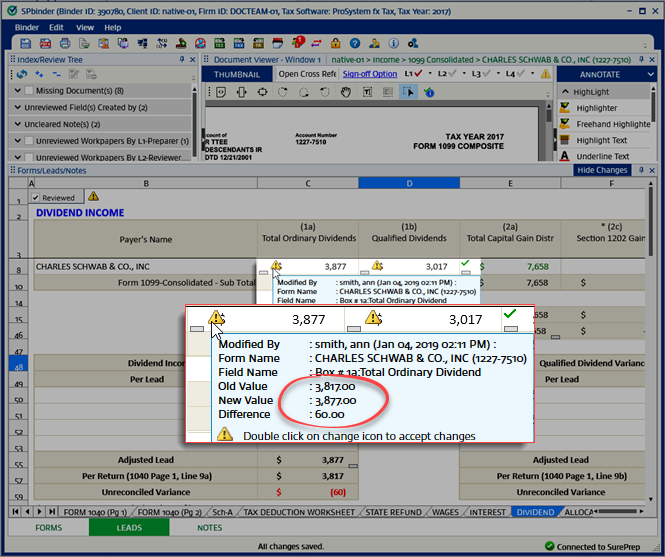
When you point to the
Change Tracking
Change Tracking icon icon, the tooltip shows the
Old Value
,
New Value
,
Difference
, and the name of the user who has modified the value.
Point to the Change Tracking icon
The difference appears with a positive value when
Old Value
is less than
New Value.
Old Value and New Value displaying the difference.
Similarly,
Difference
appears with a negative value when
Old Value
is greater than
New Value
.
Old Value and New Value fields for the entry
If the modified information is populated from
Tape total
then the
Change Tracking
Change Tracking icon icon tooltip will display
Drill down to List sheet to view the changes
.
Changes Tracking icon prompting user to drill down to view the changes
Select the link once to view the details in the
List
tab.
Change Tracking icon appearing on the document
note
The
Change Tracking
Change Tracking icon icon will appear only if the Amount, Percentage, and/or Date fields are modified. However, in the
List
tab only the Amount data type is visible.
To hide the
Change Tracking
Change Tracking icon icon, click the
Hide changes
button. You can switch between
Show changes
and
Hide changes
button to view and hide the changes. By default, the button will be set as
Hide Changes
.
Select Hide Changes
When you
Hide Changes
,
Change Tracking
icon on the sheet will always be visible. Only the field level changes can be hidden/shown based on the user selection.
Hiding changes will not interfere with with the Change Tracking icon
The selected option will be remembered the next time a binder is opened for that particular user.
Add Changes
To accept changes made post review, double-click the
Change Tracking
icon Change Tracking icon to remove it from that field.
Removed Change Tracking icon
The
Change Tracking
Change Tracking icon icon that appears on the sheet level (on the upper left side) is only removed when all changes on the sheet are added and there are no
Change Tracking
Change Tracking icon
icons left on the sheet.
To add all changes on the sheet at once double click on the
Change Tracking
Change Tracking icon icon besides the
Reviewed
checkbox or select the caution icon placed on the
Review Sheet Summary
. This will remove all caution icons from the sheet and also from the
Review Sheet Summary
against that particular sheet.
Removed Changes Tracking icon next to the Reviewed checkbox
Once the changes from the sheet are added, the date and time of last acceptance will be updated in the
Review Sheet Summary
tab.
note
The changes will be tracked on a user by user basis.
To view the deleted items select
View Deleted Items
.
Select View Deleted Items
When the
View Deleted Items
window appears, all the sheets with the list of deleted items will appear in the expanded view.
View Deleted Items window
The field
Description
,
Value
,
Deleted Date
& time of deletion and
Deleted by
will be displayed in this window. Double click on the
Change Tracking
Change Tracking icon icon to add the deletion.
Once the deleted items are added, those will disappear from the window.
Change Tracking icon missing from the entry
Adding deleted fields removes the
Change Tracking
Change Tracking icon icon at the sheet level as well as in
Review Sheet Summary
in leadsheets.
Unreviewing a reviewed leadsheet with a
Change Tracking
Change Tracking icon icon displays the following confirmation window:
Confirmation to remove the sign-off

error-icon

Triva isn't available right now.

Check out the support page for our phone number and hours

error-close