State K-1 Leadsheets

The State K-1 Leadsheets in SPbinder organize data for individual entities and break it down by resident and non-resident states. You can see the totals and manually adjust amounts via State Additions and State Subtractions rows.
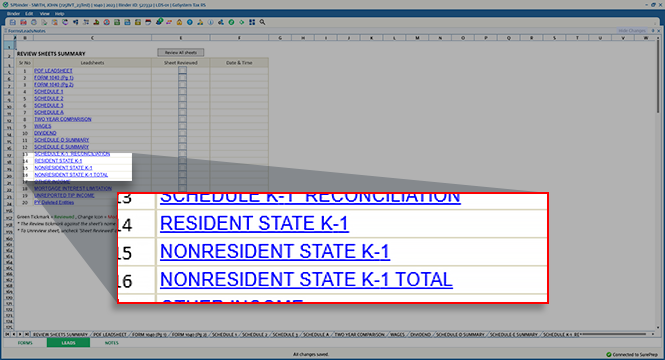
For your convenience, the Leadsheets are broken down into the following Resident (RES) and Non-Resident (NRE) states:
State K-1 Leadsheets:
Description
RESIDENT STATE K-1
Populate data only, no calculations.
NONRESIDENT STATE K-1
Populate data and calculate income/loss of each non-resident state K-1 per entity and state.
NONRESIDENT STATE K-1 TOTAL
Total sum of income/loss for all entities combined for each non-resident state.
Different K-1 documents

RESIDENT STATE K-1

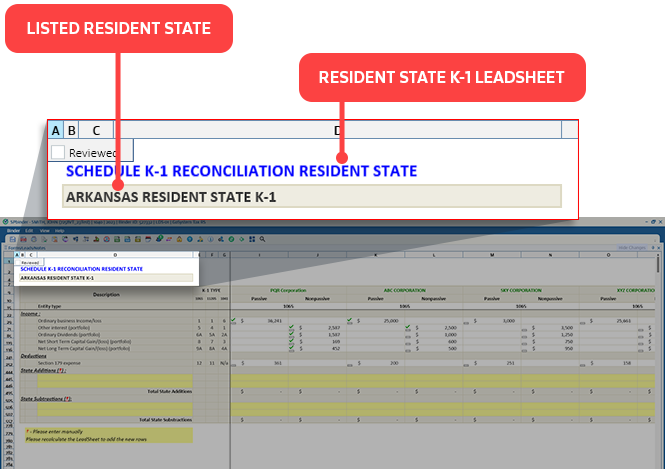
On the Resident State K-1 Leadsheet, you will see the resident state's name and the title of the Resident State Leadsheet.
Listed Resident State and Resident State K-1 Leadsheet
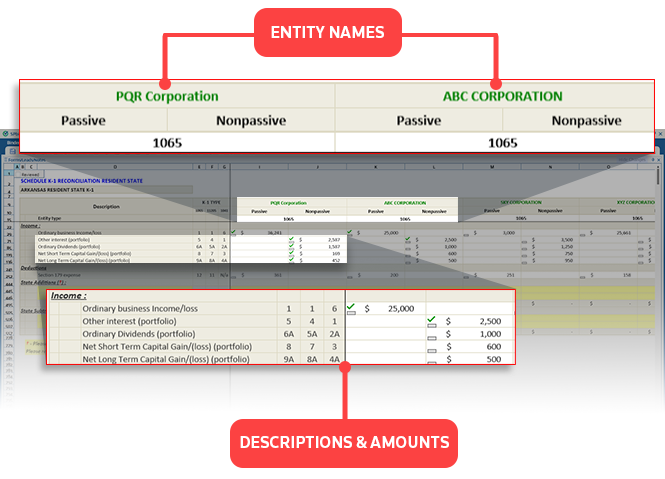
Entity names and types (for example, 1065, 1041) appear on top with their respective line descriptions and amounts.
Entity names and description amounts
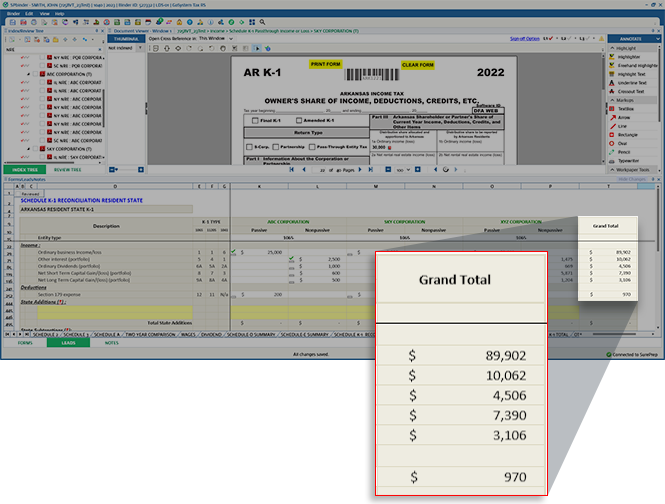
For the Resident State K-1 Leadsheet, you can scroll to view the
Grand Total
column.
Grand Total column.

NON-RESIDENT STATE K-1

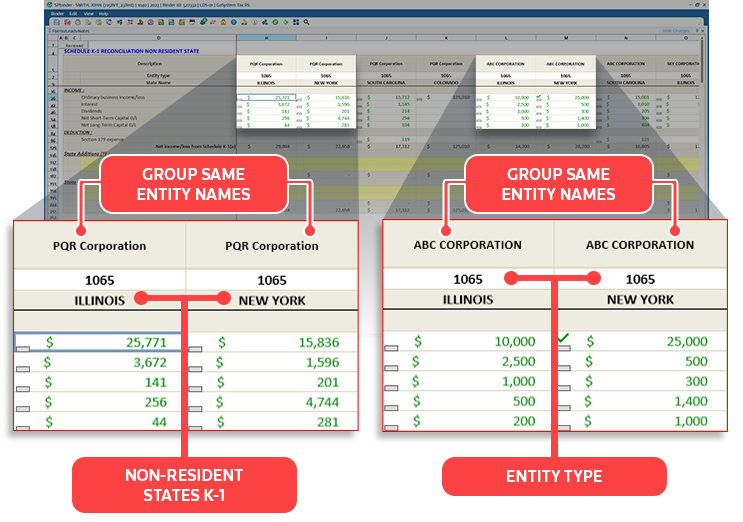
The Non-Resident State K-1 Leadsheet populates data and calculates the income and loss of each non-resident state K-1 per entity and state. The columns will be sorted based on the same entity names, and then further split based on non-resident state names.
Group same, entity name/types, and non-resident state K-1s

NON-RESIDENT STATE K-1 TOTAL

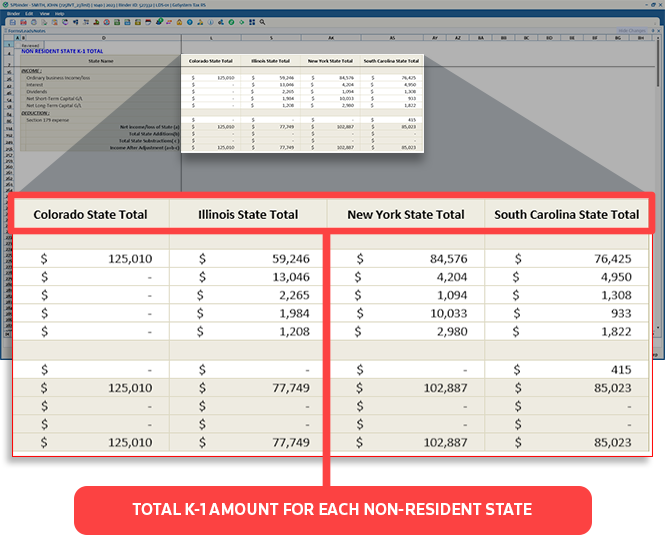
Consolidate the total sum of income/loss for all entities for each non-resident state.
Example: Combine all entities like ABC Corp + EFG Corp + IJK Corp for a non-resident state like Illinois.
Total K-1 amount for each non-resident state

State addition & State subtraction

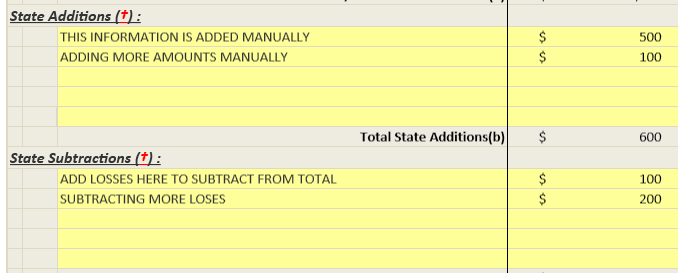
You can also manually make adjustments by adding and subtracting amounts from the Resident and Non-Resident State K-1 Leadsheets.
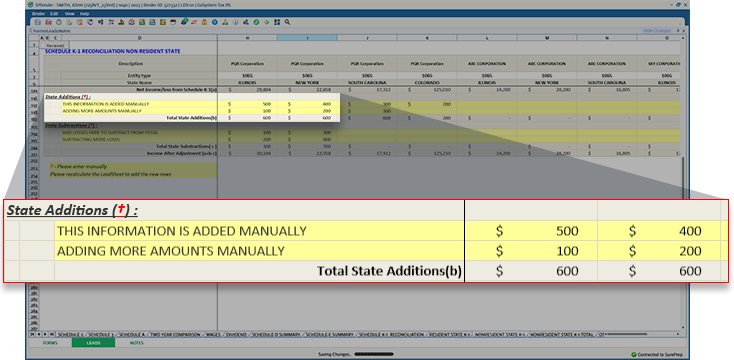
To add amounts to an entity and state, go to the
State Additions
row. Locate an empty row (highlighted in yellow), add the description, and the amount you want to add to the entity.
State Additions fields
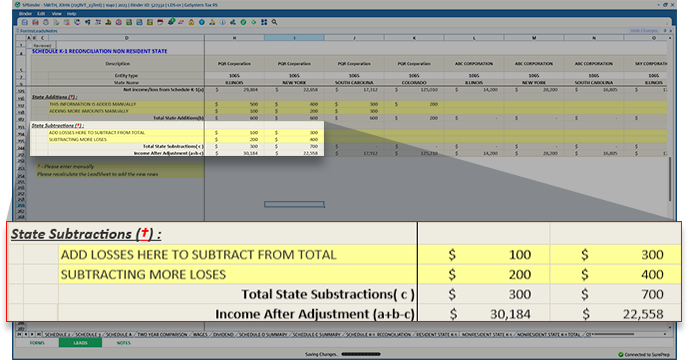
Similarly, to subtract amounts from an entity and state, go to the
State Subtractions
row. Locate an empty row (highlighted in yellow), add the description on the left column, and the amount you want to add to the entity on the right.
State Subtractions fields
If you used up the two rows and need more rows for the
State Additions
or
State Subtractions
section, Right-click anywhere on the Leadsheet, go to
Tools > Recalculate
on the shortcut menu.
Recalculate data from the shortcut
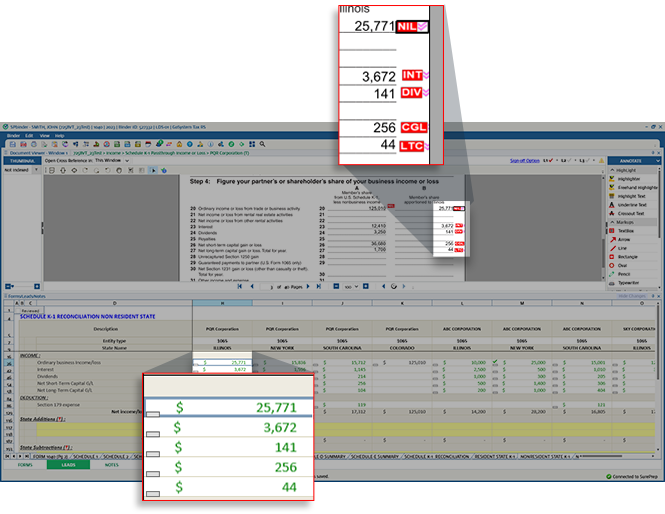
On the source documents, State K-1 amount references will appear in red to indicate the data will be exported to the tax software and populated into the Leadsheets.
Red amount references on the source document

State K-1 in INDEX TREE

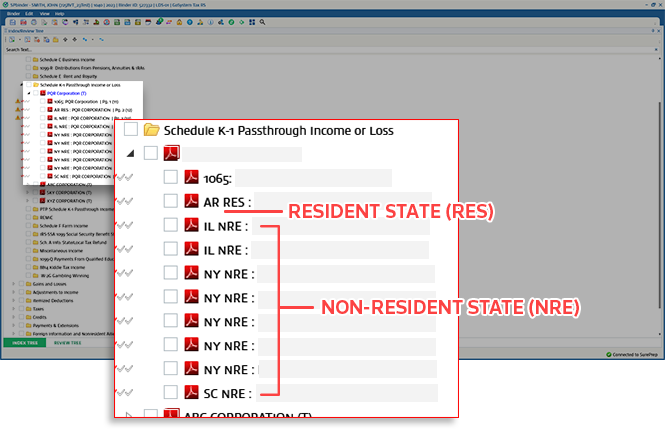
To help you identify resident and non-resident State K-1 documents, the
INDEX TREE
panel will show State K-1 entity names with the
RES
(Resident State) and
NRE
(Non-Resident State) prepended to the entity name.
Example [State initials] + [RES or NRE]: Entity name = AR RES: ABC Corporation
RES and NRE forms on the Index Tree
note
In the
INDEX TREE
panel, type RES or NRE to filter between resident and non-resident states. You can further filter down by also including state initials (for example, NRE NY)

Requirements

Binder Type
  • 1040
Tax Year
  • 2023 onwards(binders created post-release 2024-01-30)
Leadsheets
  • Classic
  • Simplified
Services
  • Outsource (Onshore & Offshore)
  • 1040SCANverify (Onshore & Offshore)
  • 1040SCAN PRO
  • 1040SCAN PRO+
Tax Software
  • GoSystem Tax RS
  • CCH Axcess Tax
Firm settings
Check firm-level settings to see if K-1 data is set to be captured and exported by your firm (e.g., Proforma states only, all states, or bookmark only). Go to
FileRoom
,
Admin
,
Tax Return
, then locate the
State K-1
section.

Related Content

error-icon

Triva isn't available right now.

Check out the support page for our phone number and hours

error-close