Sending dynamic password
Go to
Client Management
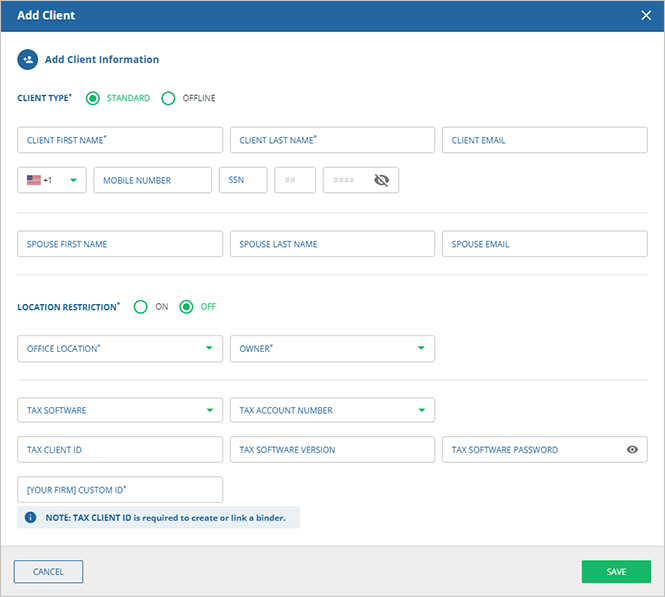
, then add or import a new client.
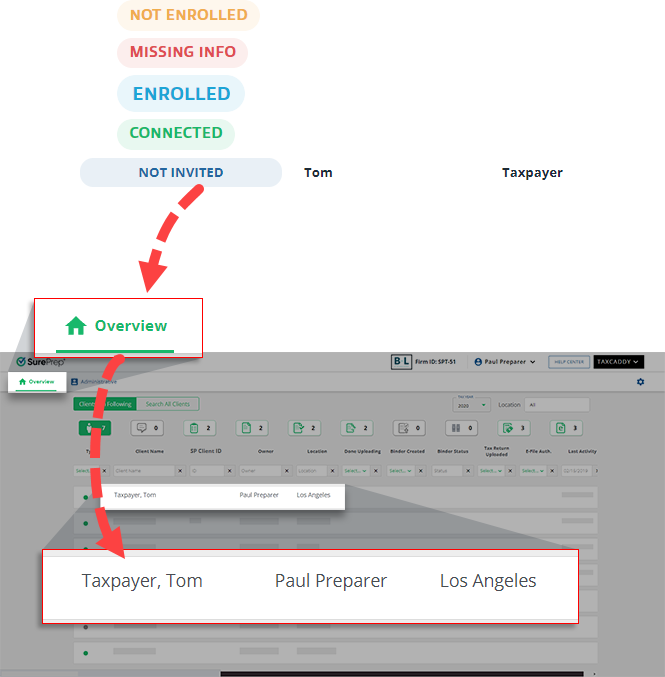
When adding or importing clients, a client's email address is optional, however, clients' email addresses will be required when you are ready to send TaxCaddy invites to your clients. After adding a client in Client Management, their profile will appear on the
Overview
screen.
You can leave the email address blank if you want to use the Standard Client Profile as an offline client.
Before sending clients an invite, you can prepare the clients' profiles by pre-emptively sending them their requests (Questionnaires, DRLs, and Letters).
Neither a client nor their tax professional will be able to view either party's activity (uploaded documents/requests) until the client's identity has been verified. All previous activities will be shared upon completion of verification.
You can also send requests individually from clients' profiles. However, clients with the
CONNECTED ELSEWHERE
or
DISCONNECTED
status in
Client Management
won’t appear on the Overview screen.
You can either send Dynamic Password invites manually or set up automatic invites.
To send invites manually, select the
MANAGE CLIENTS
, then
TaxCaddy Invitation
.
You can remind your clients to sign in to TaxCaddy by resending an invitation using the
Invitation Reminder
feature from the
Manage Clients
.
Once a client receives an
Invitation Reminder
, they’ll no longer be able to access TaxCaddy using the link from the initial invitation email. Instead, they you'll need log in to TaxCaddy using the link in the new reminder email.
You can also use the
Invitation Reminder
feature to send your client a new link if your client accidentally deleted the original invite email. If your client has already logged in and shows the
Connected
status in
Client Management
then they can use the
Having trouble logging in?
link to get a new access link.
In summary, the Dynamic Password feature for gathering documents lets your firm to:
Instantly access client profiles as soon as they are added.
Prepare and send get requests (for example, DRLs, questionnaires, and letters) to client profiles before sending the invite.
Use TaxCaddy's Dynamic Password feature to get requests.
Schedule automatic invites (via Dynamic Password).
Customize when Dynamic Password link should expire (Coming Soon).
Use full-featured standard clients instead of offline clients to streamline your workflow.
When you send a Dynamic Password invite, like the image following shows, all clients with pending get requests in their profile will receive an invite email with a unique Dynamic Password link. Clients can select the link to log in using a temporary auto-generated password sent to their phone number (via SMS).
Firm’s customized templates don’t go to the taxpayer. Dynamic Password invite can't be customized.
When a client's Dynamic Password email link expires, they can visit the
TaxCaddy log-in screen to send themself a new access link. Your client can select
Send me a New Login link
and provide the email of their TaxCaddy account to receive a new login link.




 Article