If you selected to mail your tax payment check via Certified Mail, then you will be able to view the tracking number for your tax payment. You can use the tracking number to track the progress of your delivery. The tracking number will be available in TaxCaddy within 1 business day. Delivery may take 2-5 business days.
TaxCaddy is offering a promotional discount on shipping. For a limited time, the cost of USPS Certified Mail has been reduced to $11.95 (normally priced at $14.95). Take advantage of this offer to get proof of delivery through electronic tracking numbers when using USPS Certified Mail.
To view the a tax payment's delivery status, you can view your tracking number via:
TaxCaddy.com on PC, Mac, or tablet
Follow these steps to access the tracking number on the
Tax Payments
screen:
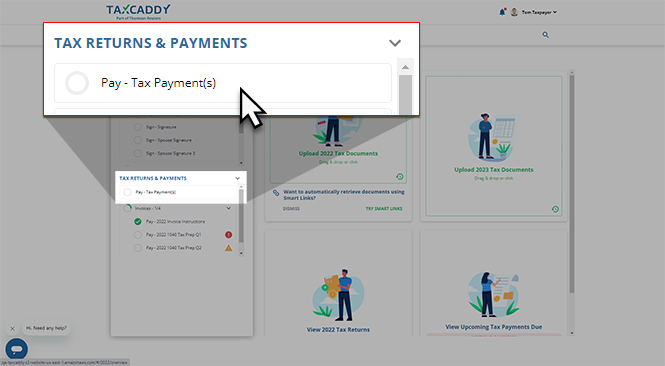
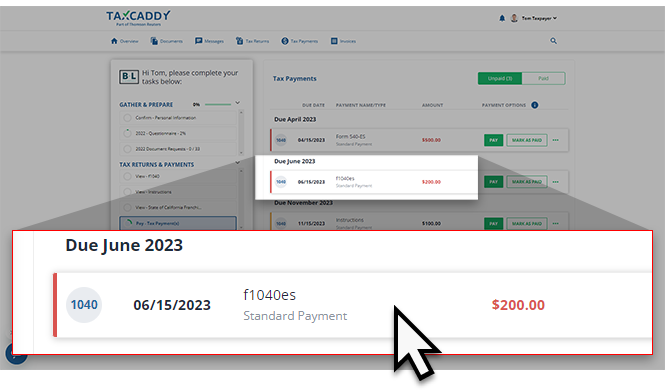
If your tax professional has uploaded a tax payment voucher to your account, you can select
Pay - Tax Payment(s)
to view these payment vouchers.
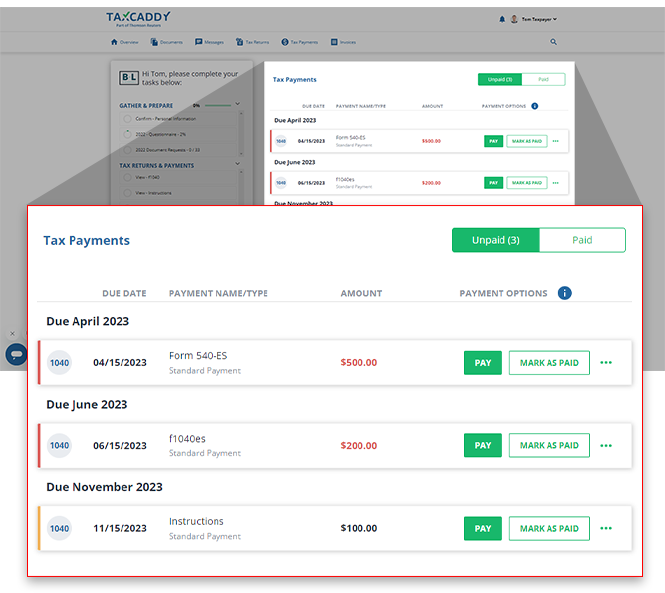
Your tax payments for the current tax year will appear in the
Tax Payments
panel beside your
Task List
.
If you're looking for a specific tax payment, select the
Tax Payments
tab to view tax payments belonging to other tax years.
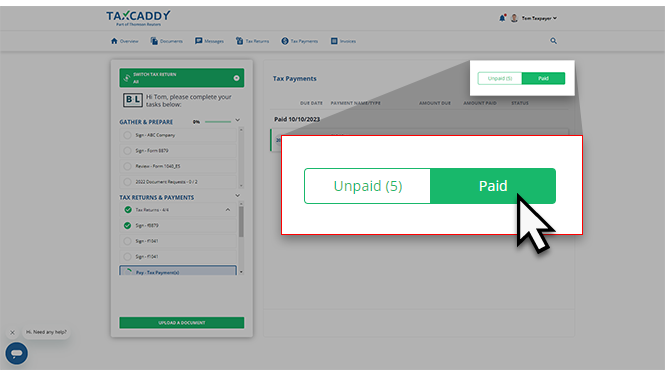
Select the
Paid
switch for a list of tax payments you've already paid to locate the tax payment you want to track.
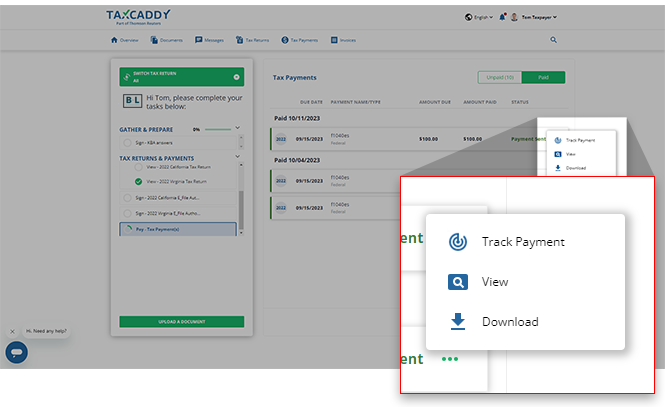
After 1 business day, you will be able to select the
Menu
, then
Track Payment
to view the delivery progress on the USPS website.
Track Payment
only appears if you mailed a tax payment check by mail through TaxCaddy using USPS Certified Mail.
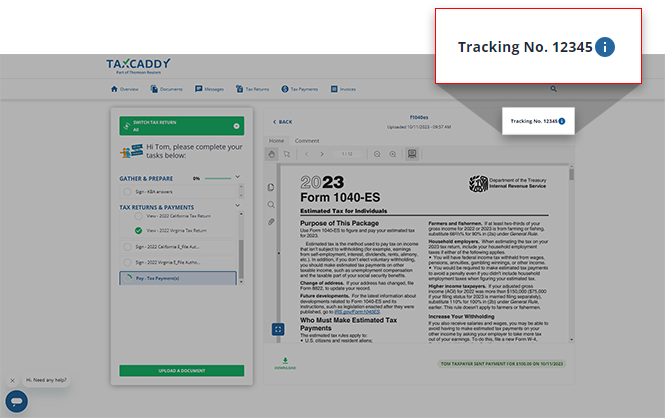
Alternatively, you can select the tax payment voucher.
Select the
Tracking No.
icon. A new link will open to the USPS website where you can view the delivery progress.
Follow these steps to access the tracking number on the
Tax Payments
screen:
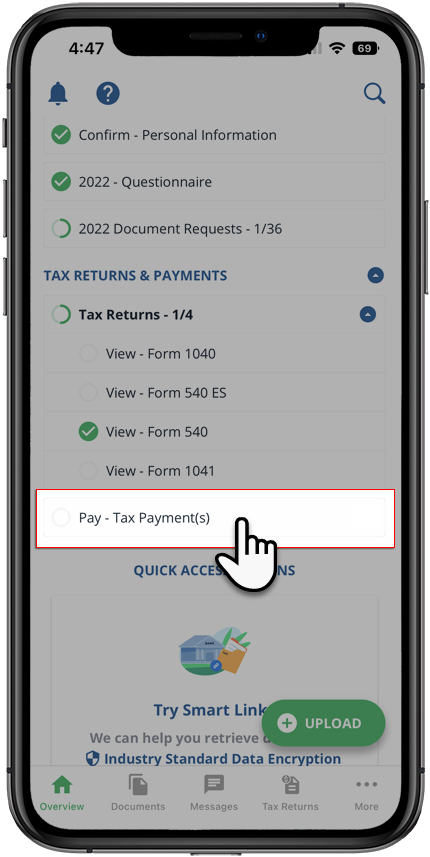
Sign in to the TaxCaddy mobile app.
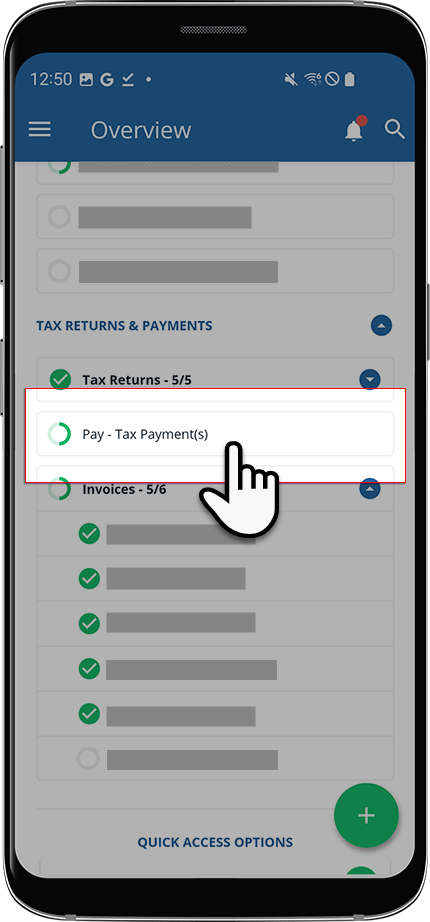
Tax payment vouchers that have been uploaded to your account will appear on the
Overview
screen. Select
Pay - Tax Payment(s)
to open your tax payments.
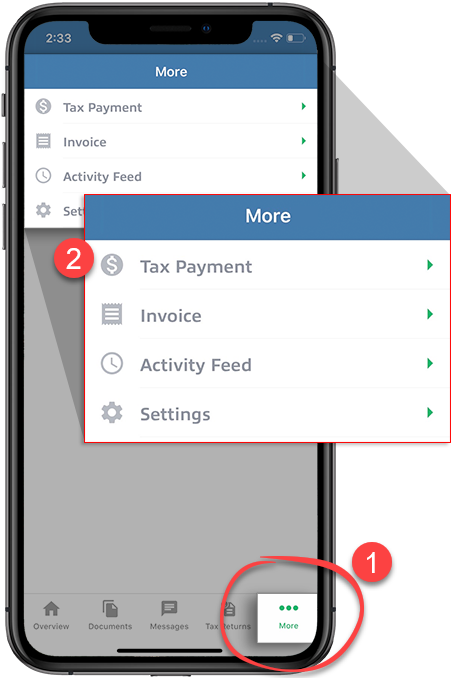
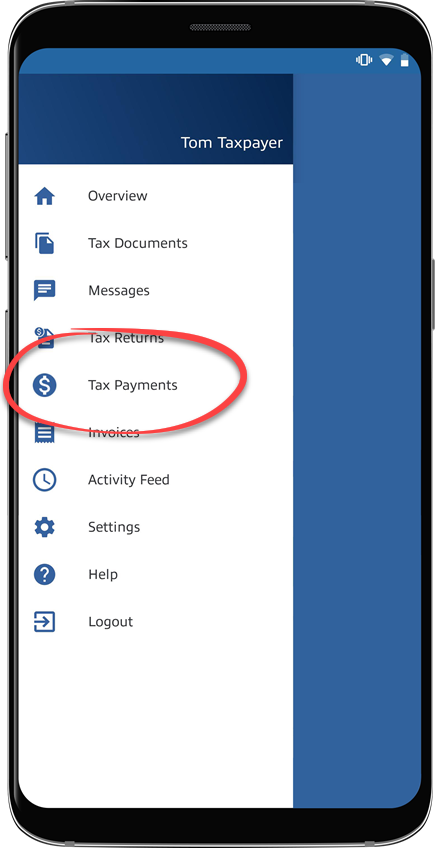
Alternatively, you can select
More
on the navigation tab then select
Tax Payments
.
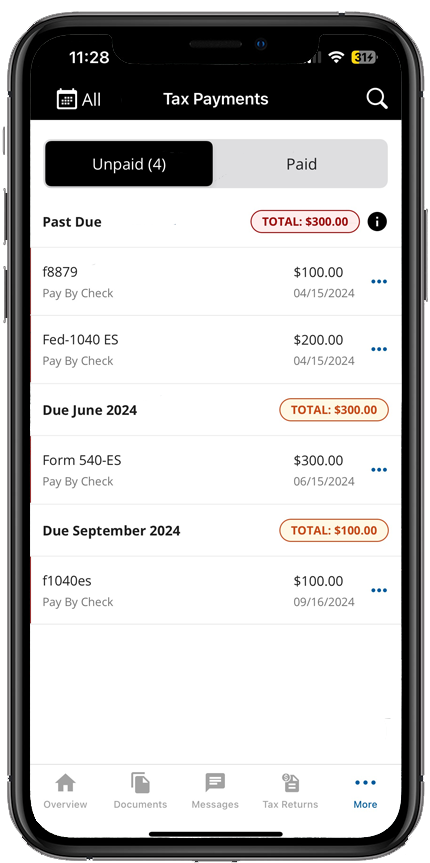
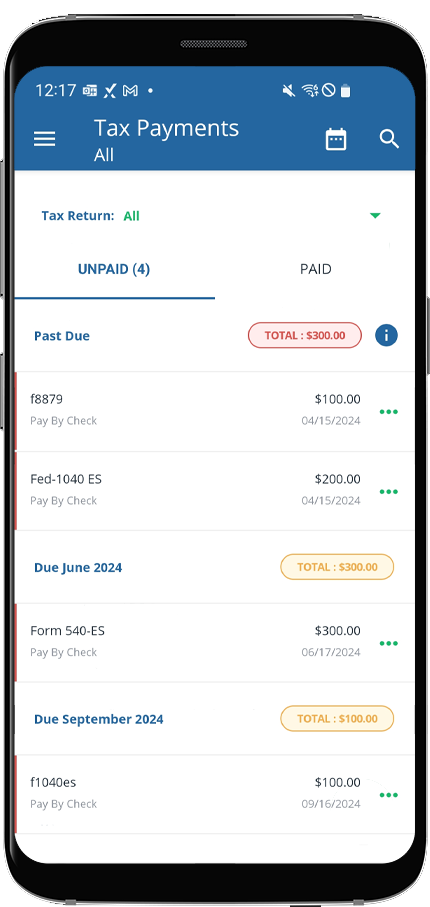
You will see tax payments spanning all tax years.
The
All
tax year option will be selected by default. If you'd prefer to see tax payments belonging to a specific tax year, select it from the
Tax Year
menu.
Select
Paid
to see tax payments that you've already paid.
Select the
Menu
for the tax payment voucher you want to track. Select
Track Payment
to visit to the tracking page where you can view your delivery status.
The
Track Payment
option only appears if you mailed a tax payment check by mail through TaxCaddy using Certified Mail.
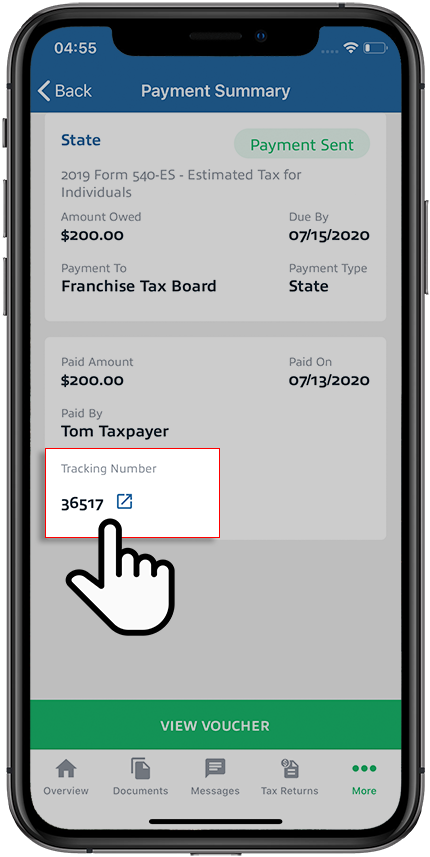
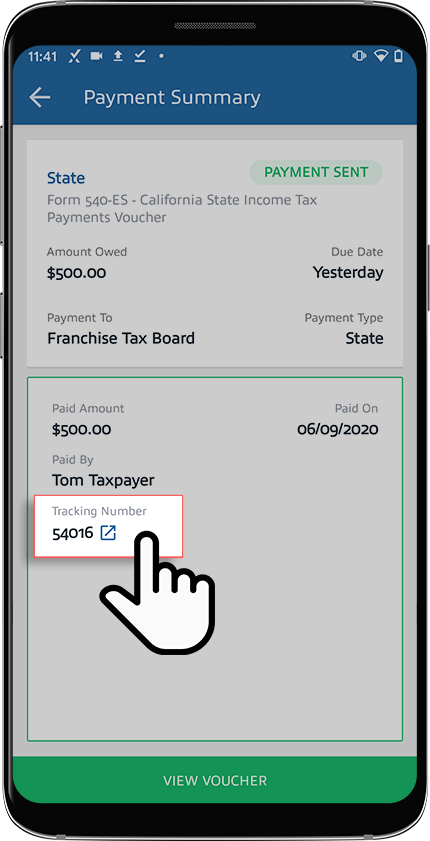
Alternatively, you can select
View Payment Summary
on the tax payment menu, then select the
Tracking Number
to go directly to the tracking page.
Tracking Number
only appears if you mailed a tax payment check by mail through TaxCaddy using Certified Mail.
You can also note down the tracking number, go to
USPS.com then paste the tracking number to view your delivery progress.
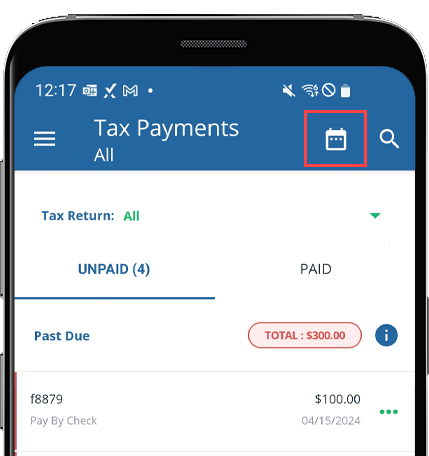
Follow these steps to access the tracking number on the
Tax Payments
screen:
Sign in to the TaxCaddy mobile app.
Tax payment vouchers that have been uploaded to your account will appear on the
Overview
screen. Select
Pay - Tax Payment(s)
to open your tax payments.
Alternatively, you can select
Menu
.
You will see tax payments grouped by due date.
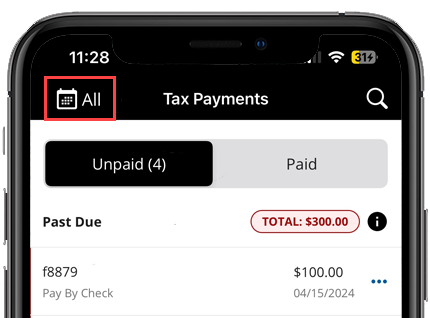
The
All
tax year option will be selected by default. If you'd prefer to see tax payments belonging to a specific tax year, select it from the
Tax year
menu.
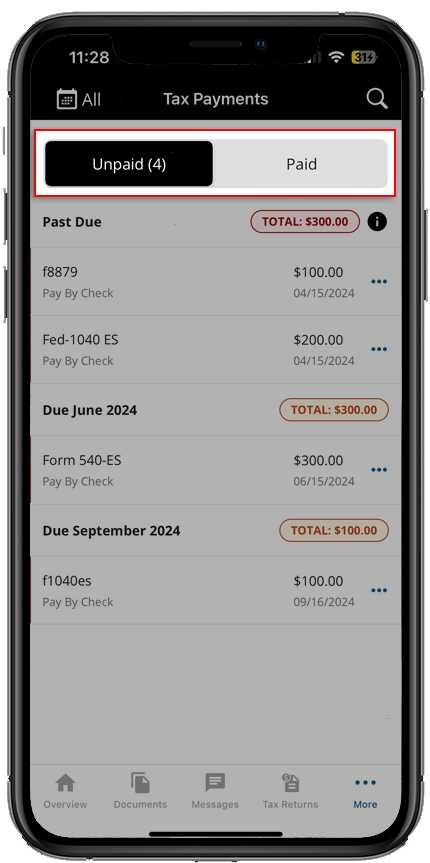
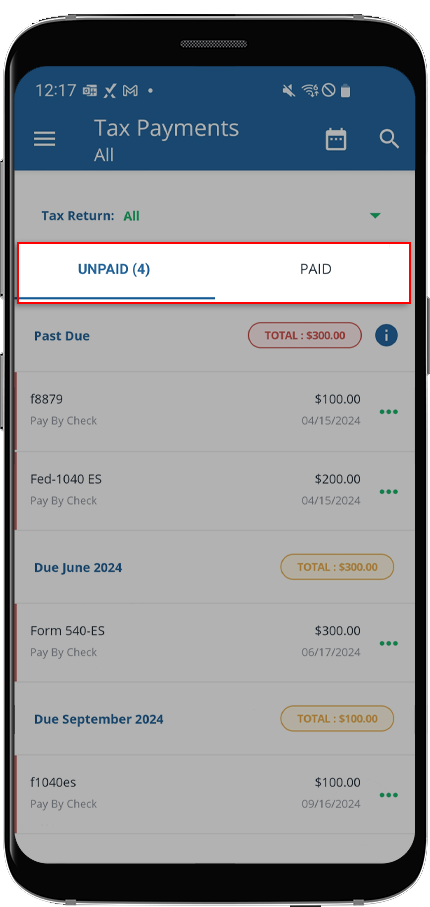
Select
PAID
to see tax payments you already paid.
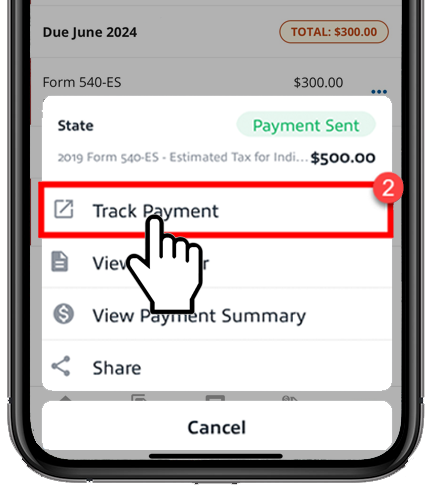
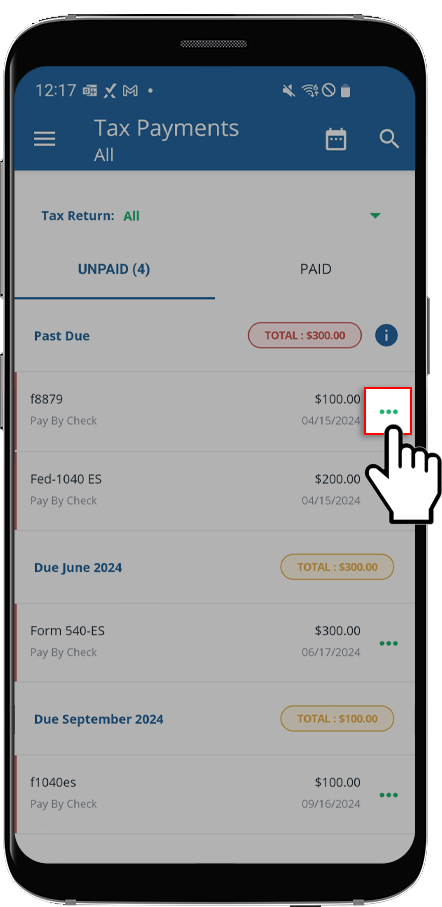
Select the
Menu
corresponding to the tax payment voucher you want to delete.
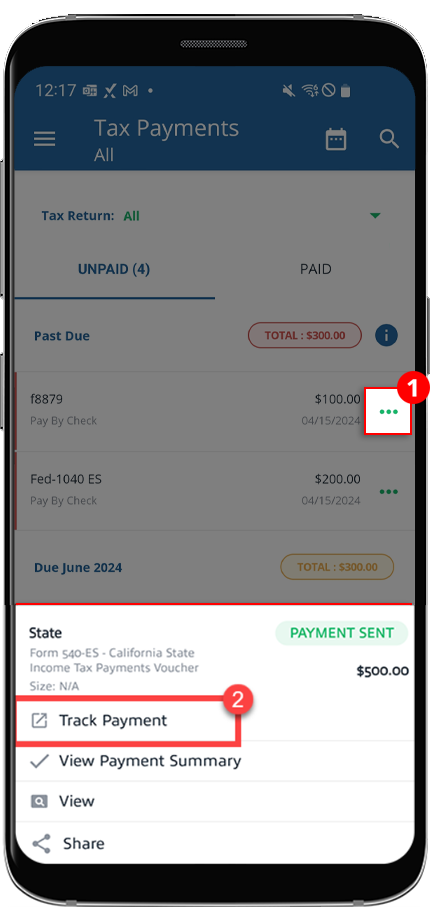
Select
Track Payment
to visit the tracking page where you can view your delivery status.
Track Payment
only appears if you mailed a tax payment check by mail through TaxCaddy using Certified Mail.
Alternatively, you can select
View Payment Summary
on the tax payment menu, then select
Tracking Number
to go directly to the tracking page.
The
Tracking Number
option only appears if you mailed a tax payment check by mail through TaxCaddy using Certified Mail.
You can also note down the tracking number, go to
USPS.com then paste the tracking number to view your delivery progress.
If you made a tax payment via Certified Mail then you will receive a confirmation email once your check has been mailed. To track the shipping progress, select the USPS website link then enter the tracking number provided in the email.
Checking your tax payment status
We recommend paying tax payment checks via Certified Mail. You can then use the tracking number to track the progress of your mail delivery.
The tracking number will be available in TaxCaddy within 1 business day.
Tax payments check is delivered within 2-5 business days.
The IRS may take up to 3 weeks to process your check after it has been delivered.
The IRS considers the postmark date as the payment date rather than the date on which the tax payment is processed. TaxCaddy mails your paper check in 1 business day after you submit the payment details. If you submitted your tax payment details before the deadline, then you won’t be fined.



 Article,
29 min read
Article,
29 min read