
Log in with two factor authentication
A System administrator can set up two factor authentication for some or all accounts that access a Collaborate site. This adds a layer of security by requiring a passcode that changes for each access attempt.
Two factor authentication
Two factor authentication (2FA) adds the requirement to enter a passcode to access Collaborate.
The 2FA process
When you attempt to access Collaborate, Collaborate will create a new session. This happens in one of three ways:
- You are presented with a login page and successfully enter your login information.
- You have enabledRemember meto bypass the login page from a particular device and click on a Collaborate link.
- You are automatically logged in viaSingle Sign-On(users accessing Collaborate via SSO will NEVER be asked to enter a passcode.)
note
The
Remember me
feature is not available in all cases.Collaborate provides two authentication methods; the passcode can be sent by email or generated by a linked app (for example, HighQ Drive).
Pairing with an app
When you log in and 2FA by linked app has been enabled, you can use # or a third-party app on a mobile device to authenticate access to your site or instance.
note
Your admin may configure 2FA so only a third-party app can be used for authentication; usually this is a specific app used by your organisation.
Pair with:
Authentication by email
When you log in and 2FA by email has been enabled, the
Password verification
screen opens. This tells you that you have 5 minutes to enter the passcode emailed to you.
At the same time, an email is sent to your account's email address containing your verification passcode:

Type the passcode from the email into the passcode field on the
Passcode verification
screen and select Verify passcode
before the passcode expires (by default, 5 minutes).note
It may be more reliable to copy the passcode from the email and paste it into the passcode field.
Log in from your invitation
When you receive an invitation to a site or otherwise wish to access Collaborate, you will need to log in via the
Please click here to login
link in the invitation email: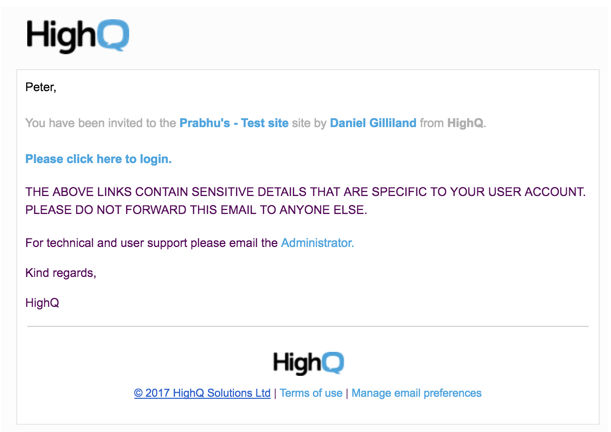
Remember me
When you log in, you may select the
Remember me
option. This stores your access information and allows you to access the site without logging in.note
Only use this option if you are using a trusted computer with additional security.
By default the
Remember me
option will work for 100 days, after which it must be reapplied.note
The period before a Remember Me selection expires can be changed by your HighQ Account Manager.
Resetting your password
If you cannot remember your password, you can select
Reset your password
to start the reset password process.note
If you fail to log in three times in a row, your account will be locked and you will not be able to log in, even with your correct password.
You will receive the following message after your 3rd failed login attempt:
Click the Reset your password link and enter your email address to receive a reset password link.

You have the option of
resetting your password
to unlock access to your account. If necessary, a system administrator can unlock a user's account
that has been locked.Allow a device to be trusted
Optionally, if this feature has been enabled at the system level, you can 'trust' the device you are using for 2FA purposes. If a device is trusted, you will not be asked to enter a passcode in the future when accessing Collaborate from that device.
note
A
device
is a combination of the actual computing device you are using, e.g. a Windows PC, Mac, iPad, smartphone, etc., and the browser you are using to access Collaborate.The ability to trust a device might not be enabled on a particular instance of Collaborate, and if it has been enabled, it may only apply to desktop devices and not mobile devices. The name given to the device must be unique for that user (but the option to add a device name is optional).
A time limit may apply to trusting a device, so trusting a device may expire after a certain number of days, after which you will need to enter a passcode when accessing Collaborate from that device. You can then choose to re-trust the device.
To trust a device, select the
Trust this device
checkbox and enter the unique device nickname (optional):
A few things to remember:
- Make sure to enter the passcode within the allotted time. If the passcode has expired and the user attempts to enter a passcode, then the user will be sent a new passcode and may be required to log in again.
- To forget a device that was previously trusted, simply manually log out of Collaborate from the browser that was trusted.
Resetting passcodes
If you reinstall the authenticator app or change your device, you must contact your System Admin to reset your account's 2FA settings.