Two factor authentication with HighQ apps
Two factor authentication (2FA) adds the requirement to enter a passcode to access Collaborate.
Authentication by a linked app
When you log in and
2FA by linked app
has been enabled, you can use HighQ Drive or HighQ Stream on a mobile device to authenticate access to your site or instance.note
You can also use third-party authentication apps, such as Google Authenticator, Microsoft Authenticator, or Twilio Authy.
The HighQ apps can be paired and used for two-factor authentication; and can either generate a passcode or a notification on your paired device to allow access. If notifications are used, it is possible to send the passcode directly to your browser and log in without typing the passcode.
2FA with HighQ apps can provide instance or site access:
- Instance access: If 2FA authentication is required to access the HighQ platform, useHighQ Driveor a third-party app.
- Site access: If 2FA authentication is required to access individual HighQ sites, useHighQ Driveonly.
note
HighQ apps automatically detect if 'instance' or 'site-level' 2FA is used. For simplicity, HighQ Drive is recommended.
Pairing with a HighQ app
note
This describes pairing when
instance
or site
-level 2FA is enabled and pairing is performed from a browser on your computer. If you only have a mobile device, you can pair without a computer
.If you have not yet logged in, open a web browser on a computer. You need to perform four steps:
- Initiate log in through the browser.
- Download and open the HighQ app and log in.
- Receive an access request notification.
- Redirect to the logged-in view in the browser.
Log in with the browser on your computer
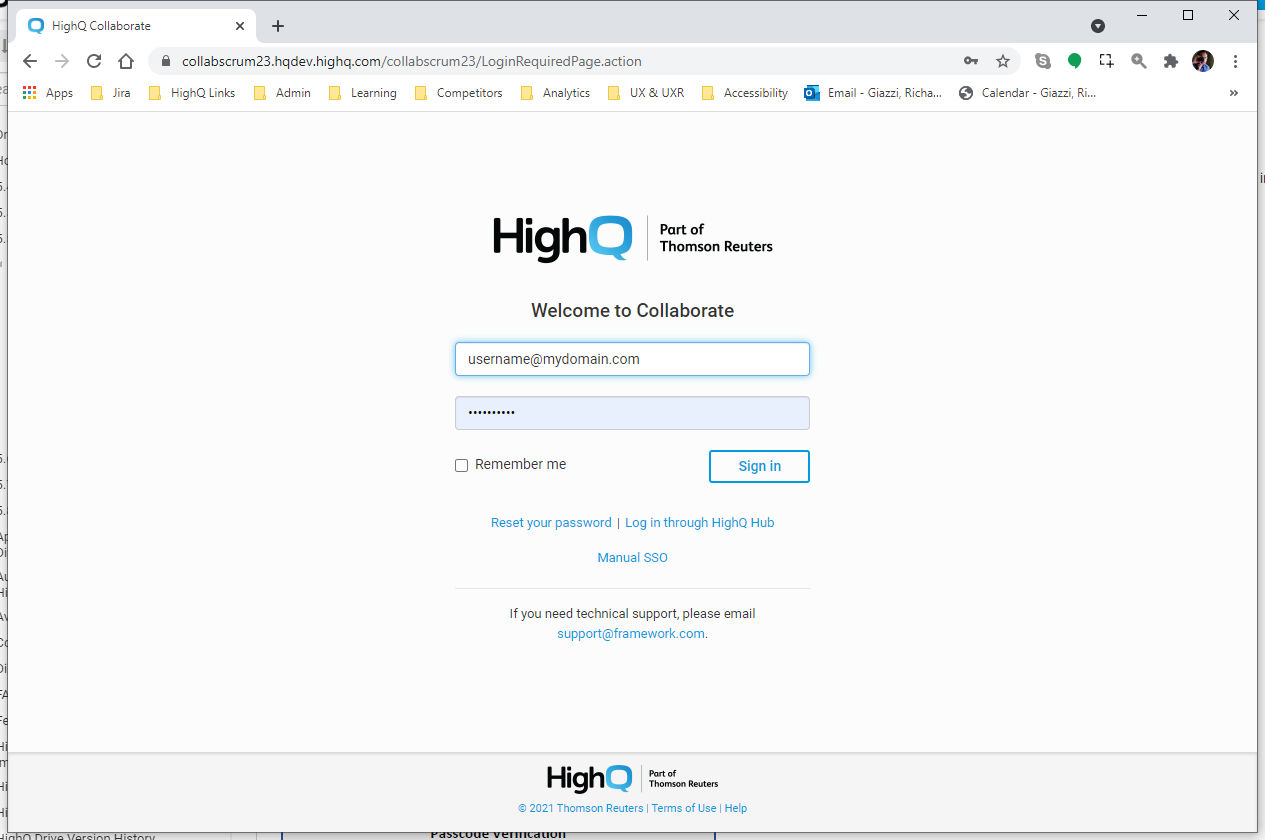
Go to your instance address and enter your username and password:
note
If you do not have access to a computer see
Pairing without a computer
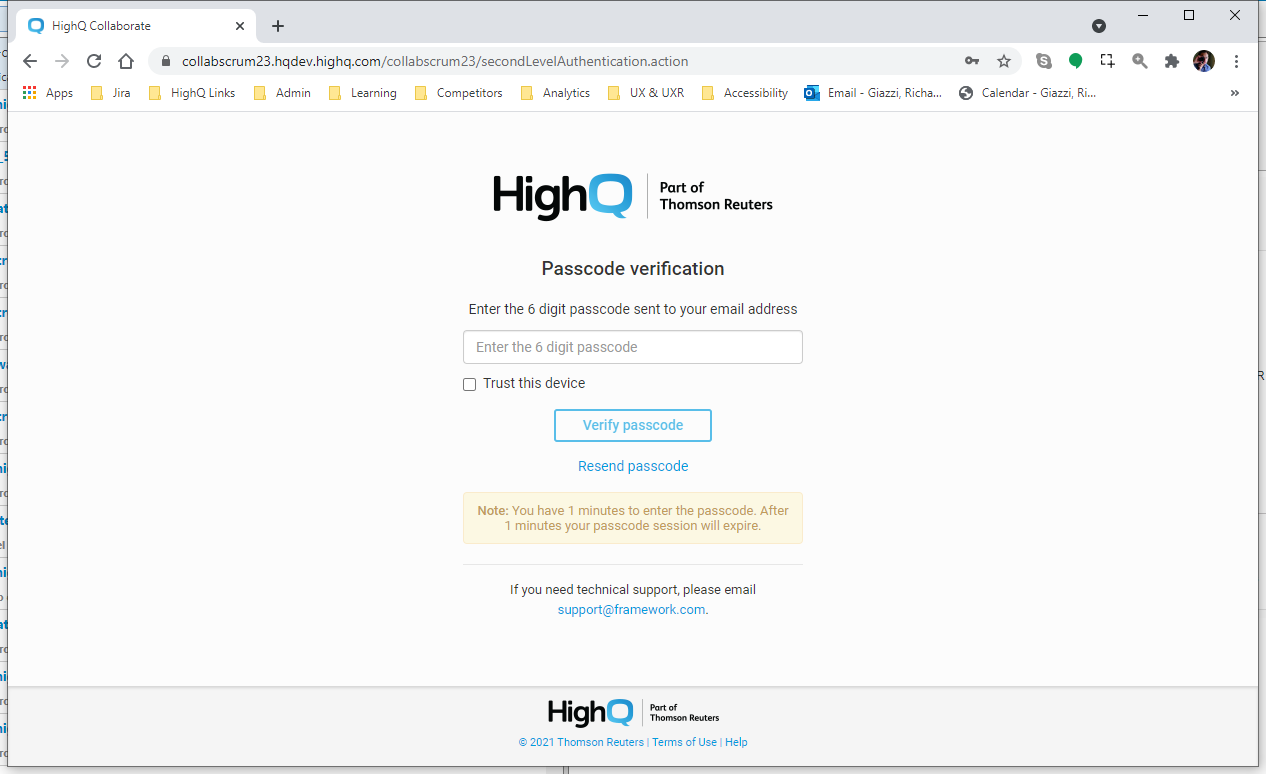
.Enter the six-digit passcode sent to your email address:
Choose which authenticator app you wish to use; either HighQ Drive, or a third-party 'other' app such as Google Authenticator:
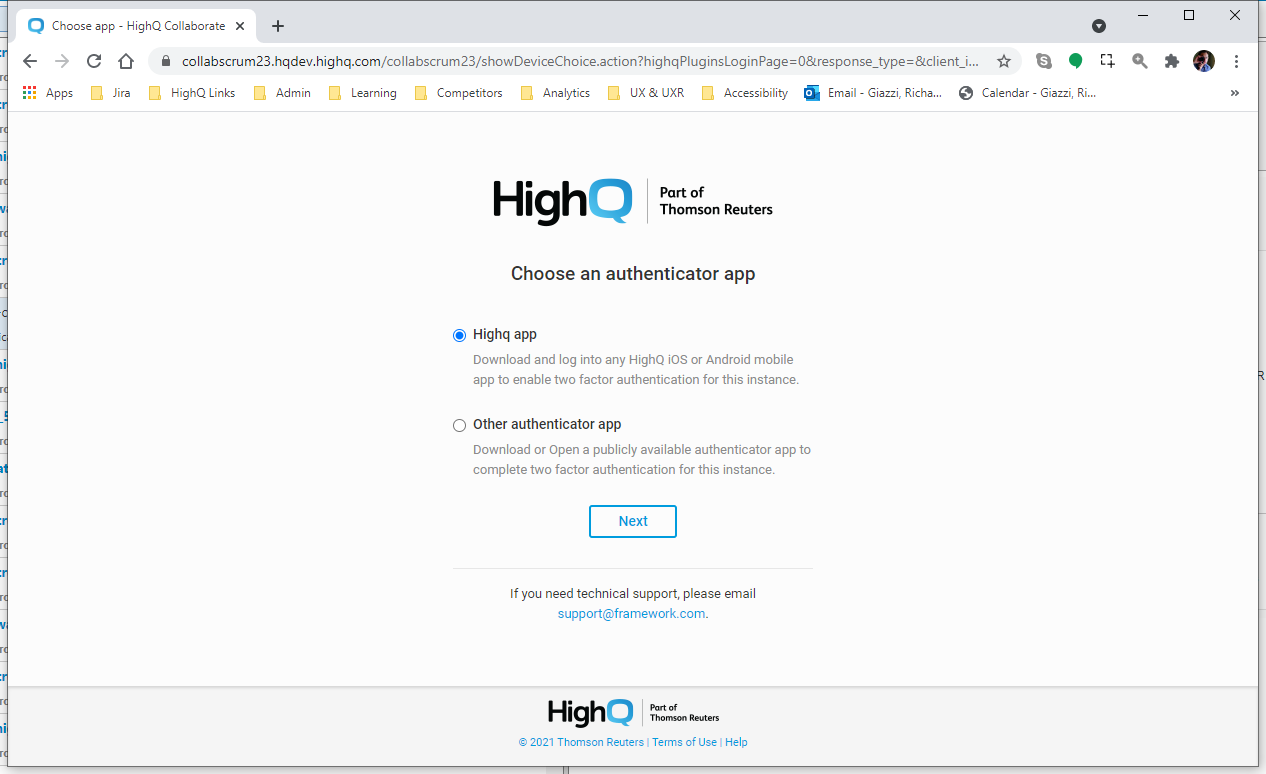
You MUST keep this app on your device. You are required to use it each time you log in (unless you have chosen to
trust a device
).note
Using third-party authentication apps
If you select
Other authenticator app
a QR code is displayed. Complete the process as described here.Select
HighQ app
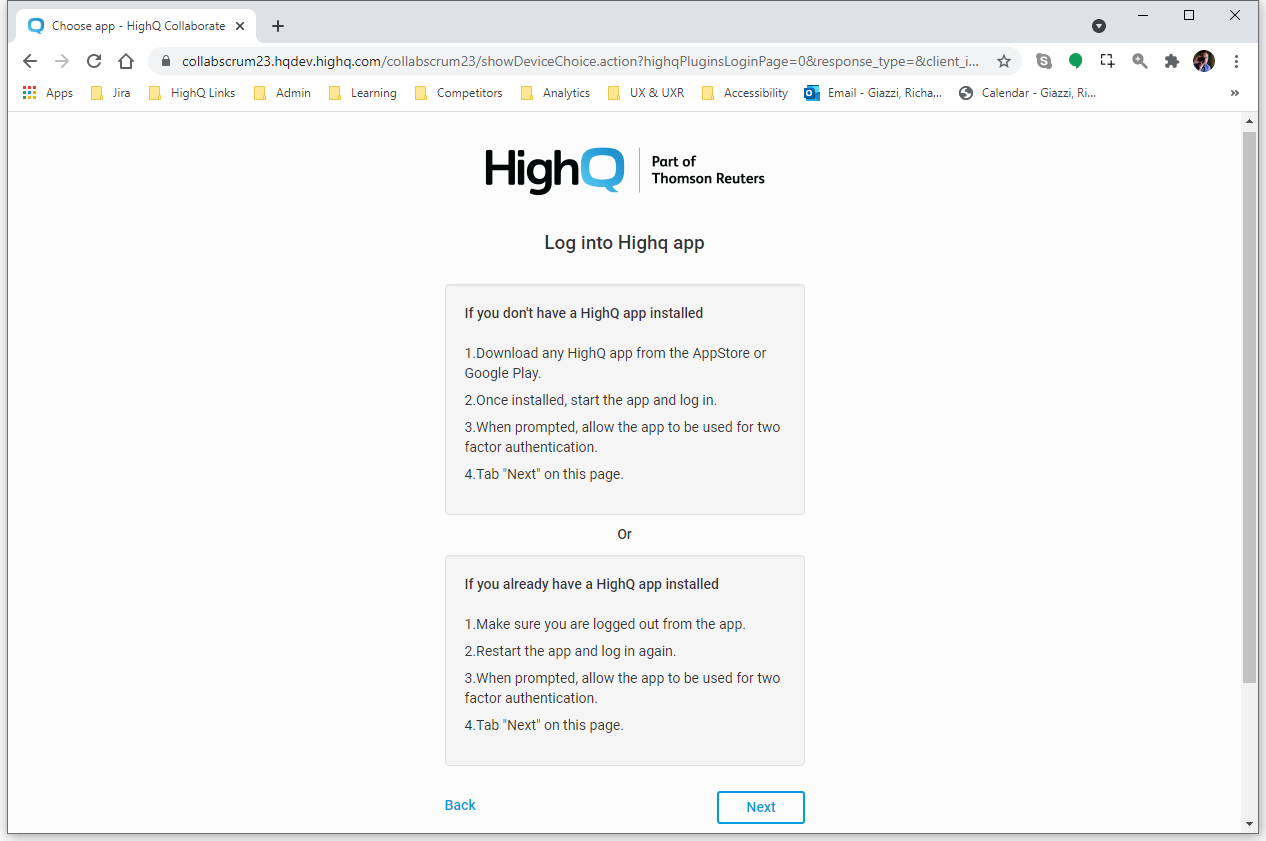
.On the Log into HighQ app screen, if you have not installed
HighQ Drive
, open the app store for your device and download it. Download, install and log in to the app (as described below) before you click Next.
note
If you have already installed the app, log out to clear data, then log in again as described below.
Logging in with instance- or site-level 2FA
Download and open
HighQ Drive
on your mobile device, then follow the instructions in the app:note
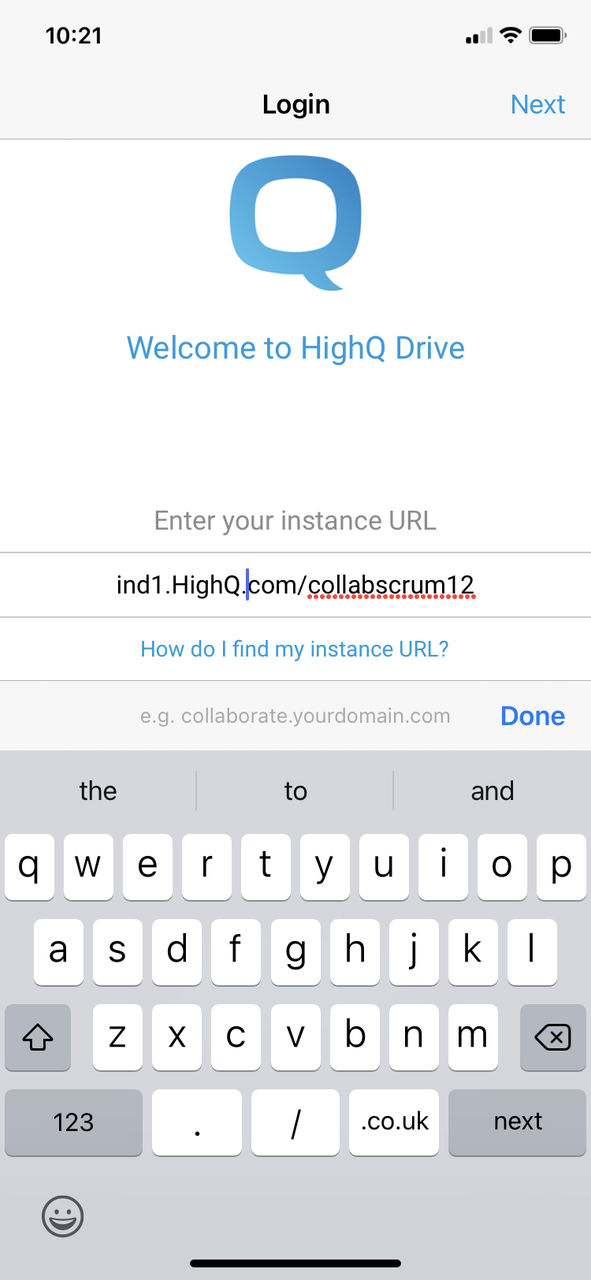
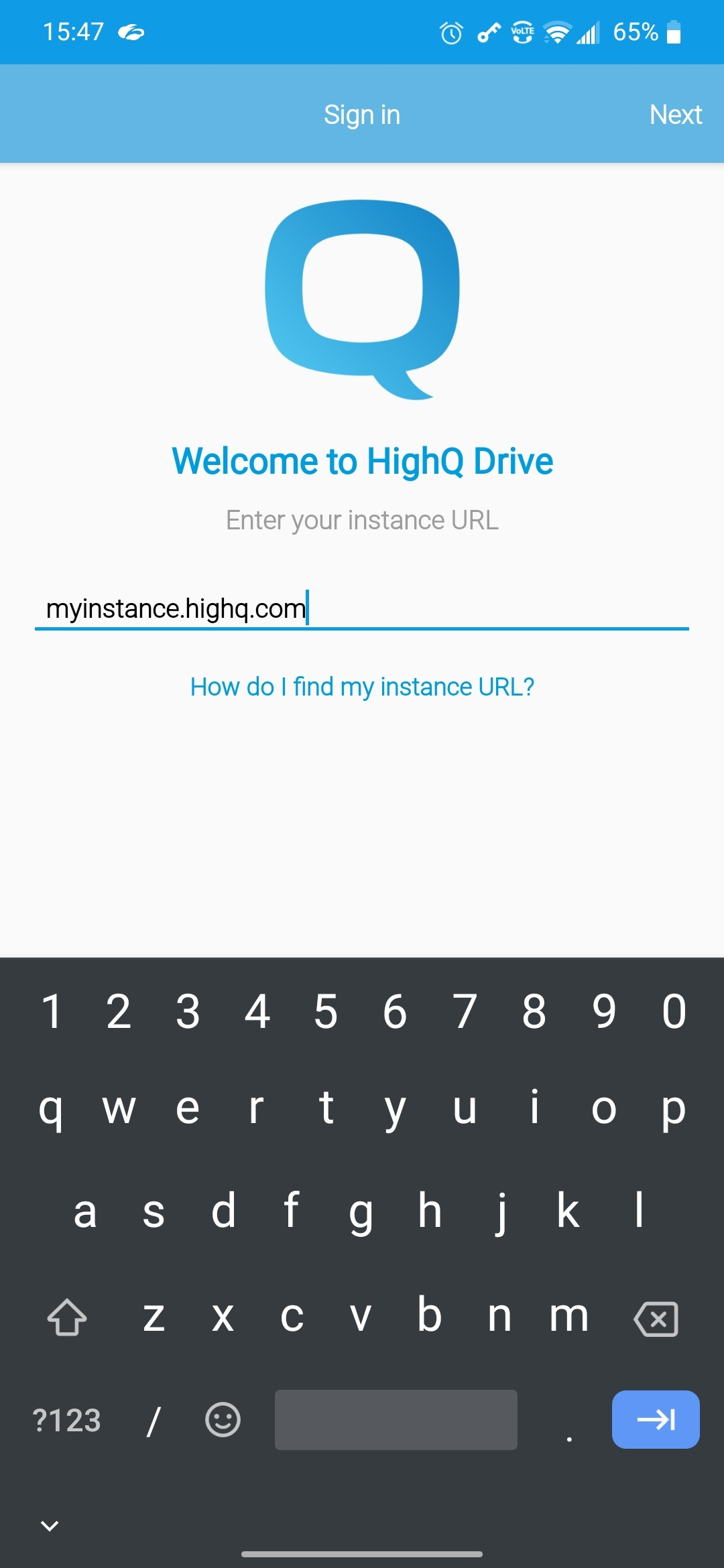
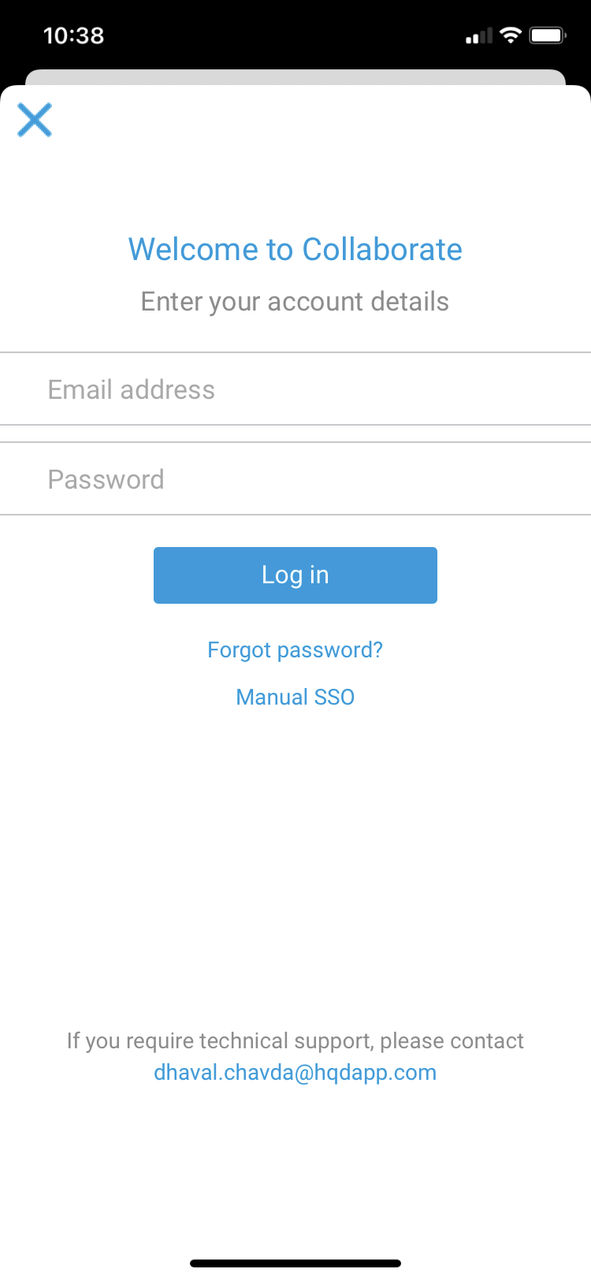
The images below show the iOS and Android versions of the app.
- Enter your instance domain:
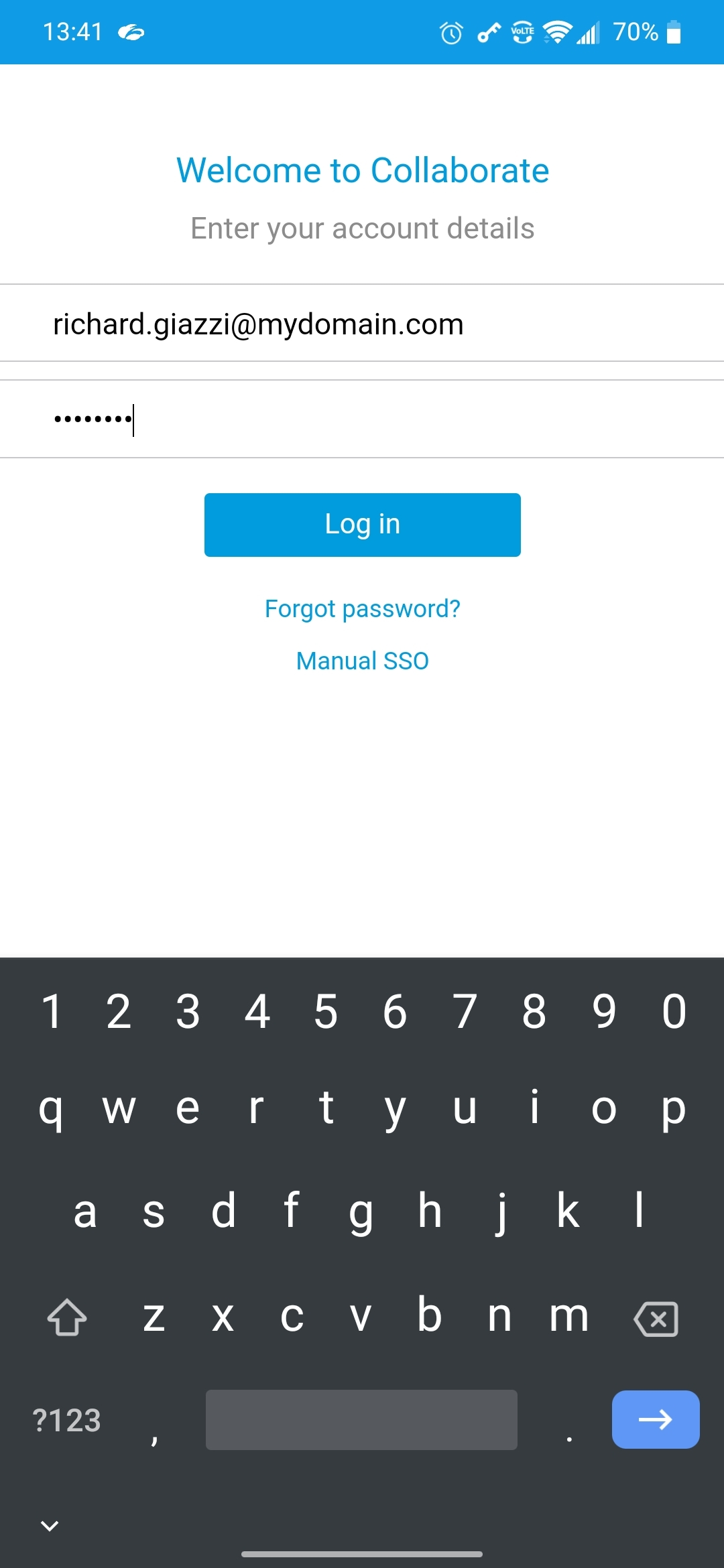
- Enter your username and password:
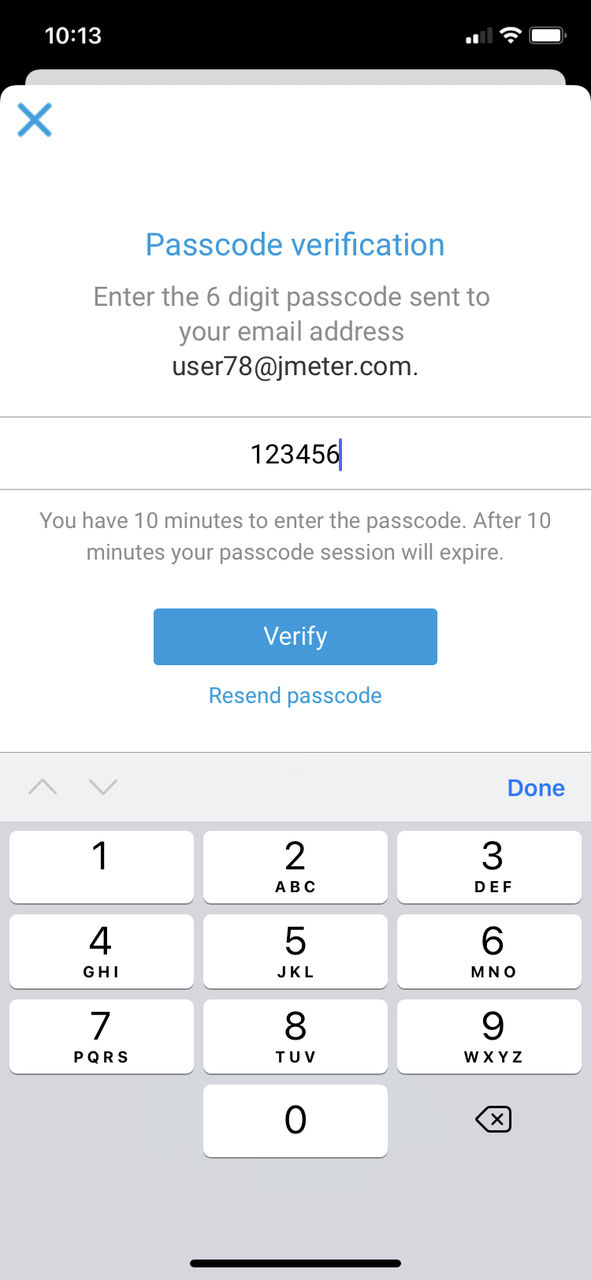
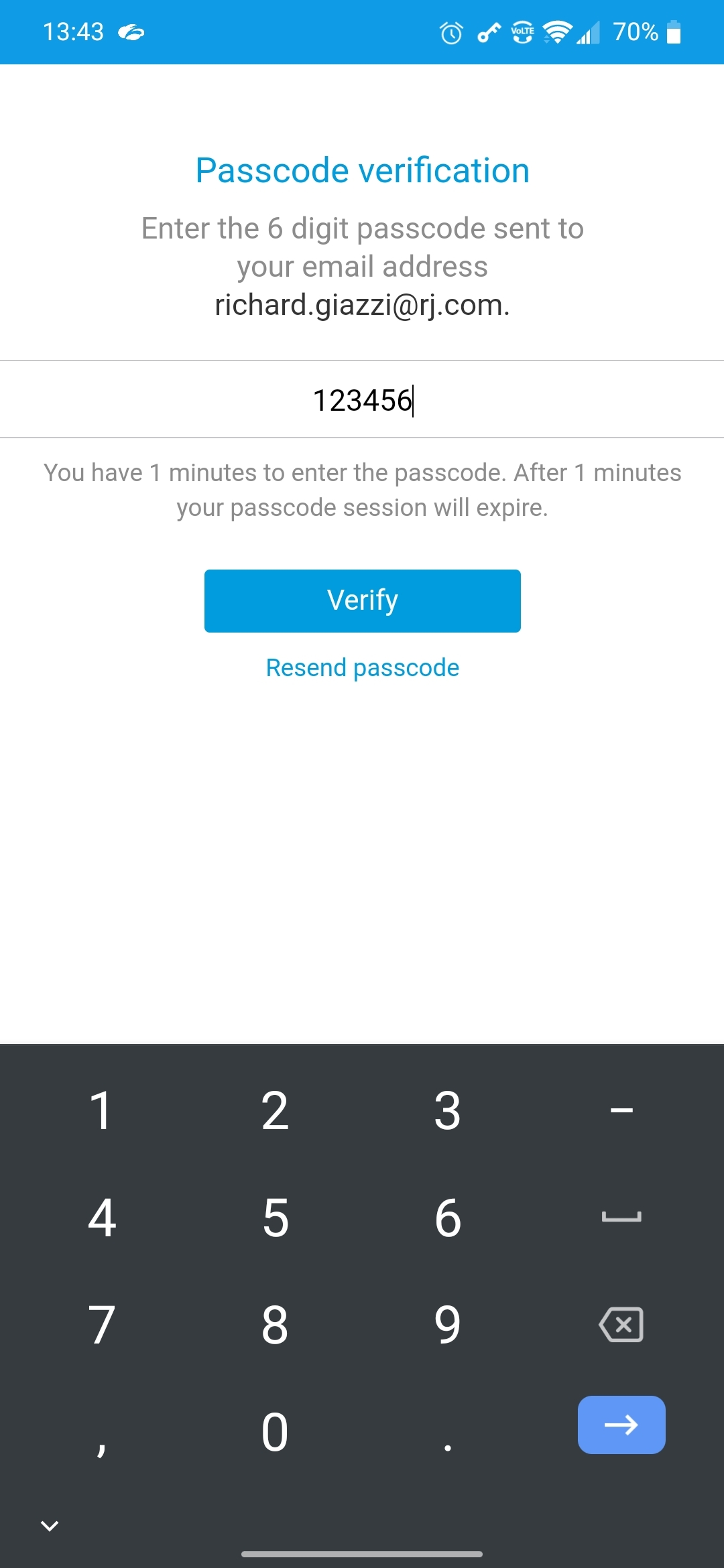
- Enter the six-digit passcode sent to your email address:
Instance-level 2FA
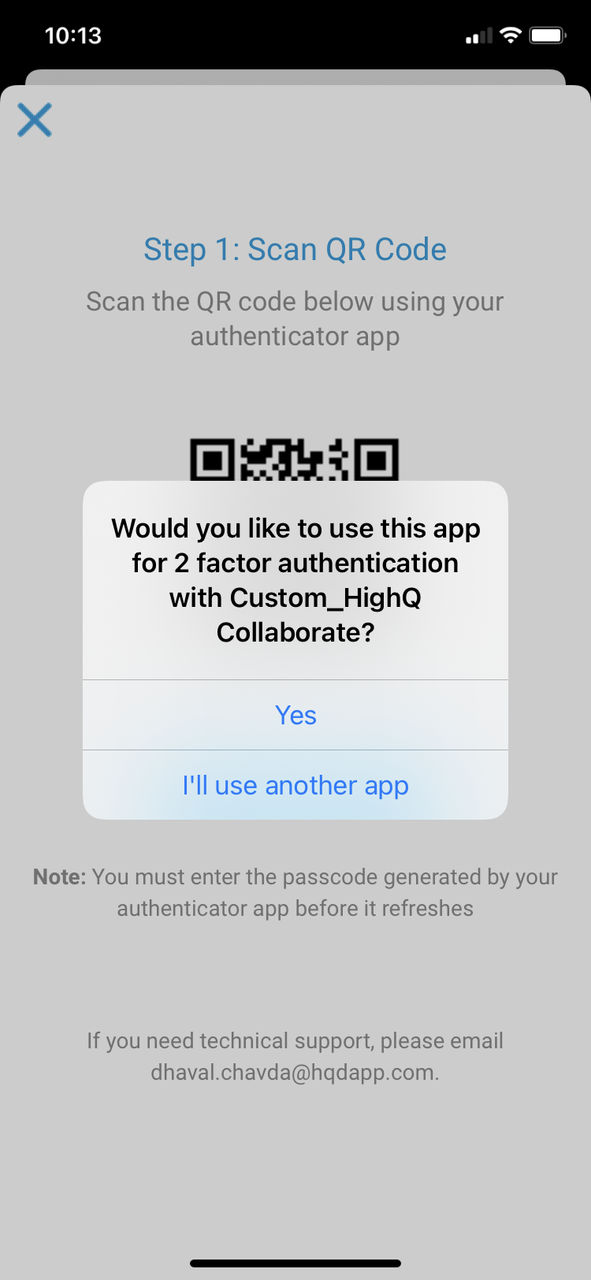
If the app detects that 2FA is enabled at the instance level, it displays a request to use the app with your instance.
note
If your site uses site-level 2FA only, skip to
Site-level 2FA
.Select
Yes
:
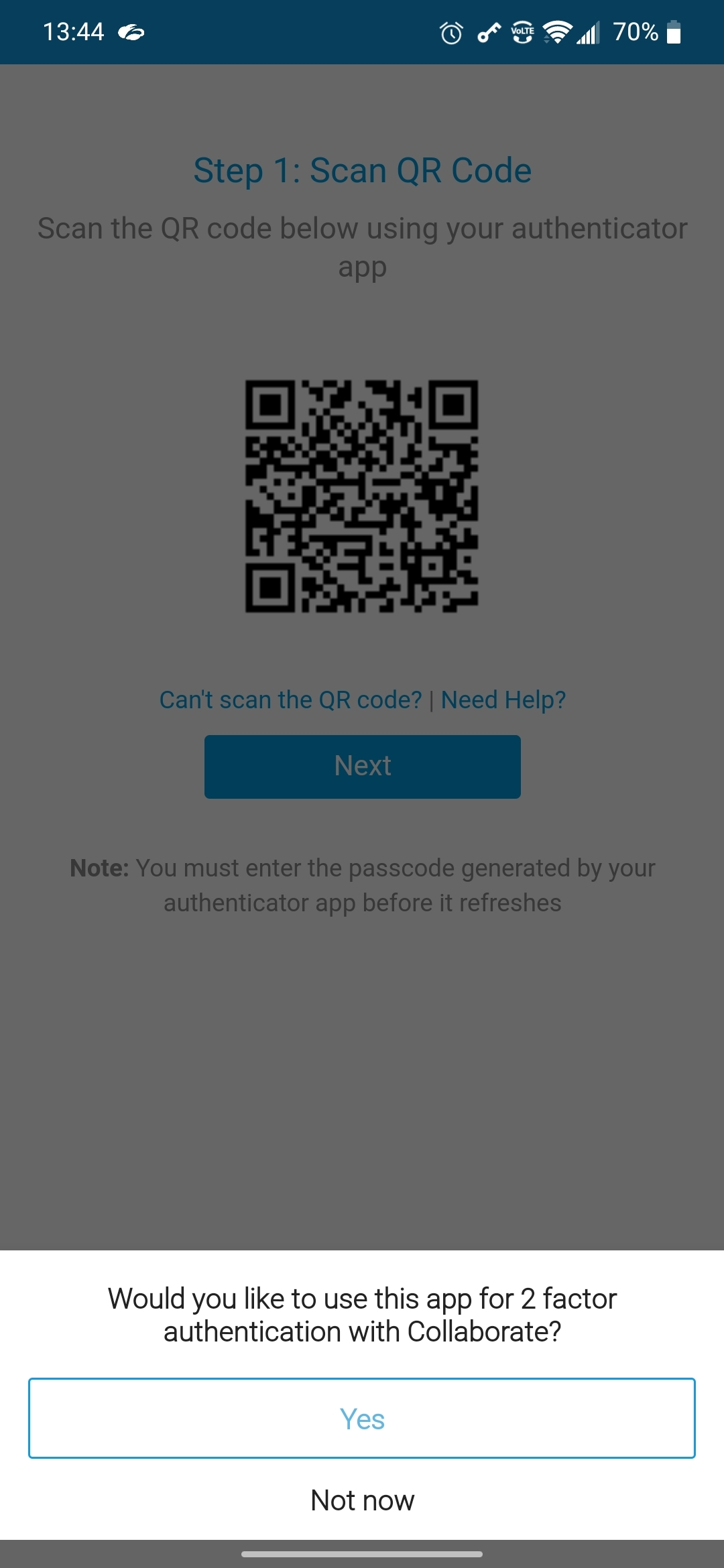
The app automatically pairs your device with your instance.
Backup codes (instance-level 2FA only)
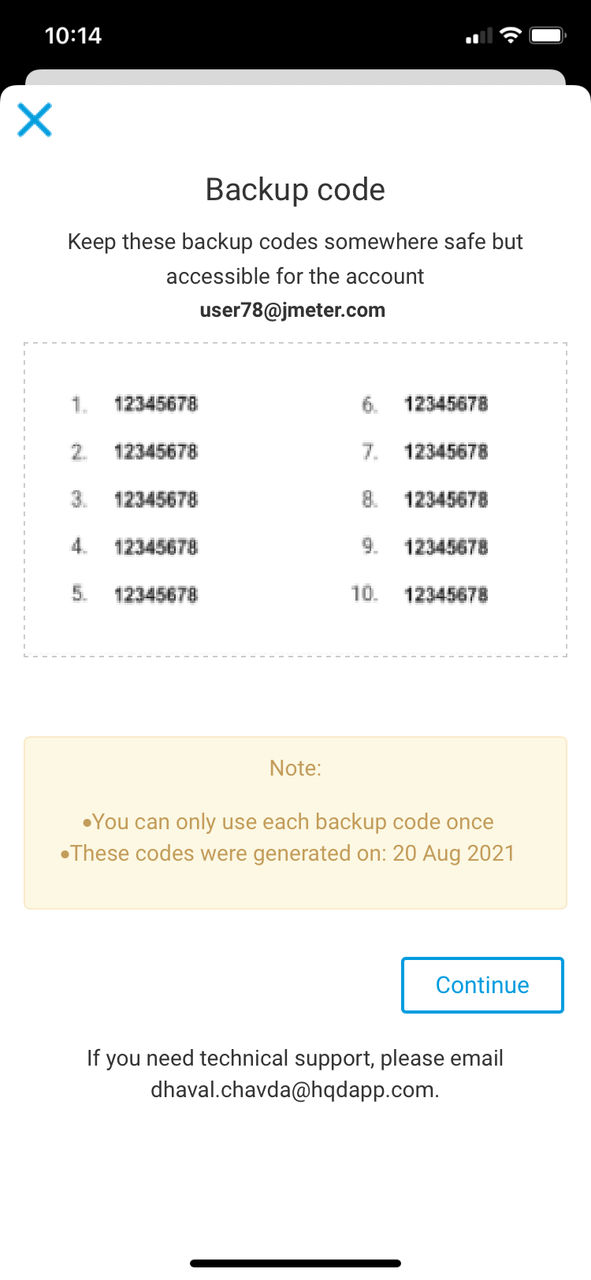
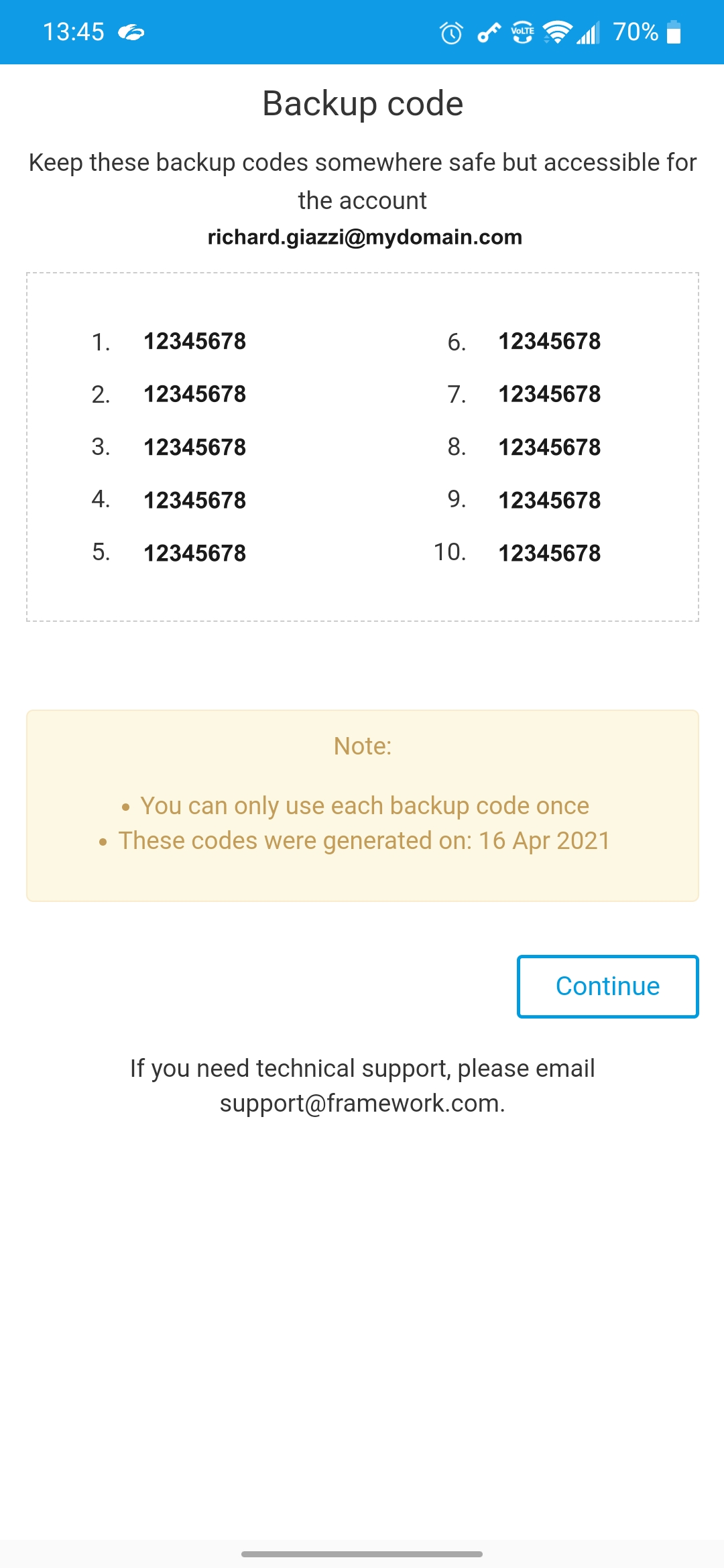
When the device and instance are paired, the app shows a list of backup codes. These are required should your device be lost or reset. Take a screenshot or print the screen; keep a copy or note in a safe place:
Tap
Continue
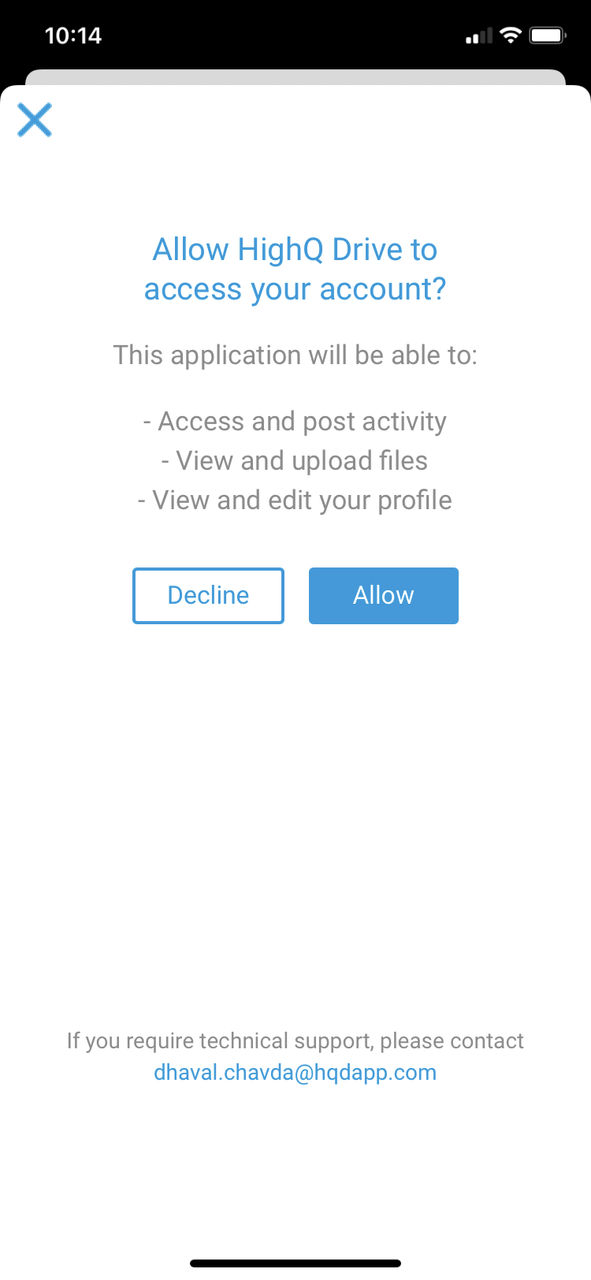
only after you have saved or noted your backup codes.If required by your system admin, you may be asked to allow the app to access your account:
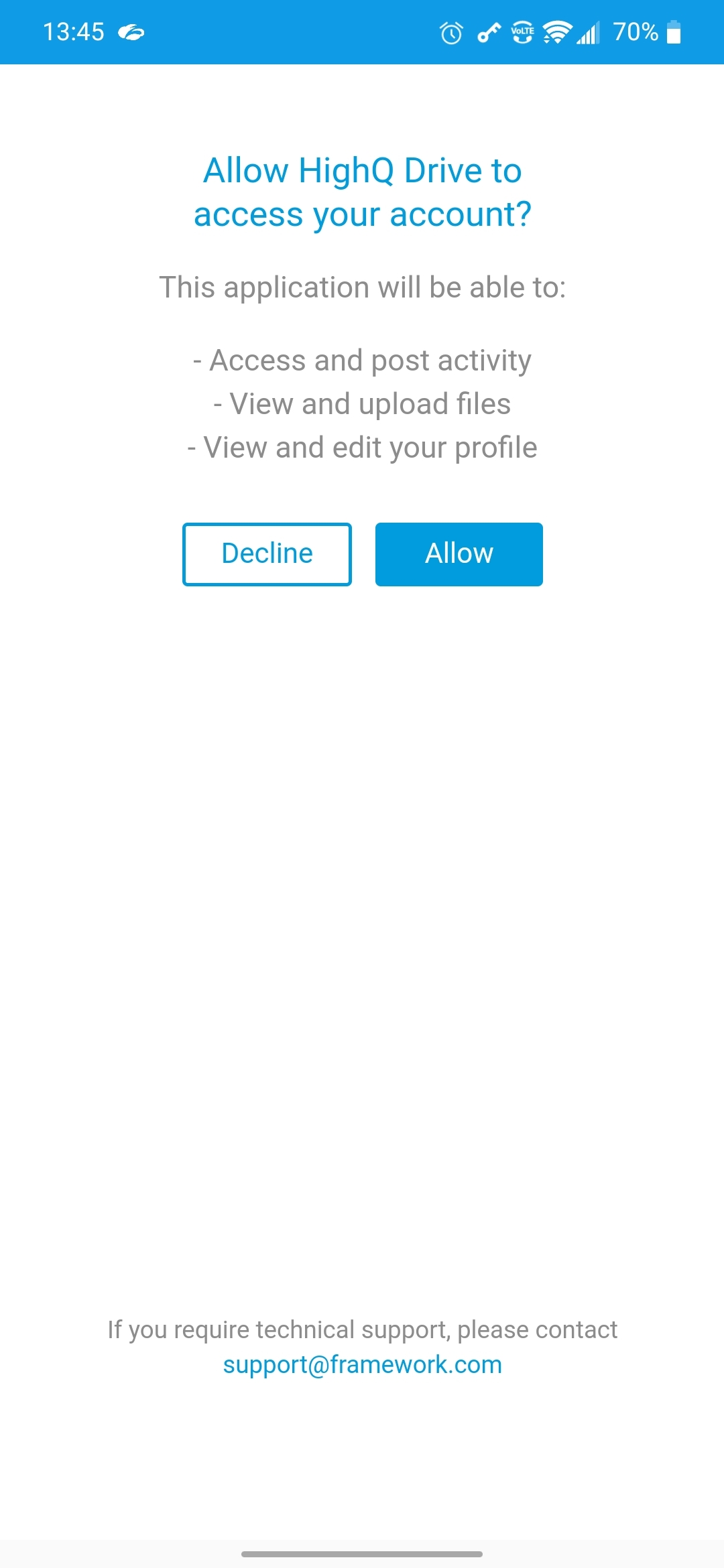
Tap
Allow
to finish the pairing process on your device.note
2FA push notifications are automatically configured.
If sites on your instance do not use site-level 2FA, skip to '
Click Next on your desktop browser
'. Keep the app open on your device.Site-level 2FA
Each site on an instance can use site-level 2FA, either on its own or in addition to
instance-level 2FA
.note
Note that HighQ Stream cannot configure site-level authentication.
Go to the
Browse
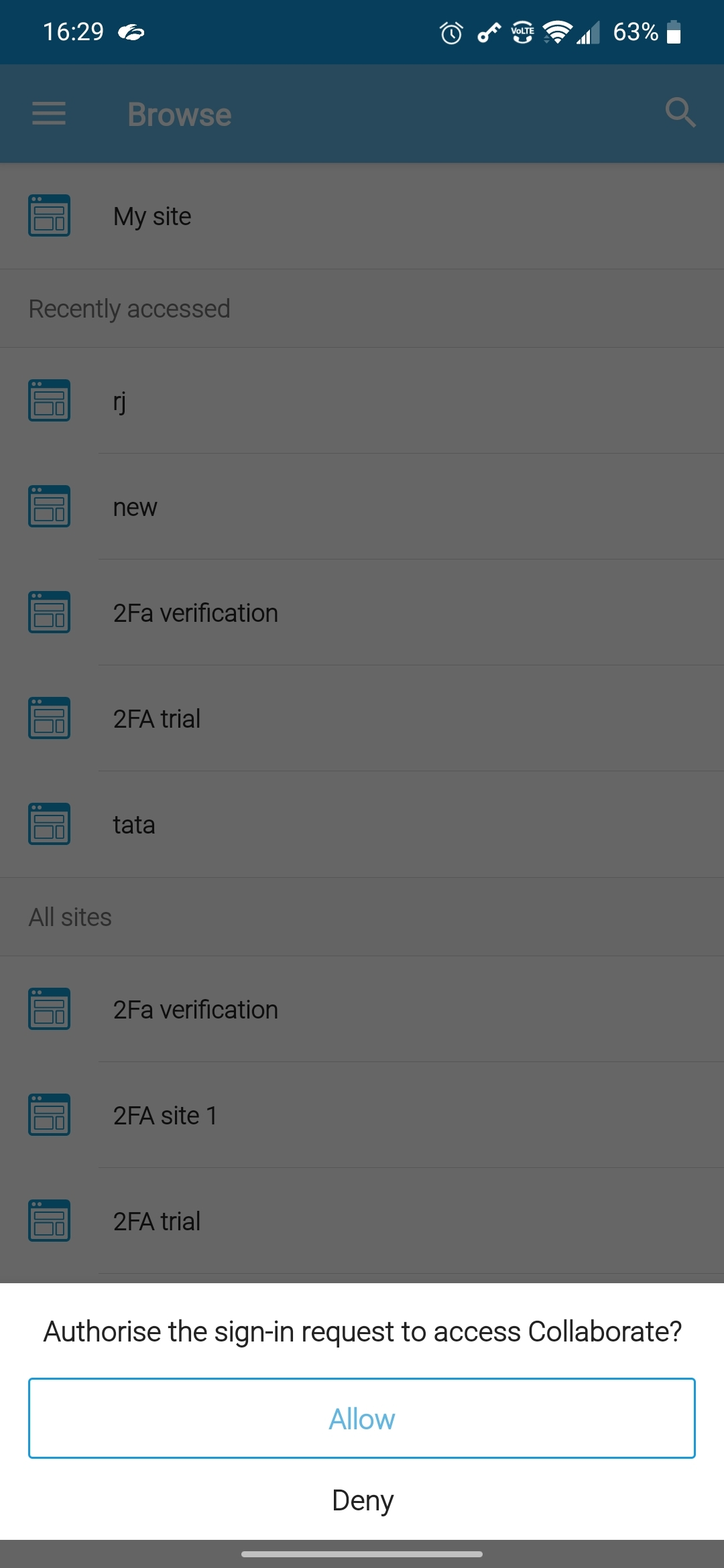
view in HighQ Drive and tap the 2FA-protected site you need to access: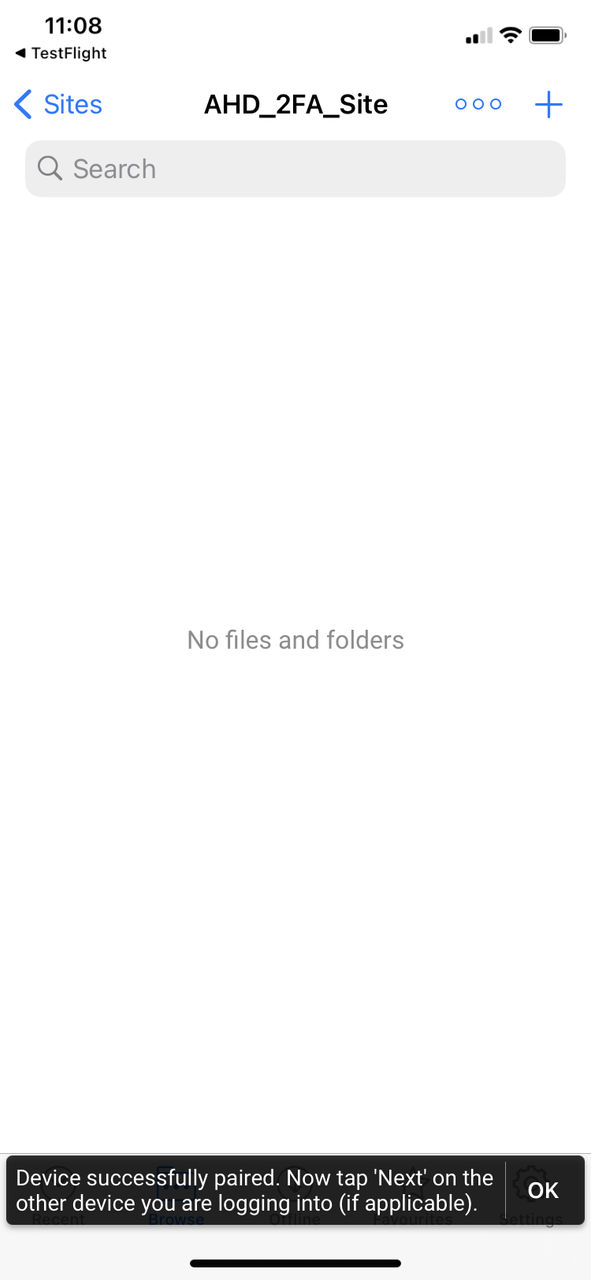
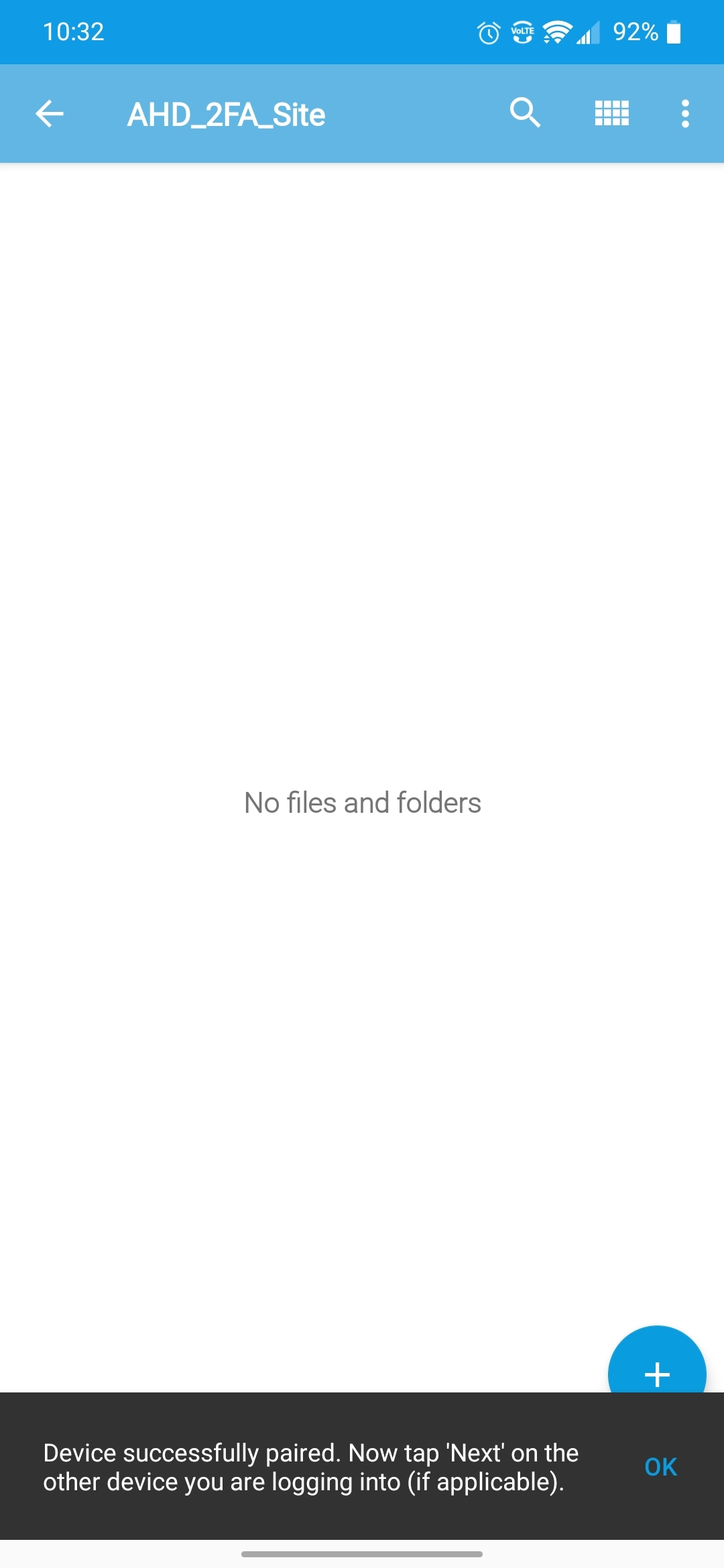
A message informs you that access is restricted. Tap
Continue
to start the pairing process, then authorise the sign-in request.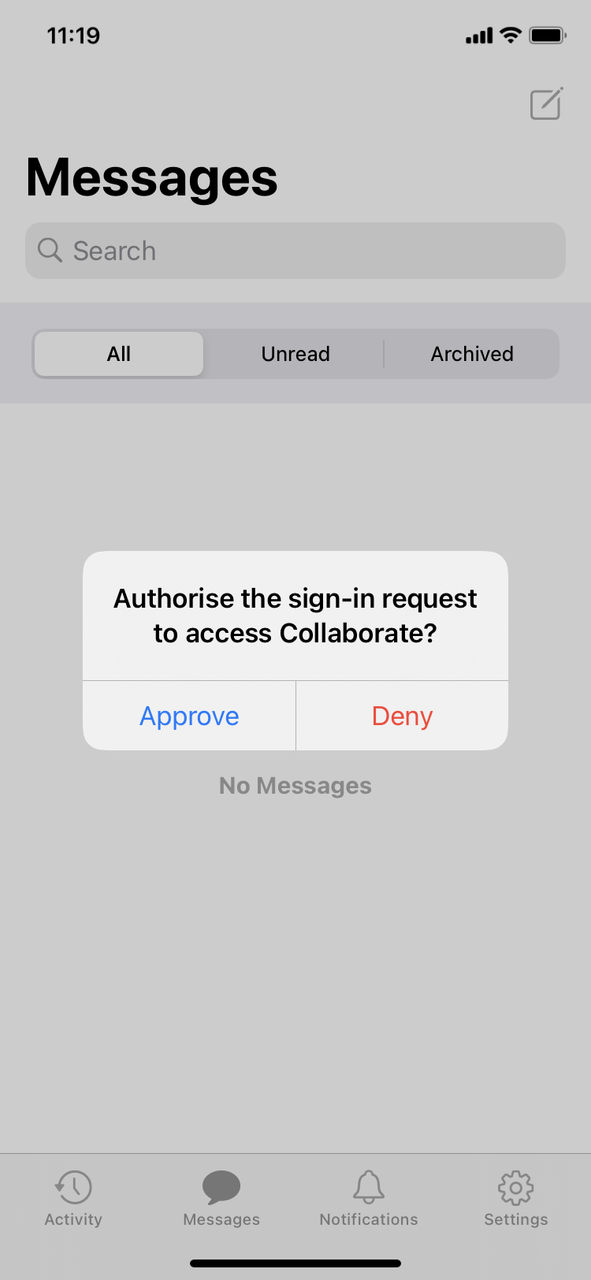
note
In this example, access to the site is restricted using 2FA only; however other restrictions can be applied by the site admin (such as setting a restricted IP range, setting a password, and asking the user to accept terms and conditions). If this is the case, you must complete these steps to open the site.
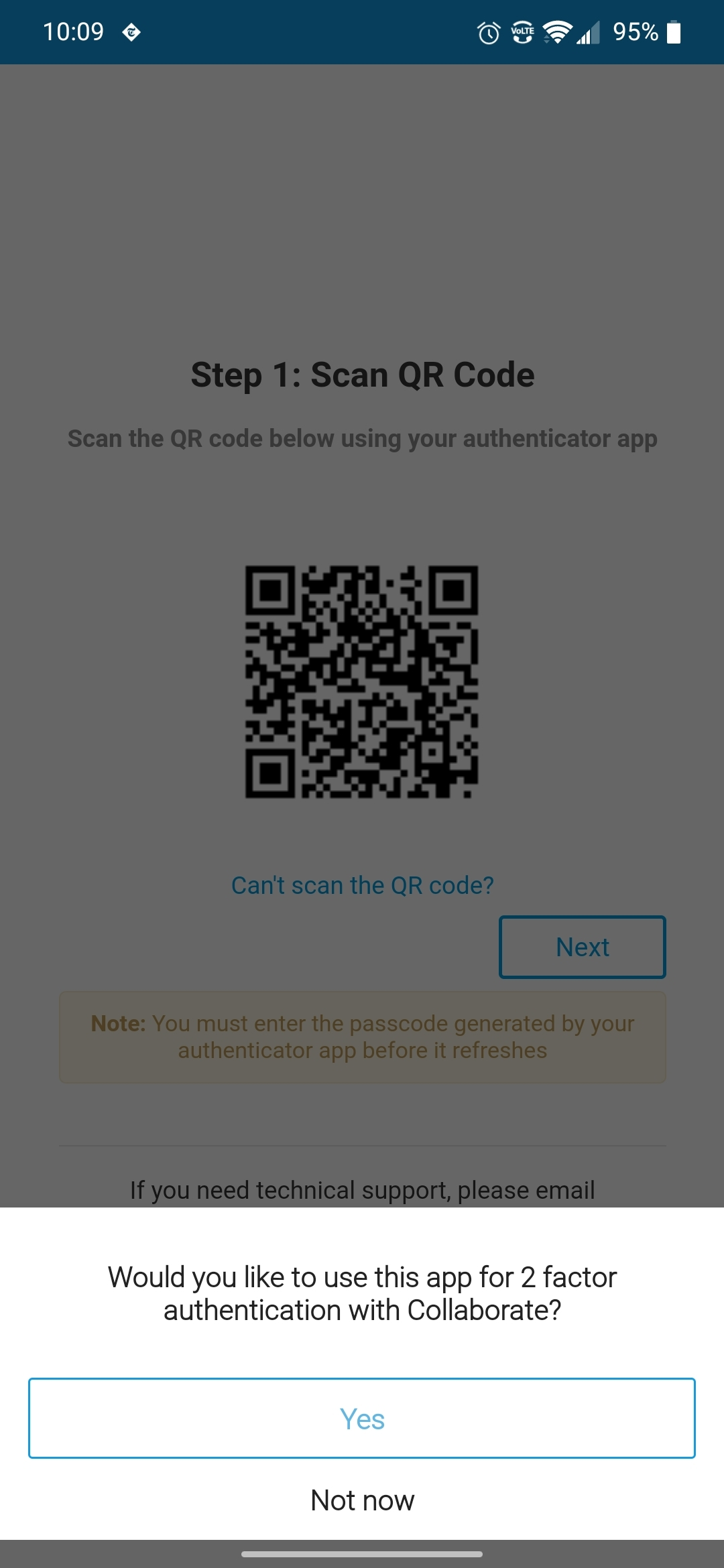
A message asks you if you want to use the app for two-factor authentication; tap
Yes
to continue the process: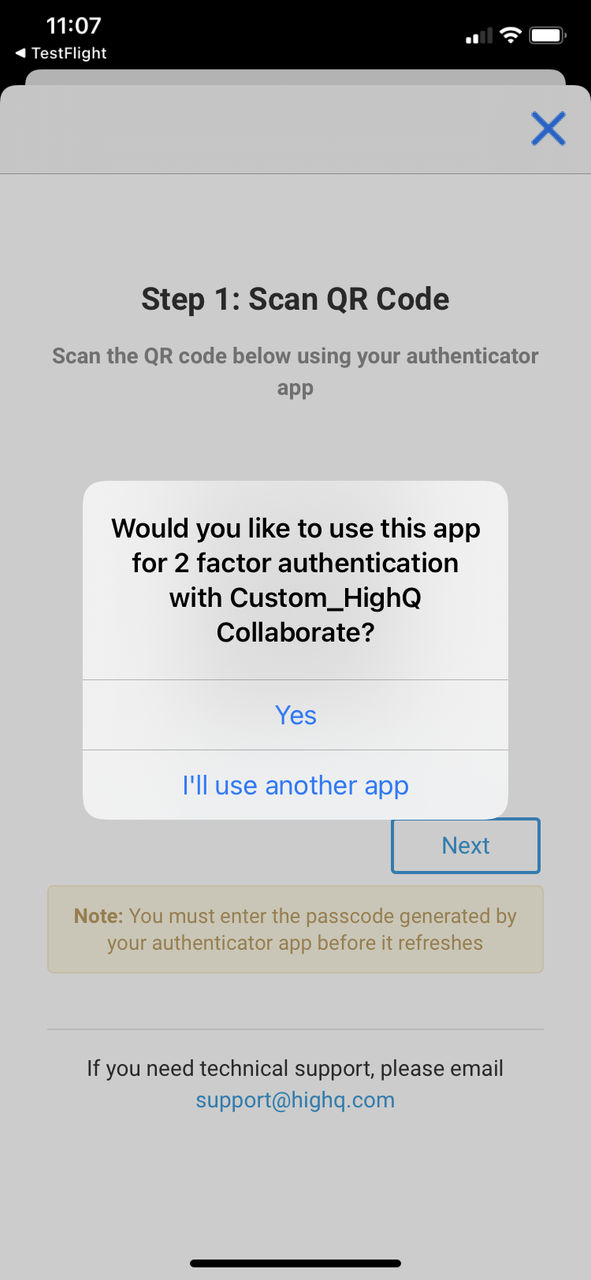
Continue to
Click Next on your desktop browser
. Keep the app open on your device.Click next on your desktop browser
After you have paired the instance or site, the app displays a message directing you to click the
Next
button in your desktop browser:Click
Next
, then return to your mobile device for the next step.note
If you select
Next
on the browser page before the Successful pairing
message is displayed on your mobile device, the push notification is not sent. If this happens, you can either complete the steps on your mobile device and reload the browser page to trigger the push notification OR use the app to generate a six-digit passcode and enter that into the browser page (see the section Manually generate authentication passcodes
, below).Receiving an access request or notification
After you select
Next
in the browser, you see a message on your device that asks you to authorise the sign-in request.note
If you receive one of these notifications but you did not request it, tap
Deny
and inform your administrator.If the HighQ app is still open and on your device's screen, you'll need to allow a request to authorise the sign-in.
If the HighQ app is open in the background, you'll get a notification to authorize the request (in iOS, long press on the notification to reveal the actions):
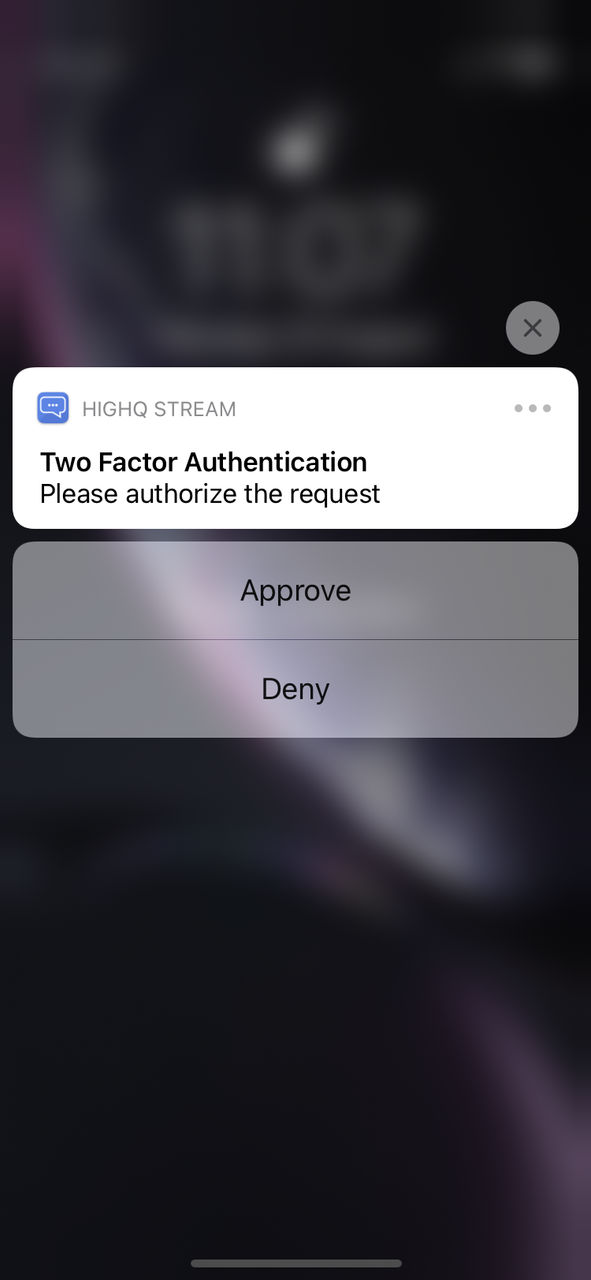
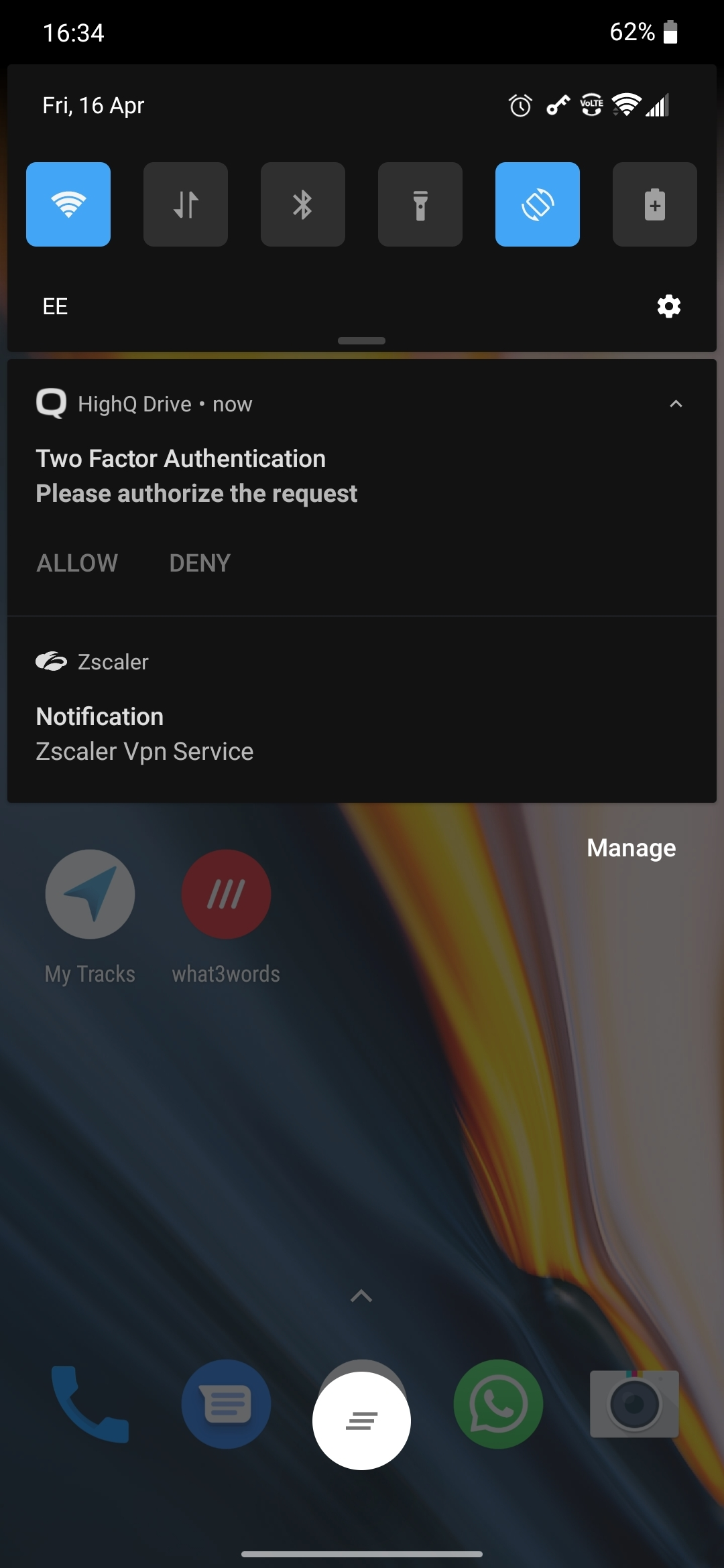
Tap
Allow
to automatically fill the passcode field in your browser and open the site.note
As HighQ apps are paired to your instance, it is possible to send the passcode directly to your browser and log in without typing the passcode.
Redirecting to the logged-in view in the browser
The platform automatically logs in to your account on the desktop browser:
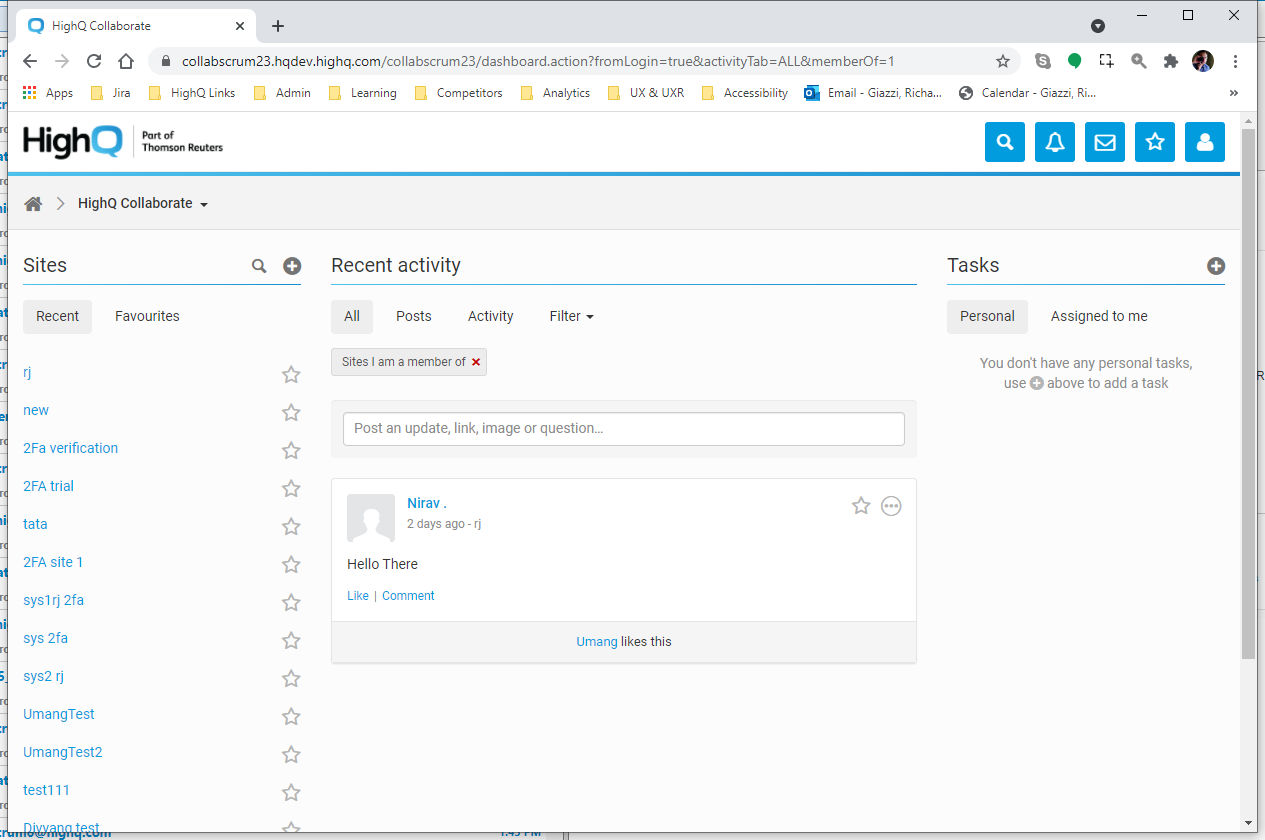
You can now
log in to Collaborate
with 2FA.The configuration of your instance determines how frequently you are required to log in using 2FA. If 2FA is required, an authentication notification is sent to your paired device, requiring you to tap
Allow
to access your site or instance.Pairing without a computer
If you want to pair a mobile device to your HighQ instance or site and do not have access to a browser or your computer, please follow these steps:
- If it is not already installed, download HighQ Drive:
- Download HighQ Drive from the Apple App Store or Google Play.
- Alternatively, you can download HighQ Stream if your instance uses instance 2FA only.
- Install and open the app.
- Log in to the app:
- Enter your HighQ instance domain (e.g. collaborate.yourcompany.com).
- Enter your email address and password.
- Enter the six-digit passcode sent to your email address.
- Pair the app to use as an authenticator:
- If you need to access a site that uses site 2FA, open theBrowseview and tap on the site. TapContinue.
- Instance 2FA is detected automatically.
- Tap on the in-app notification asking whether you would like to use this app for two-factor authentication.
- If configured on your site or instance, take a note or screenshot of the backup codes and tapContinue.
- If required: TapAllowwhen asked if the HighQ app is allowed to access your account.
- Optionally: Choose a six-digit app password to increase security.
- At this point, your device is paired and you can receive notifications when two-factor authentication is required.
Logging in to HighQ after setting up 2FA
When you log in, you see a screen asking you to enter the six-digit code from your mobile authenticator app
or
tap Allow
on a notification sent to your paired device: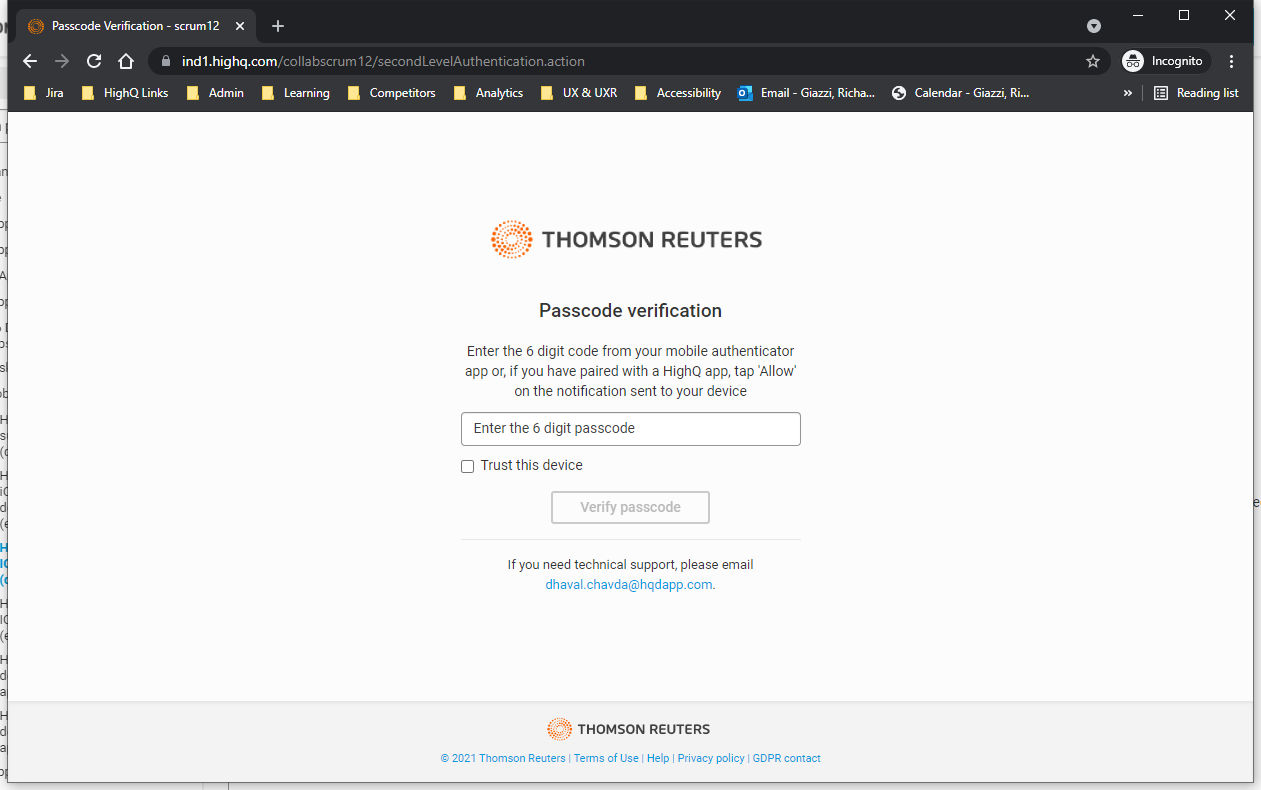
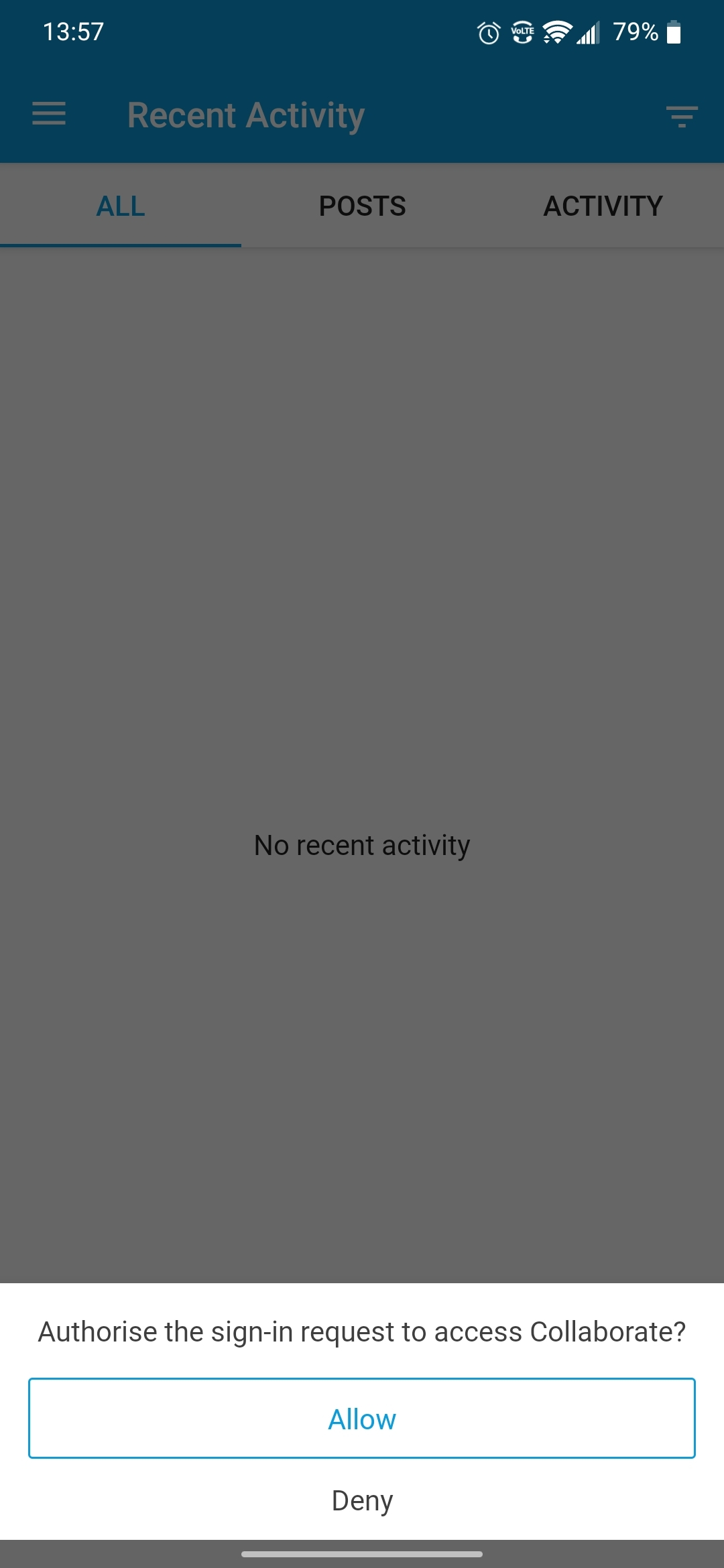
If the HighQ app is used as an authenticator in the foreground, an in-app notification to authorise the sign-in request is displayed:
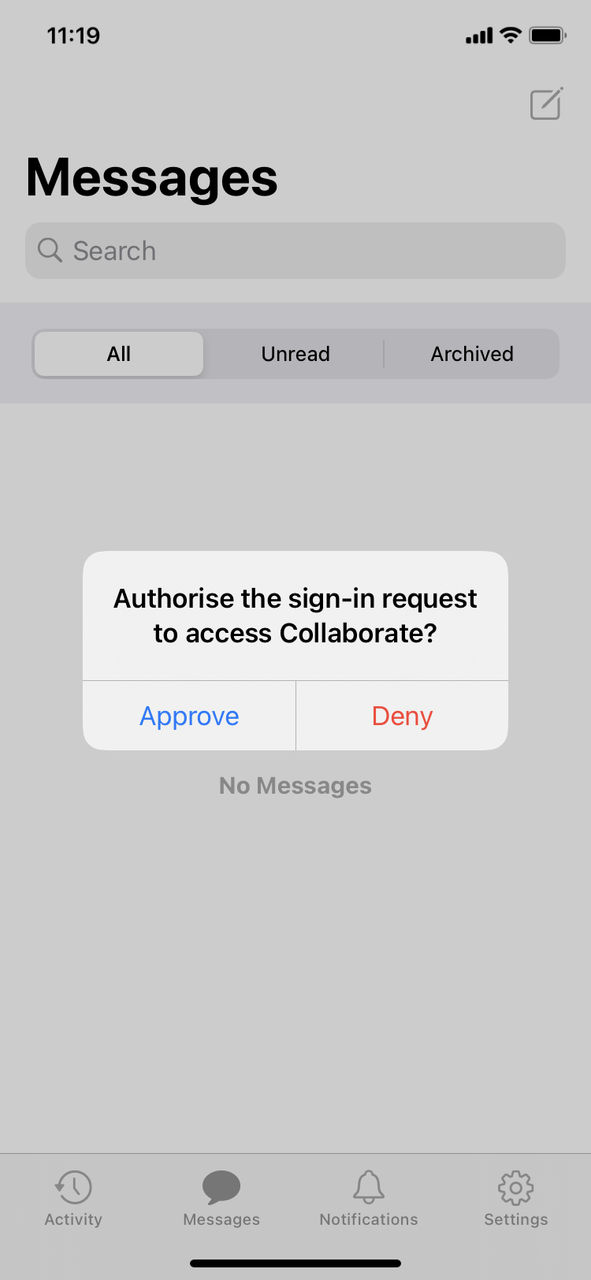
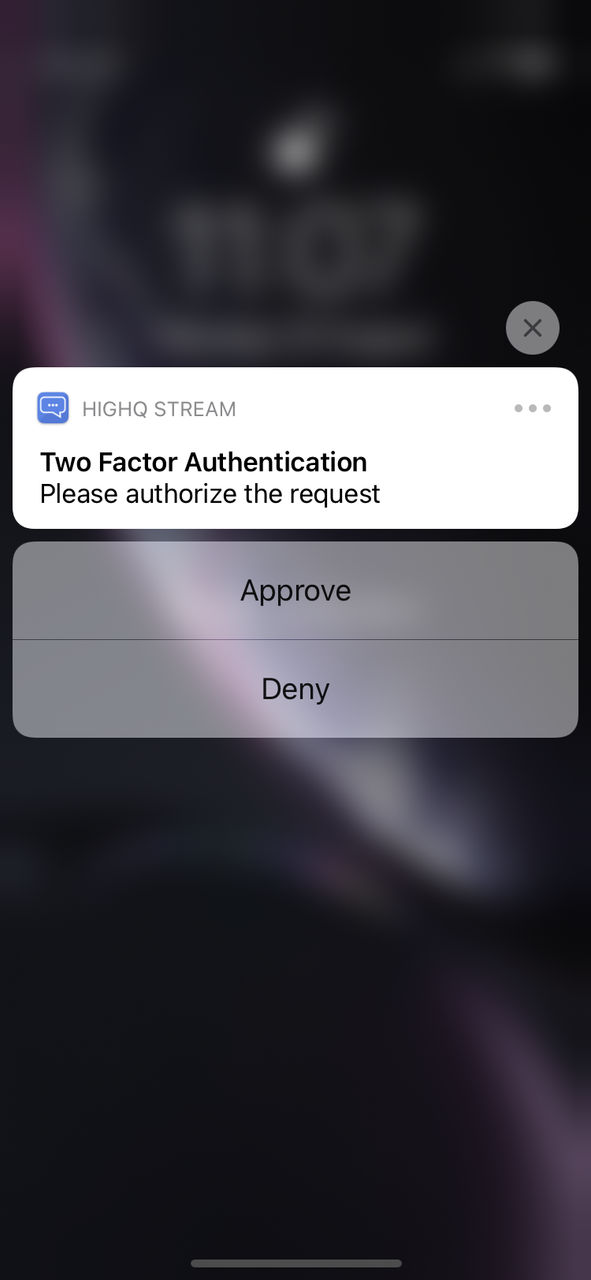
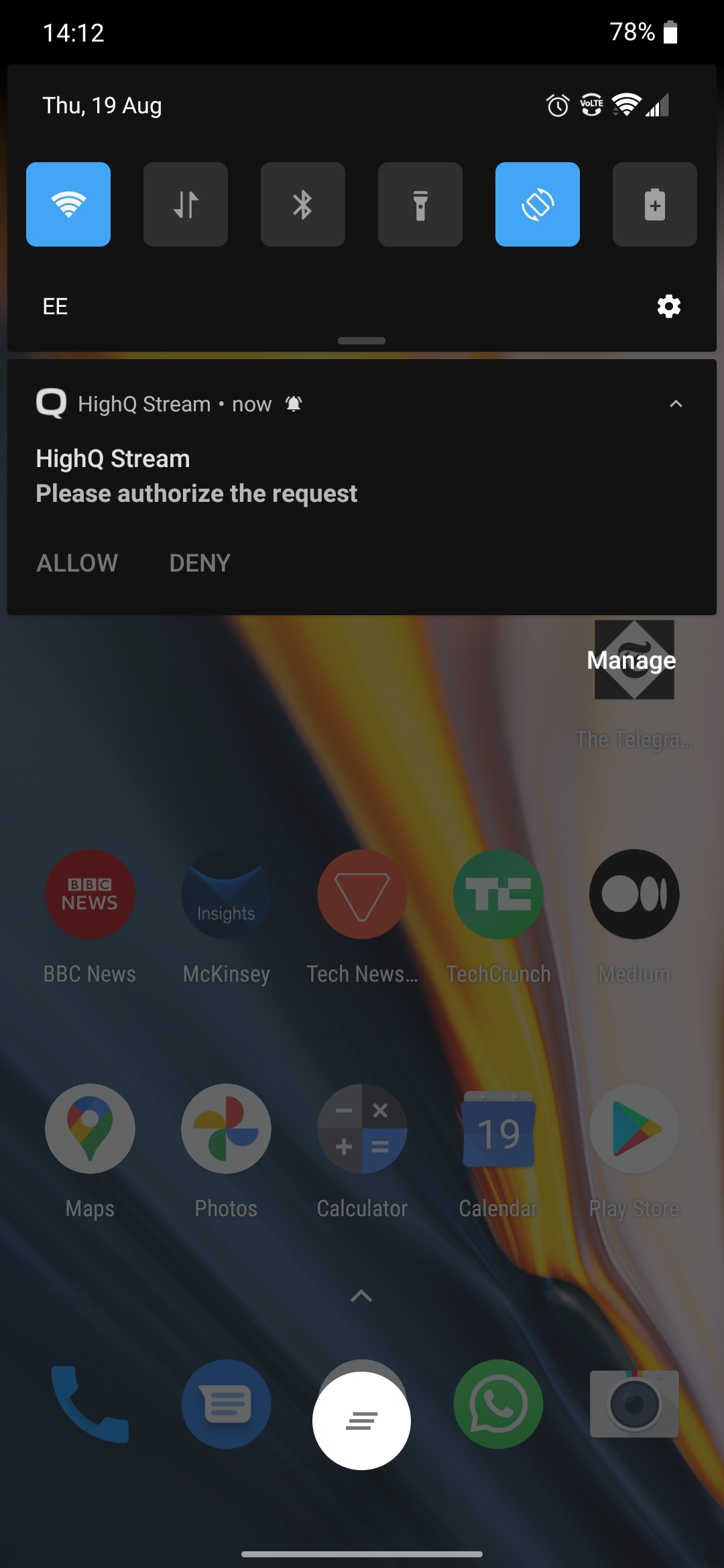
If the HighQ app used as an authenticator is in the background, a system notification to authorise the sign-in request is displayed:
Tap
Allow
to complete the authentication process and redirect the browser to your landing page: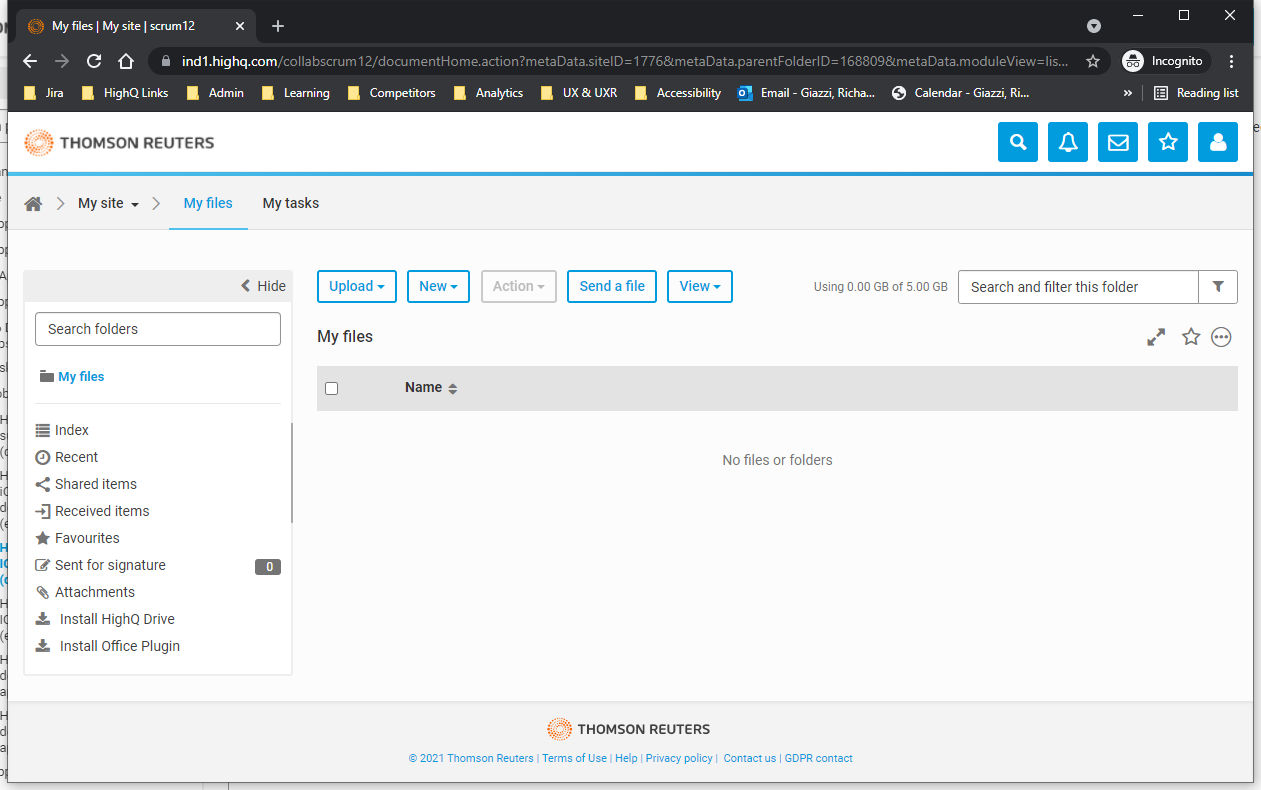
note
As HighQ apps are paired to your instance, it is possible to send the passcode directly to your browser and log in without typing the passcode.
Manually generate authentication passcodes
As well as providing two-factor authentication access to your HighQ site or instance via notifications, the app can manually generate authenticator passcodes.
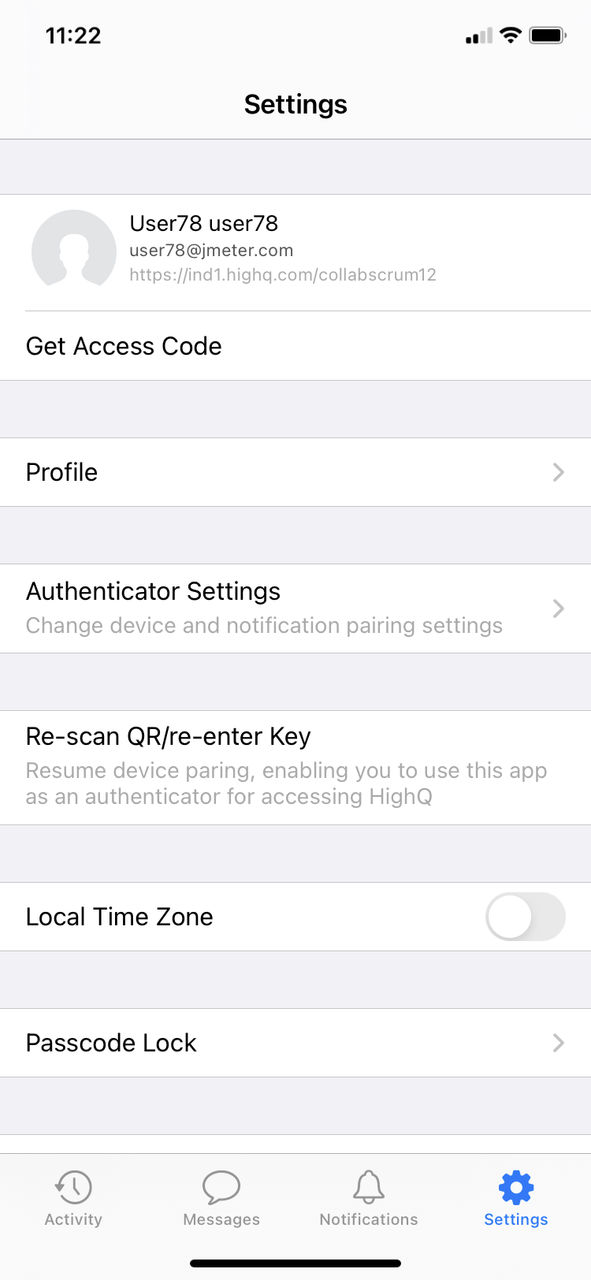
Tap
Authentication settings
in the app Settings
screen to see additional settings related to two-factor authentication.Tap
Get access code
or Generate access code
:
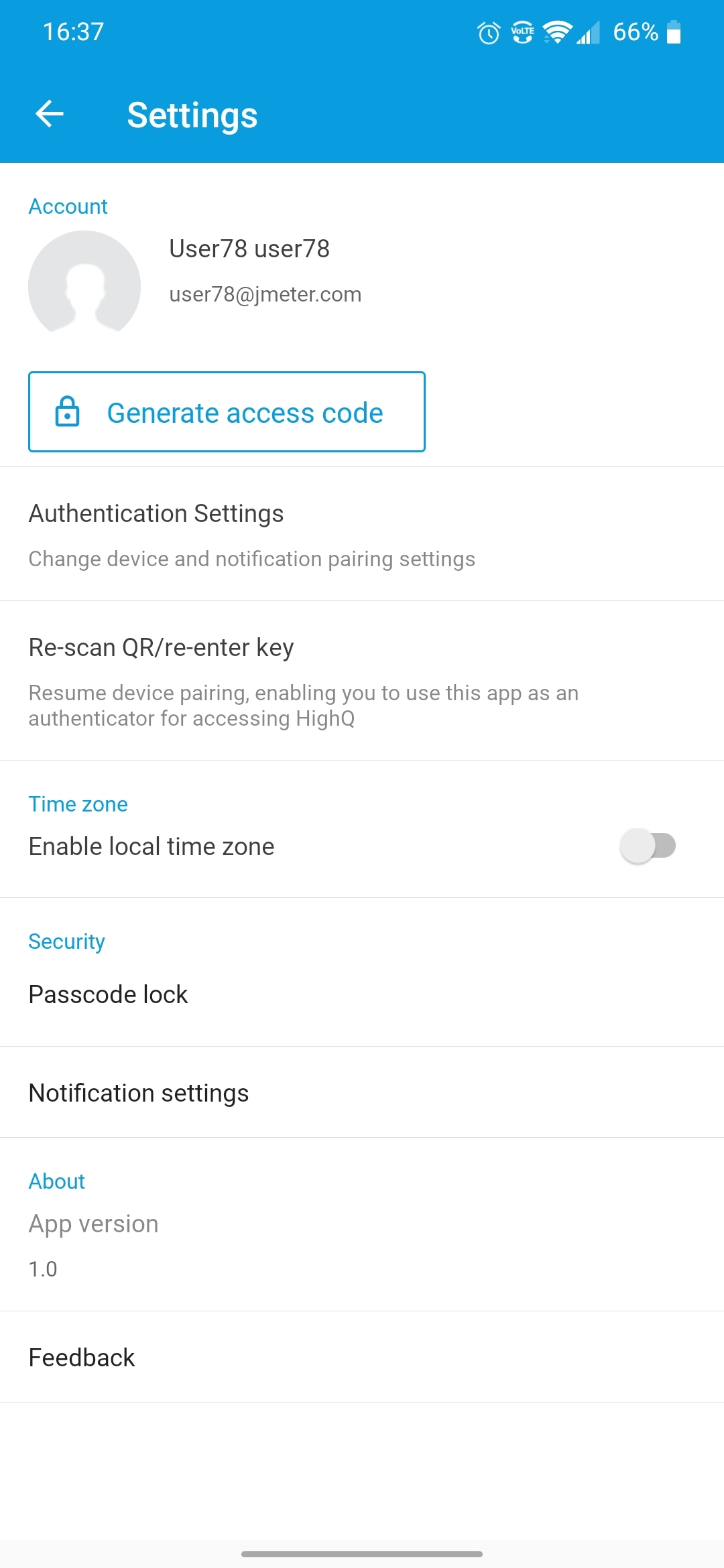
note
Generate access code
and Authentication settings
only appear after the app has been paired to a HighQ site or instance.The access code generation screen opens. A new access code is generated every 30 seconds:
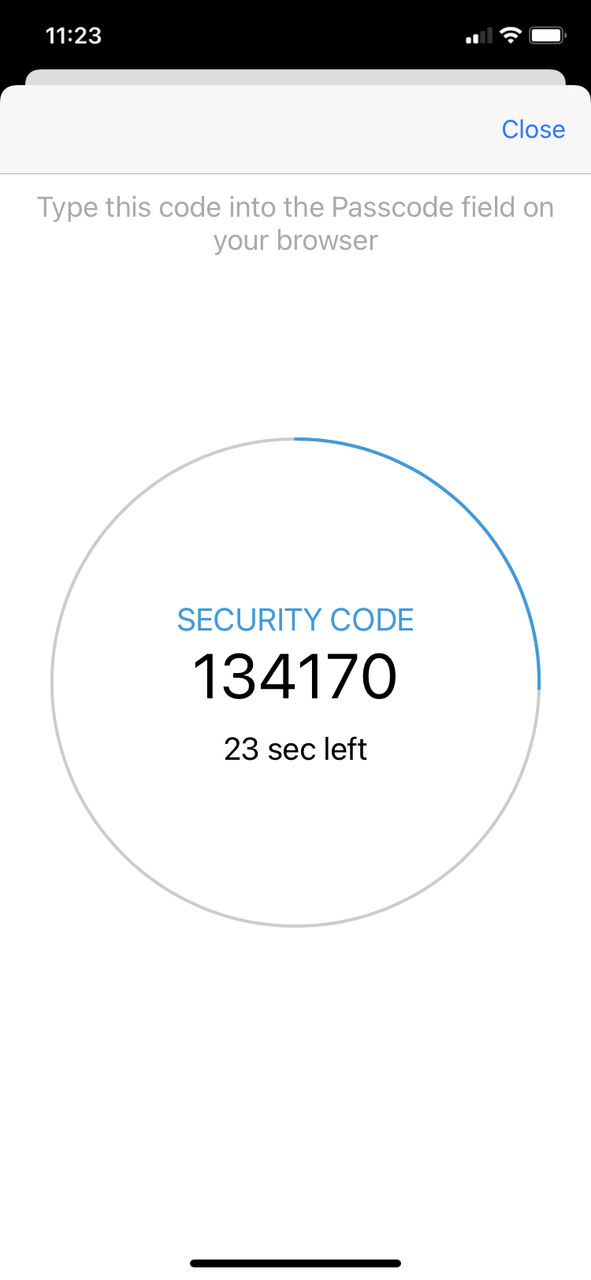
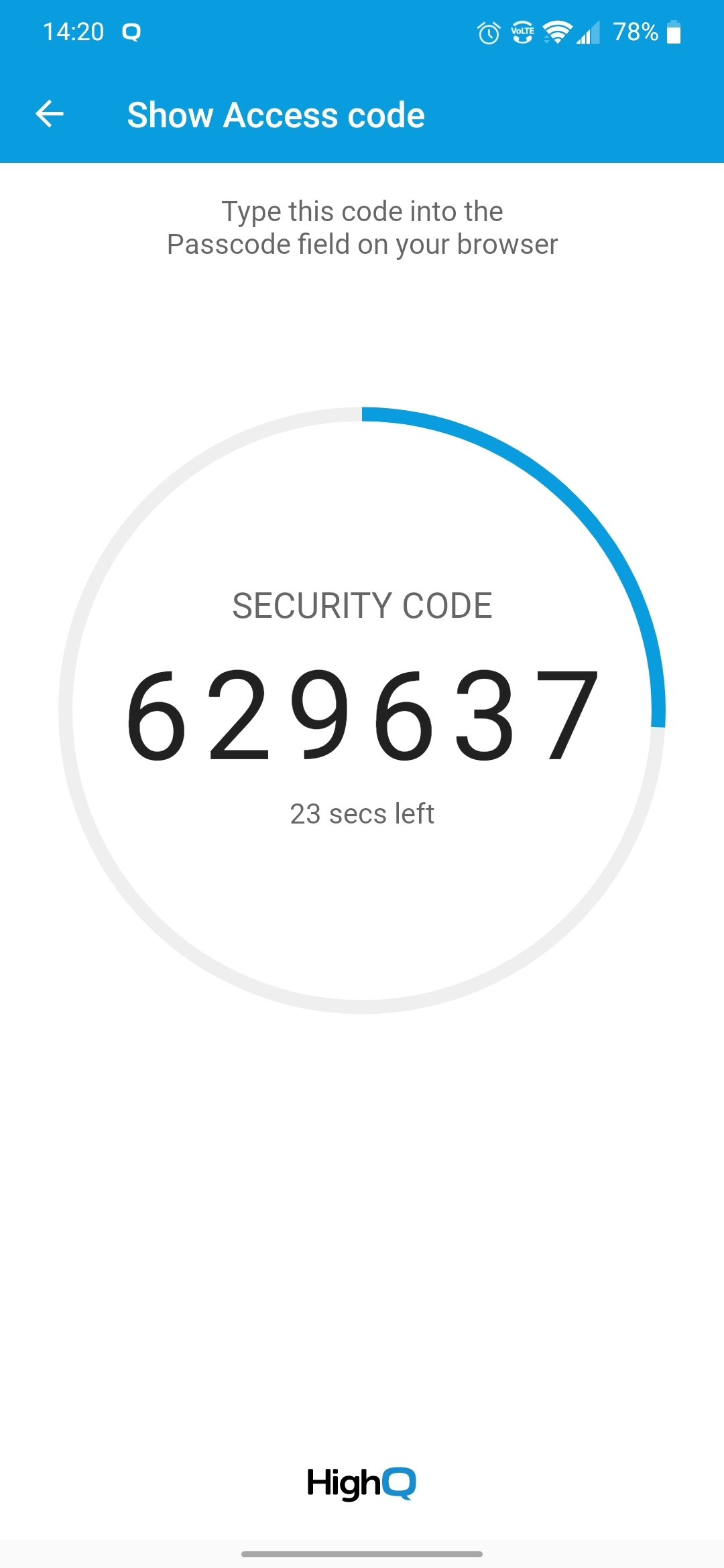
Enter the code into the browser passcode field and select
Verify passcode
to gain access to your site or instance: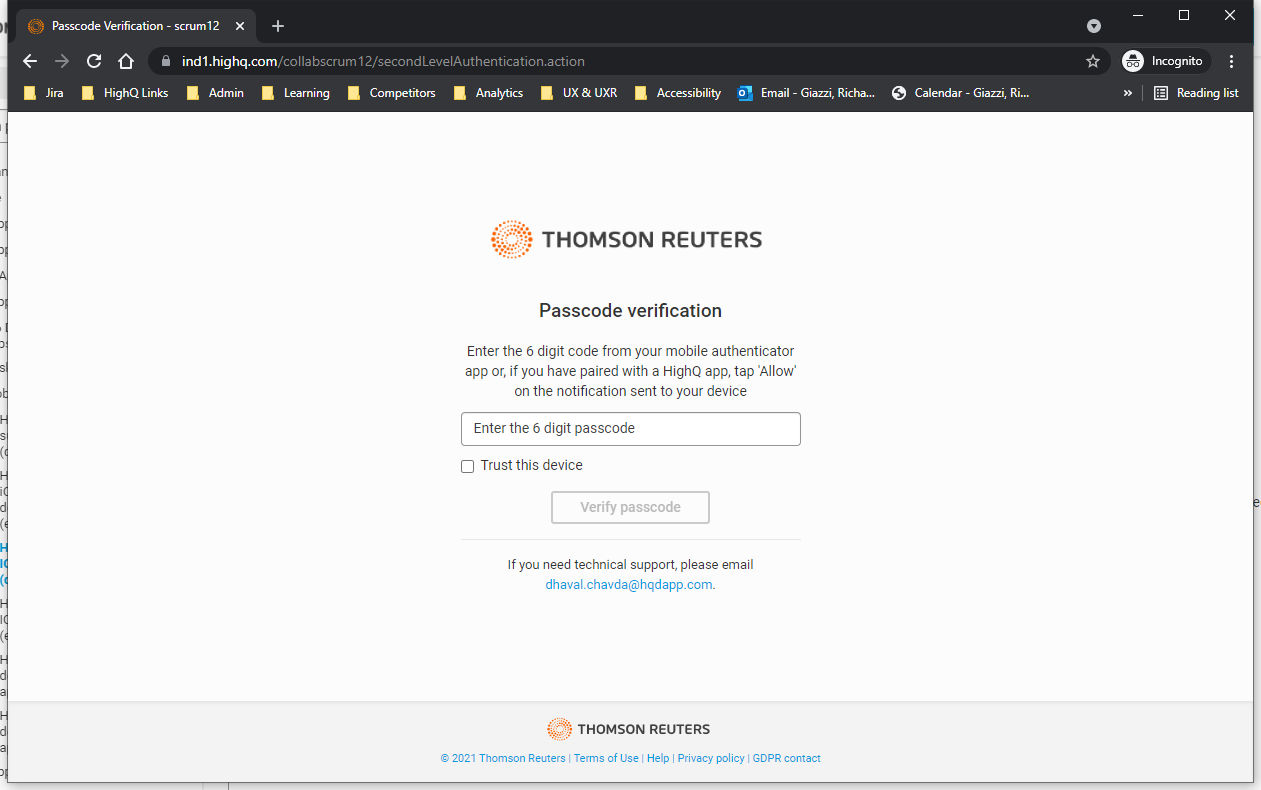
Managing 2FA settings in the HighQ app
Tap
Authentication settings
in the app Settings
screen to see additional settings related to two-factor authentication: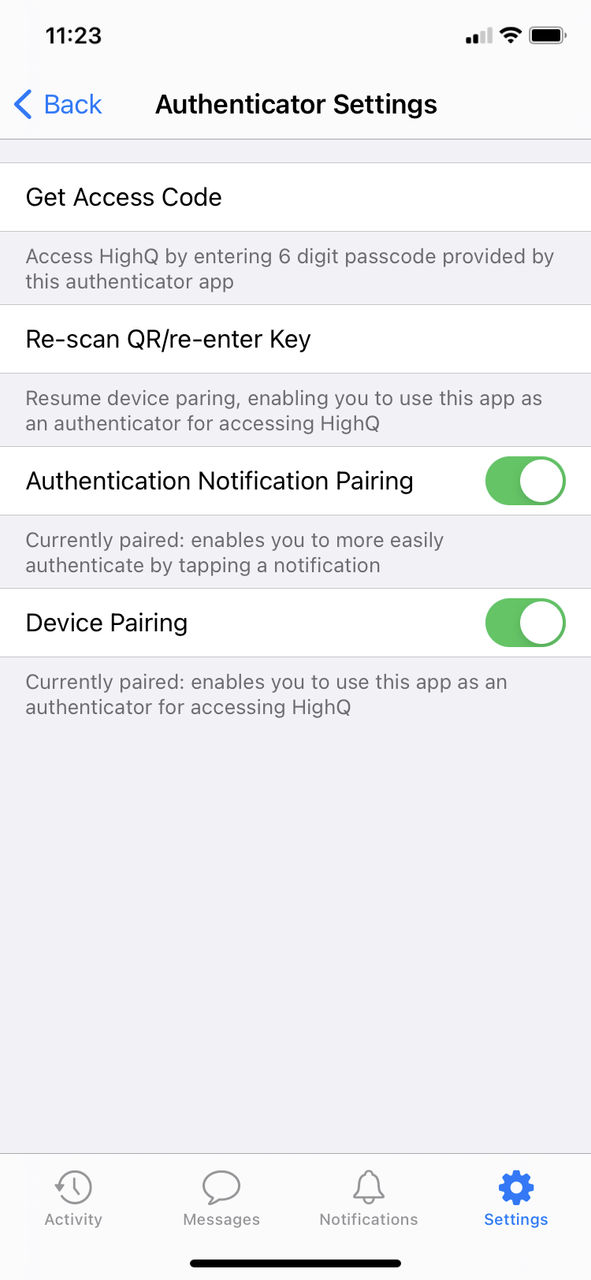
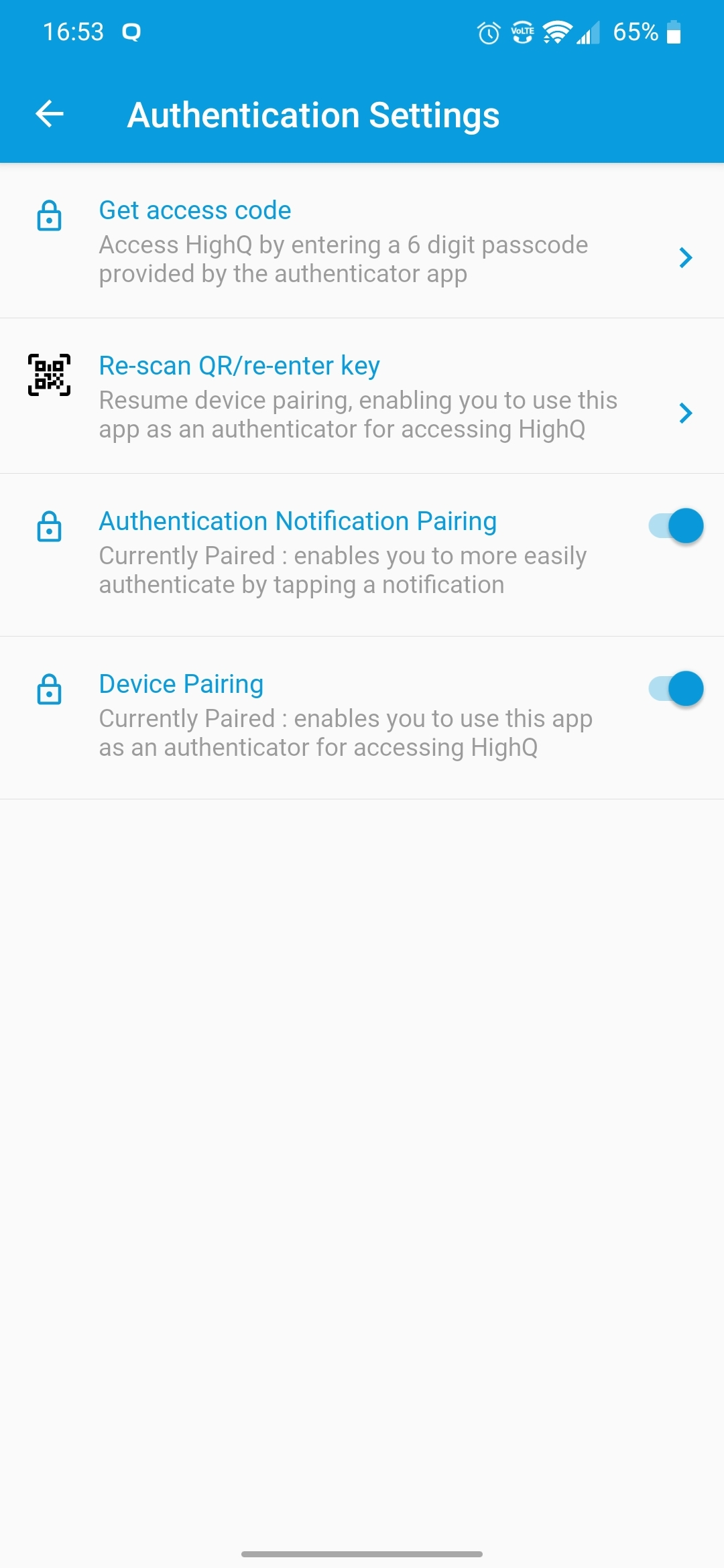
- Get access code- opens the access code generation view; a new access code is generated every 30 seconds
- Re-scan QR/Re-enter key- unpairs the device from the HighQ site or instance, but retains the stored secret key in the app
note
This option should only be used if you cannot complete the initial pairing process (e.g. the session timed out, or your browser lost connection during the process). In most other circumstances, your HighQ site or instance keeps pairing information for your device, so this option only unpairs the app; you must contact your admin to reset 2FA for your account.
- Authentication notification pairing- determines if the device receives access notifications. If this is disabled, no notifications will be generated, but you can still manually generate access codes to access your site or instance
- Device pairing- determines the device's pairing status. If this is disabled, the device is completely unpaired from the HighQ instance, removing all pairing information from the app. You must contact your admin to reset 2FA for your account
note
Generate access code
and Authentication settings
only appear after the app has been paired to a HighQ site or instance.Frequently asked questions
Migrating from different devices and authenticators
This assumes you have already paired with a third-party authenticator on a device.
Q: What if I want to use the HighQ authenticator but I'm already using a third-party authenticator?
You need to contact your HighQ Account Manager to have 2FA reset on your account. You can then pair your device using a HighQ app.
Q: What if I have paired using a HighQ app but I now want to use a different device?
Although you can install HighQ apps on as many devices as you like, only one HighQ app on one device can be paired with the HighQ site or instance. If you wish to change the device you are using to authenticate, contact your HighQ Account Manager to reset 2FA on your account.
Q: Can I use a HighQ app on multiple devices to authenticate a HighQ site or instance?
No - Although you can install HighQ apps on as many devices as you like, only one HighQ app on one device can be paired with the HighQ site or instance.
Q: Can I use a single HighQ app to authenticate multiple HighQ sites or instances?
No - Each HighQ app on your device can only store one secret key and can therefore only pair with one HighQ instance BUT you can use one app for one instance (e.g. HighQ Drive) and another for a different instance (e.g. HighQ Stream) or a HighQ app on another device.
Pairing with a HighQ site or instance for the first time
This assumes you have never paired any device with your HighQ site or instance, or 2FA has been reset on your account by your HighQ Account Manager.
Q: Why can I only use HighQ Drive when pairing with a HighQ site?
Currently, HighQ Drive is the only app that allows you to search through a list of available sites and select one to pair with.
Logging into the HighQ instance for subsequent visits
This assumes you have already successfully paired your device.
Q: What can I do if I don't receive a notification when trying to access my HighQ site or instance?
You can tap
Generate access code
and then type the code into your browser, as an alternative to the notification:- Tap the link which saysGet access codeorGenerate access code.
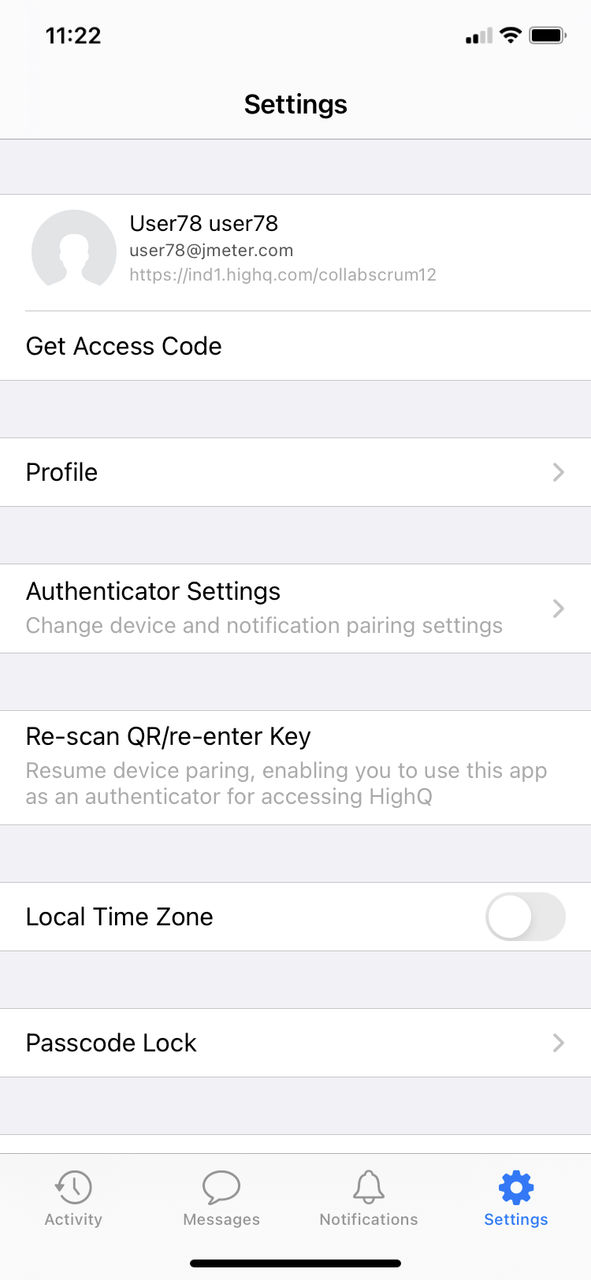
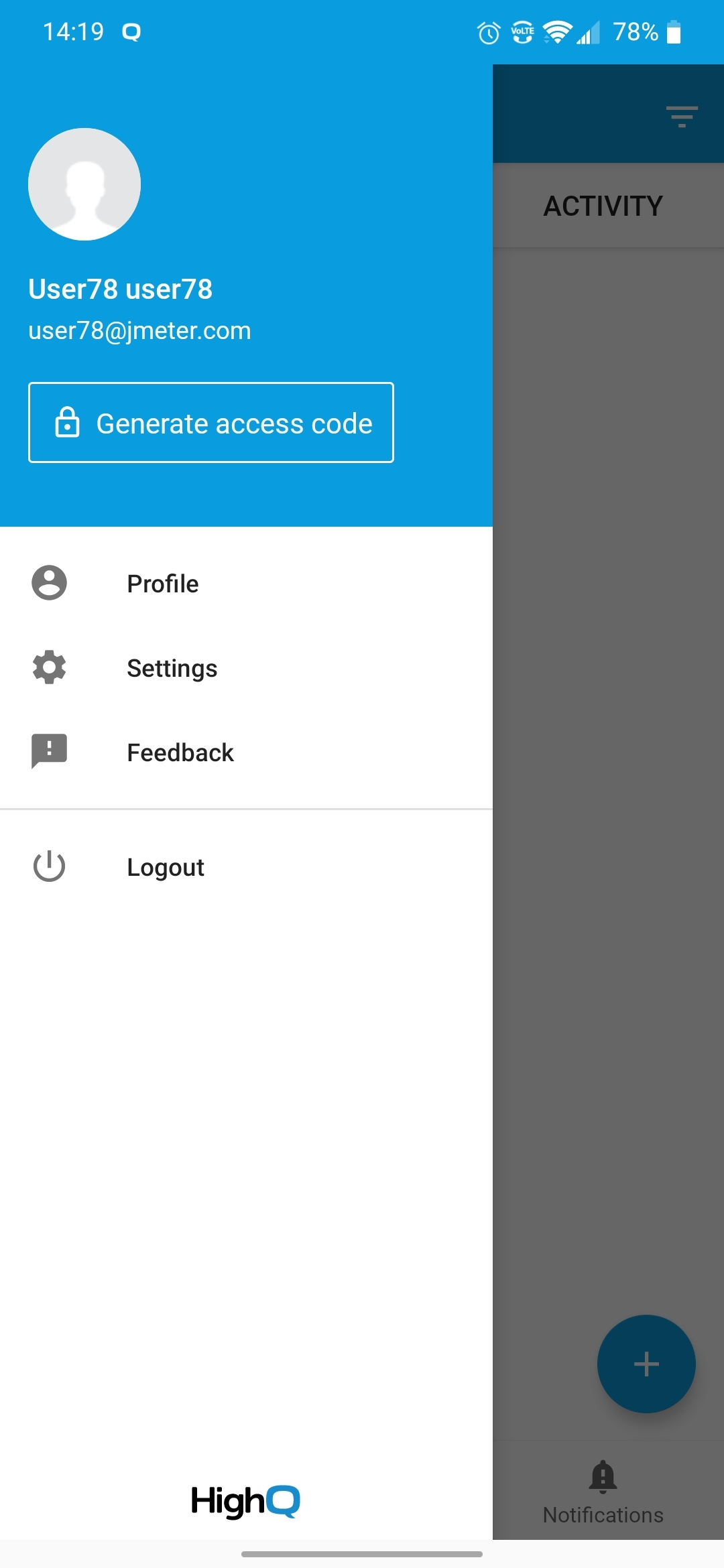
- The access code generator starts; a new code is generated every 30 seconds.
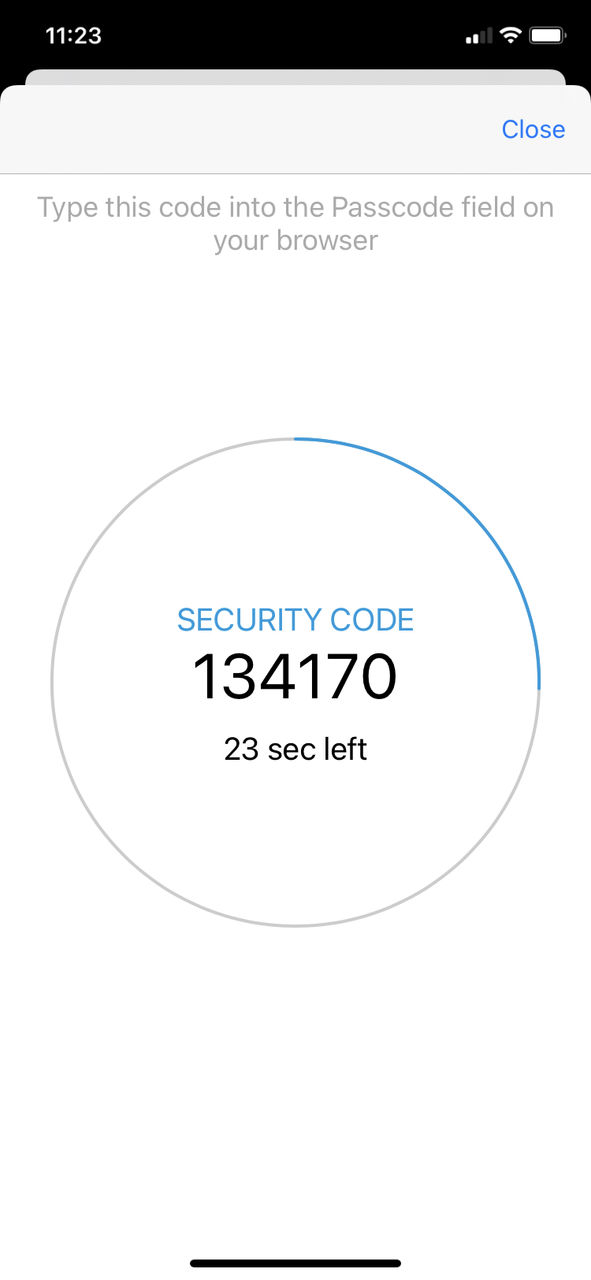
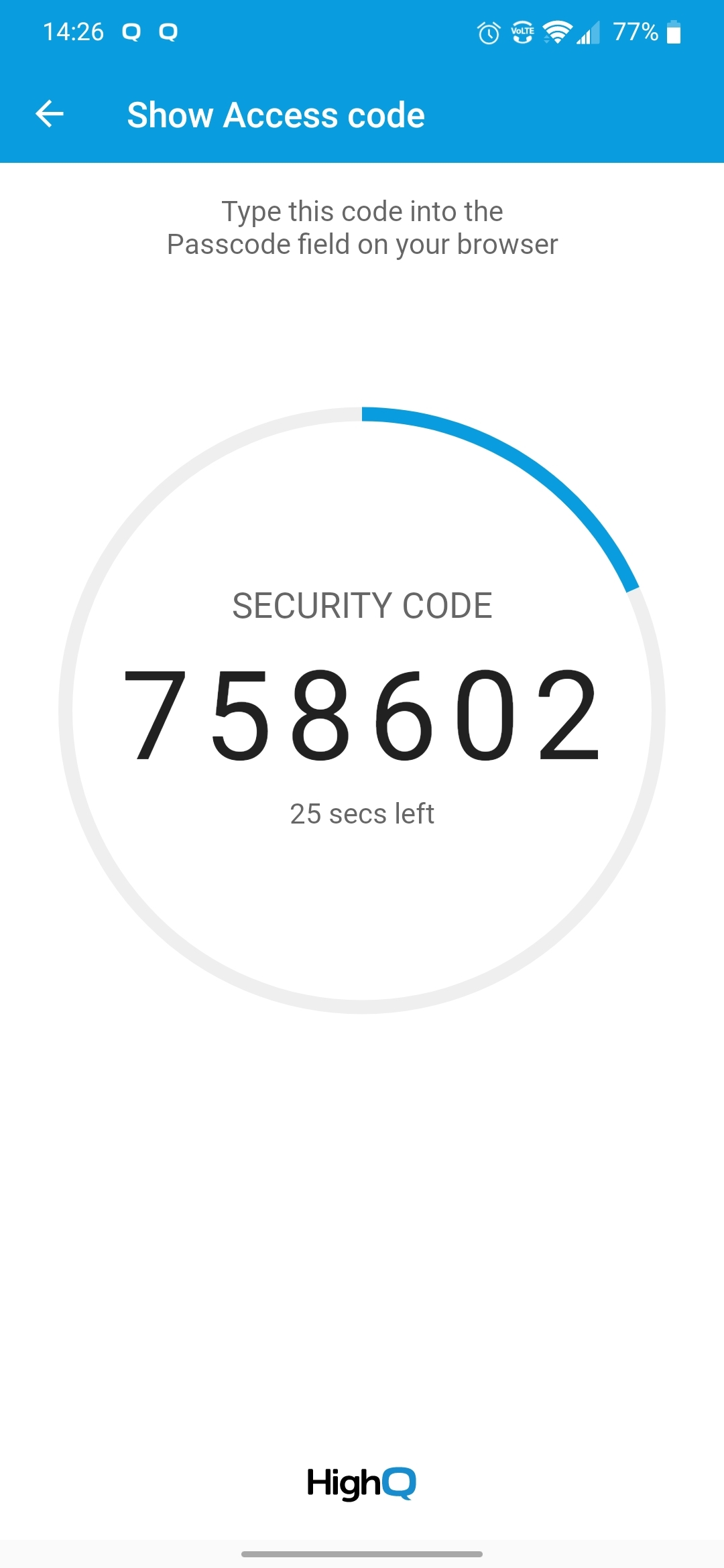
- Type the access code shown in the app into the Collaborate Passcode verification screen.
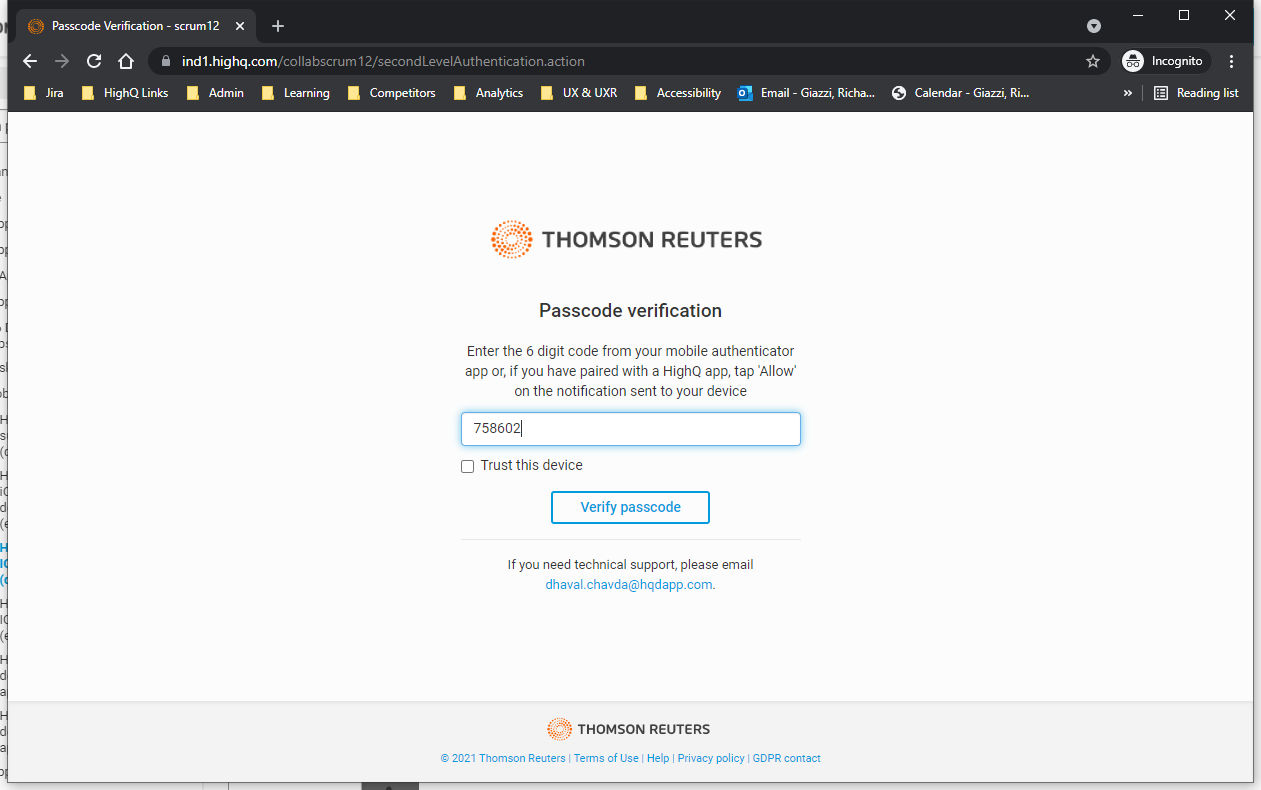
- Collaborate authenticates and redirects to your landing page.
Q: What happens if I delay or wait before I tap the notification?
The notification expires after 30 seconds, so you can either use the button in the app to
Generate an access code
and type that into the browser OR you can tap Back a step
in your browser and log in again, after which point another notification is sent to the app.Q: What happens if I tap 'Deny' instead of 'Allow' on the notification?
A message is displayed on your paired device informing you that you have not been logged in and you will need to log into your instance again: