
Using HighQ with CoCounsel for Microsoft Outlook
CoCounsel for Microsoft Outlook
allows you to manage your emails, documents and matters directly to HighQ and Legal Tracker, from Microsoft Outlook for Office 365. Save an email and/or attachments to HighQ
You can save emails to HighQ, and choose if any attachments in those emails are also saved in the same location.
note
Select one or more emails to save, then click the add-in icon on the right-hand toolbar.
Select
Upload Email and Attachments
:
note
The contents of the add-in panel vary according to the accounts you have connected.
Check you have selected the correct email.
note
If you want to also upload any replies to this email, select
Auto-upload replies
.
If the subject of the email is not clear, is a duplicate, or needs more information, click
Rename
to adjust the text.note
If you want to also upload replies as part of a complete discussion, select
Auto-upload replies
. See Save complete email discussions to HighQ for more information.Select
Continue
.note
If the email is already saved in HighQ, a message is displayed; select
Save conversation
to save the email as a new item.Find the location on your site to save the email and any attachments.
Select the
Favorites
tab to see folders saved as favorites on your site, select Browse
to navigate to a folder or select Search
to enter a search term.
User permissions from HighQ are applied to the list of sites and folders in the add-in. You must have access to files and folders in HighQ to also access them in the add-in.
note
The list of Favorites and Recent folders and sites are taken from HighQ. I.e. If you favorite something in HighQ then it is shown as a favorite in the add-in.
note
Enter text in the
Filter
box to find folders in the current view, or click the filter button to select metadata or tags.You can create a new folder in a selected location. Click
Add folder
and enter the folder name:
After you have selected the folder or folders, click
Upload
to save the email.note
You can select more than one folder, even on different sites, to save multiple copies of the selected emails and attachments.
note
If a lock is displayed next to a site when saving emails or attachments (see below next to the 'A Africa Legal Network' site), it means the site isn't supported due to specific restrictions or features enabled on the site.
This includes:
- T&Cs enabled
- Workflow approvals enabled
- 2FA is enabled
- Password Protected site
- IP restricted site
- Check-in / Check-out statuses
One-click upload
As you upload more emails, the add-in predicts where you often save emails and attachments.
The
One-click upload
panel suggests a location, taken from your previous interactions with similar emails:
Click
Quick upload
to file the email immediately, or select Manual upload
to choose another location.Labels
Labels are added to emails in the Outlook window to show their status with the add-in.
Emails that have been saved are shown with an
Email filed
label.
Email discussions that have been saved are shown with a
Conversation Enabled
label:
note
It does not affect the email or discussion filling if you remove the label.
Automatically save your sent emails to HighQ
When you compose a new email,
before you click
, select Send
Upload
to automatically save the email to HighQ when you send the email. note
The new UI of Outlook ('New Outlook') is the preferred platform for the add-in, as it supports all features seamlessly. While the application can operate with the legacy Outlook UI, there are some limitations: 'Auto-filing discussion' and 'Save Email on Send' are not fully compatible, which may lead to issues that Thomson Reuters cannot address. However, 'Save Email' functions as intended when you file an email after reception.
When the
Compose email
window is open, Don't upload
or Upload
are available in the Sent emails
section of the add-in: 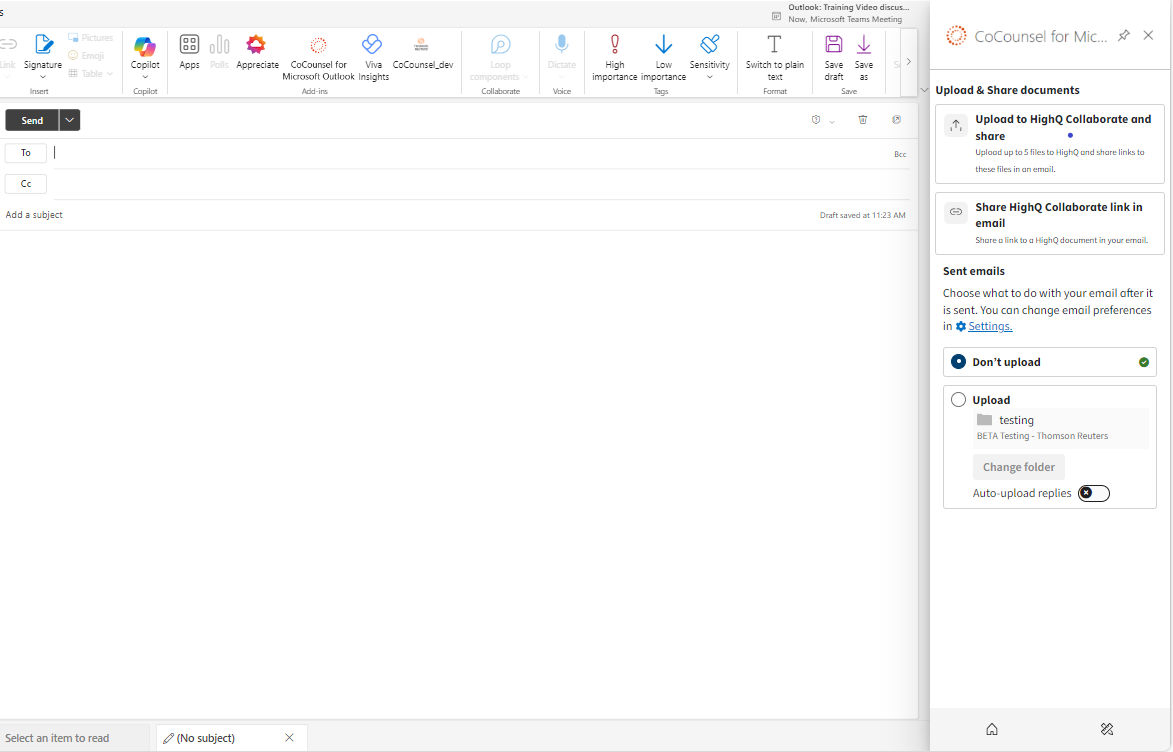
If you want to save the email to HighQ, select
Upload
. Select Auto-upload replies
to save this email and
also automatically save all replies in the email thread.
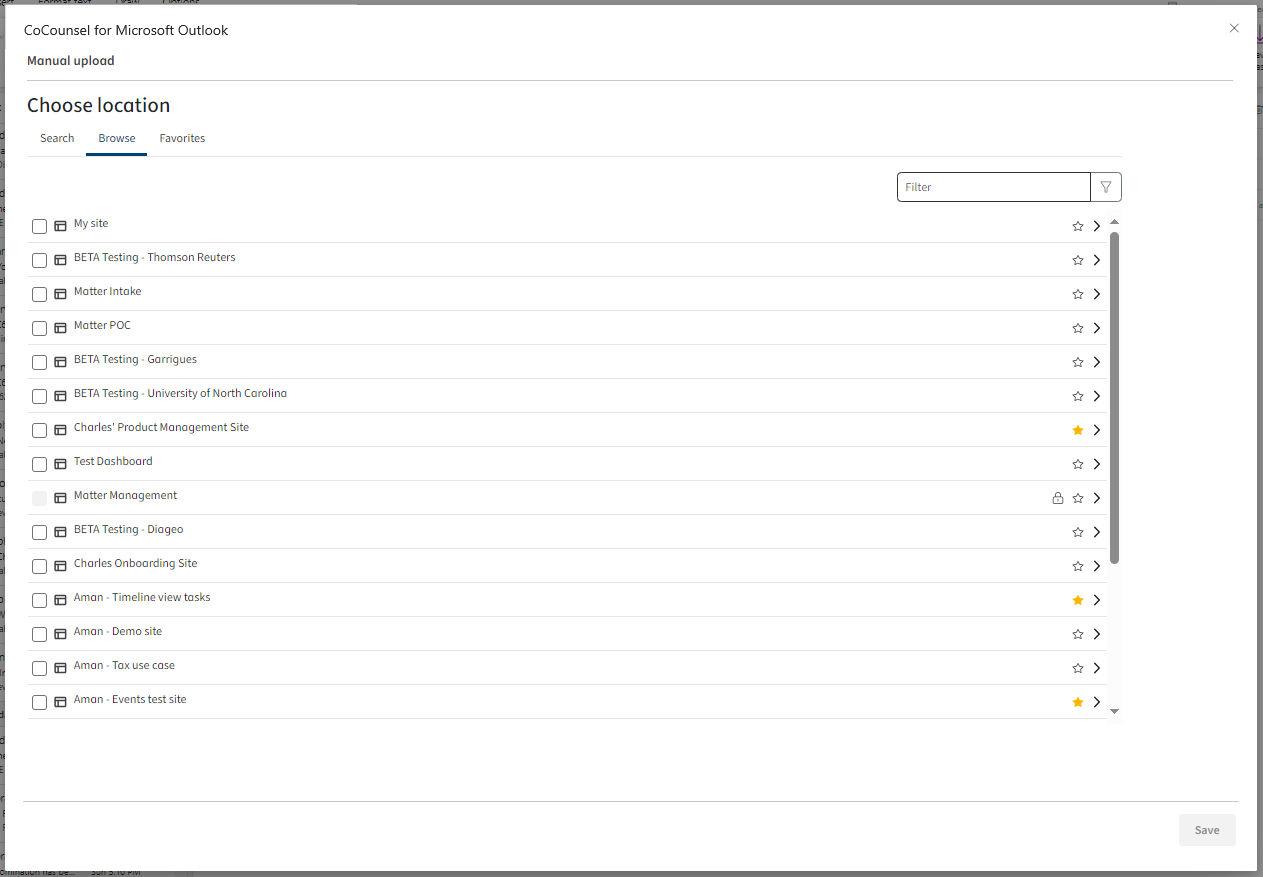
By default, the email is saved to your default folder location, select
Change folder
to change the destination folder.note
This selection only applies to the current email and email thread. You can change the default folder in the add-in settings, below.
Default settings
You can change default values and preferences in
File email preferences
. Select the
Settings
button:
Open
Preferences
, select the HighQ
tab and then File email preferences
. Adjust the default folder and email saving preferences as required.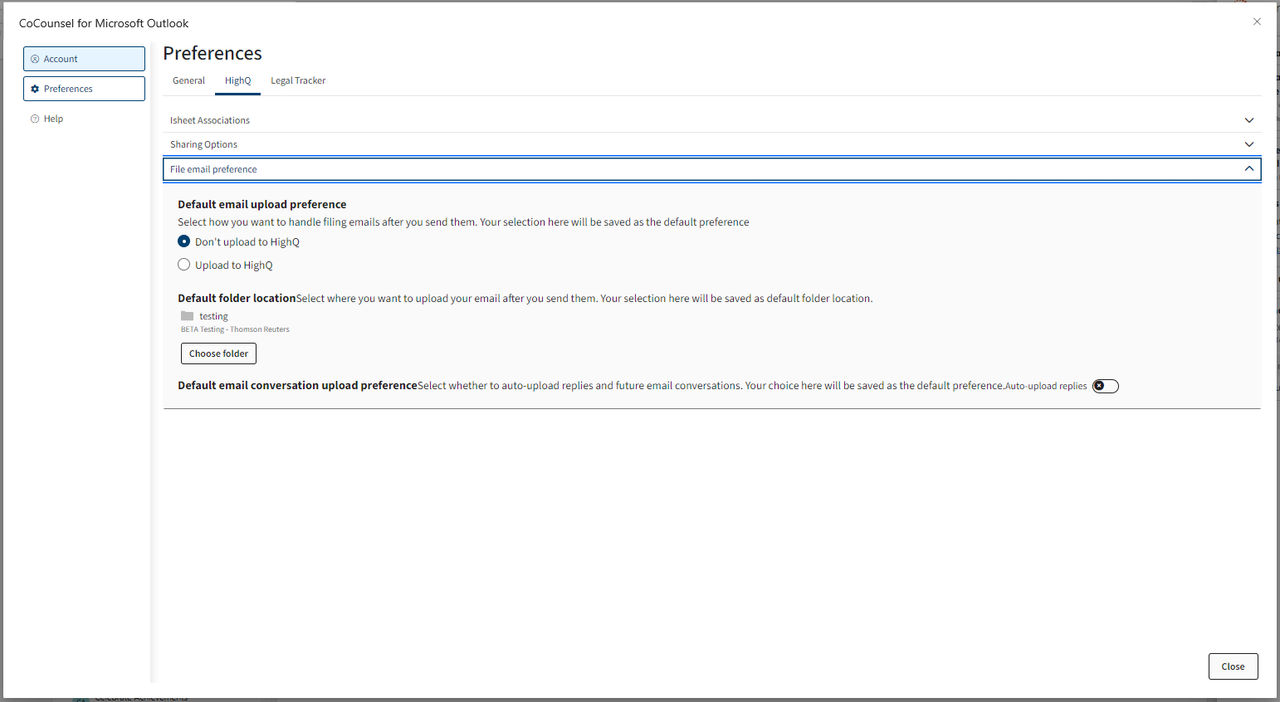
Click
Save
to keep your changes.Save complete email discussions to HighQ
You can save entire email discussions to HighQ with the
Auto-upload replies
toggle. note
The new Outlook UI ('New Outlook') is the preferred platform for the add-in, as it seamlessly supports all features. While the application can operate with the legacy Outlook UI, there are some limitations: 'Auto-filing discussion' and 'Save Email on Send' are not fully compatible, which may lead to issues that Thomson Reuters cannot address. However, 'Save Email' functions as intended when you file an email after reception.
After you click on the “Upload Email and Attachments” Card, select the
Auto-upload replies
toggle in the bottom right corner of the window:
When the switch toggle is turned “ON”, the add-in not only saves the selected emails but also future replies to the same email thread. This allows you to make sure that the latest emails in the discussion are always saved to HighQ without manually uploading them.

note
Discussions are not synced instantly, replies are checked at a regular interval (every 30 to 60 minutes) even if your device is off and Outlook is inactive. The sync process only stops if you log out of the Outlook Add-in or if you stop the email filling for the email discussion.
A new version is added to HighQ when the conversation is synced with at least one new email added to the discussion thread.

Upload and share folders and documents
You can create dynamic sharing links to HighQ files and folders so that the recipients of your email can simply click on the sharing link to get access to your content.
When you compose an email, click the
Apps
icon to find the add-in. 
If your content has already been uploaded to HighQ:
Select
Share HighQ Collaborate links via Email
. 
Browse your HighQ sites and folders to select the HighQ content you want to share. You can select and share multiple documents and folders.

Select the content, then click
Continue
. The Define Security Options
window opens:
Select appropriate security options, then click
Share link(s) in email
.A sharable link is generated and added to the email body.
note
Repeat the process to add multiple links to the same email.
Continue to create your email and then send it with the dynamic links when ready.

If your content hasn’t already been uploaded to HighQ:
Select
Upload to HighQ Collaborate and share
. 
Drag files to the window or click
Browse
to find and upload the documents of your choice. 
Then click
Continue
to select the HighQ location to save these documents. 
Select the location or locations and click
Upload to HighQ
.
A summary window opens:

note
Click
Close
if you only want to upload the documents to HighQ. You can create a sharing link later.After you upload your documents to HighQ click
Share link(s) in email
.Site file sharing
options appear so that you can adjust user access permissions for your content. Select appropriate security options, then click
Share link(s) in email
.
A sharable link is generated and added to the email body.
note
Repeat the process to add multiple links to the same email.
Continue to create your email and then send it with the dynamic links when ready.
Settings
Click the settings icon to open settings:
General
Matter management settings

- Activate Intelligent Intake features: - Enable or disable the AI Extract Information intake feature. If the box is checked, then you’ll be able to use this functionality. If the box is unchecked, then theExtract Informationbutton is hidden and the feature is disabled.
- Always ask for confirmation before scanning emails- If this is selected, confirmation is needed before you extract the information from an email request. A pop-up appears to confirm if you need to extract information from the email. This provides an extra layer of security if emails can contain sensitive information.
- Suggest relevant actions- Enable or disable suggested actions. The application can dynamically suggest actions based on your previous use of the add-in.
- Where do you want to create your matter by default- Select a default location for created matters when information is extracted with the AI feature. This does not change the options in the add-in, which allows you to create matters manually.
- Ask me every time my preferred location to create a matter- If this is selected then you are always prompted to selectHighQorLegal Trackerwhen you create a matter with the AI feature. If it is not selected, you can only create a matter on the platform that is selected by default (HighQ or Legal Tracker).
HighQ
iSheet associations
Please see iSheet Associations.
Sharing options
You can adjust the default sharing options for your content in the
Sharing options
menu. There are two sections, one for your own files and sites and another for any other files and sites (i.e. not created or owned by you). When you share files from your site or My Files the add-in follows your
My File sharing
settings. When you share a file from any other site, the add-in follows site file-sharing
settings 
- Show dialog when sharing- If this is selected, current share settings are displayed before the link is generated. This allows you to verify and change settings if HighQ settings are not appropriate. If not selected, you are not asked to verify the share settings and the add-in follows the default settings for sharing files to generate links.
Related Content
-
CoCounsel for Microsoft Outlook
Format: Article,
23 min read
Article,
23 min read