
Matter management
CoCounsel for Microsoft Outlook
CoCounsel for Microsoft Outlook allows you to manage your emails, documents and matters directly to HighQ, CoCounsel and Legal Tracker, from Microsoft Outlook for Office 365.
The add-in is linked to your Microsoft 365 account and is available on both Windows and Mac desktops, and your browser.
Install the add-in to add a
CoCounsel
button in your Outlook
integrations bar. The add-in provides options for saving and filing emails and documents in your 'My files' area of Collaborate, create matters, and share documents.Installation and security
Please see CoCounsel for Microsoft Outlook - Installation and Security for information on how to install or deploy the add-in.
note
The Installation and Security article includes answers to Security FAQs.
Log in for the first time
Please see here if you have not yet logged in and connected your HighQ or Legal Tracker accounts.
note
For convenience, you should pin the add-in panel to Outlook.
note
The contents of the add-in panel vary according to the accounts you have connected.
Matter Management features
Set-up iSheet associations
As a HighQ admin of the organization, you can set up iSheet Associations in the add-in settings. You can map your matter management iSheets to easily create new matters directly from Outlook.
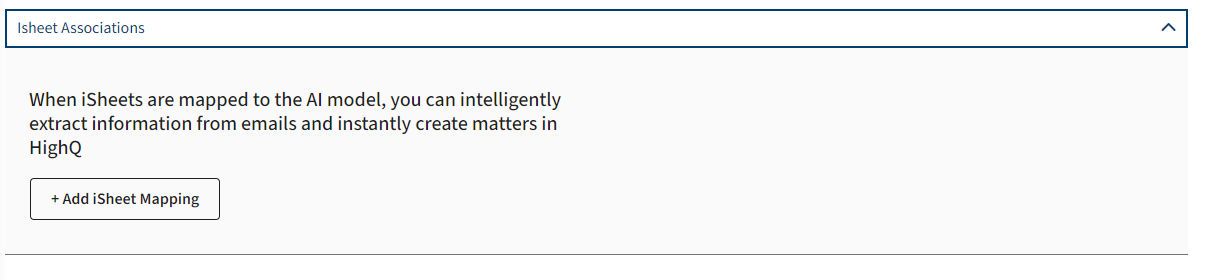
Click
Add iSheet Mapping
to create a new mapping.
note
If you are not an admin user, you can view and select a mapping but you cannot edit it.
note

You can add up to eight mappings, however, you can only create one association per iSheet. The following message appears if an association already exists:
The mapping is already created for the selected Site and Isheet.
1. Select your Site and iSheet
Select your site and an iSheet from the site to start mapping.

note
The add-in currently does not support conditional fields. Attachment, Choice, Join, Links and Calculation columns are also not supported.
note
The same User permissions to Sites and iSheets used in HighQ apply with you use the Outlook Add-in.
2. Select your iSheet fields
iSheet mandatory columns from the selected iSheet are shown in a table.
note
These columns are all required to create a record; you cannot remove these lines from the table.

Click
Add
to select additional columns. You can list a total of 20 columns in this window.Selected columns keep the column format from iSheets (dropdown, single-line text, etc.)
note
Mapping supports a maximum of 20 columns (both mandatory and optional). If your iSheet has more than 20 mandatory columns, we recommend you reduce the number of mandatory fields.
An error message is displayed if the selected iSheet has more than 20 mandatory columns:
Max number of 20 rows has been reached. Delete existing rows to create new ones
.3. Map columns
You can now match each selected column with the most appropriate value in the
Equivalent fields
menu. Select the most appropriate available value; this should match your iSheet column as closely as possible. If you can’t find a matching field or if you would like to keep the original iSheet field name, select
Other
from the bottom of the dropdown menu. 
note
This information helps to increase precision when the add-in identifies and extracts information from an email.
note
Ignore Steps 4, 5 and 6 and proceed with step 7 and the saving of your mapping if you haven’t subscribed to the AI extraction feature. As of October-2025, the AI extraction feature isn’t offered anymore to customers. Only existing customers of the service can continue to use it.
note
Enable AI Extraction
, Set a default value
and AI Extraction
columns are not enabled and can be ignored.4. Save the mapping
After you have checked the iSheet mapping table, click
Save mapping
to save that mapping and return to the main screen. note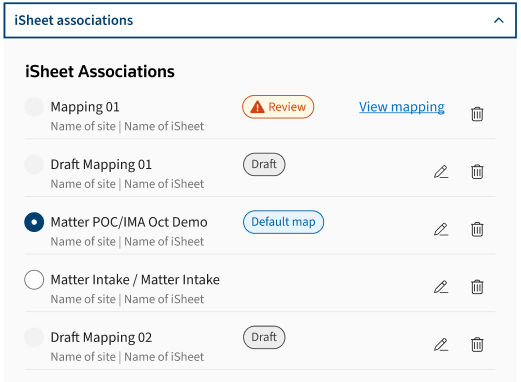
If you want to temporarily pause the creation of the iSheet mapping, you can save a draft and edit it later.
If the mapping is incomplete, click
Save a draft
to create the draft, When the mapping is complete, this button is replaced with Save Mapping
.Manage your mappings
If you create more than one mapping, select the default mapping for incoming emails in iSheet Associations settings. The default mapping is used to create new matters in the add-in. You can switch from one mapping to another at any time.
An admin can edit and create mappings from the iSheet Associations settings screen.
note
Users without admin access are able to view the mappings and change their default mapping, they cannot edit or create mappings.
iSheet Associations in Settings
Admin view:
Delete and edit options are available within iSheet Associations.
User view:
Delete and edit options aren't available. 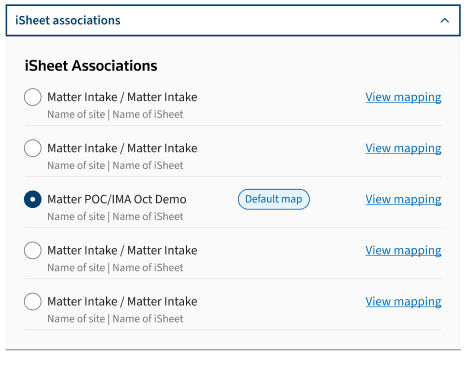

Create a matter - from an email or manually
The Outlook Add-in can effortlessly create new matters (as HighQ iSheet records or Legal Tracker matters) directly from Outlook.
note
If you use HighQ to manage you matters, you must first configure iSheet associations.
Create a matter
Click on the following cards to create a matter
:
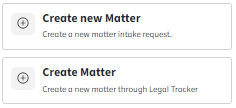
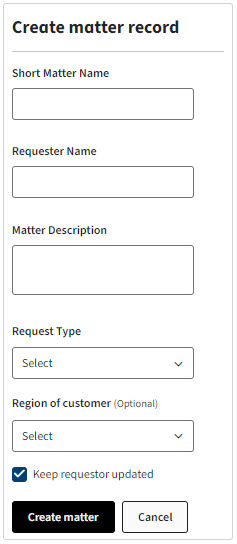
The fields are the same as described above, but the card is empty; you can manually complete all the fields to create your matter.
The rest of the matter creation process is the same as described in Create a matter using AI.
Send an intake request to Legal Tracker
You can send matter intake requests directly to Legal Tracker from the Outlook add-in. This is an option for all Legal Tracker users, regardless of system role, This feature simplifies the intake process as it only requires you to submit a short matter name to initiate the request.
Select
Send intake request
from the add-in panel: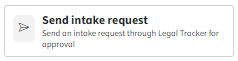
Enter an appropriate
Short matter name
and select the Keep requestor updated
checkbox if you want to keep the initial requestor (the author of the email) informed. If selected, the requestor receives an email regarding the status of the request. Click Send request
to send the request for review (see below). 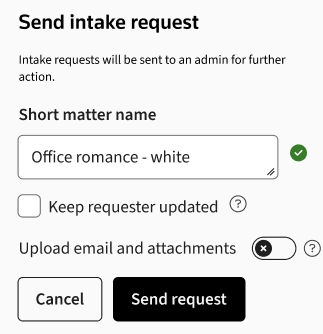
The matter is not created immediately, as the request is routed to Legal Tracker Matter creators for review. A Matters creator can either create a matter, request more information, or reject the request.
Save the email when creating a matter
When you create a matter, select
Upload email and attachments
to save the email and attachments linked with the matter so that all matter information is consolidated in the same location. 
View and Edit iSheet Records in Outlook
Gain productivity and efficiency by accessing your iSheet records directly in Outlook.
Click
View my iSheet records
in the Manage Matters
section, to access My iSheet Records
:
This opens a pop-up window. This window allows you to add your favourite views from the list of iSheet views created on HighQ.

Select
Add view
; then select a view that you want to access in the add-in. Select a site, an iSheet and your preferred View, then click
Next
. You see a preview of your view, embedded in Outlook. If this is correct, click Add View
. If necessary, click Back
and change your selection. 
note
- Views are pulled directly from HighQ iSheets. If you want to select a new View, you must first create it in HighQ.
- HighQ user permissions are required to view and edit iSheets. If you don’t have access to a view or an iSheet on HighQ, you won’t have access in the add-in.
When you add a view, you get a success message and the list of Views opens. This is the main menu to manage Views that you need to access while using Outlook.
You can add, delete and edit your views.

note
You can add up to ten views.
You can select a default view. This view is displayed when you open the
All records
tab. The
All records
tab displays the list of iSheet records and allows you to view, edit and delete iSheet records. 
You can apply filters to your views and use the search functionality to quickly find iSheet records. You can also adjust the number of items per page and navigate through the pages.
Click the
Filters
icon to filter search results; you can apply conditions for each column. Filter labels indicate the applied filers: 
Click the
x
in a label to remove that filter. Or select Clear filters
to clear all the filters. note
- Filters are saved and are still selected the next time you open this window.
- If you create a new search, previously selected filters are removed.
Edit a specific iSheet record
To view and edit a specific iSheet record, click the pencil (edit) or the eye (view) icons. These open the specific iSheet record, including all fields.

Click
Edit
to edit the iSheet record or click the Open iSheet record in HighQ
link to open the record in HighQ. 
The same restrictions applied in HighQ also apply to the
Edit iSheet
window. For example, the format of a date field (DD/MM/YYY). Make sure you respect field restrictions as you edit. Click
Save
to keep your changes and update the record in HighQ. note
You can only edit supported columns - if some columns are not visible when you edit the iSheet record, that column type is not supported.
Future updates may add support for more column types.

Click the
My iSheet records
link at the top of the window or Cancel to go back to the overview without saving.note
All data displayed in
My iSheet records
is live-synced with HighQ. Any edits made in HighQ or Outlook are immediately applied in both applications. iSheet permissions apply. If you do not have iSheet edit access in HighQ Collaborate, you will not have edit access in CoCounsel for Outlook.
Settings
Click the settings icon to open settings:

General
Matter management settings
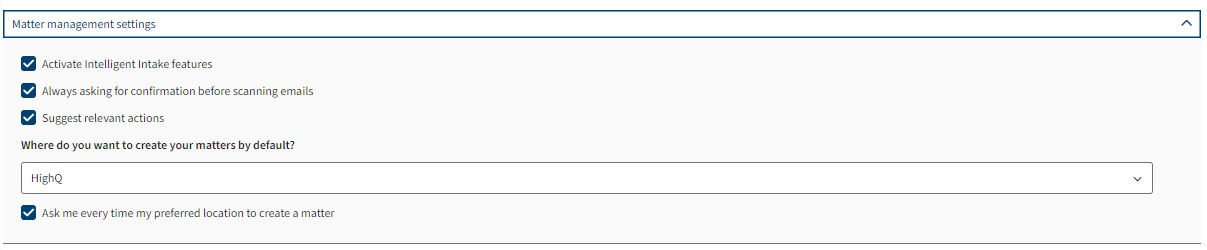
- Activate Intelligent Intake features: - Enable or disable the AI Extract Information intake feature. If the box is checked, then you’ll be able to use this functionality. If the box is unchecked, then theExtract Informationbutton is hidden and the feature is disabled.
- Always ask for confirmation before scanning emails- If this is selected, confirmation is needed before you extract the information from an email request. A pop-up appears to confirm if you need to extract information from the email. This provides an extra layer of security if emails can contain sensitive information.
- Where do you want to create your matter by default- Select a default location for created matters when information is extracted with the AI feature. This does not change the options in the add-in, which allows you to create matters manually.
HighQ
iSheet associations
Please see ISheet Associations.
Sharing options
You can adjust the default sharing options for your content in the
Sharing options
menu. There are two sections, one for your own files and sites and another for any other files and sites (i.e. not created or owned by you). When you share files from your site or My Files the add-in follows your
My File sharing
settings. When you share a file from any other site, the add-in follows site file-sharing
settings 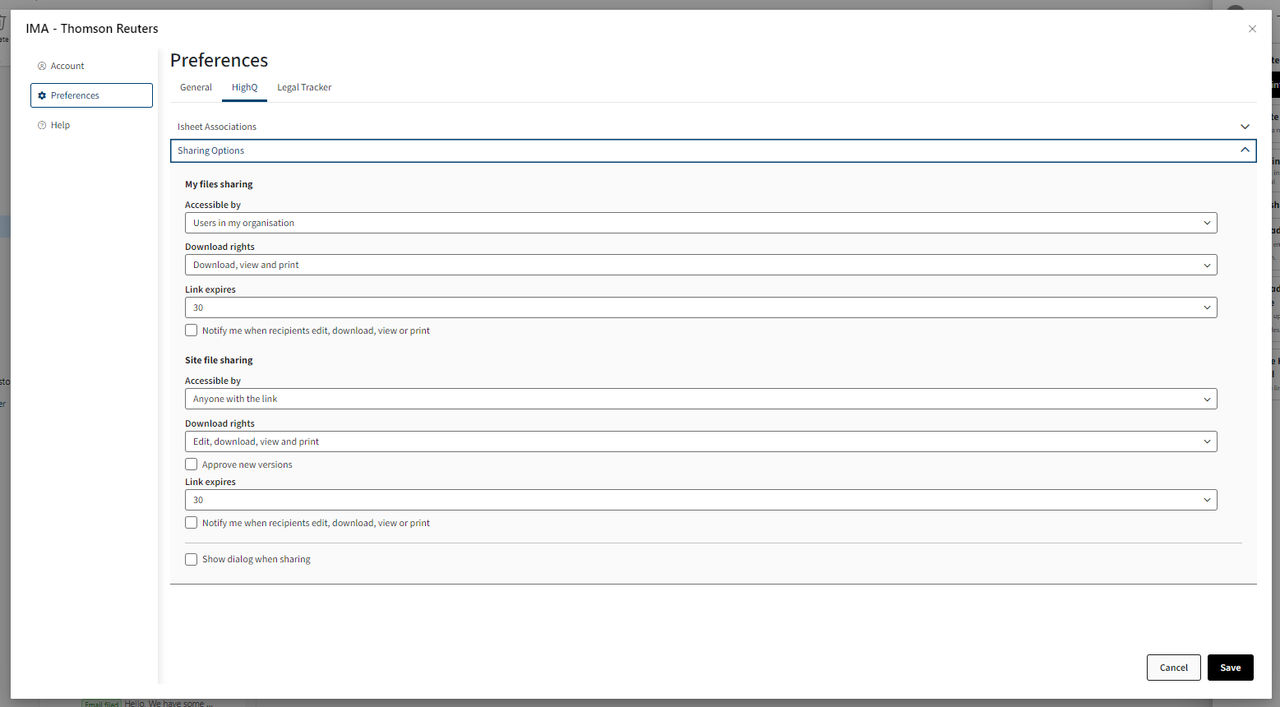
- Show dialog when sharing- If this is selected, current share settings are displayed before the link is generated. This allows you to verify and change settings if HighQ settings are not appropriate. If not selected, you are not asked to verify the share settings and the add-in follows the default settings for sharing files to generate links.
Legal Tracker
Save email preferences
In the
Legal Tracker
section under Preferences
, the Save Email and Attachments
allows you to define default values for two key fields: Folder
and Access Security
. 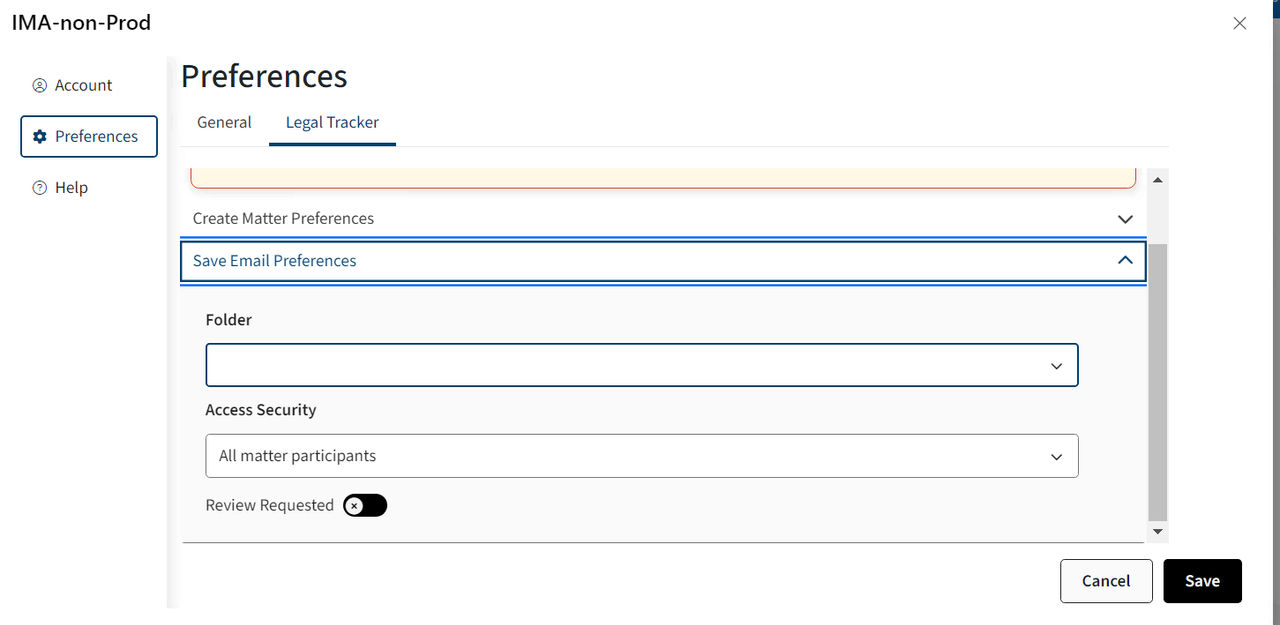
- Folder- Choose a default folder for uploading emails and attachments to a matter.
note
You can modify the folder selection during the
Upload Emails and Attachments
process; click the matter hyperlink to change the folder before you upload the email.- Access Security- Specify a default access security setting for uploaded emails and attachments.
note
You can modify access security during the
Upload Emails and Attachments
process; choose an option from the Access security menu in the Choose Matter
window.Create matter preferences
Preferences for Matter creation are managed in Legal Tracker. To set values in the Outlook add-in select
Open Settings in Legal Tracker
, then open the User Profile
section in Outlook Add-in Defaults
.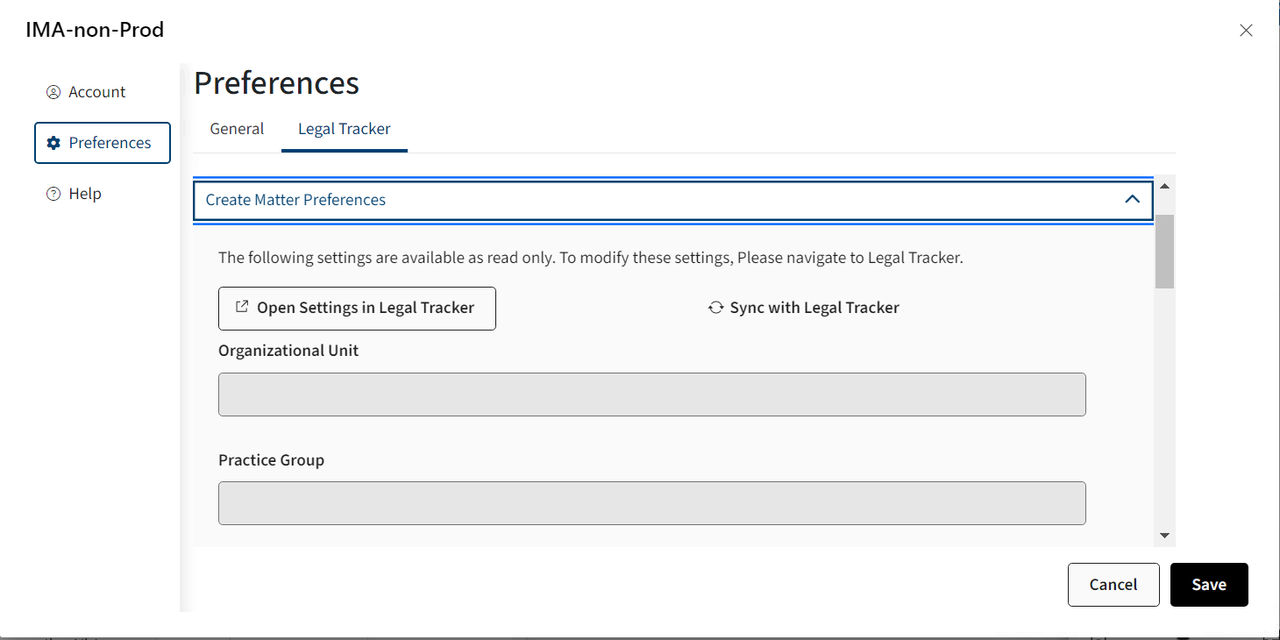
Ensure all settings are configured correctly in Legal Tracker then return to the Outlook add-in and click
Sync with Legal Tracker
to synchronize all changes.Click
Save
to keep the synced values.note
This ensures seamless integration and consistency between the two platforms.
Related Content
-
CoCounsel for Microsoft Outlook
Format: Article,
23 min read
Article,
23 min read