
Use the Files inbox to upload files via email
The
Site Inbox
in the Files module allows site users to send emails and attachments to a site, or a specific folder on a site.A site user (even bidder users or users without specific permissions) can send emails and attachments to the main Inbox where they can be checked by a site and content admin before being published, or used for Legal Intake.
Users with appropriate Add file or folder permissions may send files directly to a specific folder, without the need for any action from an admin.
note
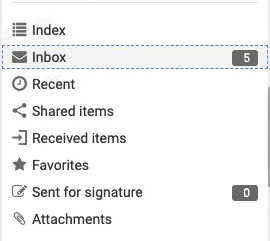
The site Inbox is only shown to site or content admins. The Inbox is displayed when it contains files and serves as a temporary folder for files to be checked and organised.
note
A user must be a site member, with appropriate Add file or folder permissions, to send files to a specific folder as an email attachment. Any site member can send files to the root folder of the Inbox.
Save an EML file
You can store the entire email, including the email content (title and text) as an EML file (this is a standard format for emails stored as a file).
Open an EML file in the document viewer. The
View
tab shows the header details and full text. The Details panel shows the items such as the Type
, Author
, From
and To
details.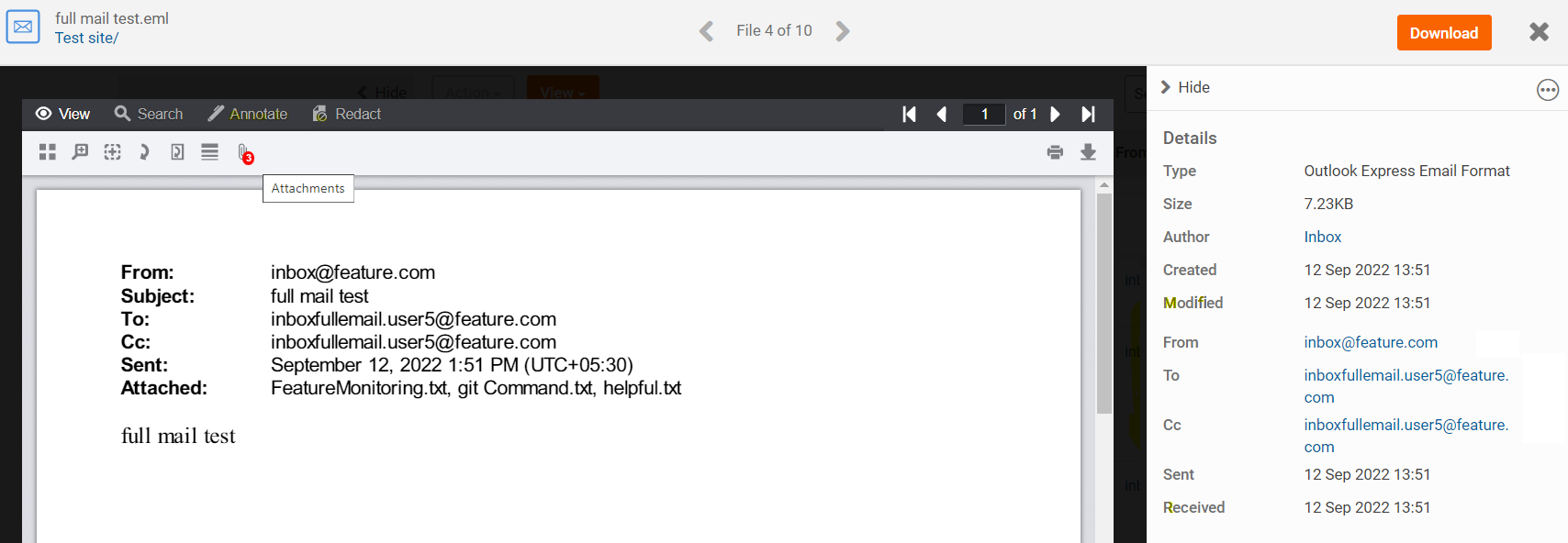
note
The size of attachments is limited by the size of emails permitted by your email provider.
Enable the site Inbox
The Site Administrator must enable the site Inbox and assign an email address for each enabled setting.
Select
Admin
, Module settings
, then Files
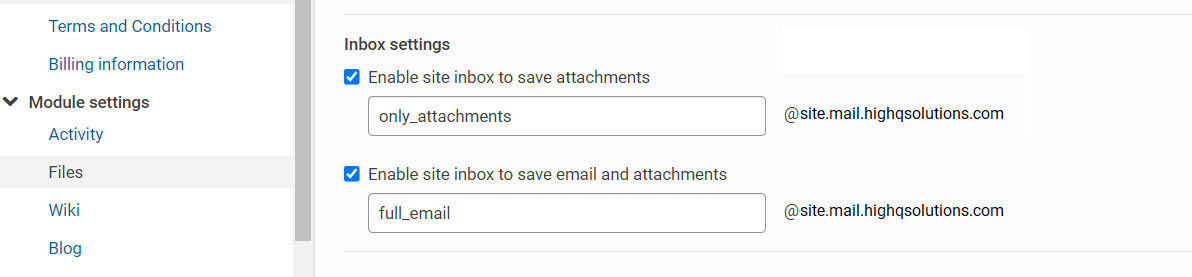
and go Inbox settings
.Select 1 or both of the following checkboxes:
- Enable site inbox to save attachmentsto set the main email address for emails where only the attachments are saved
- Enable site inbox to save email and attachmentsto set the main email address for emails where the email with all attachments is saved as an EML file.
Email address rules
- The prefix ('account name') for the email address can be any valid email prefix. If you use both Inbox settings then each email address must be different.
note
The prefix, or prefixes, must be unique for all inboxes in all Collaborate sites across the instance, e.g. 'project-alpha'.
- The suffix, or domain, of the email address is based on the URL of the instance and cannot be changed, for example, '@site.mail.highqsolutions.com' (where 'site' is typically based on a firm's web domain)
As an example, the Inbox might be 'project-alpha@site.mail.highqsolutions.com'
note
Please contact your HighQ representative to adjust the domain name used for the site inbox across your instance.
Site Inbox email addresses
When the Inbox is enabled, two related features are available to users:
- A 'main' Inbox is created for the Files module of the site. The email address, or addresses, of the main Inbox are configured in the Files admin page; for example, 'project-alpha@site.mail.highqsolutions.com'
- Each folder on the site is assigned a unique email address. This is based on the main Inbox email address, with a number appended to the email prefix, e.g. 'project-alpha1234@site.mail.highqsolutions.com'. Files sent to the folder address are saved to that folder, provided the sender has sufficient privileges
Finding email addresses for uploads
A user with appropriate
permissions
can open the site inbox. A site and content admin or users with Add File or Folder
admin permissions can check the email address for the root folder or subfolders, and either use or share this address.note
A user must be a member of the site to send files to the Inbox as an email attachment.
The email addresses of the main Inbox and the folder inboxes are only displayed to site and content admins and users with Add File or Folder admin permissions for those folders.
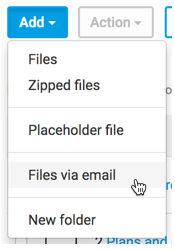
In the Files module, select
Add
, then Files via email
:
The
Upload files via email
window opens. Use theAdd
and To
dropdown lists to choose what to include and where to send it. Select Copy
to copy the email address to the clipboard for later use.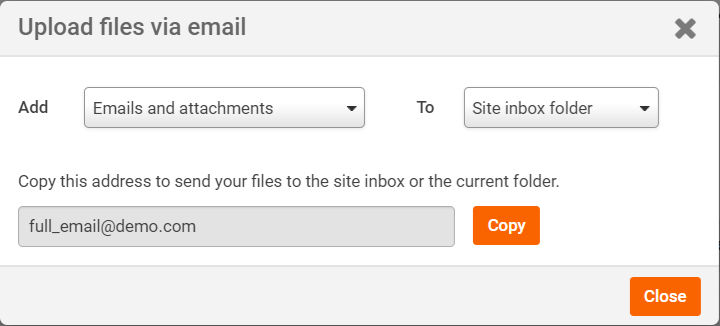
The options in the
Add
menu depend on the settings selected in site admin:- Email and attachments- the email and all attachments are saved in an eml file
- Attachments- only attachments are saved, as the file type attached in the email
note
In most cases, if the email contains an image file that is part of their email signature block, then it is ignored and not treated as a file attachment, unless the entire email is saved.
The options in the
To
menu depend on the user's permissions:- Site inbox folder- display the email address to save files in the main inbox folder
- Current folder- display the email address to save files in the currently selected folder.
note
The
Site inbox folder
option is only available if you are viewing the main ('root') inbox folder.Rejected emails
If a user who is not a site member attempts to send an email to the main Inbox or a folder Inbox, the email is rejected and the sender receives an automated response explaining the outcome. If a user who is a member of the site sends an email without an attachment, the email is simply ignored; no response is sent detailing the outcome.

note
Note that the Site Inbox address must be in the
To
field of the email. The email will be rejected if the Site Inbox address is in CC or BCC (other email addresses may be added to CC or BCC).Adding files to a folder
If a site or content admin, or a user with Add File or Folder Admin permissions, sends an email with attachments to a folder inbox, the attachments are added to the folder after a few minutes, with these additional details:
- Filenames in the folder are the same as the filenames used by the email attachments or email title
- The sender of the email is listed as the Author
- The date the email was received is listed as the Creation date
As with all files, files sent as email attachments are scanned for viruses before they are added to the site; the sender is notified if any files are rejected because a virus is detected.
note
If a zip file is included as an attachment, it is treated as a single file and not as a bulk upload of the individual files and folders inside the zip file.
Any number of attachments can be included in the email; this makes the folder inbox feature similar to the bulk upload process, except that only files, and not folders, can be included.
If a site user without sufficient privileges sends an email to a folder inbox - they do see the folder inbox email address when they view the folder and the attachments in their email are rerouted to the main Inbox.
Site approval and adding new files
If the site admin has configured the Files module to use
site approval
, then an admin must approve all files emailed to a folder before they are published.The main site Inbox
The main site Inbox works differently from a specific folder inbox as any site user (even bidder users) can send emails to the main Inbox.
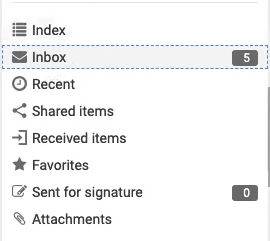
The Inbox is displayed when it contains files; it serves as a temporary folder for files to be checked and organised by a site or content admin. From the Inbox, an admin can choose to either:
- Move the files to the appropriate folder (retaining all file metadata, such as date added and author)
- Delete the files
note
Emails or attachments sent to a folder inbox by a site user without the right to send files to that folder are rerouted to the main Inbox. These files are displayed in an Inbox folder that is only accessible to site and content admins.
Deleting files
Click the checkbox next to the file(s) to move and then select
Action
> Delete
. The Delete?
window opens with the following message:All of the selected items will be permanently deleted and you will not be able to retrieve them. Would you like to continue with the delete operation?
Select
Delete
to delete the selected file(s).note
Deleted files are permanently deleted and do not appear in the
Deleted Items
folder.Moving files
Click the checkbox next to the file(s) to move, then select
Action
and Move/Copy
:
In the
Move/Copy
window, select a site and folder then select Move
to move the file.note
Files in the Inbox are not listed in search results for regular users, they must first be moved to a folder.