
Enhance files and folders with metadata
If the Files module uses a
File Metadata iSheet
, additional fields of information can be added to files in the Files module. Folder Metadata iSheets permit additional fields of information to be added to folders in the Files module.note
See
What are iSheets?
for more information about iSheetsEnhancing files or folders with metadata is useful for tracking additional information about the files in the site. Also, as the number of files in a site grows and the number of branches in the folder tree increases, it becomes harder to locate files through simple navigation. Searching iSheet metadata can make it easier to find files that are needed.
Additional Fields
Once an iSheet has been associated with the Files module and a new file is added or an existing file is edited, the user performing the action is asked to complete the fields of information found in the associated iSheet. These fields will be displayed in the
Metadata
tab.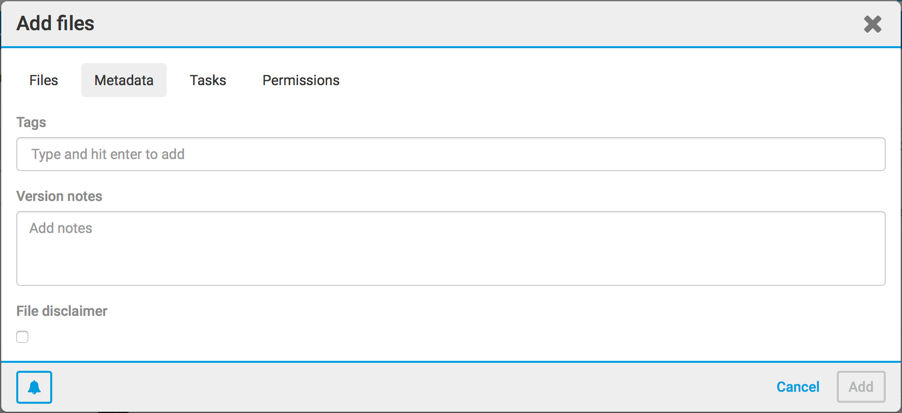
After a folder is associated with an iSheet, the
Metadata
tab opens; this displays the additional metadata fields.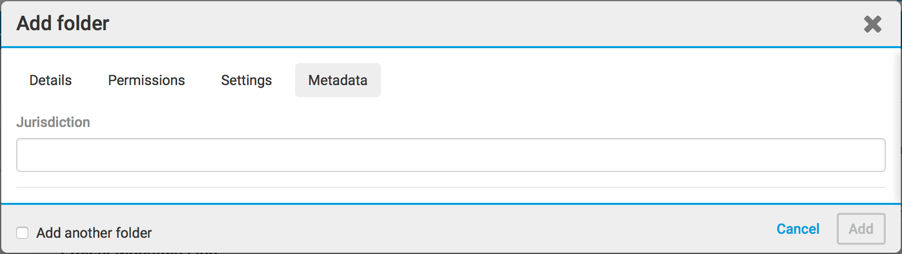
Conditional Columns
By default, every column is displayed when a new file is uploaded or a folder is added.
note
A user must have permission to see the metadata columns.
A column can be made visible or hidden if certain conditions in another column or columns are met. For example, an iSheet might have a
Country
choice column and if the country selected is United Kingdom, the iSheet might display a County
field (a choice field). If the country selected is United States or Australia, the iSheet instead might display a State
field (another choice field). For any other country selection, a Province/Territory
text field could be displayed.note
Multiple conditions can be combined together to determine whether a column is displayed. For example, only show a particular field if the
State
field equals New York
and the Industry
field equals Financial Services
.For easier control, columns can be grouped into
sections
and a conditional column can be used to show or hide an entire section based on whether a condition has been satisfied.By using conditional columns, it is possible to vary which input fields are displayed when a certain type of file is added or a folder is created.
For example, in a site used to store leases: Two folders are called
Office Leases
and Retail Leases
and different information is tracked for each type of lease. In that case, the iSheet can include a conditional choice column: Type of Lease
, with the choices of Office
and Retail
. Questions are displayed for each lease type when the appropriate lease type is selected. Then, for example, when a new office lease is added, and Type of Lease
equals Office only
the appropriate office lease fields are shown. This feature can be used with views
to show only the appropriate iSheet fields for each of the two folders. The Office Leases
folder can show the Office Lease
view and the Retail Leases
folder can show the Retail Lease
view.View iSheet Data in the Files Module
The extra fields in a file or folder metadata iSheet can be viewed in the Files module, along with the files and folders themselves. For file metadata iSheets, it is possible to set one of the
views
as the Default file view
. Every folder added after the view was created shows the files in that view.Here are examples:
Folder:

File:
:
The default file view is shown, but this view is not required. If there is no default file view, files are shown with additional fields. It is possible to choose which view of a file metadata iSheet is shown in any given folder: select
Edit
from the action menu of the folder:In the
Settings
tab, there are options to sort folders and files.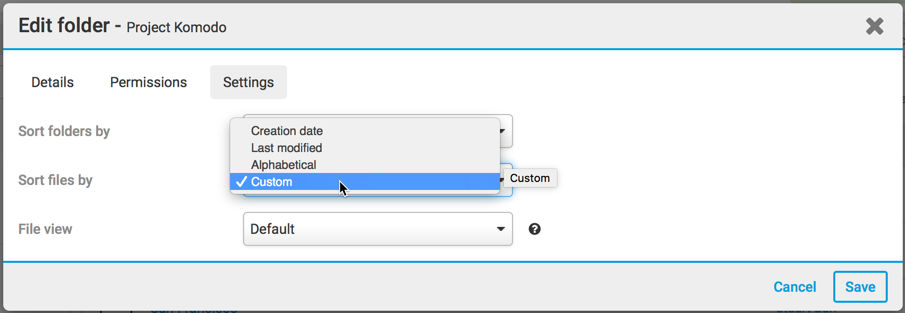
Select
Custom
to sort your files and display the custom metadata fields.note
Once the folder view is set, extra fields appear in all of the subfolders in that folder, but not in the folder itself.
Create multiple views for file and folder metadata iSheets and apply different views to different folders to provide flexibility to display appropriate fields when the type of files vary in each folder.
note
The folder and file views selected for a given folder will not be inherited by any subfolders that are created. And if the folder or file view of a folder is changed, those changes will not be applied to any subfolders.
Editing metadata in the Files Module
You can edit iSheet metadata when a file is open in the file preview window.
From the
Files
module, click the file you want to edit. The preview window opens, with additional details in the panel on the right.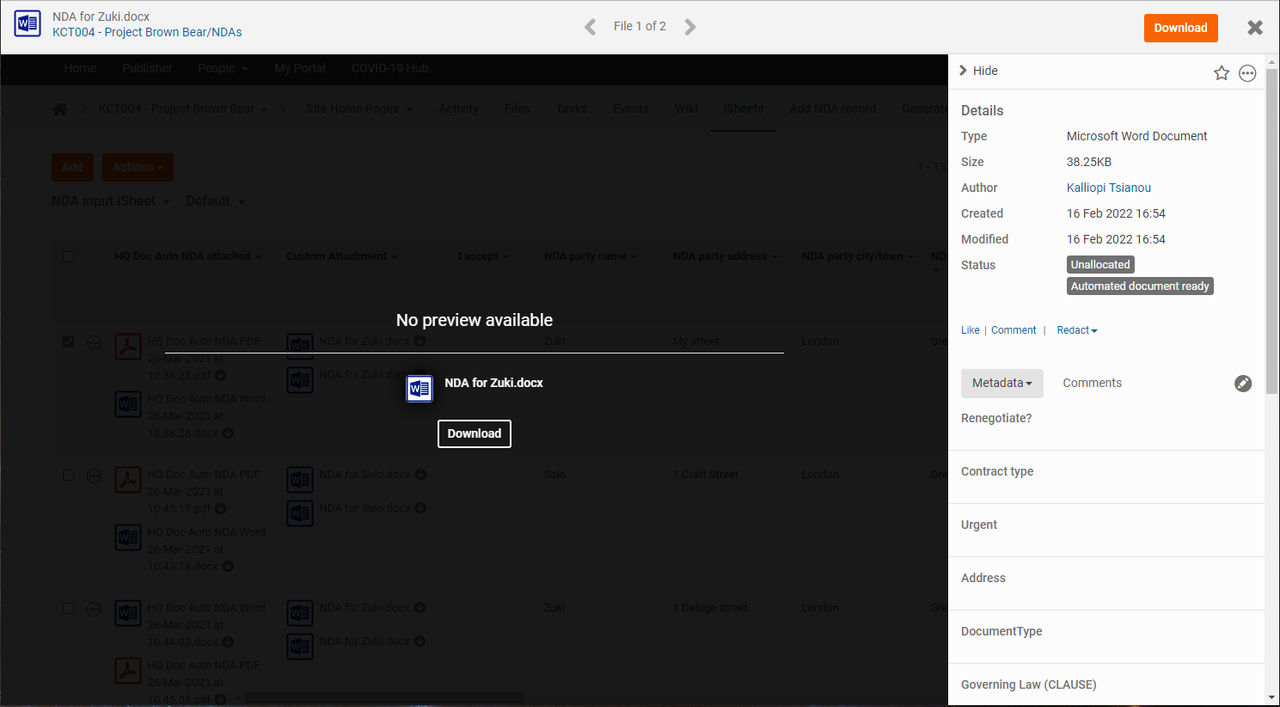
If multiple types of metadata are associated with the file, click the
Metadata
dropdown to select another source.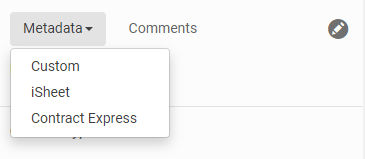
- Custom- see and edit data from thefile metadata iSheet
- iSheet- see and edit metadata from an iSheet that contains this file as an attachment
- Contract Express- see metadata fromContract Express
note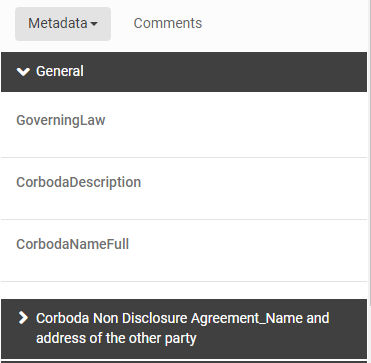
For example, select
Contract Express
to see Contract Express metadata.You may not edit
Contract Express
metadata in the File viewerTo edit the metadata, click the
Edit metadata
button.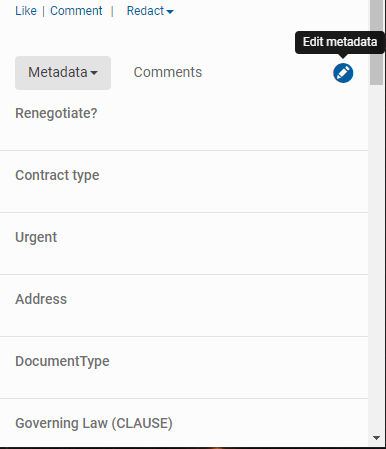
Select a field and type, or make a selection, to edit the metadata.
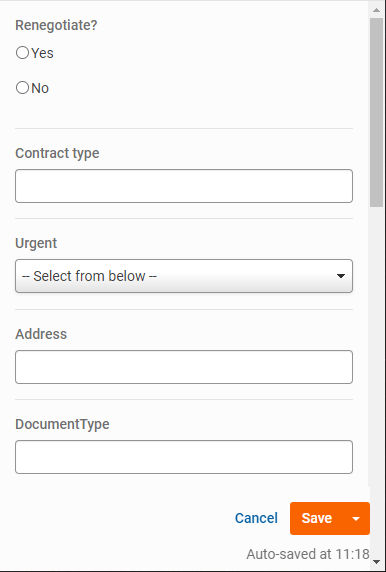
If available, select
Edit next record on save
to open the next record immediately after the current record is saved.Select
Cancel
to close without saving changes, or select Save
to keep your changes.note
Click the arrow on the Save button the
Save as Draft
. The next time you open the file, a prompt asks if you want to keep previous changes.Changing the default metadata selection
You can set which metadata is displayed when a file is opened.
You can set the default at the Site level and also select a different default for each folder in the Files module.
Set the default at the site level
Open site
Admin
, then select Settings
for the Files module.Scroll down to
Default preview metadata
.
You can choose one of the metadata sources available on your site; these can include
Custom
, iSheet
or Contract Express
.Select
Apply to all existing folders
to set all files to this default; if this is not selected the default is only applied to new folders.Select
Save
to apply the new defaultSet the default for a folder
A user with folder admin permissions can apply a default to a single folder; open the folder in the Files module.
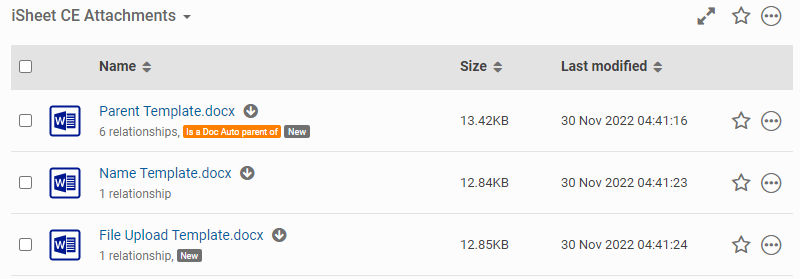
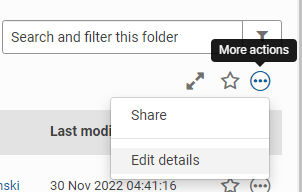
Select
More actions
for the folder, then select Edit details
.
Select the
Settings
tab In the Edit folder
window.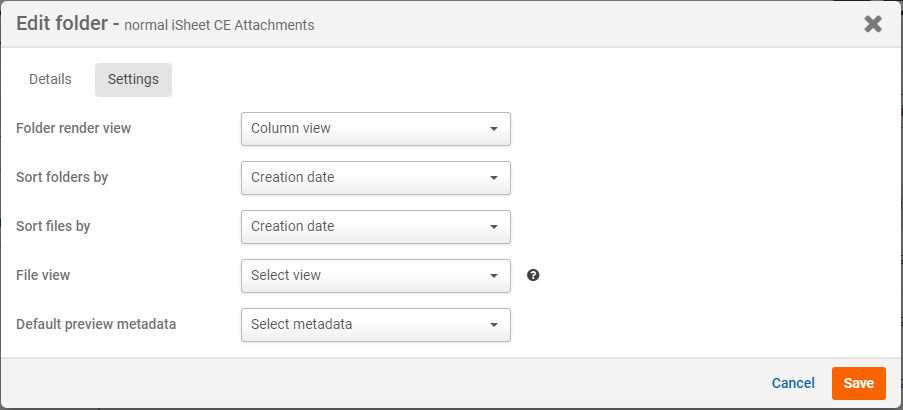
Select the new default in the
Default preview metadata
menu, then select Save
.note
The default is set at the folder level, if you move a file, the default setting for the new folder is used.