
Open files with the document viewer
The document viewer previews a document and provides additional options, such as analysis, redaction or to open the document.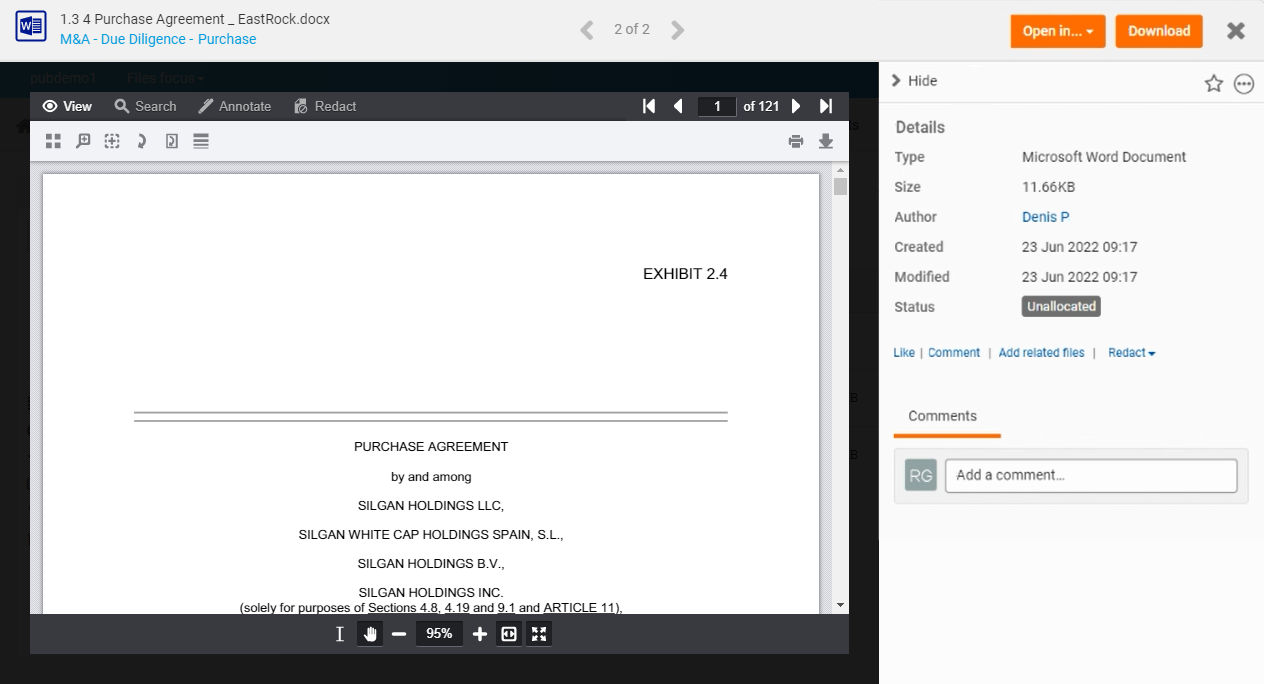
'Open in...' and 'Download'
If you need to edit the document or download a copy, buttons are available in the navigation bar.
note
Open in...
is only available if Enable Open in Office Online
or Enable Open in G Suite
are selected in the site Files settings.Select 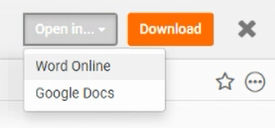
Open in...
to open the document in a compatible editor.note
If only one option is available to open the document, the 
Open in...
button changes to show which editor is available, e.g. Open in Word Online
Select
Download
to download a copy of the file for reference.note
We recommend you always use
Open in...
to edit the document, as all changes are automatically tracked and the original document is updated in HighQ with a new version.More Actions
Select the 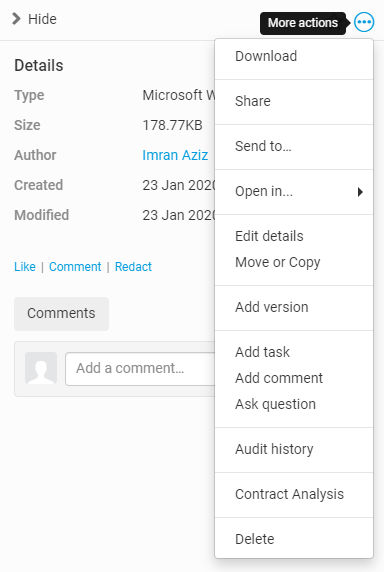
More actions
ellipsis to display additional actions.- Download- Download the chosen file to your computer
- Share- Displays theSharescreen, where you can share the file by Email, Link, Message or Microblog
- Send to...- Display theSend toscreen, where you can select a service to send the file to.
- Open in...- Open the file in an editor, such as a Microsoft Office (Word, Excel, Powerpoint; online or client app) or Google Workspace (Docs, Sheets, Slides)
- Edit details- Edit the title, add tags, and add a file disclaimer to the file
- Move or Copy- Move the file to a different site, or to another folder in the current site
- Add version- Upload a new version of the document which replaces (but does not delete) the old version. A user can also add a new task for that document from the Task tab
- Add task- Add a task to the file
- Add comment- Add a comment to the file
- Ask question- Ask a question about the file, which is then displayed in the Q&A module
- Audit history- Displays the files audit history
- Contract analysis- Use HighQ AI to compare and analyse documents for similarity. This is only available if AI is enabled on your instance.
- Delete- Deletes the file
Next to the 
More actions
option, you can add the file to your Favourites
and also Hide
the inline pane.View
When
View
is selected, the following options are available:- Thumbnails- Display thumbnails of all selected files
- Magnifier Tool- Show a magnified view of a small portion of the file
- Rectangle Zoom- Click and drag an area to zoom in and view
- Rotate Document- Rotate the file clockwise
- Rotate Page- Rotate the page clockwise
- Image Tools- Adjust the display of a selected image
- Print- Gives options to print the file
- Download- Gives options to download the file
Search
When
Search
is selected, the following options are available:- Search Options- Gives access toQuick Actionsand theFilter. Search results are displayed here.
- Search Document- Click to enter a search term
- Match exact Word or Phrase- Filter your search results to match the exact word or phrase.
- Match Case- Filter your search results to match the case you have used in your search
- Whole Word- Filter your search results to include the whole word(s) you have used
- Begins With- Filter your search results to include results that only begin with your search term
- Ends With- Filter your search results to include results that only end with your search term
- Use Wildcards- Filter your search results to use wildcards as part of your search term.
- Proximity Search- Filter your search results to include a proximity search as part of your search
Annotate
When
Annotate
is selected, the following options are available:The Annotate options available are arrow, line, rectangle, ellipse, freehand, polyline, text and stamp. The 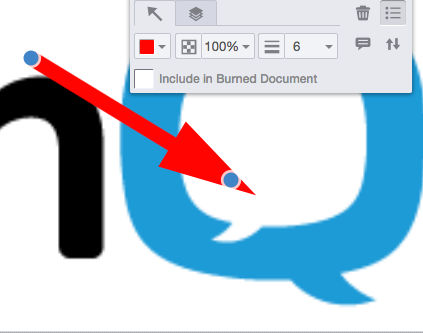
Annotate
option allows you to annotate a file in the viewer and save those annotations for another user. The options give you several ways to annotate the file. Click an annotate option, then click and drag where you want to annotate in the file.An options section allows you to customise or delete the annotation. Select
Add comment
to add comments; select Include in Burned Document
to include the annotation in a burned document.Select  to save the new annotations in the file.
Save Annotations
to save the new annotations in the file.There are two options available. You can save the annotation as a 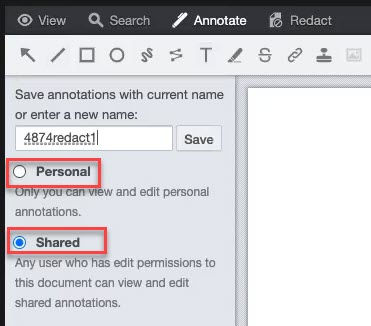
Personal annotation
that only you can view and edit. Otherwise, you can save the annotation as a Shared annotation
and this will become visible to other users who have edit rights to the document.Once your annotation is saved a success message is displayed.
The number of annotations are listed next to the 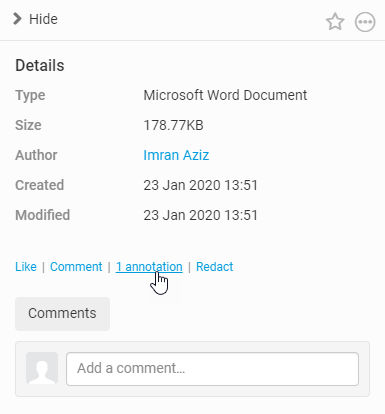
Like
and Comment
section in the inline pane.Also, the number of annotations is displayed under the file name in the Files module.
Click the
annotation
link to display a list of saved annotations in the document viewer. Personal and Shared annotations are available to be loaded. Click an annotation record to view the file with annotations.You may also select  to open the list of saved annotations.
Load Annotations
to open the list of saved annotations.Select  to view any comments in the file.
Comments Panel
to view any comments in the file.Select  to save a copy of the file to your computer. The annotations displayed in the document viewer (Private or Shared) will be burned in so these can be used for future reference and can be shared with others to combine to create one document,
Download
to save a copy of the file to your computer. The annotations displayed in the document viewer (Private or Shared) will be burned in so these can be used for future reference and can be shared with others to combine to create one document,Redact
When
Redact
is selected, the following options are available:- Filled rectangle- Redact a rectangular area, this may be any content, text or image
- Text selection redaction- Select and redact an area of text
- Redact full pages- Select one or more pages for redaction
- Redaction view mode- temporarily reveals redacted areas
After redacting the document, select
Save changes
. More information is available here.iSheet Metadata
You can edit iSheet metadata (if any is attached to the file) in the inline pane. More information is available here.
Email Attachments
If you view an email, email attachments are displayed in the document viewer. To view the email attachments, select  .
.
Attachments
.This lists attachments in the left-side 
View
pane. Click an attachment to view the contents.
Viewer Settings
An administrator can access viewer settings in 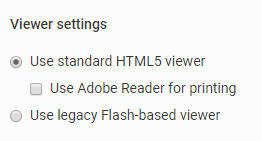
Admin
> Files
> Viewer Settings
.An administrator can set:
- Use standard HTML5 viewer -this uses the HTML5 viewer, supported on all modern browsers
- Use Adobe Reader for printing- use Adobe Reader's print capabilities instead of the document viewer
- Use legacy Flash-based viewer -this allows the viewer to be used on older browsers