
Configure the Legal Tracker matter management iSheet
note
This article is intended for system administrators.
After Legal Tracker is enabled at the System administration level, you can configure the matter management iSheet that is automatically created.
The iSheet can then use views to control access, and must be imported to a site so that it can be used.
If you need to enable Legal Tracker at system admin level, please click here.
iSheet configuration
Now the iSheet has been automatically created, you can add fields from Legal Tracker.
In your instance, select your
Profile
button, then System admin
from the dropdown menu.
The
System admin
screen opens. Select iSheet admin
from the navigation panel.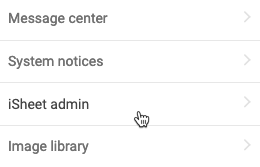
The
List of isheet templates
opens.
Select
Matter management
to view 1 or more iSheets, depending on which options are enabled.The
List of sheets
screen opens. Next to Legal Tracker - Matter management
, select Add / Edit
in the Columns
column.
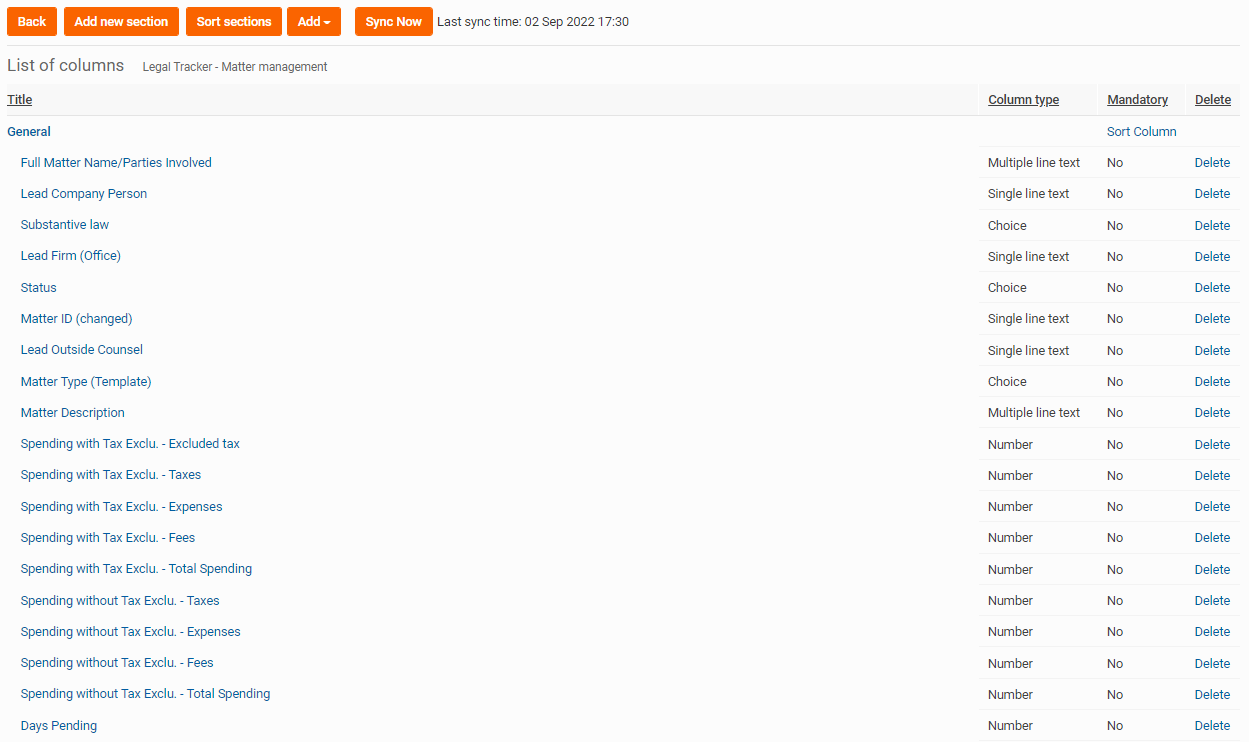
The
List of columns
screens shows a list of the default iSheet columns.These columns are pre-defined and created when Legal Tracker is enabled.
note
For the Matter management iSheet:
Some of the columns listed below are reserved for internal processing and must not be edited (however, pre-defined fields can be altered as required*):
In the
General
section:- Full Matter Name/Parties Involved*
- Lead Company Person
- Metter ID
- Lead Outside Counsel
- Matter Type (Template)
- Substantive law*
- Matter Description*
- Total LF Budget
- Spending with Tax Exclu. - Excluded tax
- Spending with Tax Exclu. - Taxes
- Spending with Tax Exclu. - Expenses
- Spending with Tax Exclu. - Fees
- Spending with Tax Exclu. - Total Spending
- Spending without Tax Exclu. - Taxes
- Spending without Tax Exclu. - Expenses
- Spending without Tax Exclu. - Fees
- Spending without Tax Exclu. - Total Spending
- Days Pending
- Currency code
- Internal matter id
- Lead Firm (Office)
- Status
You can move other columns to this section, but they are treated as normal columns.
Field names with a * are editable and can be changed in HighQ or Legal Tracker.
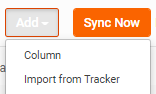
Select
Add
, then Import from Tracker
.
The
Select Tracker fields
screen opens showing a grid with rows containing Tracker fields and columns for Fields
, Column type
, and Sync type
..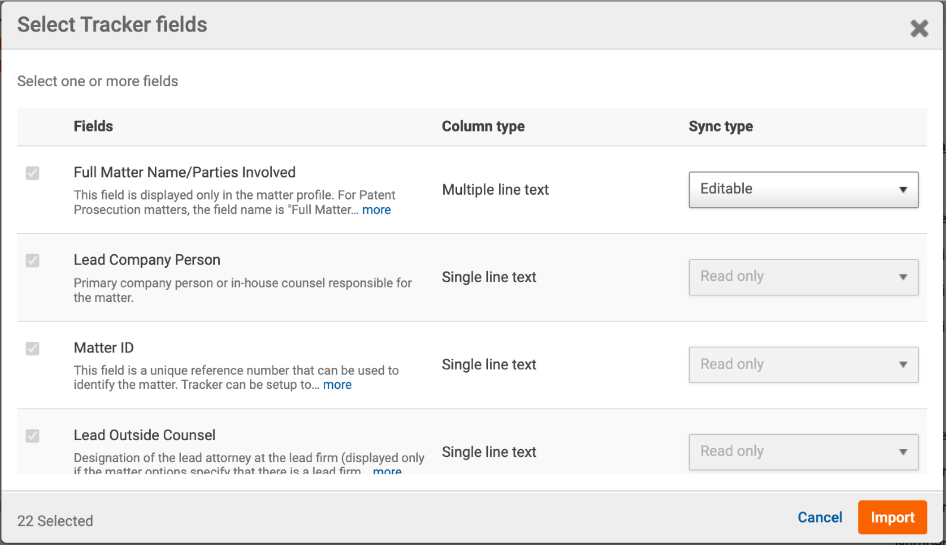
Select up to 22 Tracker fields that you want to sync between Legal Tracker and HighQ. The
Column type
is based on the information received from the Legal Tracker instance.note
If required, you can change
Editable
fields to Read only
.After you have selected the fields you wish to sync with the iSheet, select
Import
.Managing permissions for Matters
Matter details are sensitive and should only be visible to individuals working on the matter. To address this security concern, you can set matter view permissions with
iSheet Views
.A system admin can define which matters are included in a particular view with view conditions. Each view can be allocated to different groups to restrict access to appropriate data.
Return to the
List of sheets
screen.
In the
Legal Tracker - Matter management
row, selectAdd / Edit
in the Views
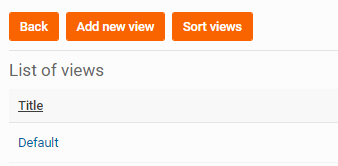
column to show a List of views
.
note
Instead of creating a new view, you may use the default view to manage all columns.
Select
Add new view
. Enter a View name
and adjust the columns included in the view by moving columns from the Sheet columns
box to the View columns
box. Use the Up
and Down
arrows to change the position.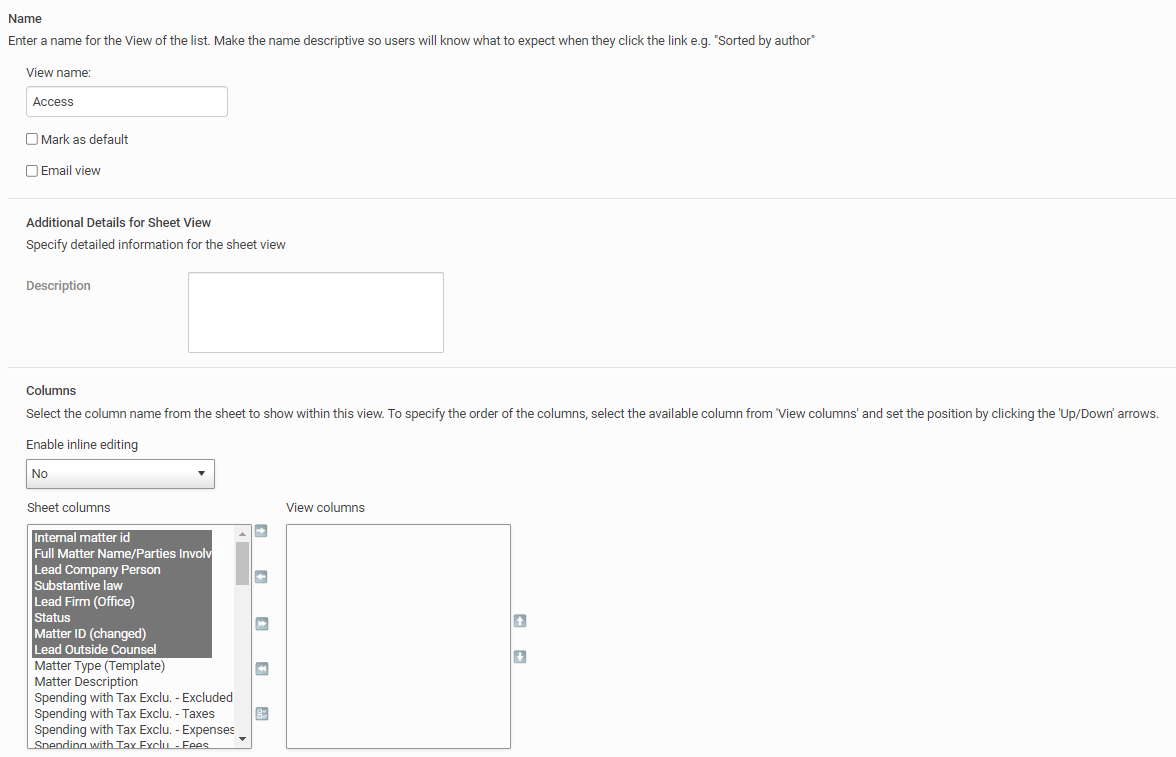
Select
Save
.Edit import permissions
On the
List of views
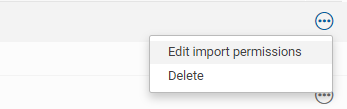
screen, selectMore actions
for the view that will use import permissions, then select Edit import permissions
.
This option uses system user groups to set permissions for the view. A user in the specified user group can only access the defined matter management view.
Mark the
Enable import permissions
checkbox, then add the name of the system group with permission to access the view in Permitted system groups
.
Importing a matter to a site can only be done by an individual with permission to access the view.
Importing matters to a site
A site administrator can import Legal Tracker iSheet templates to a site.
note
Matter Management iSheets permissioned using a Matter management iSheet view can only be seen by a site admin if they are included in the system group defined for that view.
When you import the matter management iSheet view into the site, it imports the iSheet structure, and the contents of selected columns and matters.
Select
Admin
, then iSheets
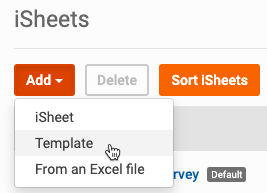
to go to the iSheet Admin page. On this page, select Add
, then Template
.
The
Import from template
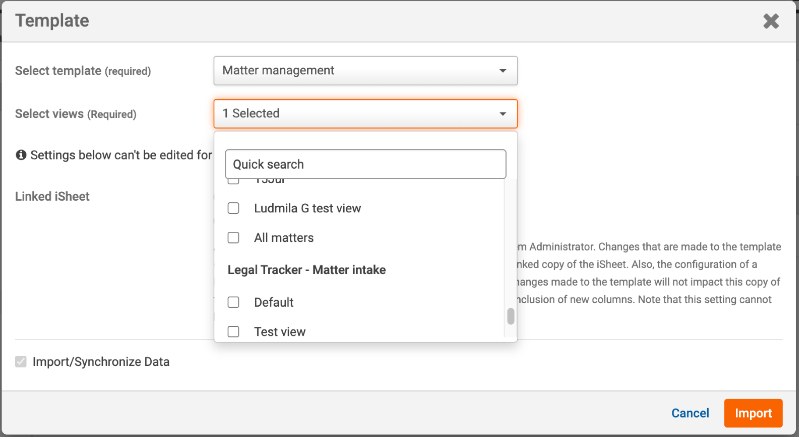
window opens. Use the Select template
dropdown to view the list of all available iSheet templates.Use the
Select views
dropdown list to choose the view that sets import permissions, then select Import
.
note
New records cannot be added to the
Matter management
iSheet and the site only shows the matter records included in the matter management view.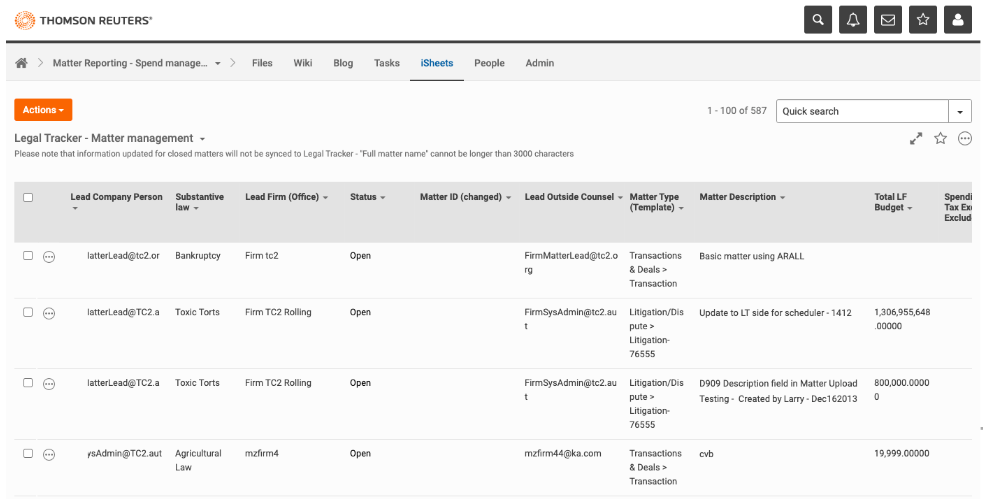
Two-way sync of matter information
After the Matter management iSheet is imported into a site, any updates to the matter fields in Legal Tracker are automatically updated in the HighQ matter management iSheet.
If you edit the matter management iSheet records, you will view a mix of editable and read-only fields. Read-only fields can only be updated in Legal Tracker.
Editable fields can be changed in HighQ and when synced, the contents of these fields are updated in Legal Tracker.

note
A site or iSheet admin can add columns to the matter management iSheet; these columns are not synced with Legal Tracker, but are synced with other sites on the instance that have imported the same matter management iSheet.