
Enabling Legal Tracker at the System Admin level
Legal Tracker is an add-on feature that enables integration between HighQ and Legal Tracker for Legal intake and matter management.
- The legal intake process begins when a user fills out the intake form; once approved, the intake request is created in Legal Tracker via the integration.
- Matter management links Legal Tracker matters with an iSheet and updates both with 2-way sync.
Depending on your requirements, open Legal Tracker to enable the integration, then open System admin in HighQ to enable legal matter intake, matter management, or both.
note
As of August 2022, you can sync matter management data with Legal Tracker and use HighQ to help manage legal projects and also use HighQ Forms to create your intake form for Legal Tracker.
For HighQ to sync with Legal Tracker services, system settings must be configured to enable HighQ to access and use Legal Tracker APIs.
When Legal Tracker integration is enabled at the system level, including secure API details, two things happen:
- A system-level iSheet is created for each integration. This iSheet template imports Legal tracker matter fields into HighQ so Legal tracker fields can be synced when the intake request is created in Legal Tracker, or when a matter is created
- A site template is added to the instance for each integration
Enable HighQ integration in Legal Tracker
Legal Tracker must be configured to allow 2-way sync and be able to link matter to HighQ folders.
Open
Legal Tracker
, select Settings
then select Feature Preview
:
Select the check box next to
HighQ integration
- make sure both 2-way matter sync
and Linking matter to folders
are selected: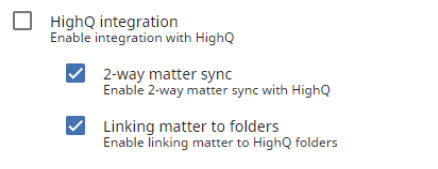
Open the setup page for HighQ.
Click
Settings
> HighQ
:
Add the requested
Client Id
and Secret key
, and:- To enable Matter management, selectEnable 2-way sync.
- To enable Matter intake, selectEnable HighQ Matter intake integration.
note
The Client ID and Secret key are available in HighQ System Admin. Open
System Admin
from your profile menu, then select API application registration
.Click the
Save and Close
button.To finish the integration, sign in to your HighQ account.
Then select
OK
to close the confirmation window.Proceed to
Enabling Legal Tracker at System Admin level
.After the Legal Tracker integration is enabled in HighQ (see below) you can check if a matter is linked to a HighQ iSheet in Legal Tracker.
note
Select a matter and open the 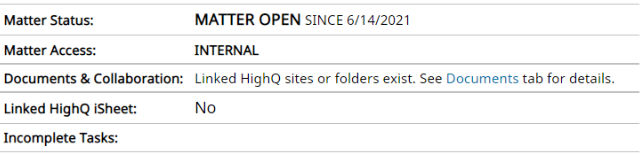
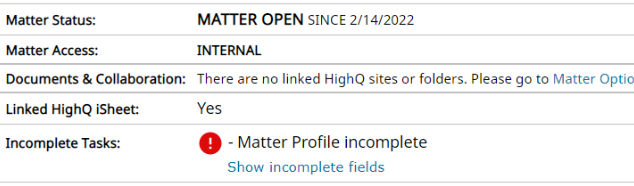
Profile
tab. Linked HighQ iSheet
displays Yes
or No
.
Enabling Legal Tracker at System Admin level
From your profile dropdown, select
System admin:

The
System Admin
screen opens. Navigate to System settings
in the left-hand menu:
The
System settings
screen opens. Navigate to Third Party Services
> Legal Tracker configuration
By default, Matter intake and Matter management are set to
Disabled
.
Enabling matter intake
Matter intake
creates a system-level iSheet that can sync with Legal Tracker intake records.note
Note that matter intake iSheet updates must be imported manually, the daily sync only syncs the matter management iSheet.
Click the drop-down menu under
Matter intake
and select Enabled
:
Click
More actions
> Configure
to configure matter intake: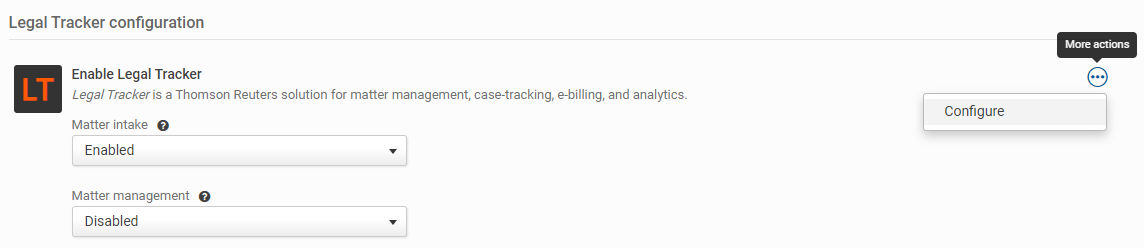
The
Register - Legal Tracker
screen opens.Enter the details of your Legal Tracker instance.
note
Near real-time sync replaces scheduled sync. If you are currently using scheduled sync, please check
Finding your Company ID in Legal Tracker
and Entering your Webhook secret key in Legal Tracker
, below
.Please contact your administrator if you need help finding this information.
note
IDs and secret keys:
API client ID
- Enter the API client ID which is displayed in your legal tracker instance.API secret key
- This is the secret key from the API client.Tracker company ID
- The organisation/company ID (Database ID) in Legal Tracker (see below); required for near real-time sync.
Webhook secret key
- You may enter your own secret key - please use a code that is sufficiently long and complex to protect access. This code is transmitted to Legal Tracker and is used to secure your access for synchronisation; required for near real-time sync.Enabling near real-time sync
As of February 2023, near real-time sync replaces scheduled sync for Matter management. Updates to Legal Tracker matters are pushed to HighQ so that scheduled synchronisation is not necessary.
note
The Tracker company ID and Webhook secret key are needed to use near real-time sync.
Finding your Company ID in Legal Tracker
Ask your Legal Tracker admin for your Company ID, or you can find it in the Legal Tracker app.
Open
Legal Tracker
, then select the company name in the top bar.
Select
Change client
to open the Client
list.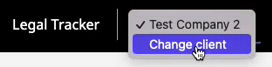
Hover over the name of the client you want to configure for matter management sync.
Look for the tooltip in the bottom-left corner of the browser window and note the number (only the number is required).
note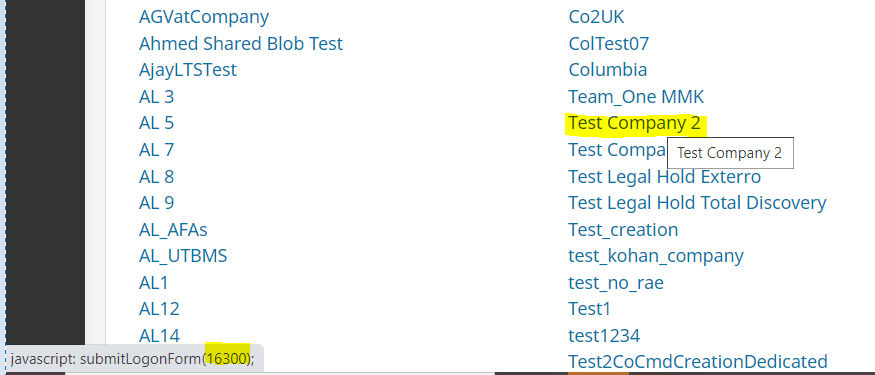
For example, hover over a client and look at the tooltip in the corner of the browser. It will display something like
javascript: submitLogonForm(16300);
where 16300
is the Client Number Enter this number in the
Register - Legal Tracker
window in HighQ.Entering your Webhook secret key in Legal Tracker
You must enable webhooks and then configure the HighQ webhook in the Legal Tracker app.
note
Please contact HighQ support for the iSheet services URI and Webhook secret key required for your configuration.
Enabling the webhook option
To activate a webhook for your site, enable the Webhook functionality integration:
Open
Legal Tracker
, then select Home
, Settings
and Feature Preview
.Select
Webhook functionality
:
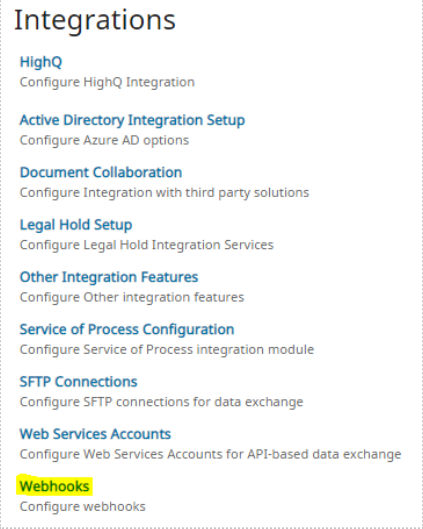
Select
Settings
, Webhooks
.
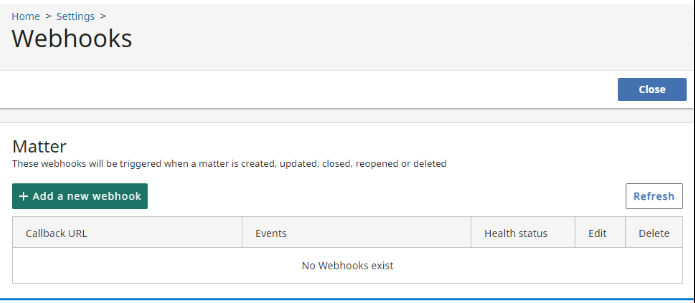
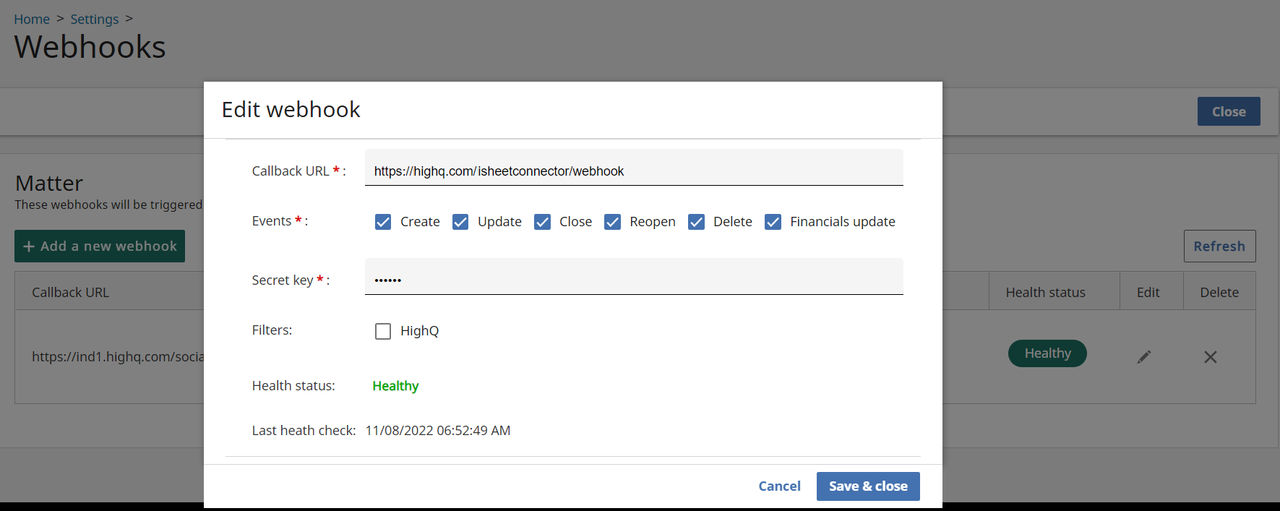
Select
Add a new webhook
:
Enter your Webhook secret key in the
Secret key
field, then click Save & close
.
note
The
HighQ
filter is not required for this configuration.Check that the information in Legal Tracker matches the information in the
Register - Legal Tracker
window in HighQ.Test and save
Select
Test
to confirm if the details are correct. If they are correct, a confirmation message is displayed and you can now select Save
. If not, an error message is displayed informing you that the information is incorrect and that you must amend it, before saving.Once you select
Save
and connect the instances, a solution template and an iSheet template are automatically created. An iSheet is created in the iSheet template - all newly created templates and iSheet are linked.The instances are now linked.
note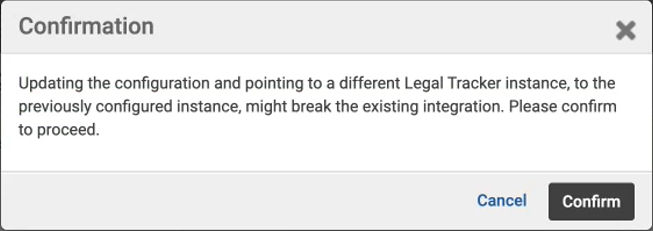
If you update an existing configuration, you may also need to
Confirm
your saved changes:Enabling Matter management
Matter management
creates a system-level iSheet that can sync with Legal Tracker matter records.Click the drop-down menu under
Matter management
and select Enabled
:
The
Edit query - Legal Tracker - Matter management
screen opens:note
Note that if you use scheduled sync, sync is restricted to the first 500 records from the filtered matters.
Near real-time sync is not restricted.
If required, enter filters to restrict the synced records:
- Lead firm- Type the exact name of the firm, partial matches are not added
- Matter status- ChooseOpen,CloseorBoth.
- Matter type template- Type the full path for the matter type, including the parent node.noteFor example,Litigation/Dispute >Highq Template

- Substantive law- Type the exact term, partial matches are not added
- Date of the matter- Enter aStart date,End dateor both.
Select
Review query result
to check the records identified by your filters.note
To sync all records, simply select
Save
, without entering any filters.When you are satisfied with your filters, select
Save
to confirm.note
Click the
More actions
icon next to the Enabled
drop-down then select Edit query
to edit your filters.Scheduled or near real-time sync
If you have entered a Tracker company ID and Webhook secret key, then near real-time sync is active and you see this in the Legal Tracker configuration section.
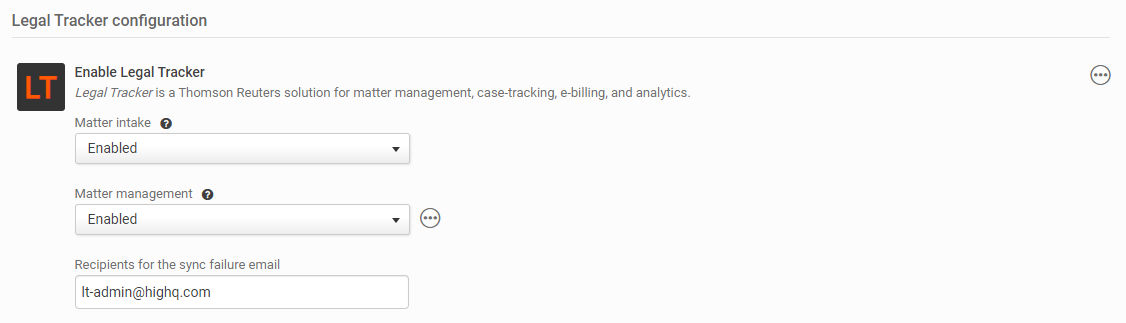
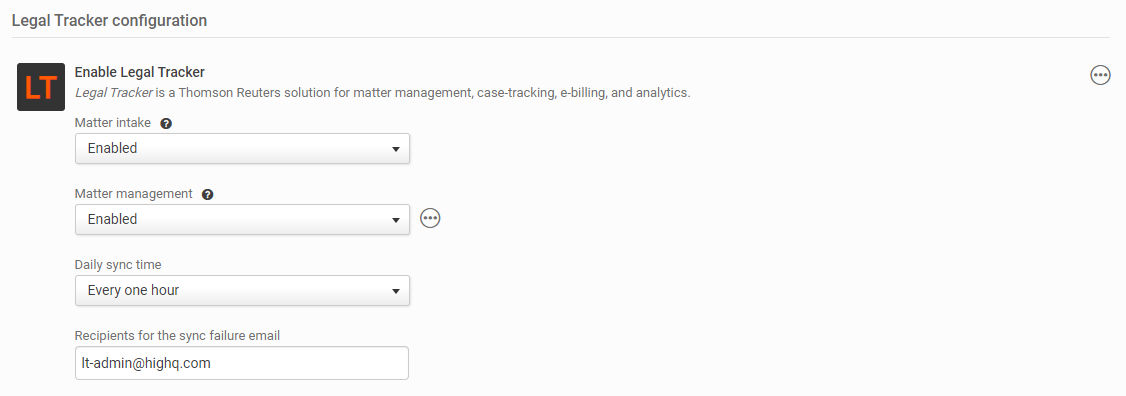
If you use scheduled sync, you can select a
Daily sync time
(from Never
to Once a day
):
Finally, enter recipients for an email alert should the sync fail and select
Save
to save your settings.note
Separate multiple recipients with a comma.
After you have configured Legal Tracker for your instance, you can:
- configure the Legal Tracker iSheet for Matter intake,Legal Tracker workflowand Legal Tracker template for legal intake, or
- configure the Legal Tracker iSheet for matter management.