
Update an iSheet with task status changes
Task linking and iSheet record mapping
Task linking automatically updates iSheet records based on linked task statuses, improving data accuracy and reducing manual work in project tracking.
note
Workflow updates the iSheet when the task status changes (for example, from 'Not started' to 'In progress').
Summary
- Task-to-iSheet status sync via Workflow rules
- Supported iSheet column types for sync targets: Choice (Dropdown, Checkbox, or Radio)
- 'Link with iSheet record' option when creating tasks from Workflow rules
- Mapping associates each Task Status with a specific Choice value
- Validation to prevent incomplete mappings (required status/choice must be selected)
- Audit history entries for every automated iSheet update, including a link back to the record
- Save the workflow as a reusable template
- Workflow compatibility - auto-create iSheet records and tasks per the intuitive rule builder
- Uses 'normal' iSheets
- Support for both legacy and modernized iSheets
note
Not supported:
- Non-Choice columns (e.g. text, number, date)
- Metadata iSheets
- More than one site mapping in a single rule
- Retroactive updates (only updates after rule activation)
- Multiple conditions beyond direct task status-to-choice mapping
- Creation of new choice values (choices must already exist)
Requirements
- Admin access to Workflow Rule Builder
- Permission to create/modify iSheet records and columns
- At least one iSheet for linking (not a metadata iSheet)
- Ability to create/edit workflow rules and templates
- Custom task status choices must be defined in advance
Update an iSheet with task status changes
Step 1: Configure iSheet Choice Columns
Open the site
Admin
module:
Select
Active iSheets
in the Module settings
section on the left of the screen.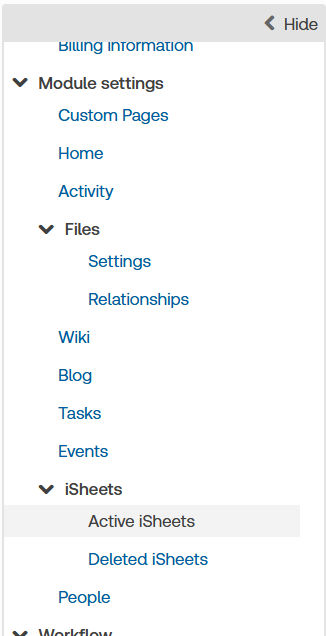
Add or find the iSheet that will track tasks (not a metadata iSheet).
If they do not already exist, add Choice columns for the values you want to sync (Dropdown, Checkbox, or Radio).
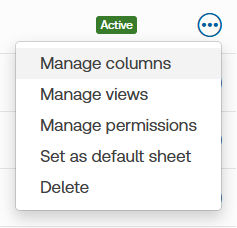
Define the option list:
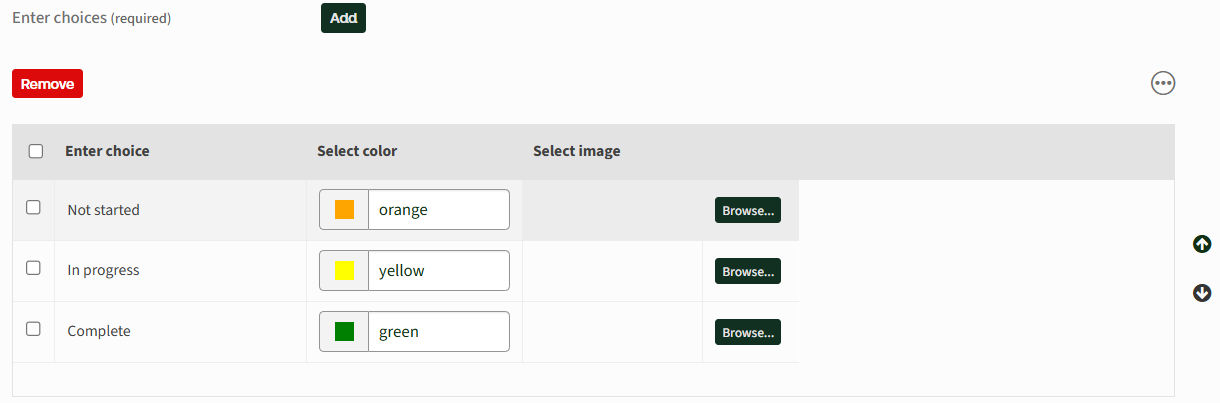
note
You may add 'Other' if required.
Save
the iSheet.Step 2: Create a Workflow to Add and Link Tasks
Open the Rule Builder in Workflow.
note
Check for existing rules that may conflict with a new Task Status rule.
If required,
Add
a new workflow, or select an existing workflow:
Select
Add
then New rule
:
Enter a name for your rule:
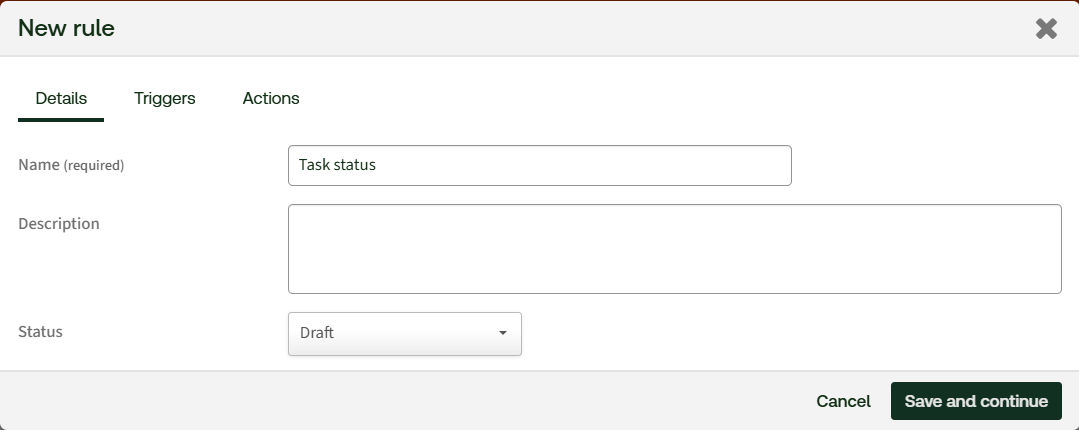
Select the
Triggers
tab.Set the trigger to
iSheet record
is Added
, and select the iSheet that will track your tasks.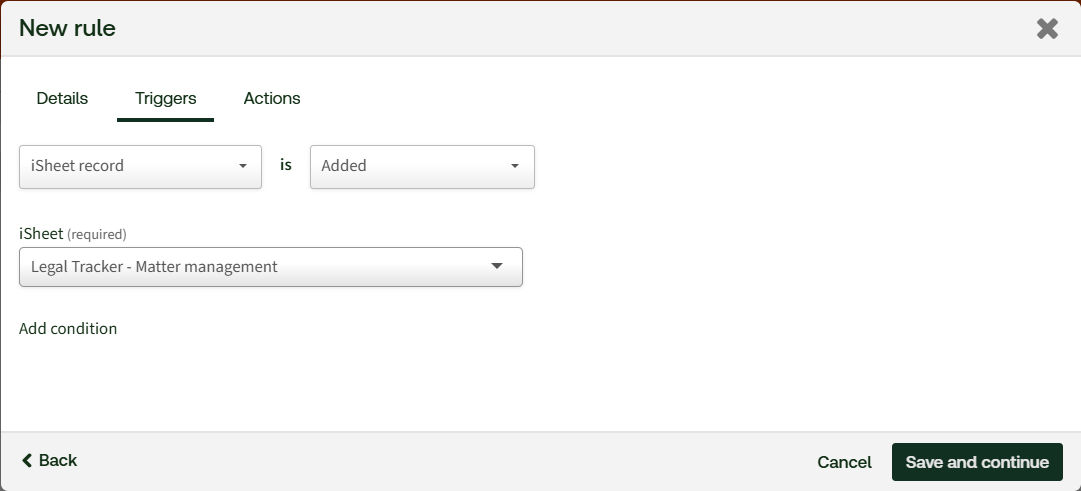
Select the
Actions
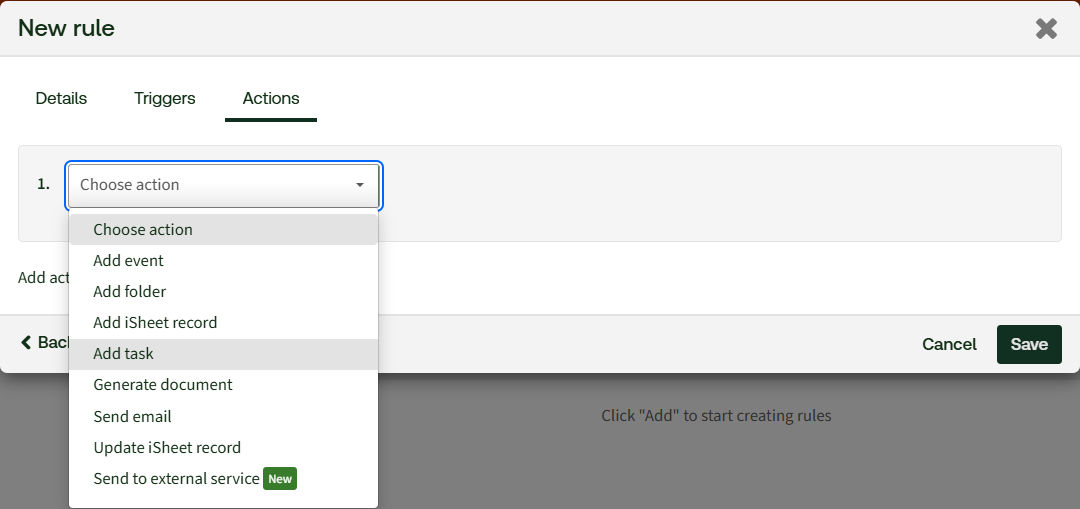
tab.Choose
Add Task
.
Select
Link with iSheet record
and enter other task details as described below: 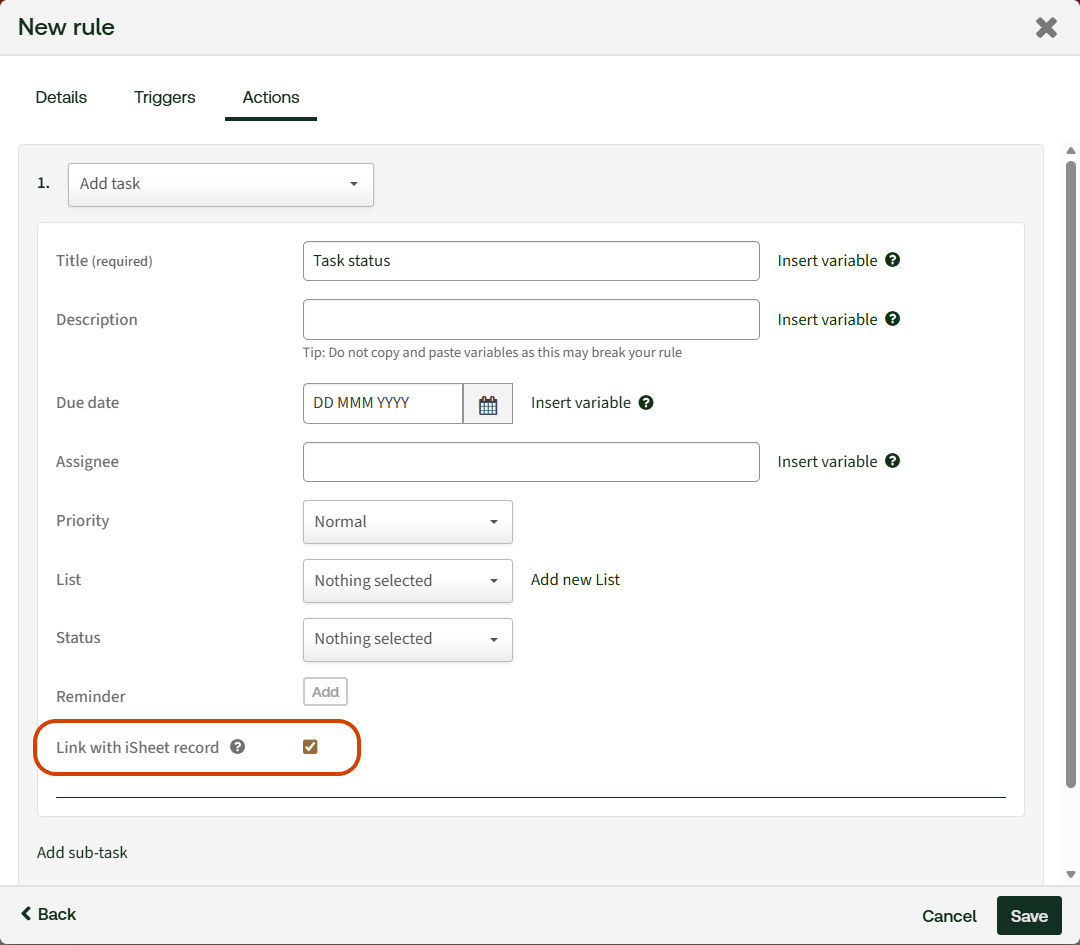
Enter task details:
- Title- Use a single-line text column variable (e.g., Matter Name) to compose dynamic titles. If no variable is entered, the task title always matches the text entered here.
- Add Assignee, due dates, and other task fields as needed.
Save
your rule.Step 3: Map Task Status to iSheet Choice Values
Return to the Workflow and add a new rule to manage the mapping.
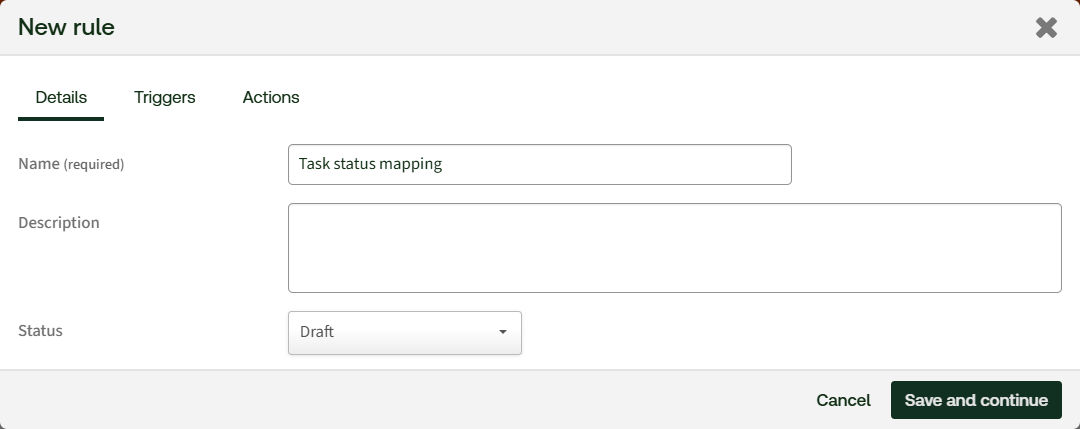
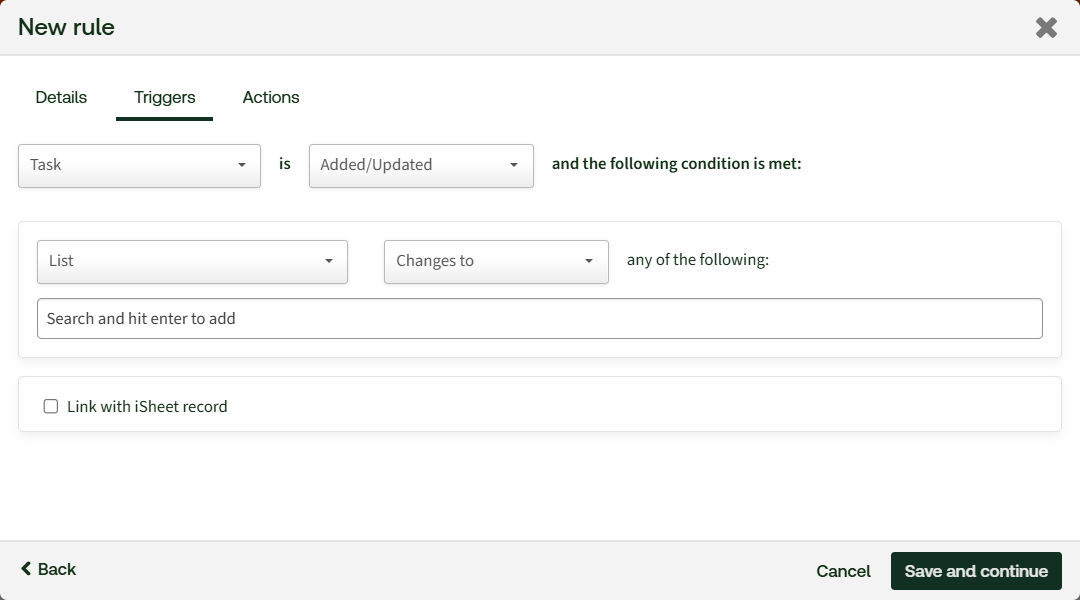
In the
Triggers
tab, select Task
.
Select
Link with iSheet record
. This hides other task trigger conditions and allows you to select the 'Update iSheet record' action.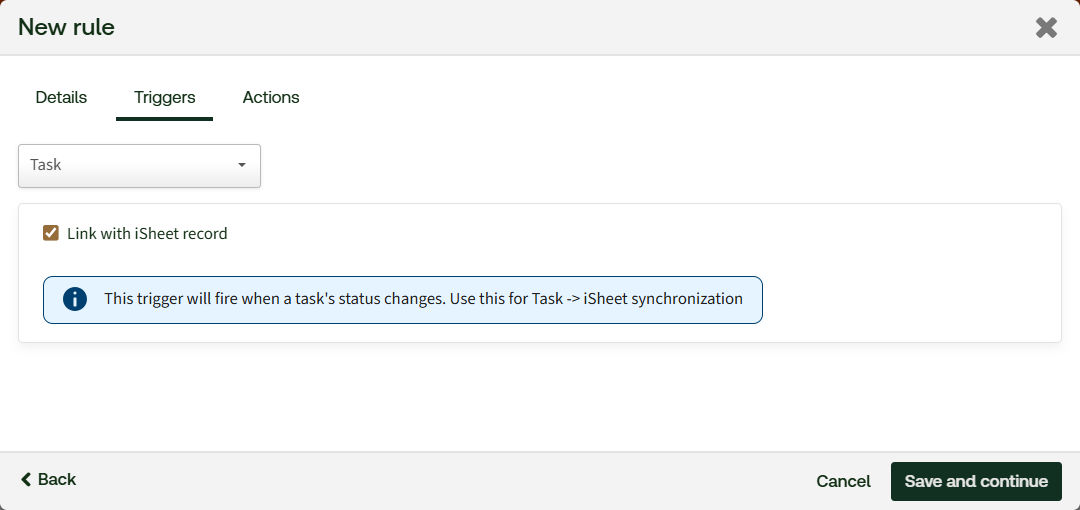
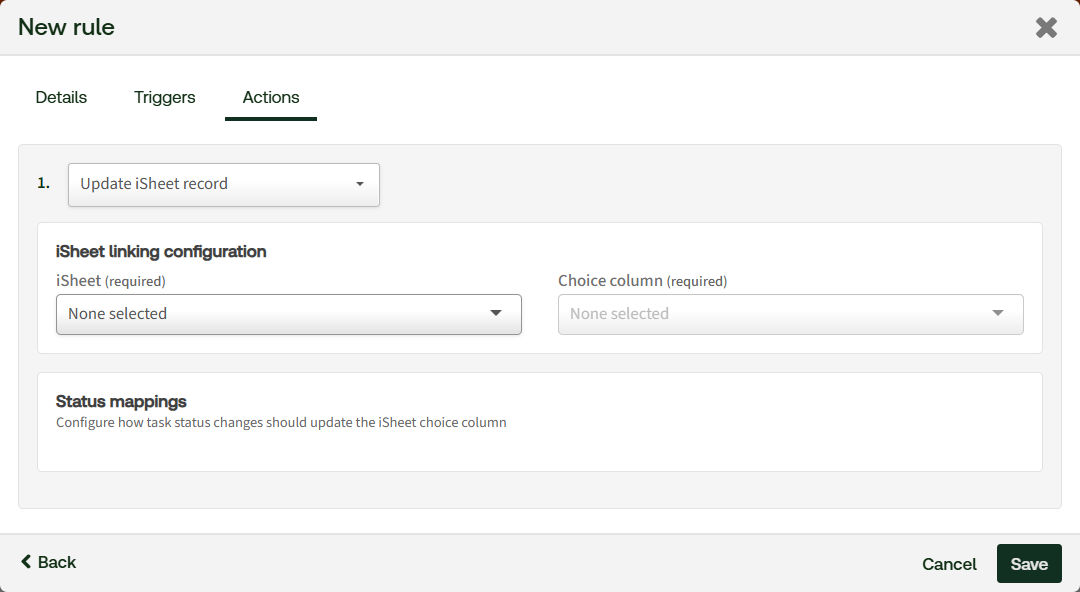
In the
Actions
tab, select Update iSheet record
.
Select the linked iSheet and the Choice column to hold status updates.
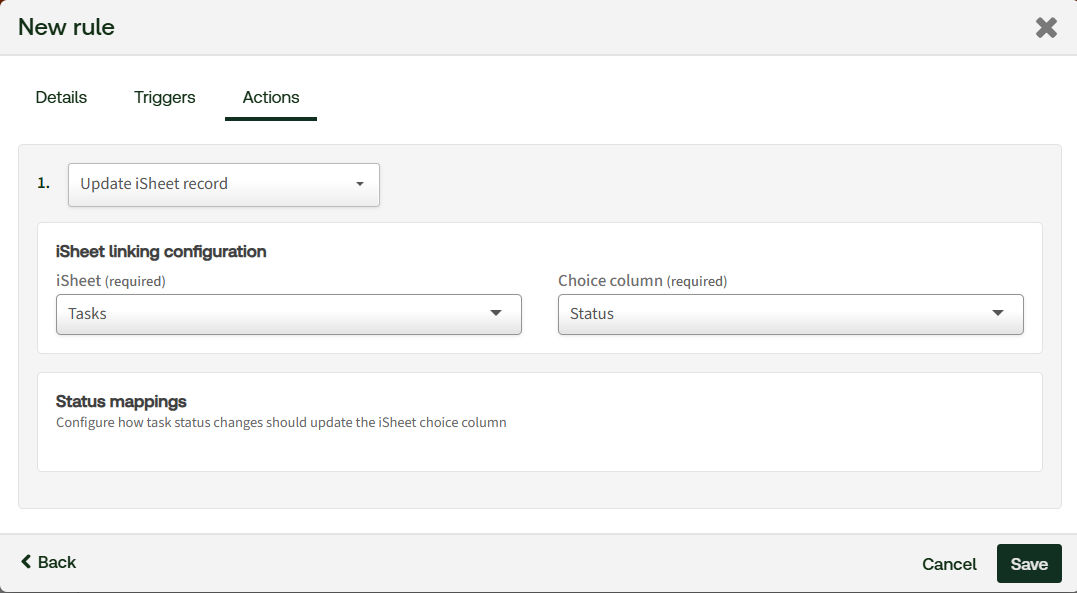
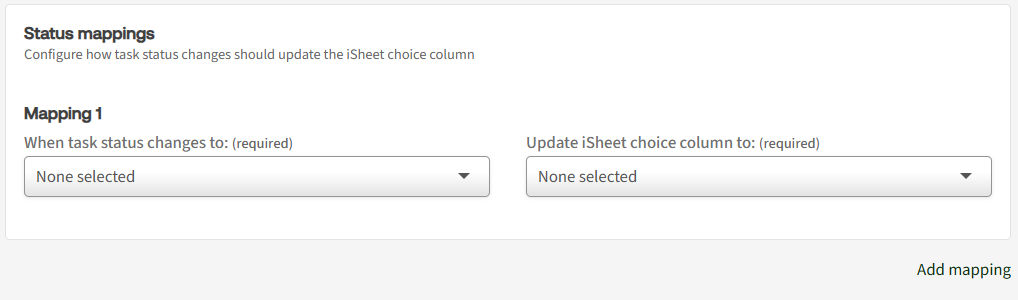
Add mappings
For each
Task Status change
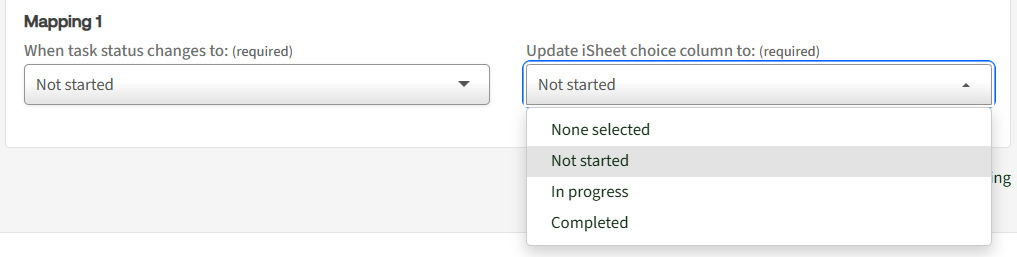
, select the corresponding iSheet Choice value
.
note
Mapped values are removed from the dropdown as you assign them to prevent duplicates.
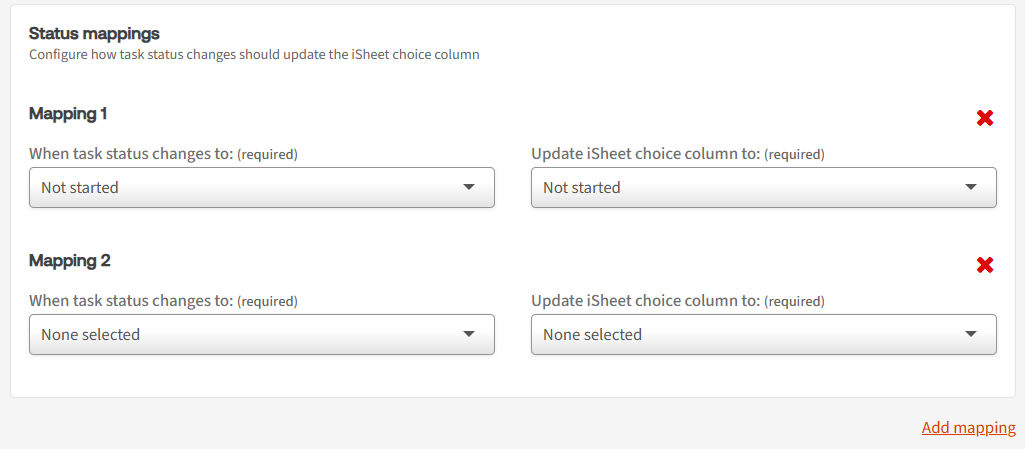
Click Add mapping to add a second mapping, and then continue until all status values are mapped.
Save
the rule.note
Validation
If a required field (Task Status or Choice value) is missing, a message appears, and the rule cannot be saved until the missing value is resolved.
Step 4: Test the Workflow
- Add an iSheet record to the linked iSheet.
- Confirm a task is created with the expected title, and that it is linked to the iSheet record.
- Change the task status (e.g., to 'In progress').
- Verify the mapped Choice value is updated on the iSheet record.
- Review the Audit History to confirm the update is tracked and check the link back to the iSheet record.
Auditing
An admin can create an audit of workflow activity. See Workflow audit history for more information.
Troubleshooting
Tips
- Keep status lists lean: Too many statuses complicate mapping and reporting.
- Use a single source iSheet for reporting fields that are synced, and avoid manual overwrites.
- Name choice options to match the business language used in your reports and dashboards.
- Version your workflows (e.g., 'Task-iSheet Sync v1.1') and add a description of the mappings.
- Start with a pilot: Test on a staging workspace before rolling out widely.
- Document ownership: Assign an admin owner for ongoing maintenance when statuses or choices change.
- Maintain a central registry of task status definitions and corresponding iSheet choice values.
- Review mappings quarterly, especially after adding new custom statuses.
- Use naming conventions for columns (e.g., 'Progress Status (Synced)') to signal automation.
- Provide a short user guide for PMs/attorneys explaining that iSheet status is automated and where to find the audit trail.
FAQs
Q:
Which iSheet types are supported for mapping?A:
Only normal iSheet types. Other types will not appear in the mapping configuration.Q:
Can I map to non-choice columns?A:
No. Mapping supports Choice columns only (Dropdown, Checkbox, or Radio).Q:
What happens if a custom task status changes but isn't configured in the rule?A:
The update fails gracefully; details are recorded in Audit History so you can correct the mapping.Q:
Can multiple task statuses map to the same choice value?A:
No, it is a one-to-one mapping of the task status to the choice value to eliminate data discrepancies.Q:
Do existing tasks update iSheet records after I create the rule?A:
No. The sync occurs on changes after the rule is active.Q:
What if my iSheet has no eligible choice columns?A:
It will not appear in the mapping selector. Add at least one Choice column and retry.Q:
Will users see who made the update?A:
Audit History shows the automated update with context and links to the iSheet record.Troubleshooting
Validation errors when saving rules:
- Ensure every mapped Task Status has a corresponding Choice value.
- Confirm you selected a normal iSheet and a Choice column.
Task isn't linking to the iSheet:
- Verify 'Link with iSheet record' is enabled in the task creation rule.
- Confirm the iSheet type is normal.
iSheet not updating on status change:
- Confirm the mapping rule trigger is 'Task' with 'Link with iSheet record' enabled.
- Check Audit History for failures (e.g., unmapped custom status).
- Ensure no other workflows overwrite the same field.
Missing choice in the mapping dropdown:
- It may already be mapped. Unmap or adjust as needed.