
Task sequencing
Task sequencing allows a site admin to define tasks that must be completed before a user can start other tasks in the sequence.
note
As of January 2025, Task sequencing is available for all instances and a sequence can include sub-tasks.
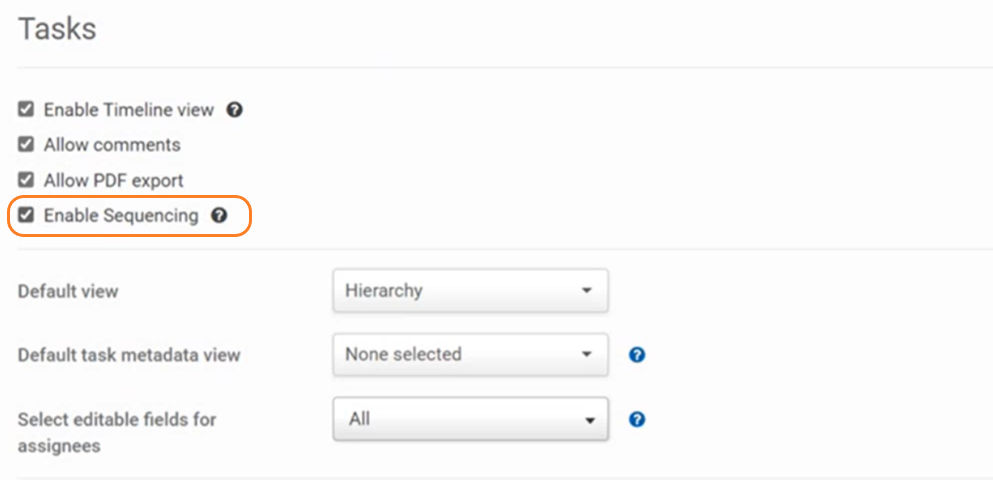
Task sequencing may be enabled or disabled in site admin. Click
Admin
, then open Tasks
.Select
Enable Sequencing
and Save
.
note
A set of tasks in a list of tasks must be available on the site before you can configure task sequencing.
If Task sequencing is enabled, then Inline editing is unavailable for Task metadata iSheets.
note
If you disable task sequencing at the site level, all sequencing configuration is lost.
Set a task sequence
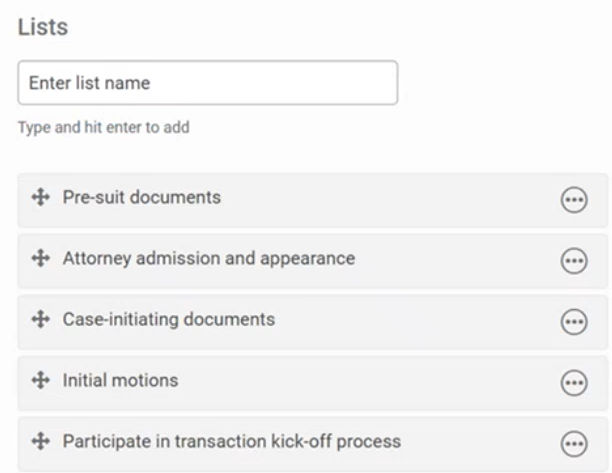
You can now set task sequence settings in the
Lists
section.Scroll down to the task
Lists
:
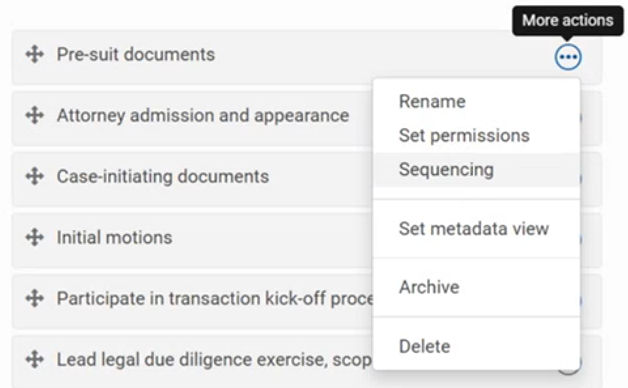
To add sequencing to a list, click the
More actions
icon, then select Sequencing
:
Set sequencing preference
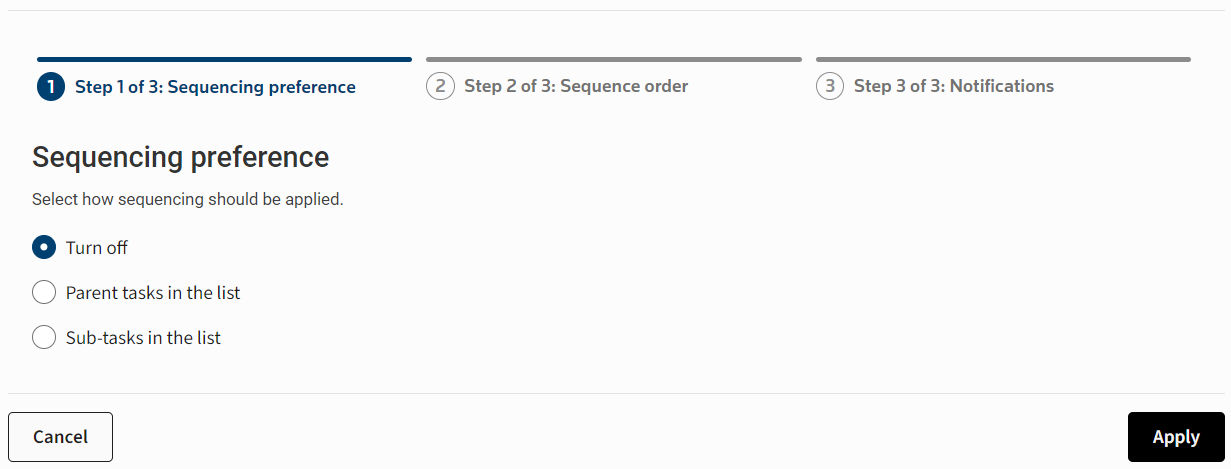
The
Sequencing
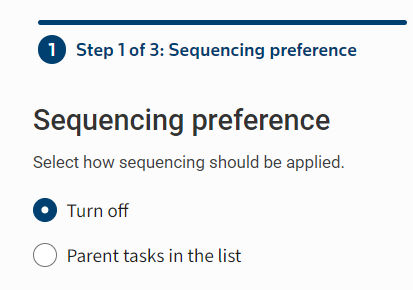
window opens; select Parent tasks in the list
or Sub-tasks in the list
then Apply
:
Set sequencing order
You can now set if a task is included in the sequence and drag tasks into the required order.
If you selected
Sub-tasks in the list
, the Sequence sub-tasks
toggle is available for each parent task; click to disable sub-task sequencing for this parent task.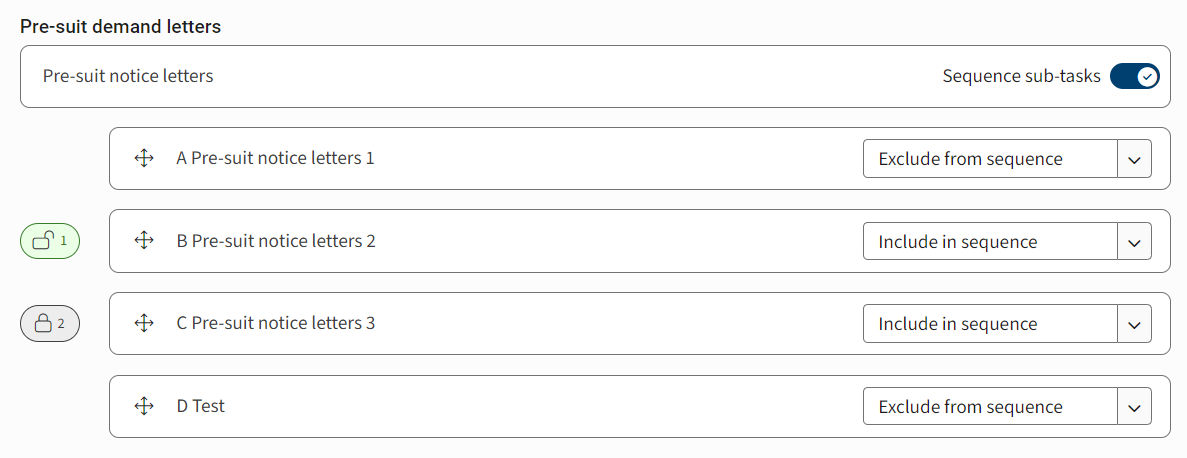
note
Tasks that are already complete are automatically set to
Excluded from sequence
and shown at the top of the list. All incomplete tasks are automatically set to
Include in sequence
; to exclude a task, select Exclude from sequence
from the drop-down menu.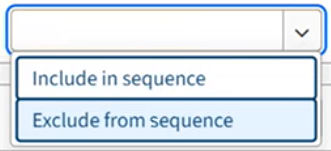
Define the order of tasks
If you need to adjust the order of tasks in the sequence, click and hold the
Re-order
icon in the task and move the task to the correct position:
Tasks are sequenced from top-to-bottom; the first task is indicated with a green Unlocked icon.
Locked and unlocked icons
The number in the padlock indicates the order in which users must complete tasks.
As of June 2026 release, when task sequencing is enabled, users must complete tasks in the order they are arranged and won't be able to skip ahead to the next task until the previous one is finished.
A green 'unlocked' icon shows pending tasks (or a parent task with pending sub-tasks); a grey 'locked' icon shows tasks that follow when the unlocked task is completed.
If there is no padlock next to the task (or tasks), those tasks are not sequenced and may be completed at any time.
note
You cannot re-order already completed tasks (i.e. 'Excluded from sequence').
Select
Apply
to confirm the order and open set notification options.Set notification options
You can send an email notification when a sequenced task is complete. Select
Don't notify
, Notify after prompt
or Notify automatically
to set the default behaviour: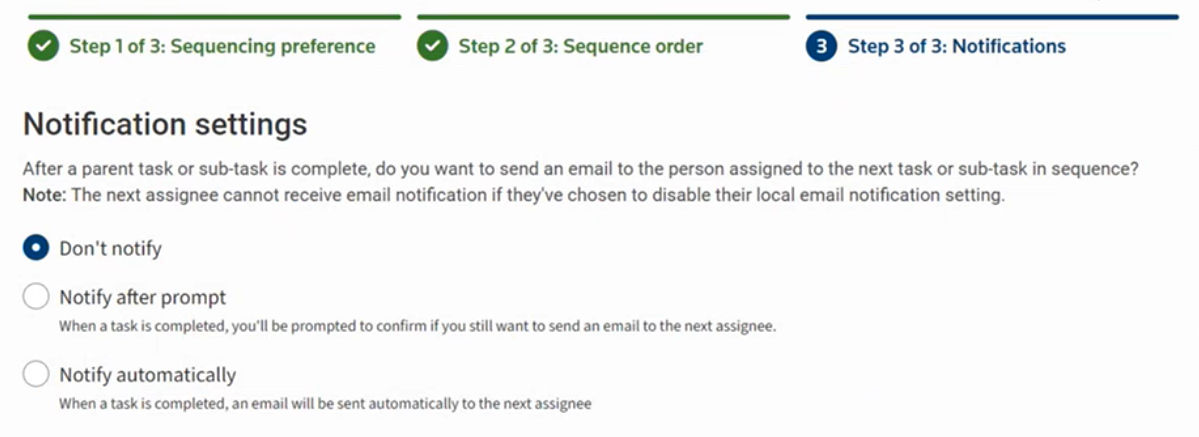
Click
Apply
to confirm.note
The next assignee will not receive the email if they have disabled their email notifications.
Finish task sequencing
The
Tasks
admin page opens and a notification confirms the status of the sequenced tasks.
note
A
Sequenced
tag is shown next to task lists with sequence settings:
The Sequencing column in Hierarchy view
When tasks are sequenced, a
Sequencing
column is added to the hierarchy view.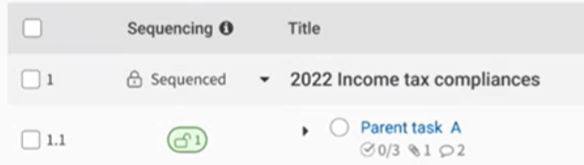
The number in the padlock indicates the order in which users must complete tasks.
A green 'unlocked' icon shows tasks that are pending (or a parent task with pending sub-tasks); a grey 'locked' icon shows tasks that follow when the unlocked task is completed.
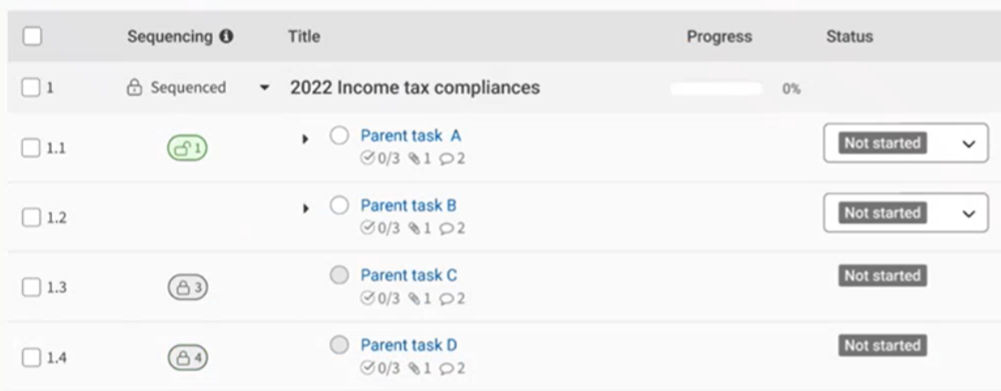
Tasks without a padlock are not sequenced and may be completed at any time.
Once a task in a sequence (for example, Task 1) is marked as
Completed
, it cannot be reverted to Not Completed
or In Progress
if another task in the sequence has already become active.To change its status, users must either:
- Remove the task from the sequence, or
- Use theExclude from Sequenceoption to update it toIn Progress, and then re-add it to the sequence.
note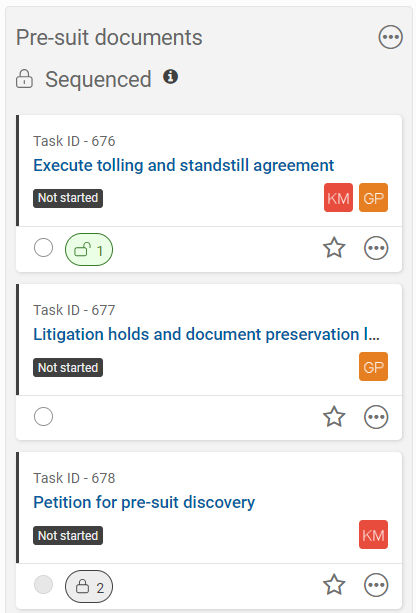
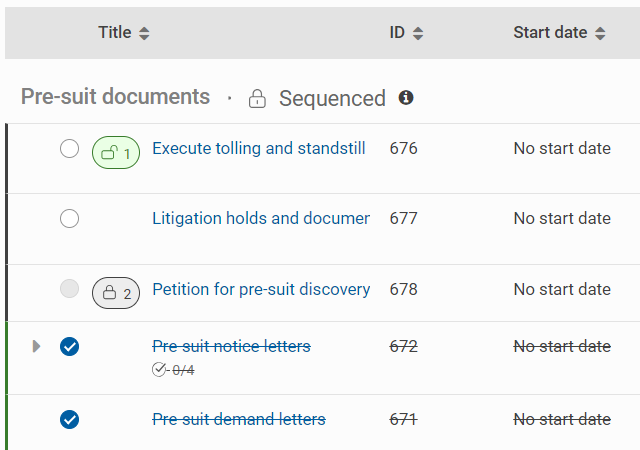
The padlock is also shown in the
Card
and List
views. Edit or remove a task sequence
Open the Tasks admin screen and find the task in the Lists section. Select
More actions
, then Edit Sequencing
. Adjust the sequence as required.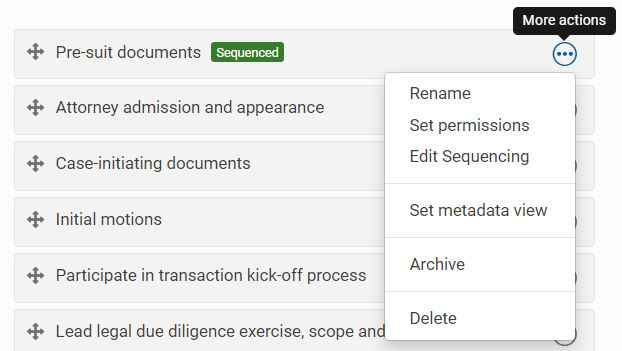
Delete the sequence
Open the
Edit Sequencing
window, select Turn off
and then Apply
.
note
The sequence is permanently deleted and cannot be restored.
Controls on Task actions
Sequencing adds additional controls to tasks in a sequence. The list is administered by the site admin; users cannot delete sequenced tasks or edit the list.
note
This status cannot be changed if a sequenced task is marked as complete.