Workflow rule - Ask CoCounsel
You can automatically extract information from uploaded or attached files with CoCounsel. Workflow can extract information from a new file, or from a new entry in the File metadata iSheet.
important
Ask CoCounsel
is available if File
or iSheet record
is selected as the trigger in Workflow.Add a CoCounsel rule
Navigate to
Admin
then select Rule builder
from the Workflow
section. 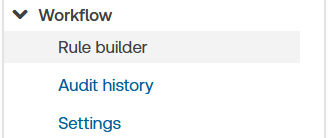
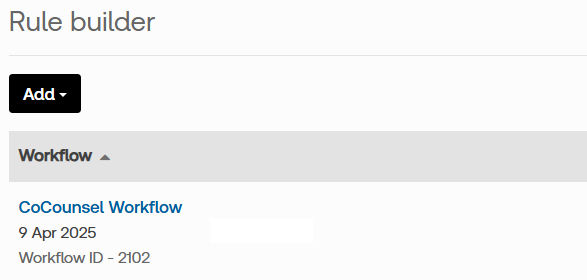
Either select an existing workflow, or
Add
a New workflow
.
Add a new rule
Select
Add
> New Rule

The
New rule
window opens. 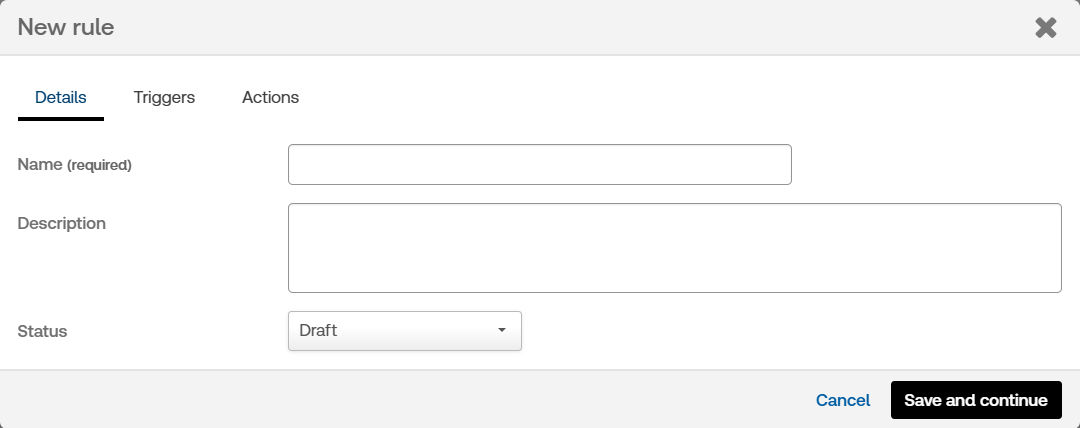
The New rule window consists of three tabs,
Details
, Triggers
and Actions
. Add a name for the rule, then select
Save and continue
or the Triggers
tab.note
For more information about adding a rule please click here.
Set triggers
In the Triggers tab you should make sure you choose either iSheet record or File from the dropdown options.
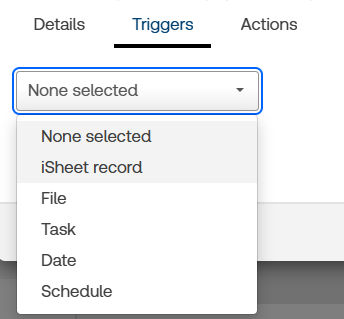
Set the trigger for the rule, including the trigger requirements (i.e. if a file or record is
Added
or Updated
) and conditions, then note
If you select
iSheet record
, select the File metadata iSheet in the iSheet list.Select
Save and continue
.Actions
In the Actions tab choose
Ask CoCounsel
from the dropdown menu.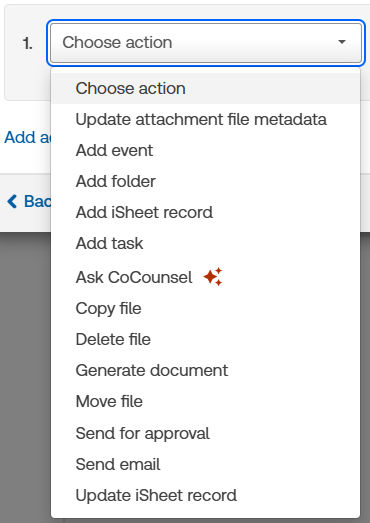
Select the
Prompt type
, CoCounsel database
and Prompt name
.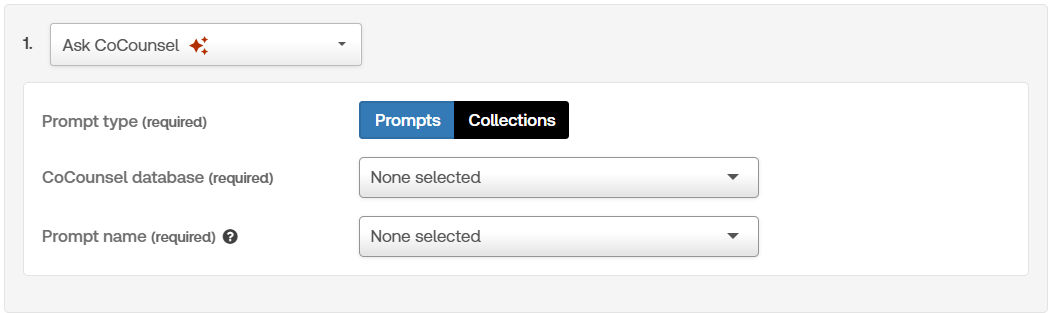
- TheCoCounsel databasedefines the training data used to identify information.
- ThePrompt namedefines the information Ask CoCounsel will look for.
Prompts
When you select a Prompt name, additional options appear:
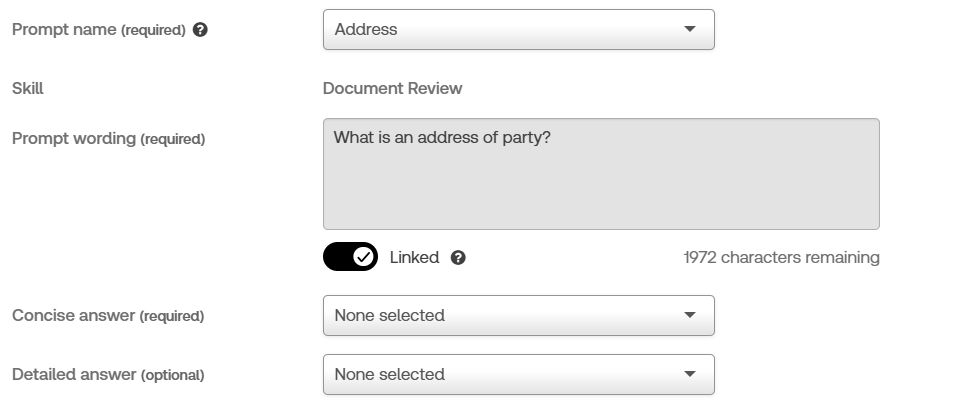
- Skill- the skill used to extract information.
- Prompt wording- the preset wording for the selected Prompt.
- Linked- if Linked is ON, the prompt is linked to the selected prompt and updated if the prompt library is updated. If Linked is OFF, you can edit the prompt wording, and it is not replaced if the original prompt is updated.
- Concise answer- select the iSheet column that stores a concise answer to the prompt.
- Detailed answer- optionally select a second column for a more detailed answer that can provide context for the concise answer.
note
Collections
Collections extract several answers from a document with a single trigger. The
Action
tab displays multiple prompt wordings; set a column for each answer.Click
Save
to save the rule.Activating your rule
Once you have saved the rule, click
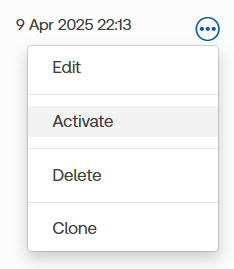
More actions > Activate
on the Rule builder page to activate the workflow.