
Manage CS Web Thomson Reuters IDs
The CS Professional Suite website uses CS Web Thomson Reuters IDs to sign in. Any staff that need access to the CS Professional Suite website should have an account.
Depending on your product licensing, you may also use this account to sign in to your CS Professional Suite applications. Use the information following to manage existing accounts.
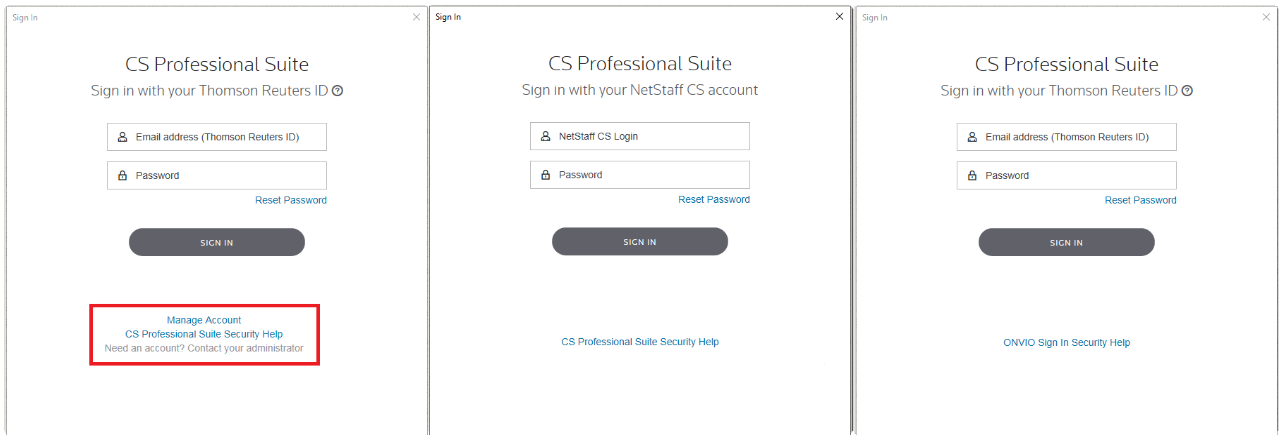
To verify the credentials you will use to sign in, complete the following steps.
- Open your CS Professional Suite application.
- In the sign in screen, the username and password fields show which account is in use.noteTo differentiate between CS Web and Onvio Thomson Reuters IDs, you can use security help links on the sign in page.
Review and update permissions
As the CS Web administrator, complete the following steps to access a list of staff with Thomson Reuters IDs and update their permission settings.
- Visit tax.tr.com and selectLog in. In the Access your web accounts section, selectSign inunderCS Professional Suite, Onvioand then sign in using your Thomson Reuters ID.
- In theMy Firmsection, select theManage Accountslink.
- Review the list of staff members and their permission settings.
- Select theModifybutton to update that staff’s information.
- In the Permissions section, select the new permission level for the staff account. Note that staff who need to access CS Professional Suite applications need Software Only or later permission.
- SelectSave & Return to List.note
- If the Position field says,Not Specified, you'll need to update it with a selection so that you can assign a permission level.
- After you save your changes, an email is sent to the staff alerting them that changes were made to their account.
- If you have a registered Thomson Reuters ID and can't access your CS Professional Suite applications, your Thomson Reuters ID may need software permissions. Your CS Web administrator can change this setting for you.
Delete existing accounts
In situations where a staff member should no longer have access to our website or your CS Professional Suite applications, you should delete their Thomson Reuters ID. To do so, complete the following steps.
- Visit tax.tr.com and selectLog in. In the Access your web accounts section, selectSign inunderCS Professional Suite, Onvioand then sign in using your Thomson Reuters ID.
- In theMy Firmsection, select theManage Accountslink.
- Select the checkbox for the staff who you want to delete, and then selectDelete Selected.noteCPE certificates associated with the staff account won’t be available after you delete the account.
Manage roles
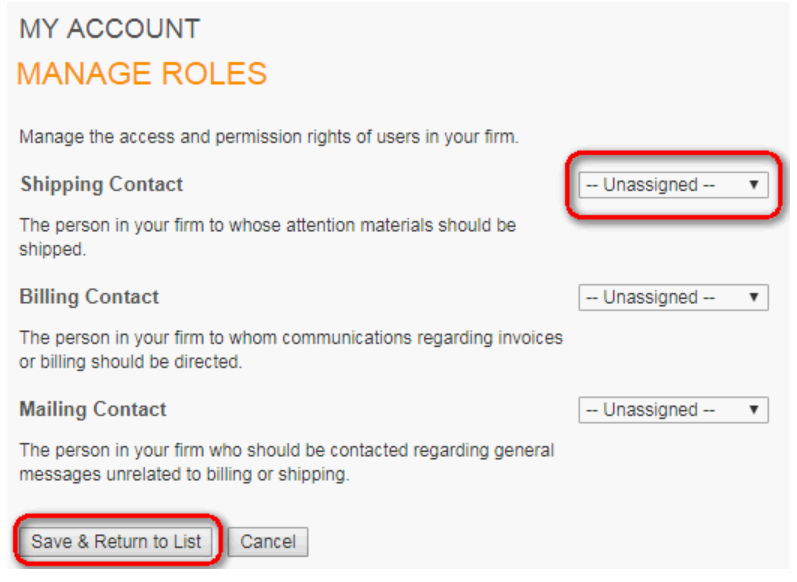
As the CS Web administrator, complete the following steps to change the Shipping, Mailing, or Billing contacts for your firm.
- Visit tax.tr.com and selectLog in. In the Access your web accounts section, selectSign inunderCS Professional Suite, Onvioand then sign in using your Thomson Reuters ID.
- In theMy Firmsection, select theManage Roleslink.
- Select a staff from the list for each of the Shipping, Billing, and Mailing contacts.
Internal only
If the Licensee sign in doesn't have Admin permissions, first have them sign out of the website and log back in. If this doesn't resolve the issue, contact the Customer Support Resolver.