
Invoice and Invoice Credit Memo
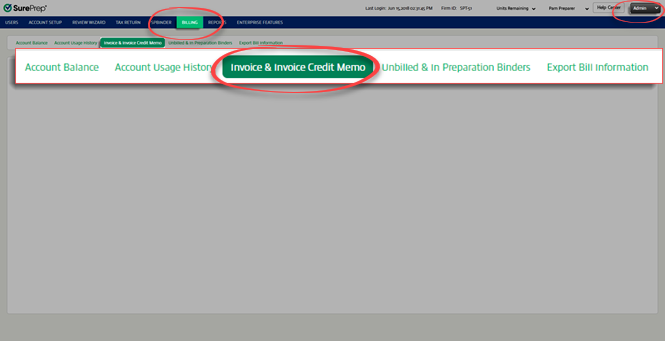
You can view a binder's billing invoice and its invoice credit memos by going to
Admin
, Billing
, then Invoice & Invoice Credit Memo
.
View Invoice & Invoice Credit Memo
When you reach the
Invoice & Invoice Credit Memo
tab, follow these steps to view invoices:- Select theTax Yearpicklist, and select the tax year of the client's binder.

- Select a date range. Select the calendar icon
 next to FromandTo. Select the date from the dropdown calendar for each icon. You may also enter dates manually in the text fields.noteTo change the current month on the calendar, select the month and year displayed on top of the calendar. This will display a list of months. Select on the month you need. To change the current year, select on top of the calendar once again to select a different year.
- After you select the tax year and date range, select theDetails
 .
.
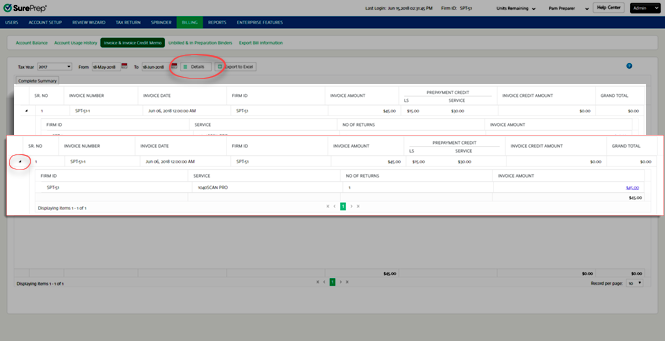
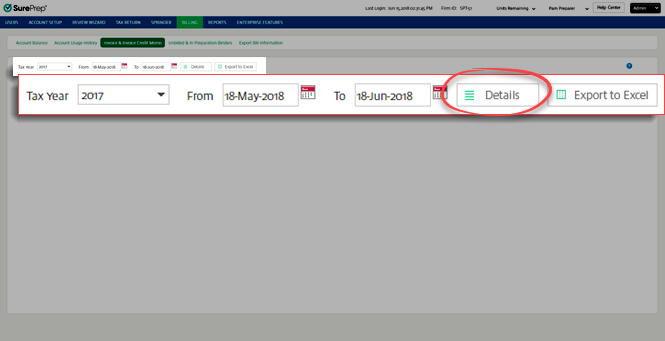 Your invoice details will appear once you selectShow Invoice DetailsDetails. Here you can view the invoice for binders within your specified date range. Select on the caret
 to expand/collapse the details for a binder's invoice.
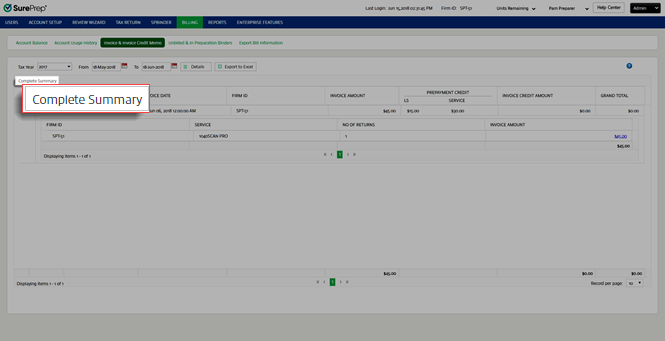
 To view a complete summary of the invoices, selectShow Complete SummaryComplete Summary. This will show you a summary of all the invoices grouped according to the number of returns for a service type. Select on the caret to expand/collapse the details for that invoice.
Export Invoice to Excel
Before you export the invoice details, select the date range from the
From
and To
options. Select Export to Excel
. 
note
Fees exported to the Excel file only reflect the fees currently in the specified date range. Any additional services performed in that date range will invalidate the exported Excel file as outdated.