
Unbilled and In Preparation Binders
To view
Unbilled & In Preparation Binders
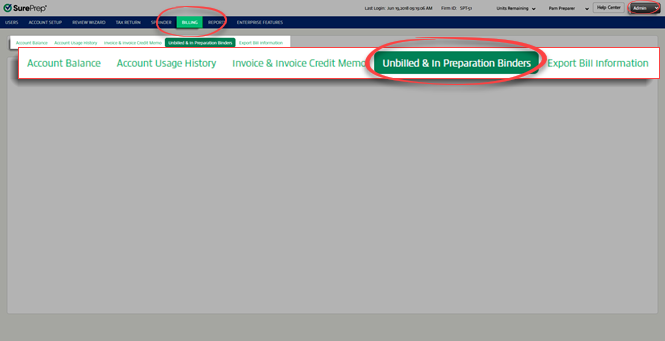
, go to Admin
, Billing
, then Unbilled & In Preparation Binders
.
View Unbilled & In Preparation Binders
- Select theTax Yearpicklist, and select the binder’s tax year.

- Select theServicepicklist, and select the service used for that binder.
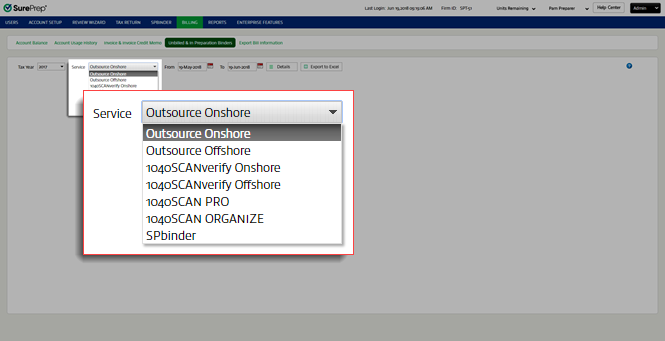
- Select the date range. Select the calendar icon
 next to FromandTo. Select the date from the dropdown calendar for each icon. You may also enter dates manually in the text fields. This will help filter the unbilled binders according to the date range.noteTo change the current month on the calendar, select the month and year displayed on top of the calendar. This will display a list of months. Select on the month you need. To change the current year, select on top of the calendar once again to select a different year.
- After you select the tax year, date range, and service selectDetails
 . This will let you view the details and summary of Unbilled and In Preparation Binders.
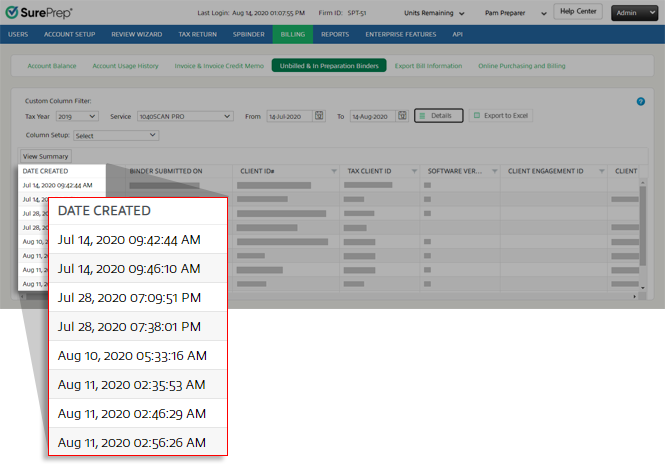
- The billing information will appear ordered by the date the billing invoice was created. You can view the billing date on theDATE CREATEDcolumn.
View Details
Once you select
Details
, multiple columns and rows will appear. Here you can view the details for Unbilled & In Preparation Binders
.
note
You can further filter these results by using the filter feature. Select the filter  button on the column you want to filter. A filter window will appear. Select
button on the column you want to filter. A filter window will appear. Select Filter
after you finish selecting your parameters.
View Summary
To view the summary for
Unbilled & In Preparation Binders
binders, select View Summary
on the details screen.
Other Form Fees column
The
Other Form Fees
column lets you view the number of forms in a particular return and its billing calculation.note
This column is only available for
Outsource Onshore
and Outsource Offshore
services.
To view details about the amount, select a value under the
Other Form Fees
column. 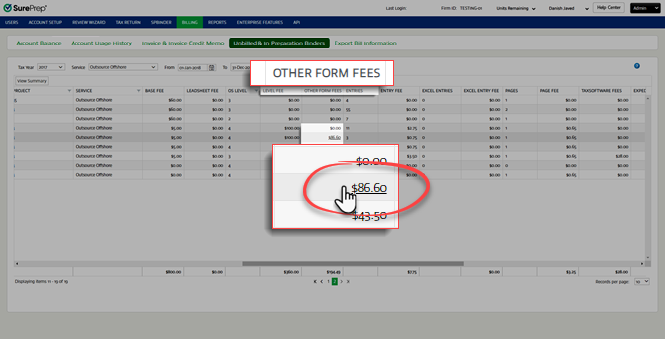
A window will appear with a detailed description of the forms associated with the amount.

Expedite Column
You can view expedited fees charged for
1040SCANverify Onshore
and 1040SCANverifyOffshore
under the Expedite Fee
column.
Refunded and Deleted columns
Deleted binders,
Deleted On
and Refunded On
column for that particular record (the created record was created when the binder was charged) will be updated with a timestamp. 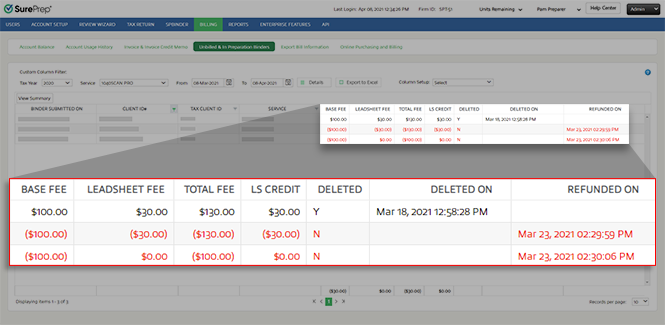
If a binder is deleted and the Service and LS (Leadsheet) unit fee is refunded, then a new entry will be added in red color that shows charges that were reversed/refunded for that binder. Deleted binders won’t be refunded if the verification had already completed.
Custom Column Filters (Column Setup)
You can use
Column Setup
to save Custom Column Filters
that let you customize results to only show and export selected columns.
note
You can save multiple column filters then switch between them to customize your report.
Export Unbilled & In Preparation Binders
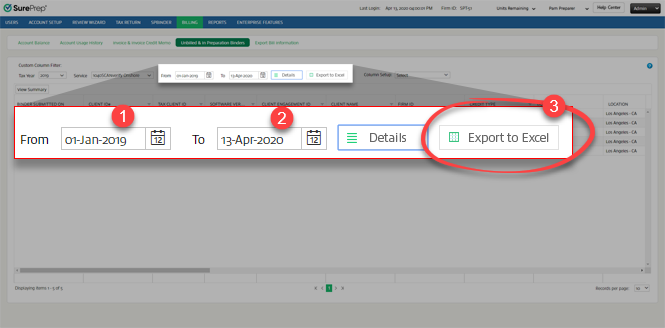
Before you export the details, select the date range from the
From
and To
options, then select Export to Excel
.
You can open the file once the download completes.
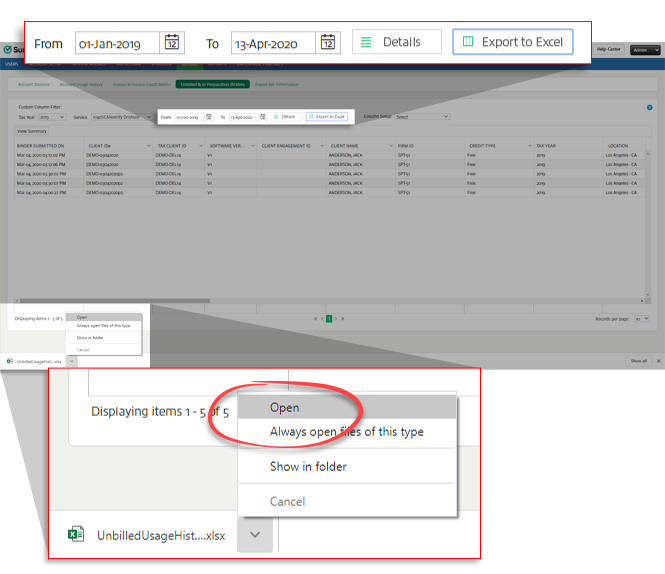

note
Fees exported to the Excel file only reflect the fees currently in the specified date range. Any additional services performed in that date range will invalidate the exported Excel file as outdated.