
Apply a credit memo
- SelectActions, thenManage Payments.
- Find the credit memo for the vendor.
- In theApplycolumn, do 1 of the following depending on the selections you made in theOptionsscreen:
- Mark the checkbox.
- SelectApply 1from the dropdown.
- Find the outstanding payable then do 1 of the following:
- Mark the checkbox.
- SelectApply 1from the dropdown.
- SelectApply Payments.note
- The credit memo will reduce the payment amount by the amount of the credit memo. If there are additional funds owed on the payable, you can pay the outstanding amount.
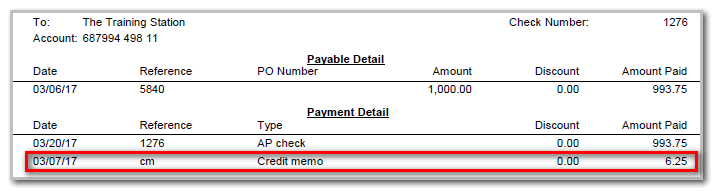
- Find the predefined Accounts Payable Layouts containing the wordsPayable Details Pmtsin the description to show the credit memo separately in the Payment Detail of the stub.
- The predefinedForms CS 339L Middle Check Detail Payables Detail Pmts MICR Dup Stubsis an example. The 2nd row of Payment Detail has a row entered for a Credit memo. It shows the Date, Reference, Type, Discount, and Amount Paid.
tipTo apply both payments and credit memos, go to theClientsscreen, select theAccounts Payabletab, and use the Automatic application section.

