Track credit card purchases
The following example assumes you want to track the purchases on a credit card through each vendor along with paying the credit card company. The credit card statement has 2 charges totaling $401.98.
- Ruth's Chris Steak $249.11
- Best Buy $152.87
We will use the following General Ledger accounts used in this example.
- 130 - Operating Account (current asset)
- 230 - Credit Card - Visa (current liability)
- 220 - Accounts payable (current liability)
- 515 - Meals and Entertainment (expense)
- 520 - PC Repairs (expense)
- Stage 1 — Set up the credit card as a bank account.
- Go toSetup, thenBank Accounts.
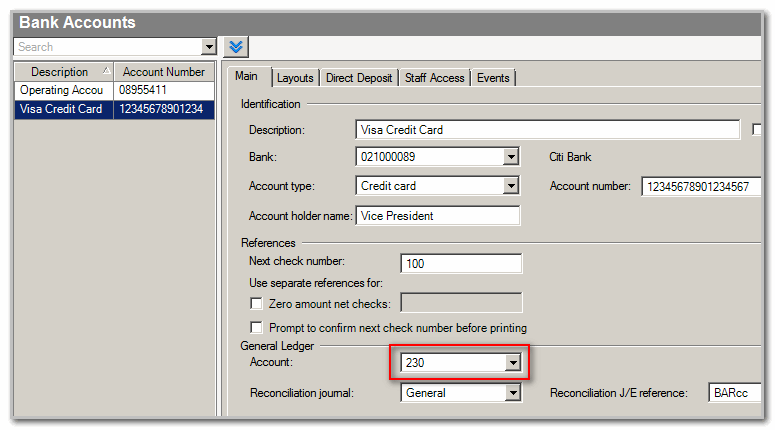
- Add a bank account for the credit card company.
- Use theCredit Card - Visa accountas the General Ledger account number. You can find this number on the Main tab in the General Ledger section.
 noteYou'll need a valid bank routing number.
 - On theCheck Layouttab, select aVendor layoutfor Accounts Payable.
- SelectEnterto save your changes.
- Stage 2 — set up the Visa credit card vendor.
- Go toSetup, thenVendors.
- On theMaintab, add the Credit Card vendor.
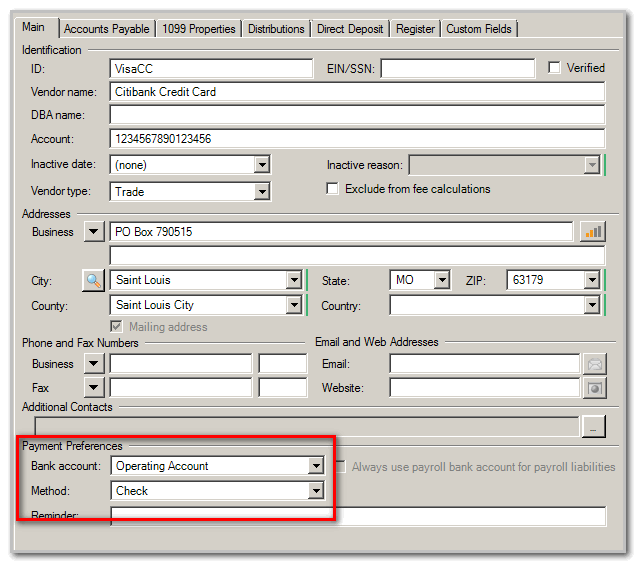
- In the Payment Preferences section:
- Enter theBank accountused when processing Accounts Payable.
- Choose theMethodfrom the dropdown that you'd normally used to pay the credit card.
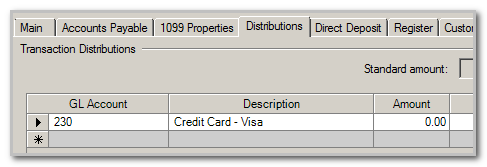
- On theDistributionstab, select the credit card liability general ledger account.
- Stage 3 —set up the vendors on the credit card statement
- Go toSetup, thenVendors.
- Add the individual vendors on the credit card statement.
- In the Payment Preferences section:
- Enter theBank accountused when processing Accounts Payable.
- SelectPaymentfrom theMethoddropdown list.
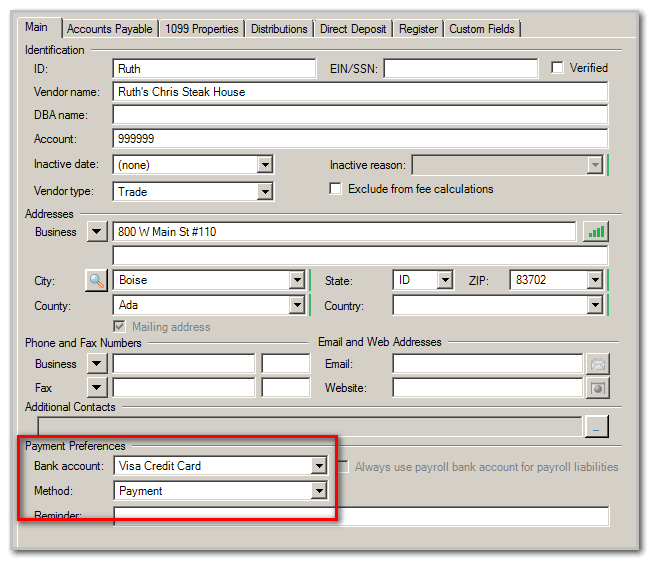
- On theDistributionstab, select the general ledger expense account.
- Repeat for each vendor on the statement.
- Stage 4 — enter the vendor payable.
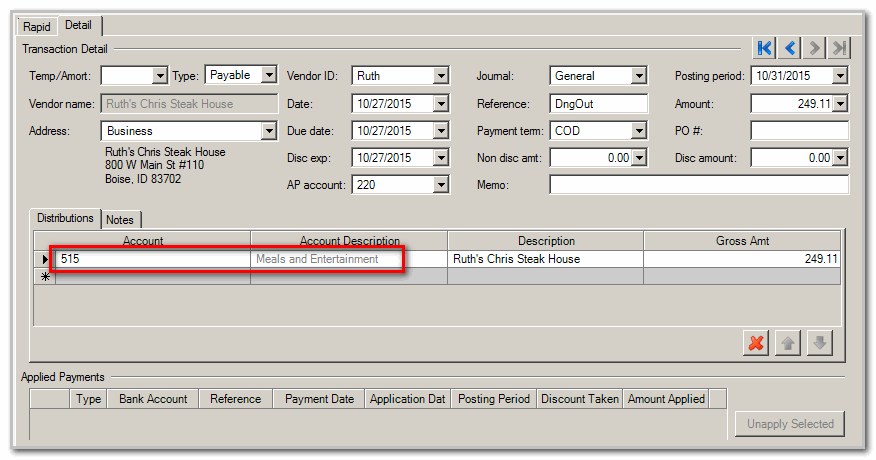
- Go toActions, thenEnter Payables.
- Select theDetailtab.
- Enter the payable listed on the credit card statement for each vendor, debiting the correct account. The Enter Payables screen with the Detail tab active.
- Stage 5 — enter the AP Payment for the vendor.
- Go to theEnter Transactionsscreen through an AP Payment type transaction, then create the payment.
- ForBank account, select the credit card bank account (not the operating bank account) from the dropdown.
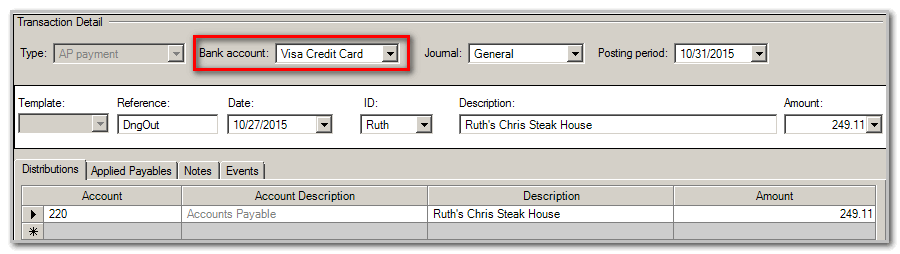 noteThis will result in a credit to the credit card liability account and a debit to the expense account.
 - Repeat for the credit card charges on the statement.
- Stage 6 — apply the payments.
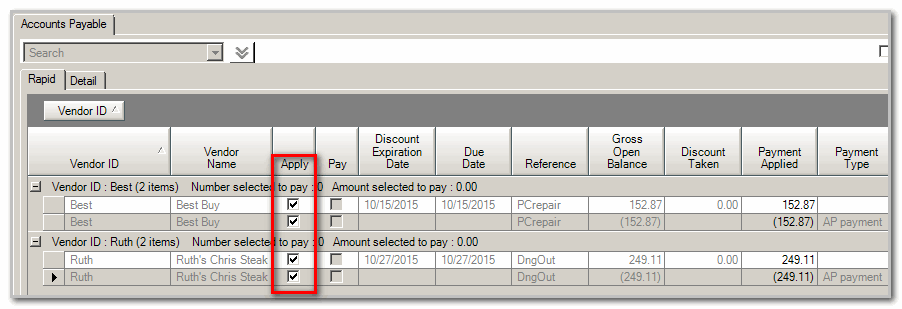
- Go toActions, thenManage Payments.
- Select the payable and AP payments from the credit card statement.noteThere should be a payable and payment selected for each item on the statement.
- SelectApply Paymentsto complete.This creates a debit to the expense accounts and a credit to the credit card liability account, with a wash through the Accounts Payable account.
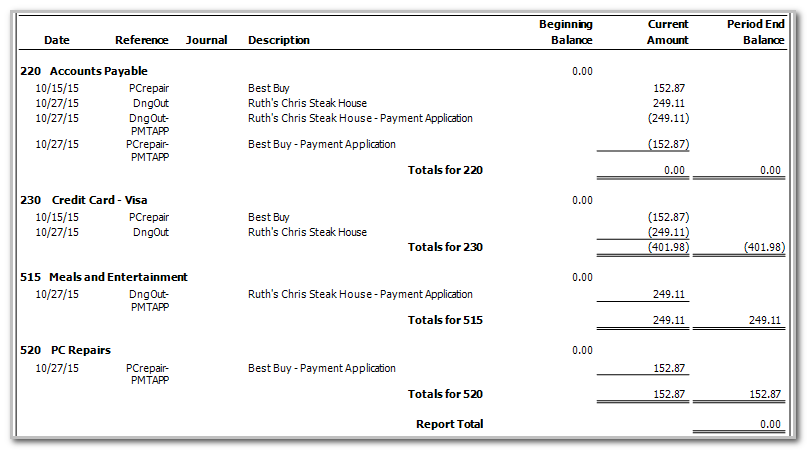
 Examples:Cash General Ledger. Shows 4 accounts and their Current Amounts. For 220 Accounts Payable, the 2 amounts (152.87 and 249.11) are shown as credits and debits. For 230 Credit Card - Visa, the 2 amounts are shown as debits. For 515 Meals and entertainment, the 249.11 is shown. For 520 PC Repairs 152.87 is shown. The Report Total in the Period End Balance column is 00.00.
 Accounts Payable Accrual General Ledger. Shows 4 accounts and their amounts in the Current Amount column. In 220 Accounts Payable, there is a credit and debit for each of the 2 amounts: 152.87 and 249.11. There is also a credit and debit for the Payment Application for each of these amounts. In 230 Credit Card - Visa the 2 amounts are shown as debits. In 515 Meals and Entertainment, 249.11 is a credit. In 521 PC Repairs, 152.87 is a credit. The Report total in the Period End Balance is 0.00.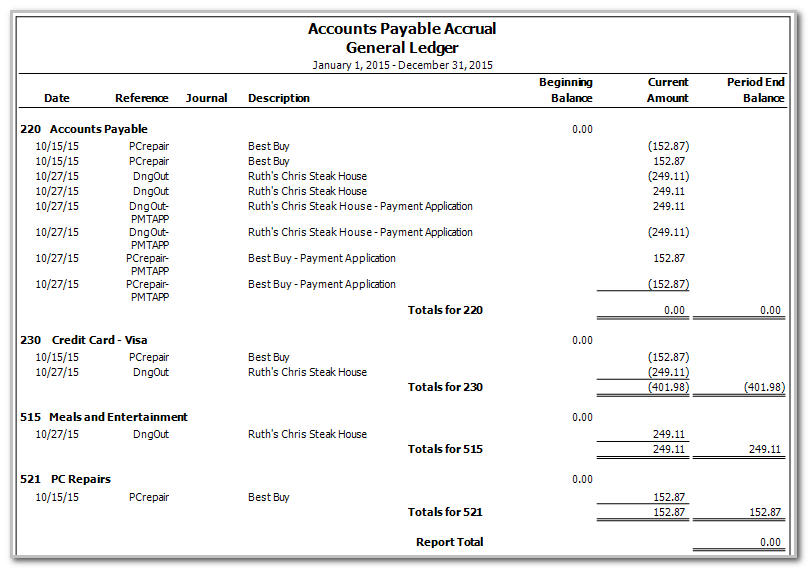
- Stage 7 — enter the payable for the credit card statement.
- Go toActions, thenEnter Payables.
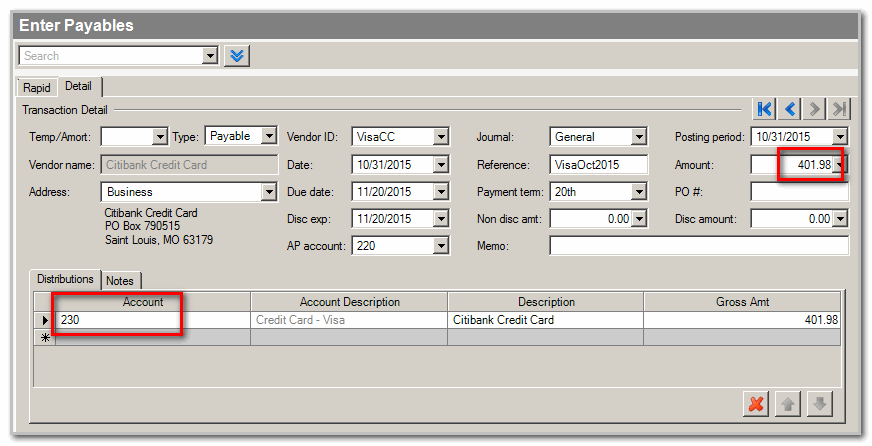
- Enter the total credit card amount on the statement as a payable.
- In the Distributions section, use the credit card liability general ledger account. The Enter Payables screen.
- Stage 8 — pay the credit card statement.
- Go toActions,Manage Payments.
- Pay the credit card company using the bank account normally used for payables.note
- The final payment to the credit card company will wash through the Accounts Payable (credit) and Credit Card – Visa Liability (debit) accounts and Cash account (credit).
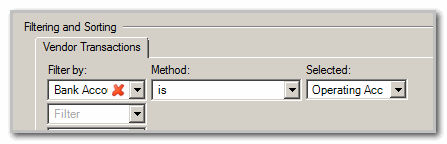
- Filter Accounts Payable reports such as Aging Schedule to include the Operating Bank Account, excluding the Visa Credit Card Bank Account. This will ensure the accounts payable reports reflect the true accounts payable balance.
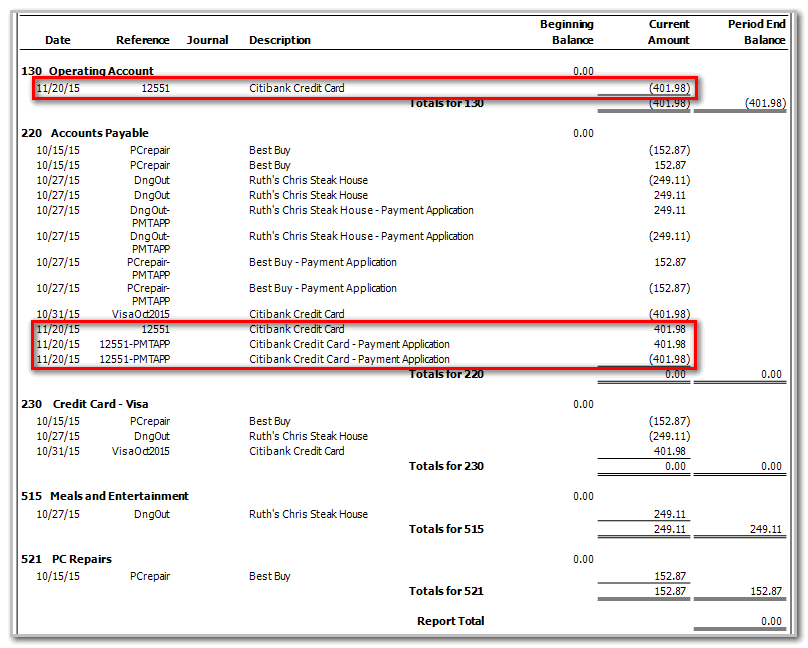
 Examples:Cash General Ledger. Shows a 401.98 debit in the 130 Operating Account. A 401.98 credit and debit in 220 Accounts Payable. A credit of 401.98 in 230 Credit Card Visa.
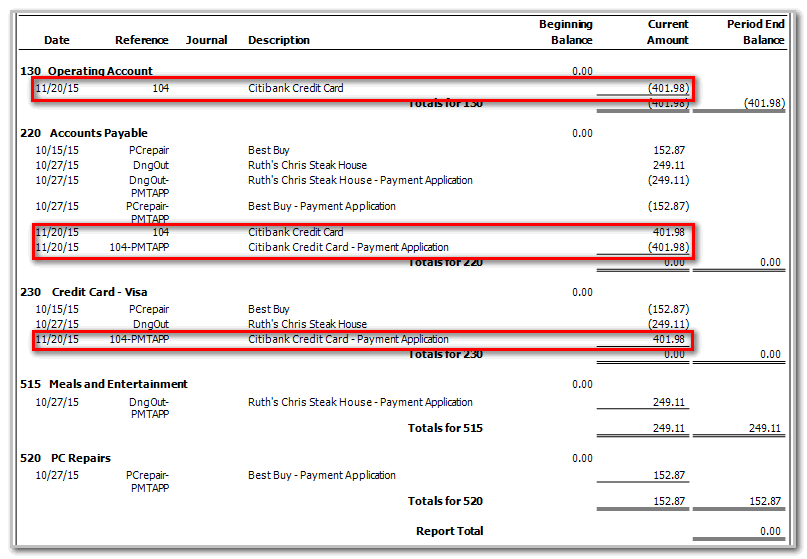 Accrual General Ledger. In 130 Operating Account, 401.98 is a debit. In 220 Accounts Payable 401.98 is a credit, and also a credit and a debit for the Payment Applications.