
Date options affect the data displayed on reports
When you print reports in Accounting CS, the data included in the reports depends on the option you select in the
Date
field. The following example demonstrates the differences between Current period
and Range
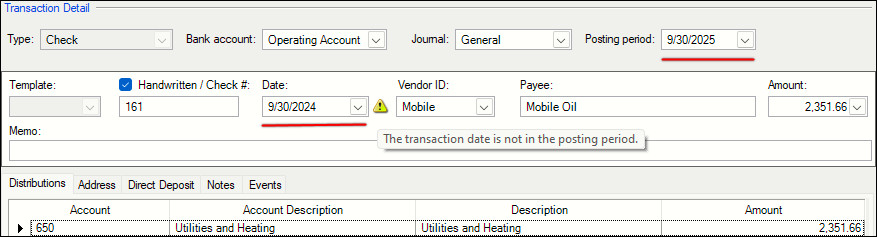
.- SelectActions,Enter Transactions, then enter a transaction with a date that doesn't fall within the selected posting period.
- Select report.
- In theDatefield, selectCurrent period, thenPreview Selected.
- Notice that the transaction for Mobil Oil is listed under the bank account.
 WhenCurrent Periodis selected, Accounting CS uses the date in thePosting Periodfield in the transaction record to determine if it should be included on the report.
 - Close thePrint Previewscreen.
- In thePrint Reportsscreen, change the selection in theDatefield toRange, then enter the first and last days of the month for the selected period.
- SelectPreview Selected, and notice that the transaction for Mobil Oil is no longer included in the report. WhenRangeis selected, Accounting CS uses the date in theDatefield in the transaction record to determine if it should be included on the report.
 noteUse the Transaction Date and Posting Period Mismatch Worksheet report from theAccounting CS Libraryto quickly identify these transactions.To ensure that the transaction date falls within the posting period, mark theTransaction date defaults posting periodcheckbox on the tab.

