
Use the leadsheet schedule to group accounts on financial statements
By default, reports and financial statements use the Account Classification account grouping. You can change this setting by modifying the report in Report Designer.
In the following example, we changed the
Current Assets
section of the Balance Sheet - Current Year report to use the Leadsheet Schedule account grouping rather than the default Account Classification. 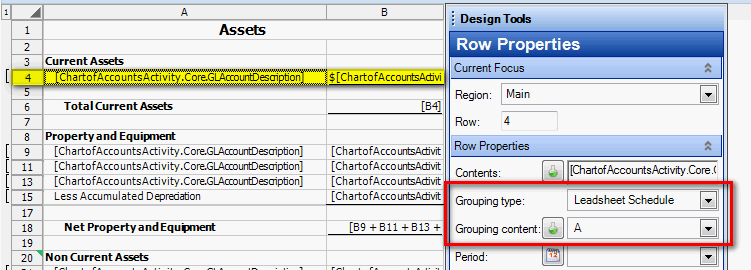
- Set up a new account grouping, if necessary. The Leadsheet Schedule and Account Classification groupings are already set up for you.
- (Optional) Change the standard account mappings settings on theStandard Account Mappingsscreen.
- Assign the new grouping to the chart of accounts on either theChart of Accountsscreen or theEnter Trial Balancescreen.tipUse theEdit Multiple Accountsoption to add grouping codes to many accounts at the same time instead of individually assigning codes.
- SelectFile, thenReport Designerand open the financial statement to modify.noteWe recommend that you save a copy of the default financial statement instead of modifying the default.
- Select the first row number where the variables are contained to select the whole row.
- In theDesign Toolspanel, change theGrouping typefield to Leadsheet Schedule (or whichever account grouping you set up in step 1).
- In theGrouping contentfield, use theInsert Formulabutton or the dropdown menu to select one or more codes or subcodes.
- Select the next row that contains variables and repeat the steps to change theGrouping typeandGrouping content.

