
Work with variables
You can use variables to customize your reports in the Report Designer and create a global definition that can be used in multiple reports and for multiple clients. For example, you can insert a text variable such as
[Client.Name]
and/or [Firm.Name]
in a report, financial statement, or letter for your clients, without the need to manually enter that information in each document. The data for the selected variable is pulled into the report or on-screen preview from other areas of the program.You can insert variables that pertain to the client's general information,
banking information,
Chart of Accounts data, firm information, and much more. The variables tree view provides a comprehensive list of categories and variables that can be easily inserted into the selected report.note
Predefined (standard) reports that are available in the Report Designer contain report-specific variables that are best suited for the report's purpose. You may not need to add any new variables, but only to modify the ones that already exist. Using the Design Tools frame, you can modify such items as, period, amount type, and generally how the variable is presented in the report.
Insert a variable
Follow these steps to insert a variable into a report that is open in the Report Designer.
- Within the design grid, select a cell, row, or column in one of the regions in which to insert a variable.
- SelectInsert, thenVariable.
- Expand the categories of the variable tree view.
- Double-click or drag and drop a variable to insert it.
- Once you've inserted the variable, right-click in the cell and selectFormat Cellsfrom the context menu to modify the contents or appearance of the cell.
note
Notes
- To insert variables into a letter, you'll need to use drag and drop from Design Tools.
- You can also use the following methods to to open the variable tree view:
- Select Formula
 next to the Contents field in either the Cell, Row, or Column
 - Select Formula next to the Formula field above the design grid.
- SelectInsert, thenFormula.
Choose the correct variable
When you create a custom report or modify an existing report in the Report Designer, you'll need to choose the correct variables so that the information is displayed properly.
We recommend that variables used on the same row are pulled from the same top-level branch of the variables tree.
Example: choose the correct variable
In the following example, we create a report to list the employees for a client, the active pay items for each employee, and the gross pay amount.
![A grid with 3 columns A to C. The first row is a header row, which contains: Employee Name (A), Pay Item (B), and Gross Amount (C). Row 2 is empty. In Row 3, the Employee Name column has a variable: [Employee.FullNameFirstMiddleLast] and the other 2 columns are empty. In Row 4, Employee Name is empty, but Pay Item has the variable [Employee.PayItems.Description] and Gross Amount the variable [ Payroll.Check.PayItems.RegularAmount].](/content/dam/helpandsupp/en-us/Topics/accounting-cs-family/images/acs_rd_variables_setup.png/_jcr_content/renditions/original)
Because the variables used in row 4 are pulled from
different top-level branches in the variable tree
, the preview of this report incorrectly
lists each pay item multiple times.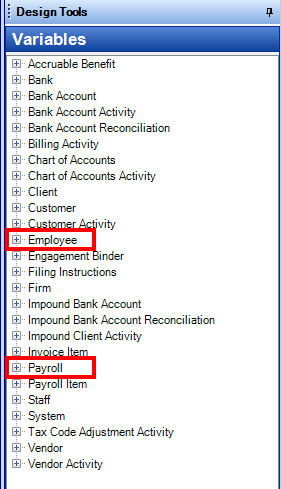

To correct the report, replace the
[Employee.PayItems.Description]
variable with the [Payroll.Check.PayItems.Description]
variable so that both variables in row 4 are pulled from the same top-level branch in the variables tree.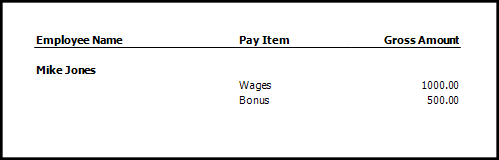
The top-level branch from which the variable is selected determines the type of information that will be included in the report. For example, variables in the Employee branch of the variables tree are used to report general employee information, as in the
Employee List — Detailed
report. These variables pull employee information from the Setup > Employees screen. Variables in the Payroll branch of the variables tree are used to pull payroll check information, as in the Payroll Journal — Detailed
report. These variables pull information from payroll checks in the Enter Transactions scree.Print distinct values
For variables to repeat for each unique instance of the variable data, mark the
Print distinct values
checkbox in either the Row or Cell Properties sections of the Design Tools frame.Example: print distinct values
Column A in the following comparison chart that displays a page in the Account Groupings report depicts the report with the
Print distinct values
checkbox marked so that each account grouping description variable prints in a single instance for all accounts before moving to the next account grouping description. Alternatively, when the Print distinct values
checkbox is cleared as in Column B, all instances of a single account grouping description variable is printed for each account until there are no more to print.
Related Content
-
Work with formulas
Format: Article

