Error: This content is blocked. Contact the site owner to fix the issue
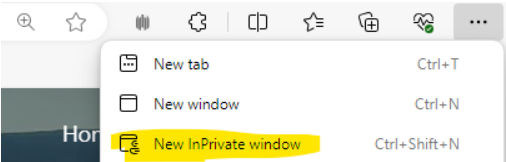
If you get an error that your content is blocked, it's often due to cookie and site permission settings in your browser. To resolve this, adjust the settings for PDF documents, protected content IDs, and insecure content, or try accessing the site through a private window.
Scenario
You may get the following error message when working in Checkpoint Classic or Checkpoint Edge.
Error message
This content is blocked. Contact the site owner to fix the issue.
Cause
This error is related to cookies and site permissions settings.
Solution
Check the settings in Microsoft Edge
- Select the 3 horizontal dots on the menu ribbon of your browser, then selectSettings.
- SelectCookies and Site permissions.
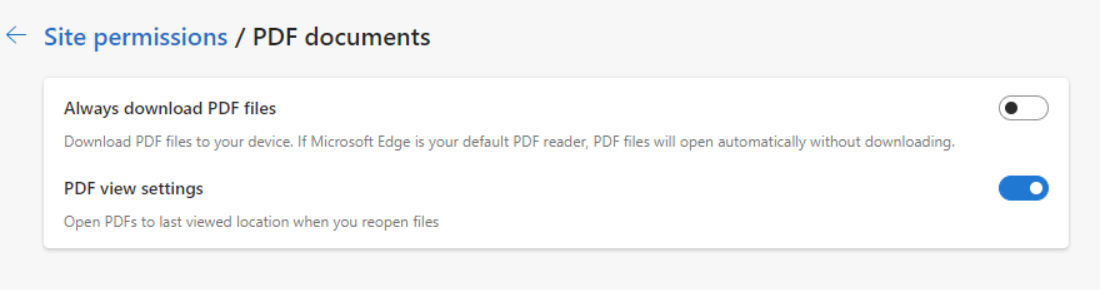
- Go toPDF documents, and set the following permissions:
- Turn offAlways download PDF files.
- Turn onPDF view settings.
- Go back toCookies and Site permissions.
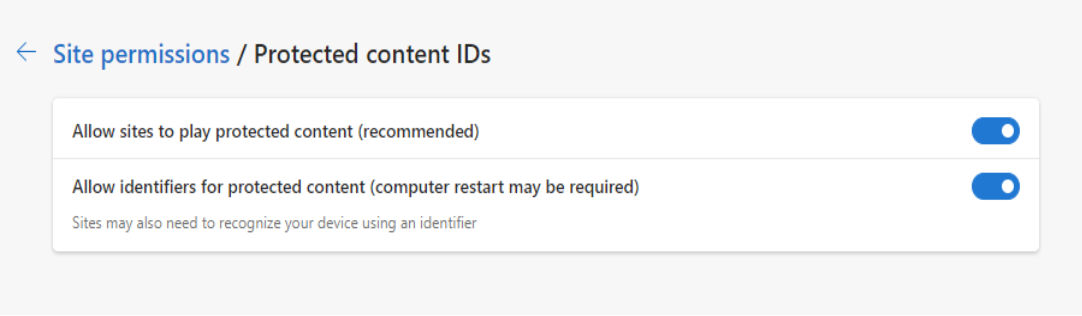
- Go toProtected content IDsand set the following permissions:
- Turn onAllow sites to play protected content (recommended).
- Turn onAllow identifiers for protected content (computer restart may be required).
- Go back toCookies and Site permissions.
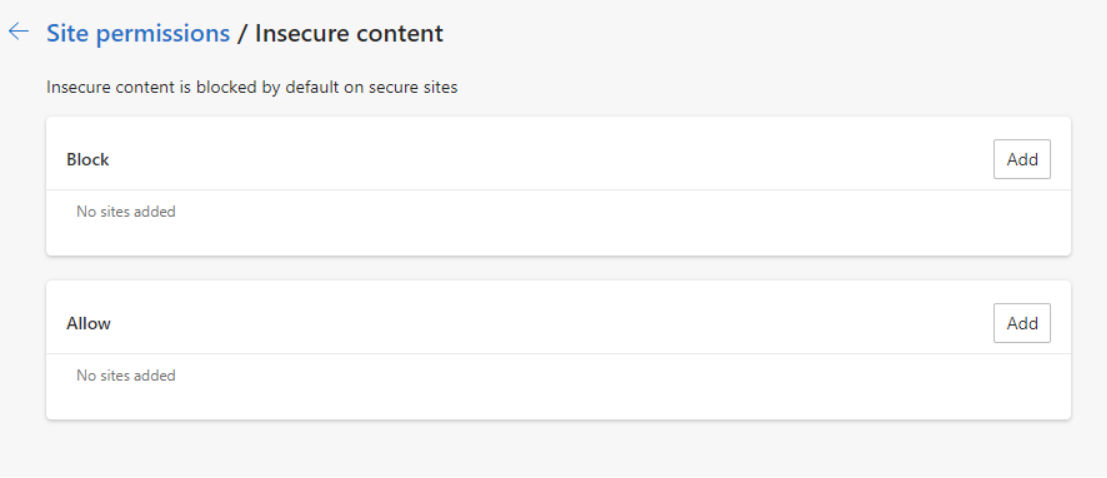
- Go toInsecure contentand set the following permissions:
- Block: No sites added.
- Allow: No sites added.
note
Alternatively, you can also try opening the website checkpoint.riag.com using a private window.