
Assign a new short-cut key to any MSWord macro
- In Word 2007, left-click the Office button and select Word Options.
- Select Customize from the left frame of the screen that opens.
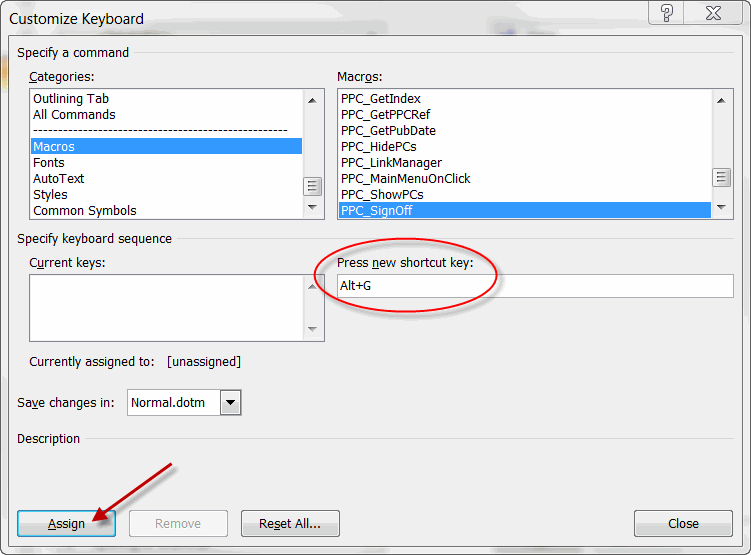
- At the bottom of the next screen, click the Customize button to the right of "Keyboard Shortcuts."The Customize Keyboard screen opens.
- From the Categories drop-down menu, scroll down and select Macros.
- From the Macros drop-down menu, scroll to PPC_SignOff. (To assign a shortcut key for Step Sign-off NA, select PPC_SignOffNA.)
- Place your cursor in the Press New Shortcut Key field.
- Perform the shortcut key combination you want to assign to this macro.Warning: If you assign a new key combination that it is currently used for an existing Word feature, the existing shortcut key will be overridden .
- If you want this keystroke to apply to all documents, select Normal.dotm under Save changes in. Otherwise, select the document.Note: To use the new shortcut for all Word-based Practice Aids, select Normal.dotm.
- Click Assign. (The new shortcut combination will appear in the Current keys box.)
Restore Word Shortcut Key Assignments to the Original Settings
- Left-click the Office button and select Word Options.
- Select Customize.
- Click the Customize button to the right of "Keyboard Shortcuts."
- In the Save changes in box on the Customize Keyboard screen, click the document name or template that contains the shortcut key assignments you want to restore.
- Click Reset All.