Inserting and Deleting Rows Included in a Formula
You can modify the formula area of a Practice Aid by inserting or deleting rows. A border displays around the rows of any formula that permits the insertion or deletion of rows.
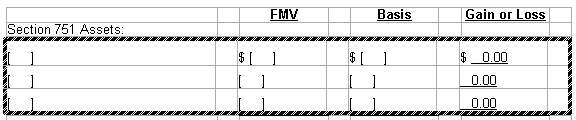
- To insert a row, position your cursor in a row within the border and right-click.
- From the shortcut menu, select Insert New Math Row. The new row will appear below your cursor position.
- To delete a row, place your cursor in the row that you want to delete and right-click to open the shortcut menu.
- Select Delete Math Row.
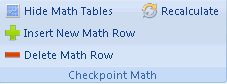
Alternative: From the ribbon menu, select the PPC tab. Then select either Insert New Math Row or Delete Math Row from the Checkpoint Math section.