Error: Macros must be enabled
Resolve this error by enabling PPC add-ins in Word or Excel and adjusting registry settings if needed.
Scenario
You may get the following error message when accessing an Excel file in Checkpoint Tools.
Error message
Macros must be enabled.
Solution
- Close any open Word/Excel documents and open a blank Word/Excel document.
- Select .
- SelectDisabled Itemsfrom theManagedropdown, then selectGo.

- If any PPC add-in is listed, select it, enable it, and selectOK.
- If no PPC-related items are listed, selectCloseand proceed to the next step.
- SelectCOM Add-insfrom theManagedropdown, then selectGo.
- Make sure the PPC add-ins are checked so they’ll appear.
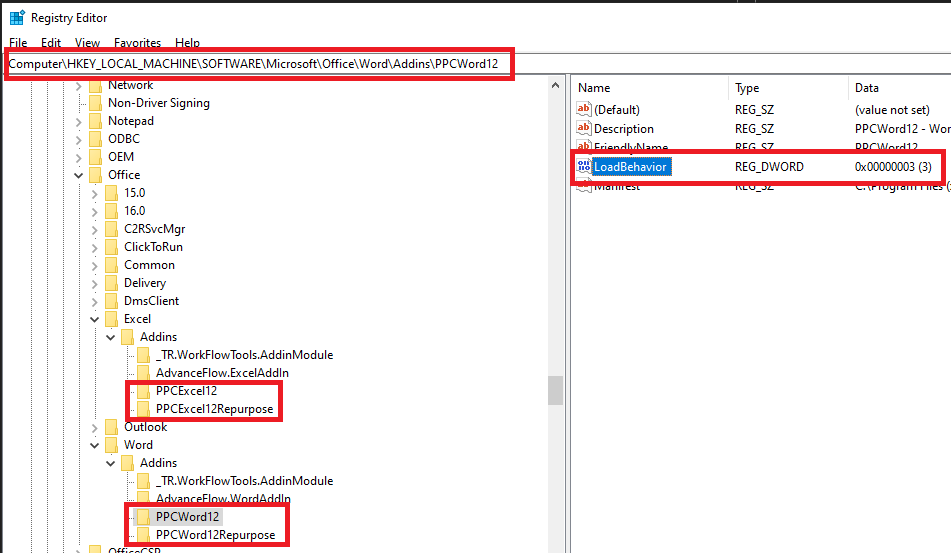
- You'll find up to 5 PPC add-ins. The critical ones arePPCWord12andPPCWord12Repurposefor Word, orPPCExcel12andPPCExcel12Repurposefor Excel.
- If the add-ins don't remain marked, verify theLoad Behaviorsin the Windows Registry.
- For Word, go to the following registry locations:
- Computer\HKEY_CURRENT_USER\SOFTWARE\Microsoft\Office\Word\Addins
- Computer\HKEY_LOCAL_MACHINE\SOFTWARE\Microsoft\Office\Word\Addins
- Computer\HKEY_LOCAL_MACHINE\SOFTWARE\WOW6432Node\Microsoft\Office\Word\Addins
- For Excel, go to the following registry locations:
- Computer\HKEY_CURRENT_USER\SOFTWARE\Microsoft\Office\Excel\Addins
- Computer\HKEY_LOCAL_MACHINE\SOFTWARE\Microsoft\Office\Excel\Addins
- Computer\HKEY_LOCAL_MACHINE\SOFTWARE\WOW6432Node\Microsoft\Office\Excel\Addins
- Locate the main 2 add-ins listed within these registry folders. If they aren't present in 1 location, check the next location.
- Select the add-in and verify that theLoad Behavioris set to 3.
- If theLoad Behaviorisn't set to 3, double-click onLoadBehaviorand change the value to 3.