
Use Email Insights in CoCounsel for Microsoft Outlook
Get instant email insights with CoCounsel for Microsoft Outlook's Email Insight feature, which provides thread summaries, document summaries, and suggested quick replies in seconds.
important
You can turn on or turn off this feature through the application settings. To do this, go to , mark the
Activate email insights feature
checkbox to turn on the feature, or clear the checkbox to turn it off.To use Email Insights:
- Select an email in Outlook, then select the CoCounsel icon in the Outlook ribbon to open the app.The app automatically displays a summary of the entire thread so you can understand the context without scrolling through multiple messages.
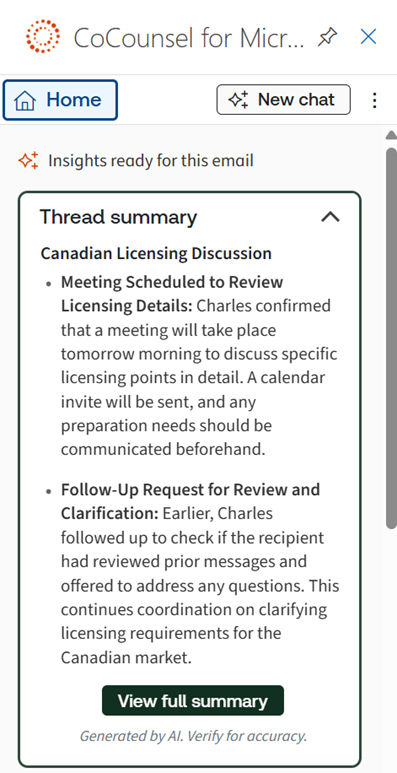
- SelectView full summaryto access a more comprehensive thread summary.
- If you switch to another email, a pop-up will appear asking whether you want to summarize the new email.
- SelectYesto generate a summary for the new email.
- SelectNoto keep the current summary visible.
- In theQuick actionssection, you'll findQuick responseoptions. These are pre-drafted replies based on the email context.
- Select one of the Quick Response options.
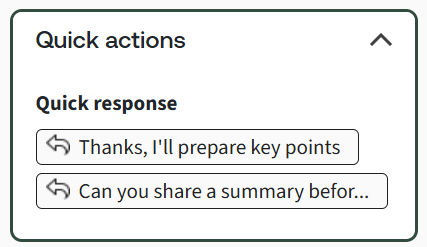 The application will prepare a draft email for you.
 - Edit the draft before sending to ensure it meets your needs.
- TheDocument Summarytab lets you summarize attached documents.
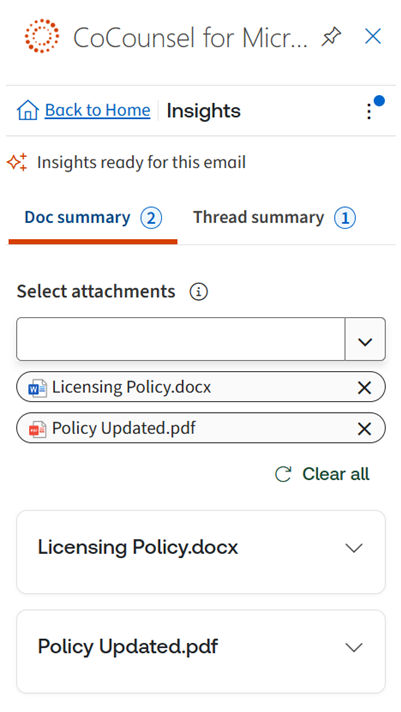
- Select the specific document you want to summarize, or chooseSelect Allto summarize every document.
noteSupported file types for document summary:- TXT, HTML/HTM, RTF (file size limit 20MB)
- PDF, DOC, DOCX, EML, MSG, WPD (file size limit 500MB)