
Create a playbook
Create a playbook to define preferred clause language and issue flagging rules for third-party contract reviews. Playbooks help standardize contract review across your organization.
Follow these steps to create a playbook.
- Open Word and select theCoCounseladd-in to open the menu.
- Make sure you have selectedTransactionalas the practice area.
- Select theAll featuresicon
 , then select Playbooks & Clauses.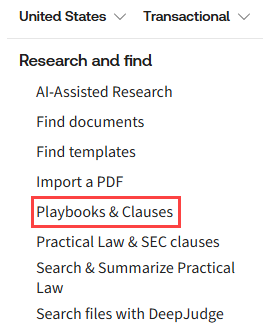
- SelectCreate playbook.
- Enter the playbook details.
- Playbook name
- Description
- Agreement-type
- Primary party role
- Counter party role
importantIf shared with the organization, it will be read-only for others. - SelectCreateto finalize the playbook.
- SelectOpento continue editing.
- Add clauses and drafting guidance.
- SelectAdd Clause.
- Enter the clause title and select issue flagging options.
- Flag all major and minor issues: If selected, CoCounsel will notify you of any issues uncovered with this clause.
- Flag only major issues: If selected, CoCounsel will only notify you of major deviations from this clause.
- Prohibit this clause: You may also prohibit clauses, meaning you never want this clause to appear in a contract. CoCounsel will then flag you anytime this clause appears.
- Complete thePreferred clause examplefield.noteCoCounsel will use this example when reviewing third-party contracts to determine whether the corresponding clause deviates from the preferred language.
- You can add negotiation guidance, escalation guidance, and templated external messaging. This can help other people within your organization on how they should negotiate this clause.
- SelectSaveafter entering these details.
- Continue to add clauses until your playbook is complete.

