
Connect DMS, file storage, and other systems to CoCounsel
Connect CoCounsel with document management systems, file storage solutions, and practice management tools, and set up integrations using administrator settings and authorization steps.
note
Only users with the CoCounsel application administrator role will be able to set up DMS integrations in CoCounsel. Your firm administrator can assign the CoCounsel application administrator role via Self-Service Portal or MyAccount. Alternatively, you can contact customer service at 1-800-554-8909 to obtain CoCounsel application administrator access.
Set up a connector in CoCounsel (classic version)
CoCounsel connects with the following document management systems, file storage and sharing products, and practice management solutions:
- Box
- Docusign
- Dropbox
- Google Drive
- HighQ
- iManage cloud
- iManage on-prem
- Litify
- NetDocuments
- SharePoint
- Smokeball
Follow these steps to set up a connector in the classic version of CoCounsel:
- Go to your user profile, then select , then select+ New Integrationon theIntegrationspage.
- Follow the steps for your DMS connector available in theRelated Contentsection.
- SelectGet your redirect URLand view setup info to get the Syncly redirect URL or the host name that needs to be used for setting the DMS connector.

- After the connector is set up, we recommend that administrators authorize connections once to ensure everything is functioning correctly. To do this, select the integration'sActionsmenu, thenAuthorize.
 A successful authorization confirms that the DMS connector is set up properly.
 - The users will find the DMS connectors set up by the administrator when using the uploadFiles from external DMS.
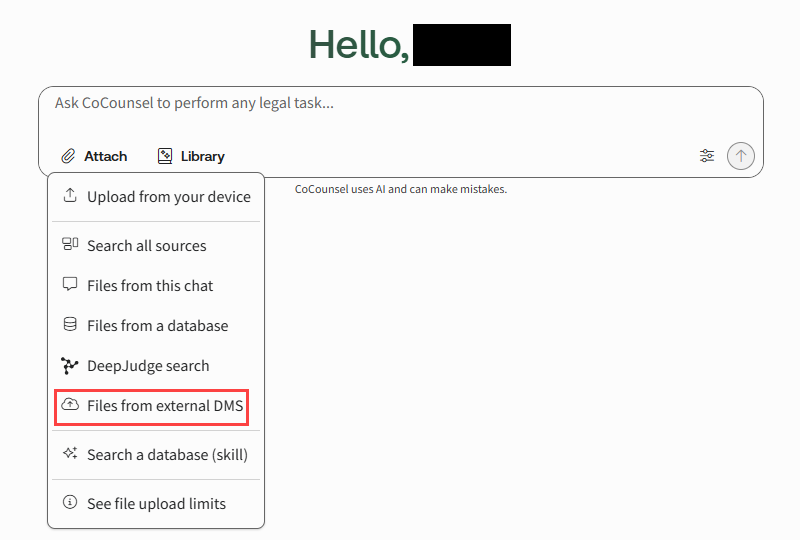 The users should authorize the connection once to be able to upload documents.
Set up a connector in CoCounsel Legal (new version)
The new version of CoCounsel connects with the following document management systems, file storage and sharing products, and practice management solutions:
- iManage cloud
- iManage on-prem
- SharePoint
Follow these steps if you're using the new version of CoCounsel.
- From the sidebar, select , then selectConnectfor the connector you want to set up.
- Follow the steps for your DMS connector available in theRelated Contentsection.
Additional help
For additional help or support with setting up connections, contact cocounselsupport@thomsonreuters.com.
Related Content
-
Connect Box
Format: Article
-
Connect Docusign
Format:
Article
-
Connect Dropbox
Format:
Article
-
Google Drive connector
Format:
Article
-
HighQ connector
Format:
Article
-
iManage cloud connector
Format:
Article
-
iManage on-premise connector
Format:
Article
-
Litify connector
Format:
Article
-
NetDocuments connector
Format:
Article
-
SharePoint connector
Format:
Article
-
Connect Smokeball
Format:
Article

