Upload files
Upload files to My Documents, Company Documents, conversations, or workspaces within the Knowledge Base.
note
This article doesn't apply if you've disabled
Document Uploads
.Upload files to Knowledge Base
- Upload files to My Documents:
- SelectMy Documents. You can drag and drop your files directly or selectUploadto find the documents you need.noteOnly the user uploading that file will have access to documents added toMy Documents.

- Upload files to Company Documents:
- SelectCompany Documents. You can drag and drop your files directly or selectUploadto find the documents you need.noteOnly administrators can upload these files and everyone at your company (in the specified group) will have access toCompany Documents.

Upload files into a conversation
You can drag and drop your documents into the conversation window, or you can select
Upload
on the chat window. If you want to select a file from your Knowledge Base, use the @ symbol to pull that file in from My Documents, Company Documents, or the research libraries. When a user uploads their files directly into a Conversation, they'll automatically be placed into their personal collection within the Knowledge Base.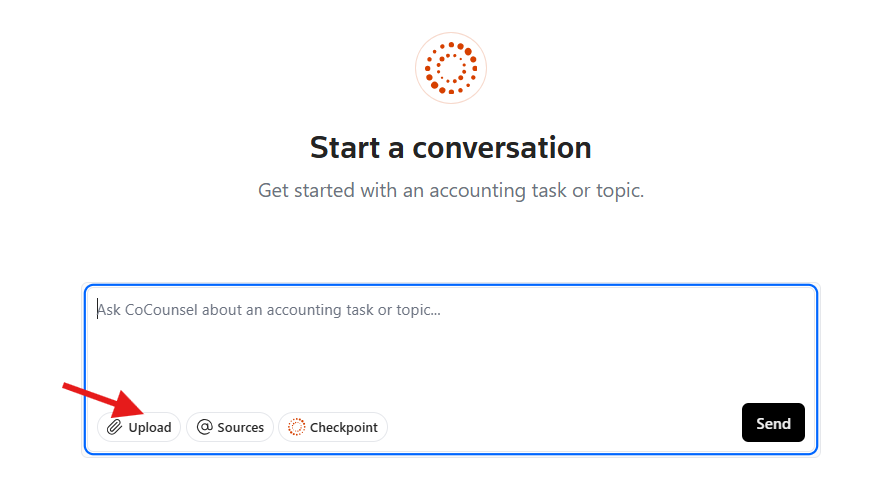
Upload files into a workspace
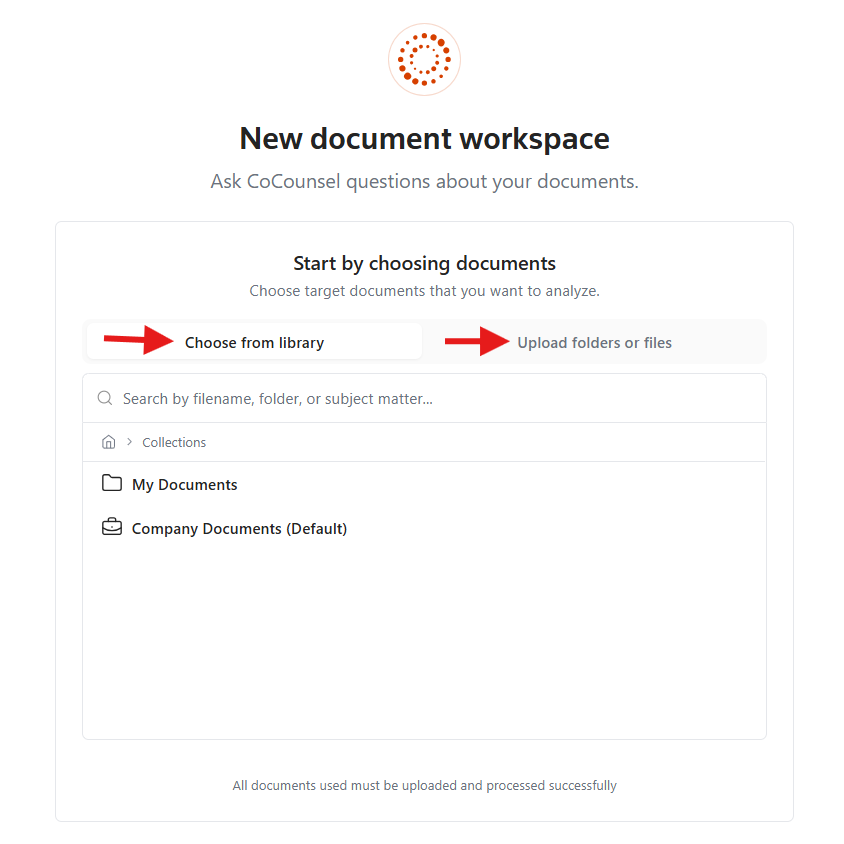
You can drag and drop the documents into the upload window, choose from your Knowledge Base library, or you can upload files directly into the Workspace from your computer. When a user uploads their files directly into a Workspace, they'll automatically be placed into their personal collection within the Knowledge Base.