
About CoCounsel for tax, audit, and accounting
CoCounsel for tax, audit, and accounting is an AI-powered assistant that helps you move from question to insight more efficiently. It combines authoritative research, document analysis, and web search in 1 unified workspace.
Show all hidden content
CoCounsel for tax, audit, and accounting uses an upgraded AI agent by default. This means you get faster responses, improved answer quality, and better recognition of complex tasks.
- Better answer quality:Improved reasoning and a significant reduction in failure modes, so you can trust the responses you receive.
- Better handling of complex queries:Enhanced support for queries that require logical reasoning, including multi-step and multi-state questions.
- Faster responses:General, complex, and multi-state questions are resolved more quickly, reducing time spent waiting for results.
- Web search integration:CoCounsel can search the web to make responses more complete, drawing on selected web sources alongside authoritative content.
- Visibility into the thinking process:You can follow how CoCounsel arrives at an answer, giving you greater confidence in the results.
- Grounded knowledge:Responses draw directly on labeled content from primary law and a range of trusted sources, so you always know where information comes from.
Get started
Resolve sign-in issues
Complete these steps if you are having issues signing in for the 1st time:
- Go to https://accounting.cocounsel.thomsonreuters.com/ in your browser. You'll be redirected to the CoCounsel sign in page.
- On the sign in screen, enter your work email associated with your CoCounsel account and selectContinue.
- First-time users at firms with a company domain can sign in without an invitation.
- If your firm lacks a unique domain, your administrator needs to invite you to access CoCounsel.
- If your administrator has invited you, you can sign in as expected.
- Check your email for a 1-time verification code and enter it to continue.
Learning resources
Check your span or junk folder if you don’t receive the verification code in your primary inbox.
To get started immediately, your team can review eLearning videos and register for an upcoming webinar led by the Customer Success team. If you have any questions or need to get connected to the Customer Success team, contact taapcocounselcs@thomsonreuters.com.
File types
The following document types can be uploaded into CoCounsel:
- PNG
- JPEG
- Word
- Excel
- CSV
- PDF
- Also a ZIP file of a folder containing any of these supported file types
note
- There is a limit of 2000pages/100mb per document. If your document is larger than that, you can upload it in sections to work around this limitation.
- If your PDF file contains multiple images and you receive an error while uploading it, we recommend exporting your current PDF at Adobe to a new PDF. This process compresses the file and CoCounsel supports it more easily.
When to use conversations or workspaces
Conversations bring together all of CoCounsel's capabilities, letting users integrate authoritative research from Checkpoint, internal firm documents, client documents, and the broader Knowledge Base. Conversations are ideal for applied research use cases. They also serve as a space for drafting memos, emails, and reports based on the information gathered.
Workspaces help organize and interpret documents by breaking them down into structured insights that are easy to review. Workspaces focus on making information easier to digest and apply. They are especially useful for organizing multiple documents, identifying key provisions, and standardizing document review processes.
Write effective prompts or questions for CoCounsel
When prompting in CoCounsel, it's important to specify both which sources to use and how the response should be structured. For example:
- Less effective prompt:“What are the tax liabilities for this document @BROWNJ_AZ_2023_PreparerCopyTaxReturn.pdf?”
- More effective prompt (using both @ mention and @Research Library):“Using @BROWNJ_AZ_2023_PreparerCopyTaxReturn.pdf and the authoritative sources in @Research Library, identify the key tax liabilities, compare them to IRS corporate tax obligations, and summarize key differences in a table.”
Use conversations
Add a document to a prompt
Use the upload button if you need to upload files and/or folders directly from your device. Upon uploading a file or folder, they’ll automatically be saved into
My Documents
, in the Knowledge Base. If you are looking to reference a file/folder in your Conversation that already lives in the CoCounsel Knowledge Base, check out the Sources
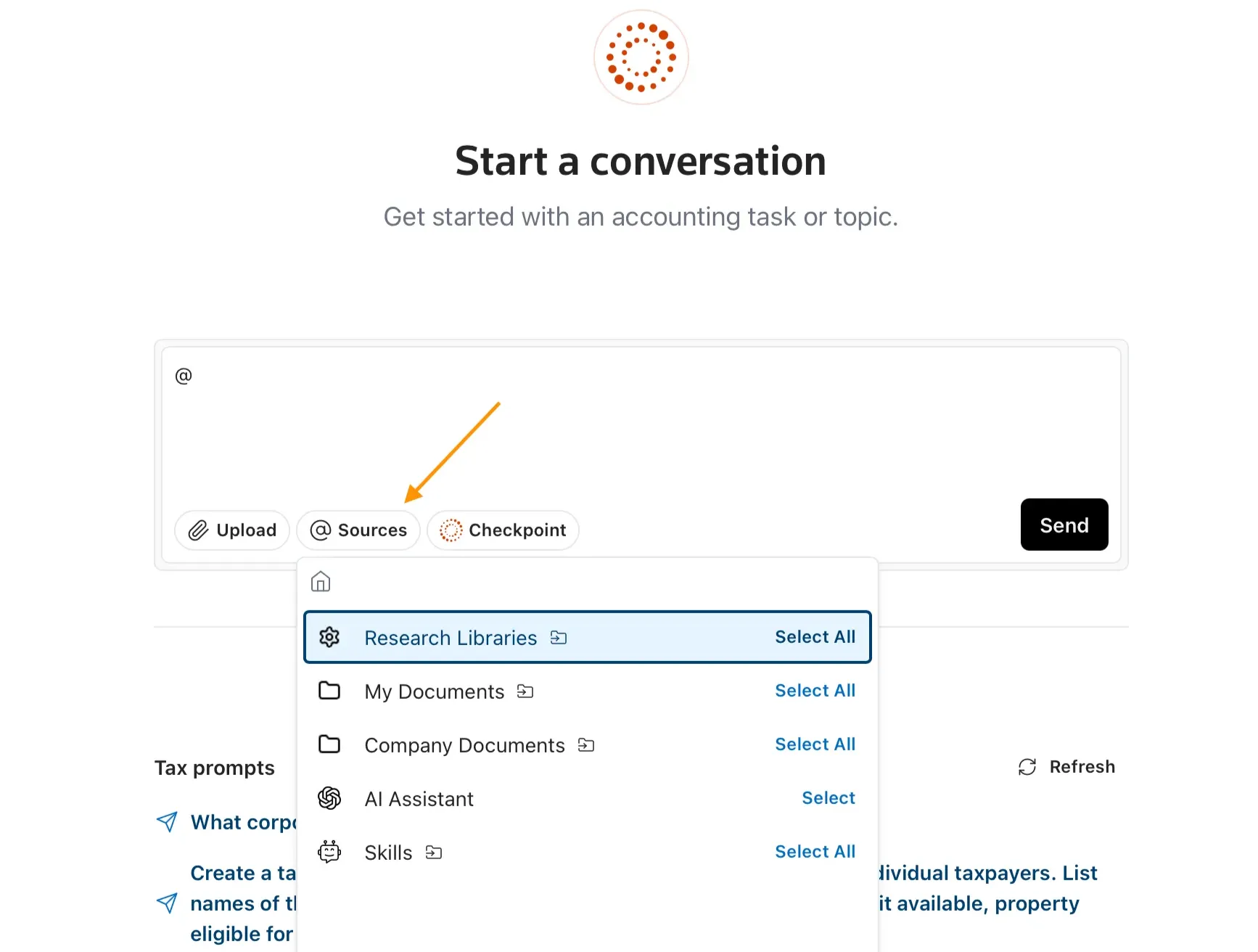
section.The @ symbol is one of the most critical features within the Conversations tool. This function lets you point Conversations directly to specific documents or data sources as you're asking questions. By entering @ and then selecting the relevant sources, you're able to point the CoCounsel engine directly at specific sets of content, including:
- Authoritative Accounting Guidancefrom CoCounsel (Thomson Reuters Checkpoint + SEC + IRC).
- Company Documentsstored in your firm's Knowledge Portal.
- Personal Documentsuploaded to your personal library.
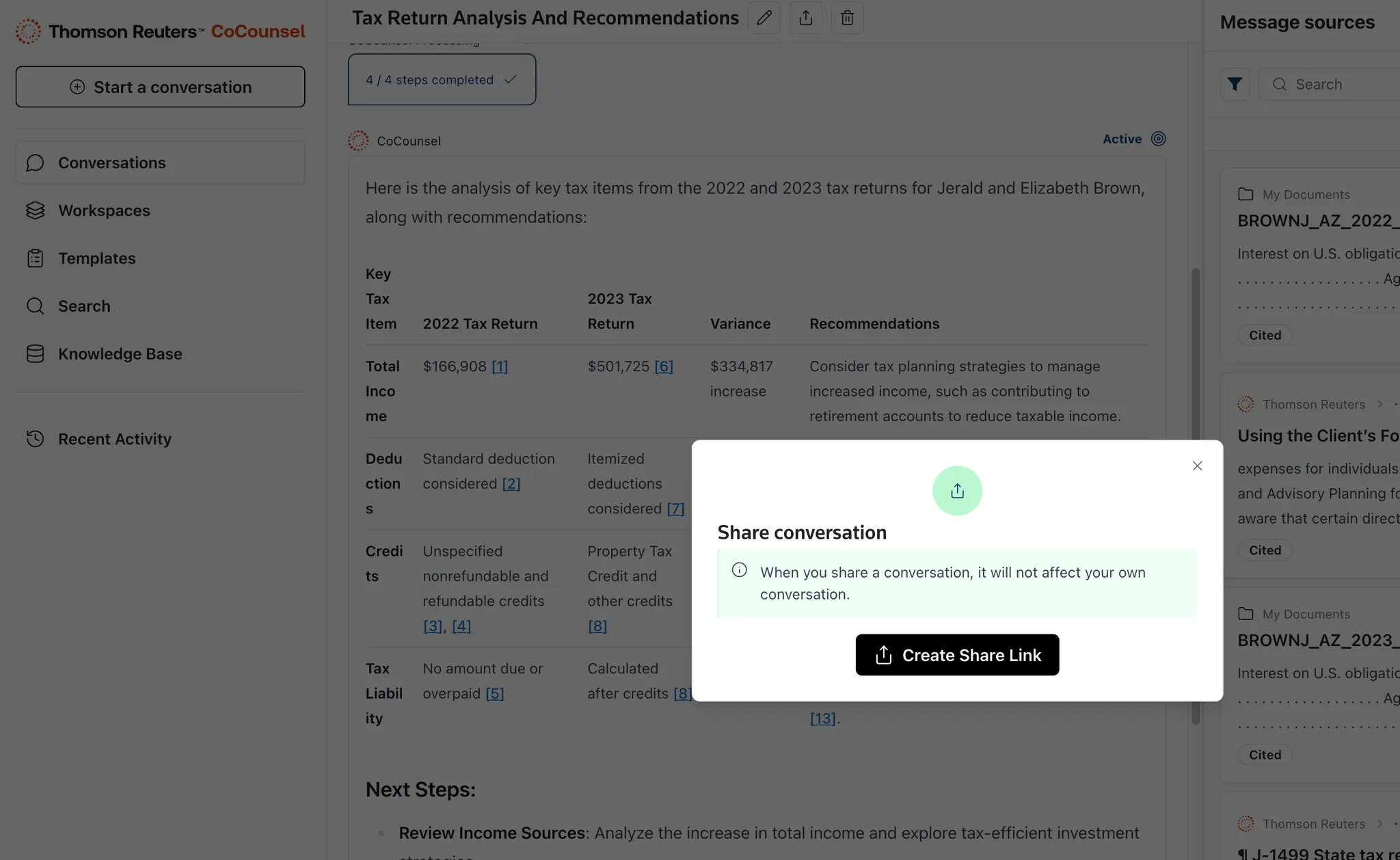
Share a Conversation with a colleague
You can share conversations with your colleagues using the share button on every conversation. Conversations are accessible only to signed-in CoCounsel users within your organization. You can also select to copy and paste the URL from your browser.
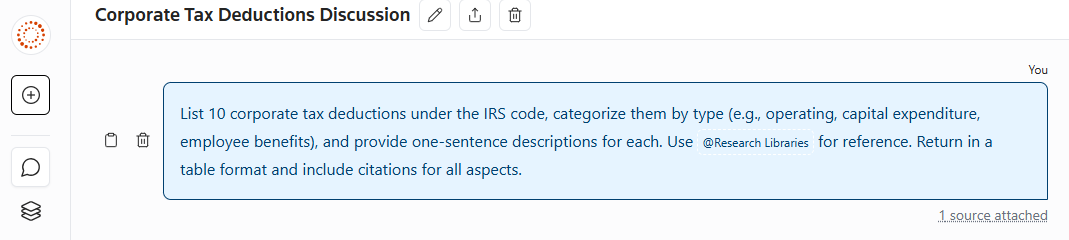
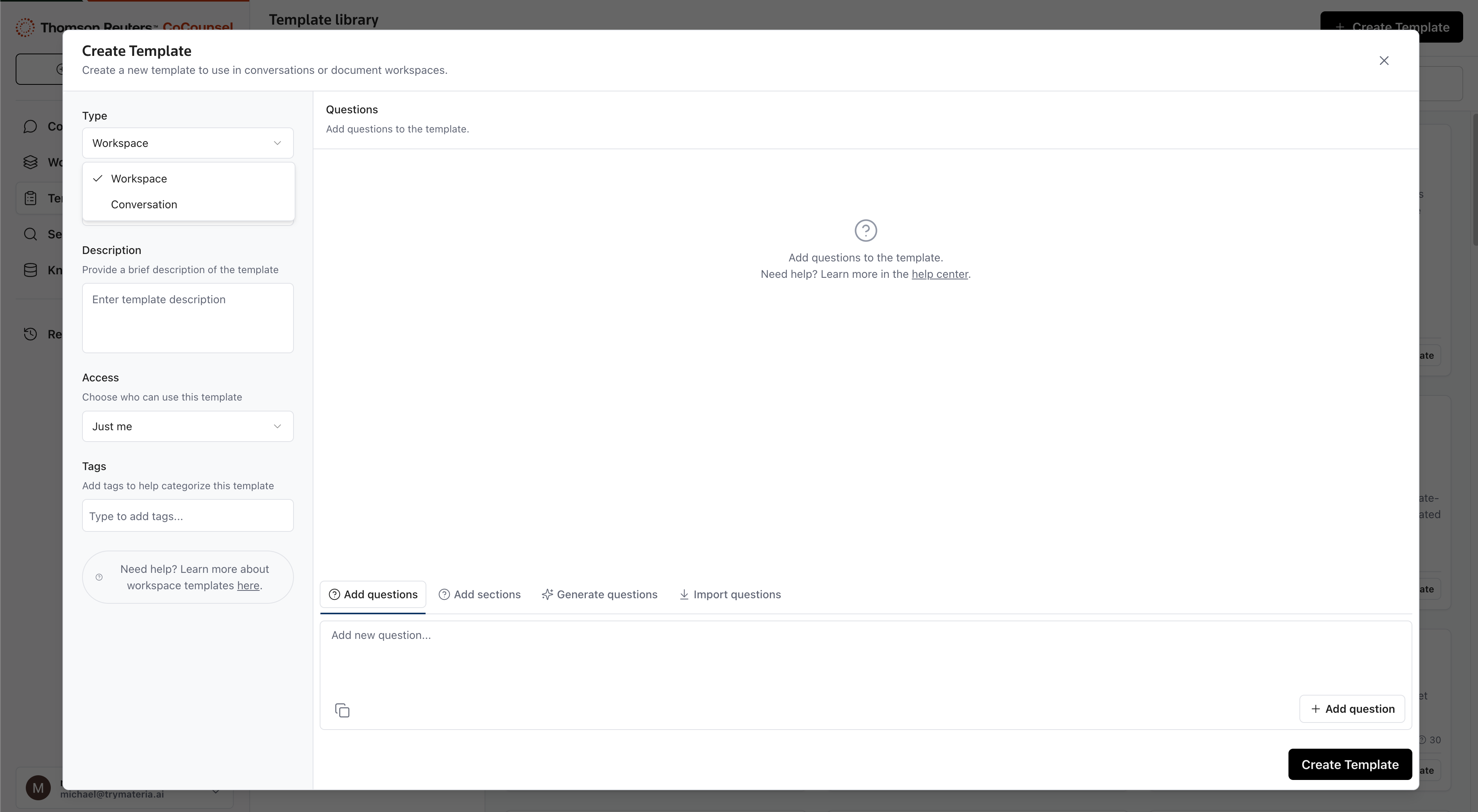
Save a Conversation prompt as a template
To save an existing prompt as a template, copy it by highlighting it or selecting the clipboard button.
In CoCounsel, go to the
Templates
section and select Create Template
. Once you're in the Create Template
window, select the Conversations
dropdown under the Type
section.A few additional items to consider:
- Title: Provide a clear and concise title for your Conversation Template that reflects its purpose or the specific accounting task it addresses.
- Description: Include a brief description explaining the template's use, its key parameters, and the type of questions or interactions it's designed to handle.
- Access: Specify who within your firm will have access to this template (user or company).
Use workspaces
Generate questions
Once you've uploaded a single or multiple documents in a workspace, you can go to
Generate Questions
and add a prompt giving CoCounsel the context of your analysis. A list of questions, organized by section, will be generated for you. Recommendations for AI-generated questions
- Iterate on the AI-Generated Questions: Use AI-Generated Questions to create your questions list and add/delete questions from there versus starting from scratch.
- Be specific: Include all the context regarding your analysis and don't be afraid to try multiple prompts.
- Review the questions:Review the questions generated and remove any that don't apply.
Answer formatting
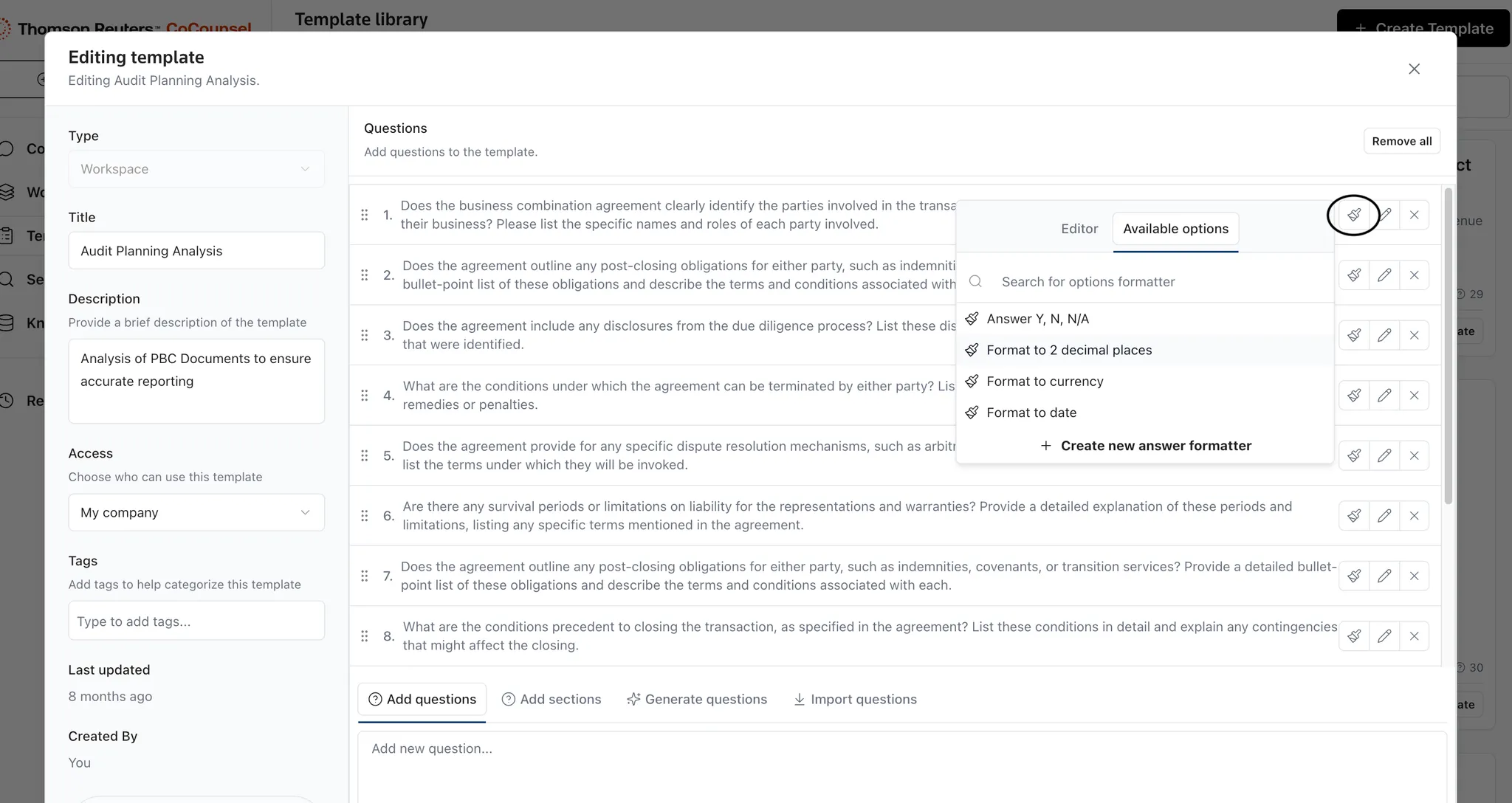
Answer formatting enhances Workspaces by letting you choose the structure you want for each response, question by question. When you select a format, you save time and effort reviewing Workspace responses, and you can shape them to fit your workflow.
- Select the paintbrush icon while editing your Workspace questions.
- Select from one of the available options or create a new formatter. To create a new option, select theEditortab orCreate new answer formatter. Give a short name, select the format type, and enter the instructions for answer formatting.
Save previous Workspaces as a template
From an existing Document Workspace:
- Select a completed Document Workspace that you have previously run.
- Select the 3 dots menu icon associated with the Document Workspace.
- SelectSave as Template.
- This will copy the Document Workspace questions into a template.
- CoCounsel saves the new template to your private User Collection; you can edit it anytime.
Share a Workspace with a colleague
You have 2 options for sharing a Workspace with a colleague: Export to Excel, or share the Workspace URL.
- Export to Excel:Approve your responses, verify your workspace, then selectExport to Excelto create a report. Once you export the responses, open the file in Excel and use the report for additional supporting information.
- Share URL:After your responses have appeared, simply copy the URL to share. As long as the colleague you are sharing with has access within CoCounsel to the document being analyzed, you'll both be able to review it. If your colleague doesn't have access, you may move the document over toCompany Documents.
Create templates
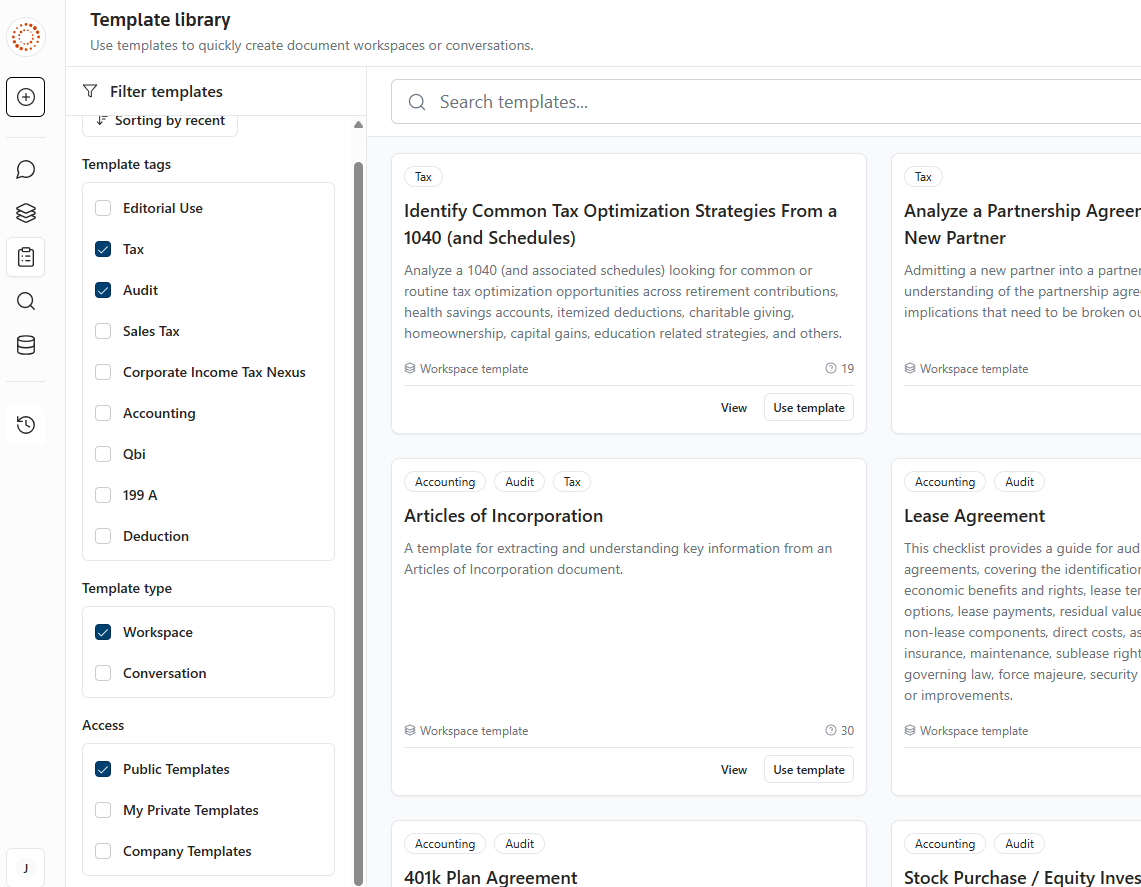
Pre-made public templates location in CoCounsel
Go to the
Template
tab from the navigation bar. From this page, you have a few options for searching your templates.- Search for keywords in theSearch templatesbar.
- Filter your search to Template Type, Access, or relevant tags.
Create a template for conversations
Build a Conversation Template by crafting a custom question and adding editable fields and source references to streamline future use. Explore the following steps to create an effective template:
Write your question
Begin by drafting the question or prompt that you want to standardize. This can be any type of accounting inquiry or request tailored to your firm's specific needs. The objective is to frame the question in a way that Conversations can provide a clear, relevant response. You may also specify the format of the response, such as bullet points, summaries, or detailed explanations, to ensure the output meets your expectations.
Add editable fields
To make certain parts of the template editable for future use, select the
Custom fields
button. Custom fields let you adjust specific details within the template without altering the structure of the entire prompt.For example, you can make
Specific Audit Area
an editable field, meaning you can easily update it for different scenarios without changing the whole prompt.
Share a template with the rest of the company
While editing or creating a template, locate the
Access
options. To share with your company, select My Company
. To share with your CoCounsel group, select your group.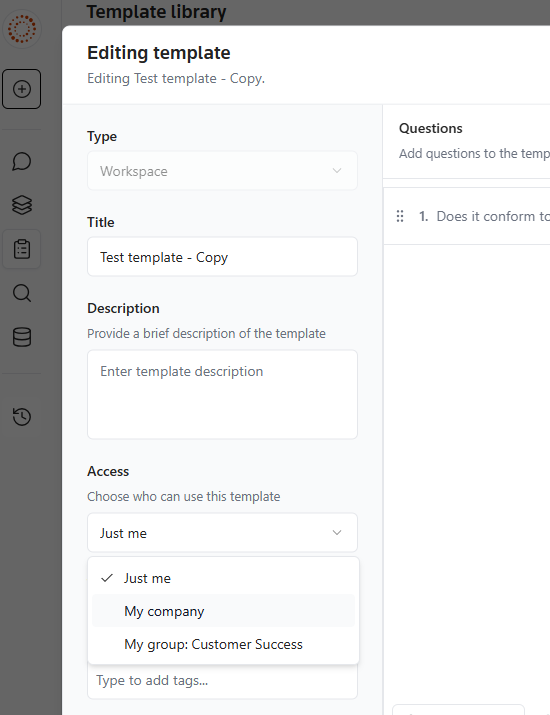
Create a template for Workspaces
There are 2 primary methods to create a Workspace template:
From scratch:
- Go to theTemplatesmenu.
- Select theCreate New Template.
- Enter a title for your template to identify its purpose.
- Provide a detailed description to explain what the template is for and any specific guidelines for using it.
- Add the questions and instructions that will form the basis of your template.
- Save the template to a collection (it will be uploaded to your private User Collection by default, unless otherwise specified)
From an existing Document Workspace:
- Select a completed Document Workspace that you have previously run.
- Select the 3 dots menu icon associated with the Document Workspace.
- SelectSave as Template.
- This will copy the Document Workspace questions into a template.
- The newly created template will be saved in your private User Collection and can be edited further if needed.
Administrator settings
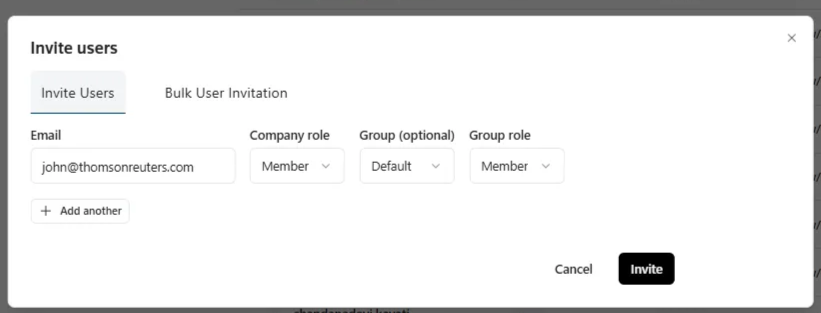
Invite multiple users
From within the Organization Settings, go to Users, and select
+Invite users
. Select Add another
to invite multiple users at once. To send the invitations, select Invite
.
Invite users in bulk:
- You may also invite users in bulk by going to and selecting+Invite users. From there, you can download the template and enter the information.
- Simply download the CSV template and complete the required information. Be sure to save this file before uploading it back to the invite screen (either drag and drop, or select the file from your computer).
Integration with OneDrive and user access to OneDrive
If administrators integrate with OneDrive, users will have access to the drives selected by the administrator during the Selective Sync set up.
Integration with Sharepoint and user access to Sharepoint folders
Administrators can only configure the total scope of folders/drives that will be pulled into the product.
Administrators can't set up the Sharepoint integration so that certain groups of users) only have access to specific Sharepoint folders.
Users with multiple email domains
It is recommended that administrators use the
User Invite
feature for users with email domains differing from the primary company domain.Users member of more than 1 group
Currently, users can belong to only 1 group; multi-group membership is on our roadmap.
Miscellaneous
Minimum system requirements
Supported operating systems:
- Windows 8.1 and Windows 11
- Mac 10.5 or later
Internet browsers:
- Chrome current version
- Safari current version
- Mozilla Firefox current version or Extended Support Release version
- Microsoft Edge current version
Other requirements:
- 1024x768 or better screen resolution is recommended
- Adobe Acrobat Reader 9.0 or later (some print functionality is lost with older versions).
e-Form RS
e-Form RS is included with CoCounsel, accessible through Checkpoint Tools. The most effective way to access this is with the Passthrough method. Go to this guide to get started. Visit this page for an additional troubleshooting guide.