
Set up Box
You only need to set up Box once for your entire organization.
Prerequisites:
- You'll need to be a CoCounsel Admin role type to set up the Box integration for your company.
- You'll need to be signed into Box with an account which is either:
- Personal email which has administrator rights in Box
- Administrator email which has administrator rights in Box
Do the following to set up Box for your organization:
- Go to your organization settings then selectIntegrations. Go to the Box tile and selectConfigure.
- In theConfigure Box Integrationwindow, you'll be prompted to set up the box permissions and select the folders you want the integration to have access to. SelectConfigure Integrationto continue.importantCoCounsel needs both Read and Write access to process your Box files and permissions correctly. CoCounsel won't change items in your account.
- Review your data permissions then selectNext.
- SelectRead and write permissionsthen selectNext.noteWrite permission is required for Box so that CoCounsel can download Box files and process them into CoCounsel.
- You'll be redirected to Box, where you'll need to selectGrant access to Box. This will create an app in Box, which you can find in .noteIn this step, you might get the following alert:
To resolve, you can follow these instructions, under .This application cannot be used because it is not allowed by your Box administrator.- This will require aClient ID: kmpt5naq399rs5jscv18v5t2xs4y92iv
- The name of the app will beMerge.
- You will be re-directed into CoCounsel, where you'll need to perform the Selective Sync step. Select the top-level folders that should be synced from Box into CoCounsel. No folders or files from non-selected top level folders will be synced or downloaded by CoCounsel. SelectSelect drives or foldersto continue.
- Select the folders you want to sync with CoCounsel then selectView selected.
- Complete the Selective Sync step by selectingSelect.
- Complete the File Picker, where you'll select the top-level folders CoCounsel will download all folders and files for. Commonly, you'll select all the folders which you selected in Selective Sync. SelectView Selectedwhen you're done.
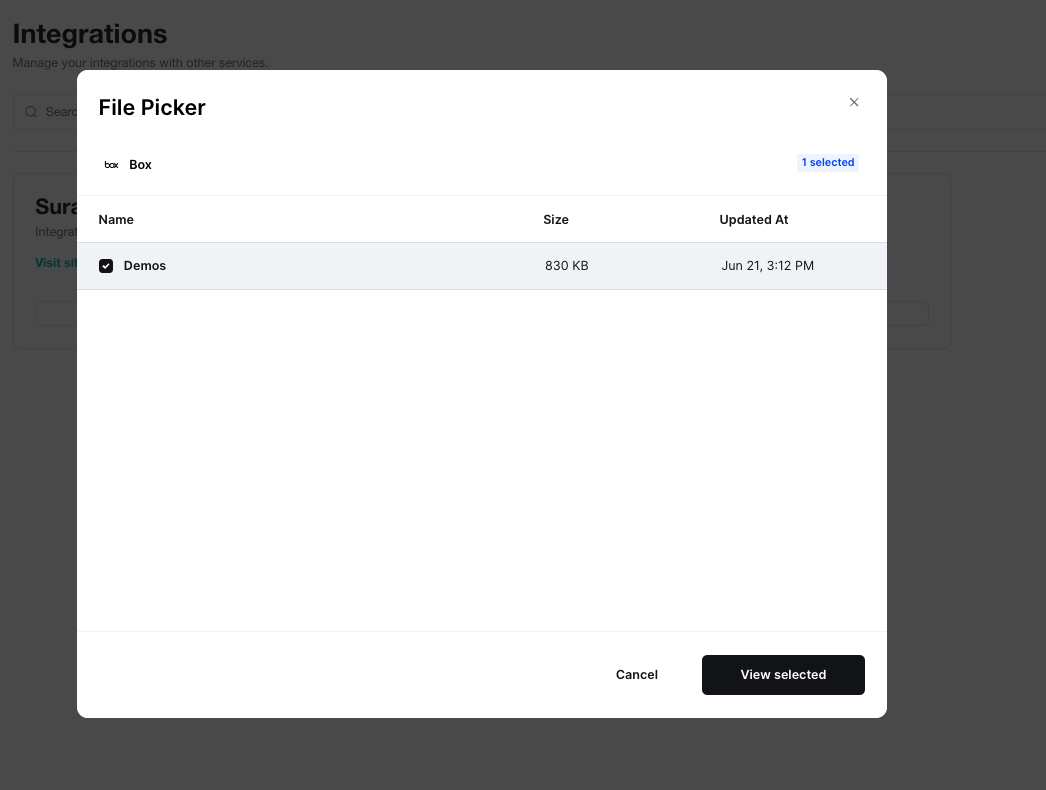
- TheConfigure Box Integrationwindow will open where you will see the folders you selected. The setup is now complete.CoCounsel syncs files and folders every hour. Once the sync is complete, this will be visible in UI.
Related Content
-
Box integration
Format: Article
-
Box integration
Format:
Article