
Search in CoCounsel
Use CoCounsel's Enterprise Search to find documents in your knowledge base quickly.
CoCounsel uses semantic search to prioritize your query's context rather than text matching. This delivers more relevant and accurate results.
tip
Follow these best practices to optimize your search results:
- Use pre-search filters: Select filters before starting your search for the most relevant results. For example, selectDocumentswhen looking for internal accounting treatments rather thanEverythingfor a quicker, more focused search experience.
- Embrace Semantic Search: CoCounsel understands your search context. Unlike Conversations, the search tool focuses solely on searching, so you don't need phrases like "find me" or "search for." Only include specific information about what you need.
- Apply post-filtersto refine your search:
- Filter by SEC forms when seeking public accounting disclosures/financial presentations.
- Filter by data storage providers like Suralink when searching within existing engagements.
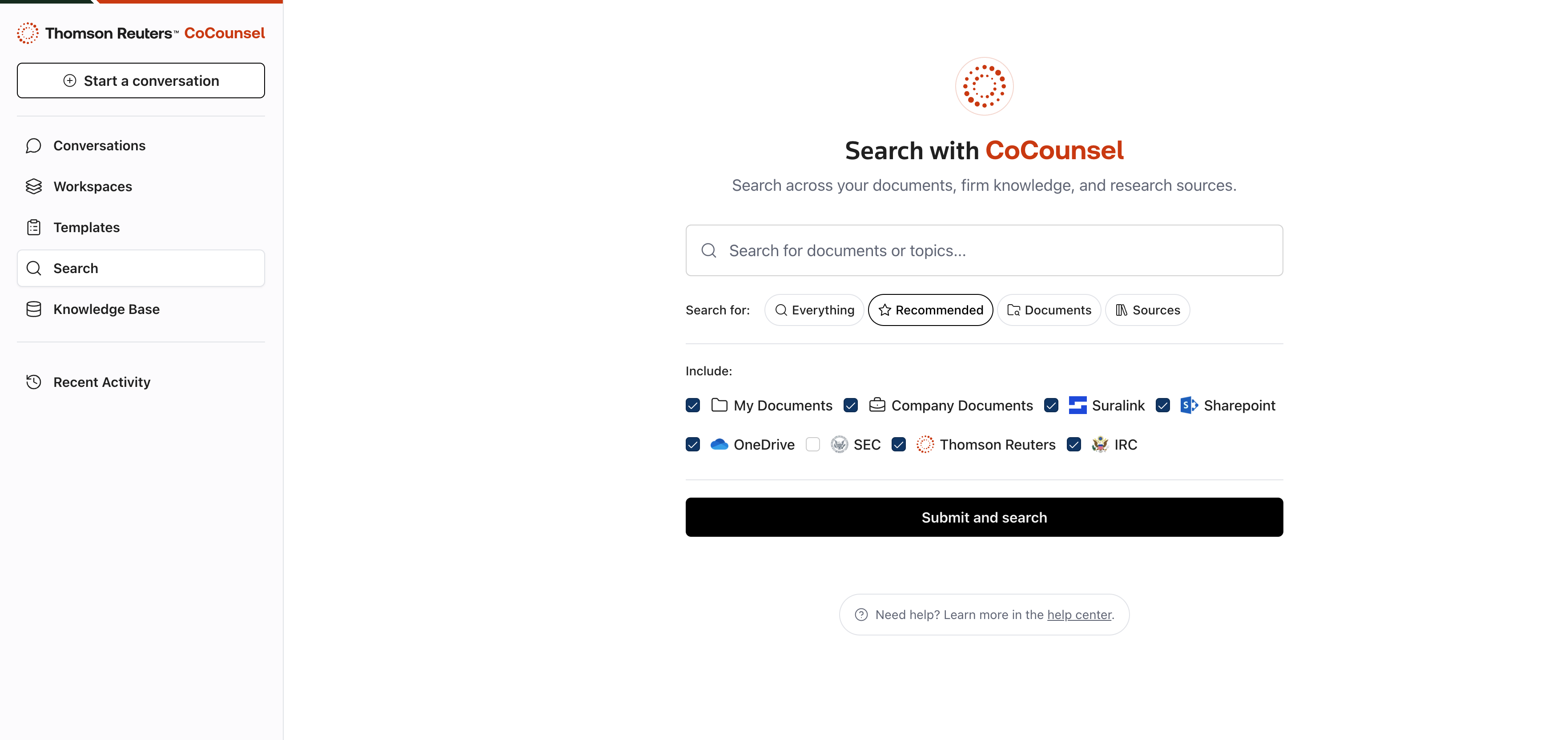
- SelectSearchin the landing page window.
- On theSearchpage, refine your search to include:
- Everything: Searches your entire knowledge base.
- Documents: Searches your integrations and library documents.
- Sources: Searches SEC, IRC, and other Authoritative Sources.
- Enter your query and selectSubmit and search.
On the
Results
page, view your query results. Select a document link to open the source viewer where you can:
- View the PDF result
- Download the file
- Print the file
- View in full-screen
Inside your document, access the citation viewer where:
- The system includes citations relevant to your search query
- You can access source info/metadata
- You can move through search results using arrows or hotkeys
Select the file path to view the folder in the Knowledge Base file explorer.
Refine your search with these filters for more precise results:
- Apply sidebar filters to narrow results (default behavior)
- Expand your search and select from all filters (initiates a new search)
- Use special filters for integrations/external sources:
- Suralink: Filter by engagement
- SEC: Filter by form type (like 10-K) or companies
- TR: Filter by Checkpoint sections/sources
- IRC: Filter by Internal Revenue Code sections
Change your search query in the search field to begin a new search. The system adds recent searches to your "Recent Activity" in the sidebar.