
Apply answer formatting to a Workspace template
Answer formatting enhances Workspaces by letting you determine the preferred structure for each response to a question. By selecting specific format options, you can save time and energy as you review responses and structure them to align with your workflow.
Best practices for answer formatting:
- Choose the correct format type: Match the format to the data. UseCurrencyfor financial amounts,Datefor deadlines or effective dates, andBooleanfor yes/no responses like control testing outcomes.
- Standardize for workpaper use: Apply formatting when extracting data you’ll insert directly into workpapers or supporting schedules. It keeps the answers clean and ready to copy-paste.
- Use choice fields to limit variability: For review checklists or control assessments, useChoiceformats to standardize responses like “Effective” or “Needs Follow-up".
- Avoid over-formatting narrative responses:UseStringwhen asking for summaries, descriptions, or exceptions where free-form detail is helpful.
- Keep formats consistent within a template: If you're extracting financial data across multiple questions, stick to 1 format type to ensure clean exports and avoid confusion.
- Test with real documents: Run a sample workspace with your formatted template before deploying. This helps catch inconsistencies and ensures the format performs as expected
Steps to specify an answer format within a Workspace template:
- SelectTemplates.

- Select+ Create TemplateorEditan existing template. If you don’t have edit access for an existing template, you can selectView, thenDuplicateto create a copy.
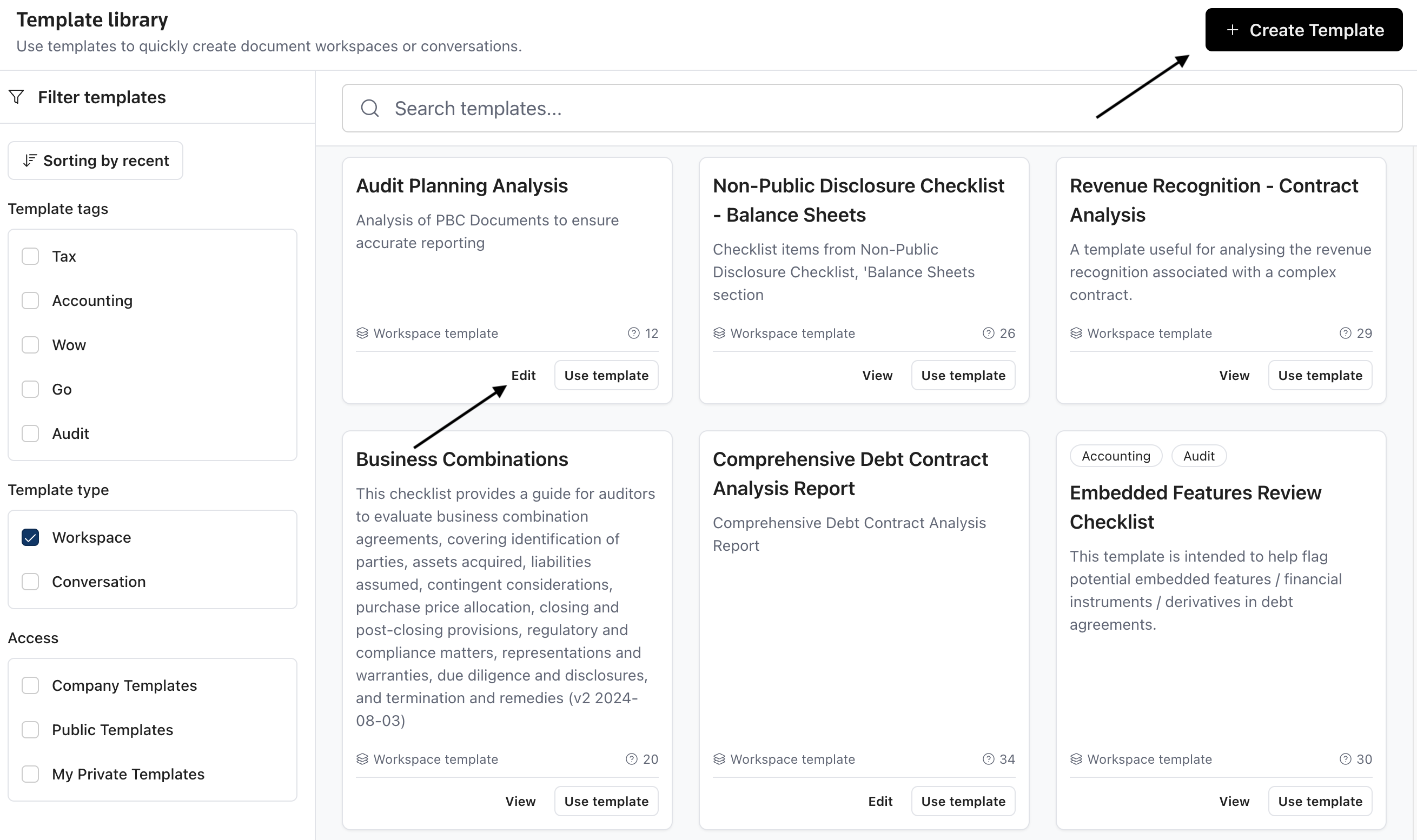
- Add the questions you want to include in the template, or include a description for the template to create an AI-generated list of questions.
- Select the paintbrush icon next to a question to view and apply answer formatter options.
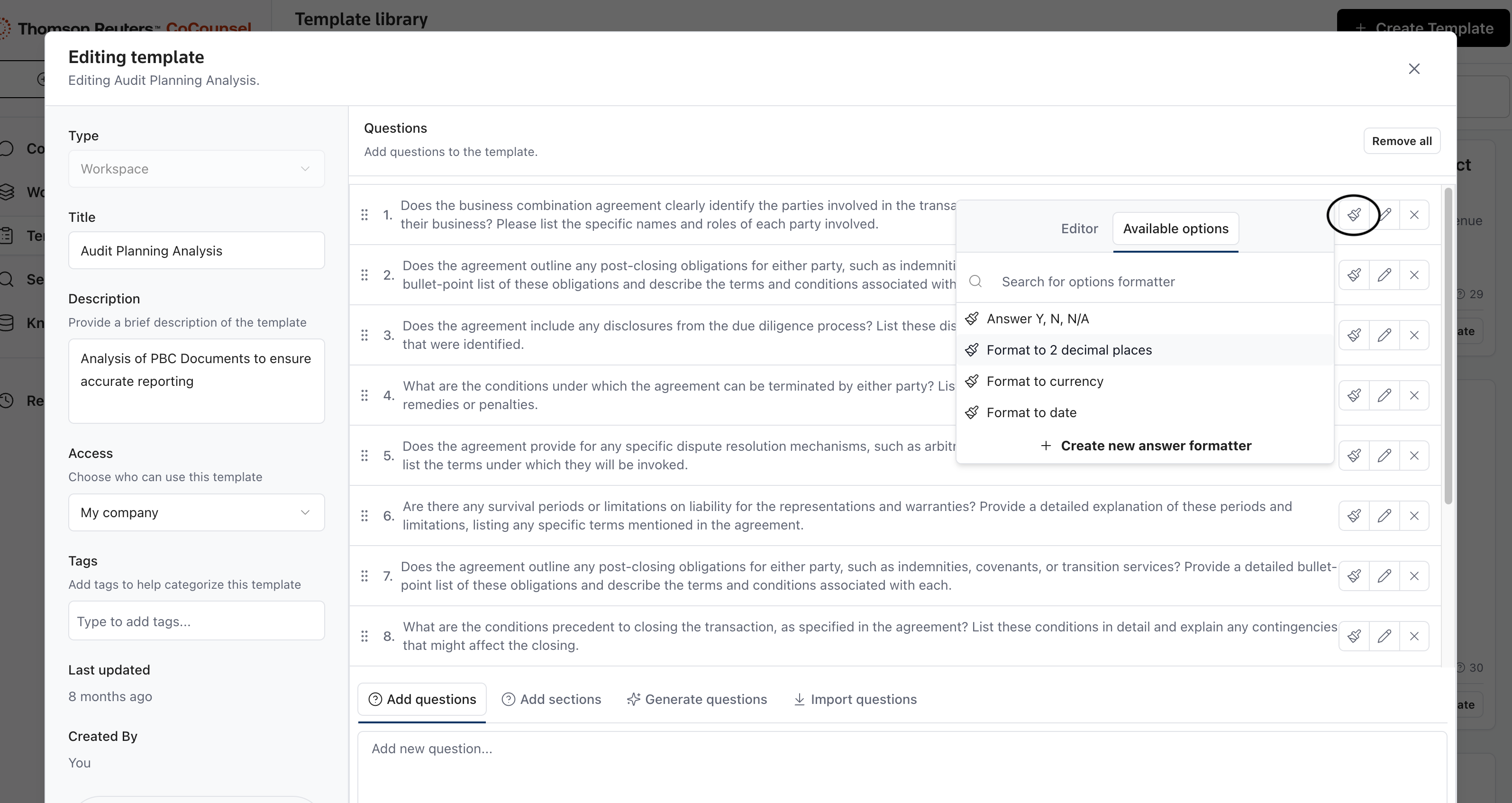
- Choose one of the available options or create a new formatter. To create a new option, select theEditortab or+ Create new answer formatter. Enter a short name, select a format type, and enter the instructions for answer formatting. Format types include the following:Format typeDescriptionStringA plain-text answer. Use when the output should be a sentence, phrase, or other unstructured text.NumberNumeric answers without currency symbols. Ideal for quantities, percentages, or countsBooleanA true/false output. Used for yes/no, presence/absence, or compliance checks.ChoicePredefined options CoCounsel selects from. Great for standardizing outputs across many documents.CurrencyA numeric amount with currency context. Useful for financial values like revenue, fees, or penalties.DateA specific calendar date. Can be used for things like deadlines, effective dates, and expirations.
- UpdateorSaveyour template.
- SelectUse TemplateorUse in Workspaceto use your template.
Responses will appear with the selected formatting in the response column. The expanded response with citations will appear in a light blue box following the formatted response. When using the same template in the future, the selected answer formats will automatically apply.
tip
Once you complete your Workspace, you can export it to Excel, and your answer will have its own column for easy copying/pasting into existing workflows if necessary. Additionally, your reasoning will be included in a separate column.