
Create a template in Conversations
Create a template in Conversations to standardize recurring prompts and improve response accuracy. Templates save time and ensure consistent, reliable results for common accounting tasks.
Use templates in Conversations to improve consistency and reduce effort for recurring tasks. Templates guide you in crafting precise prompts, ensuring you receive accurate and consistent responses from Conversations.
Follow these steps to create a template in Conversations.
- In CoCounsel, selectTemplatesfrom the navigation pane, then selectCreate Template.
- In theCreate Templatewindow, selectConversationsfrom the dropdown in theTypesection.
- Follow these recommendations when entering Template details:
- Title: Provide a clear, concise title that reflects the template's purpose or specific accounting task.
- Description: Include a brief explanation of the template's use, key parameters, and the types of questions it handles.
- Access: Specify who can access this template:
- User- Saves the template toMy templates, where only you can access it. Any user can create user templates.
- Company- Publishes the template to theCompany library, where everyone in your organization can access it.noteOnly Company administrators can create Company templates. If you're not a Company administrator, save the template as a user template, then share it with a Company administrator so they can add it to theCompany library.
- Write your question: Draft the question or prompt you want to standardize. Frame your accounting inquiry so Conversations can provide clear, relevant responses. You can choose the response format (bullet points, summaries, or detailed explanations) to ensure the output meets your expectations.
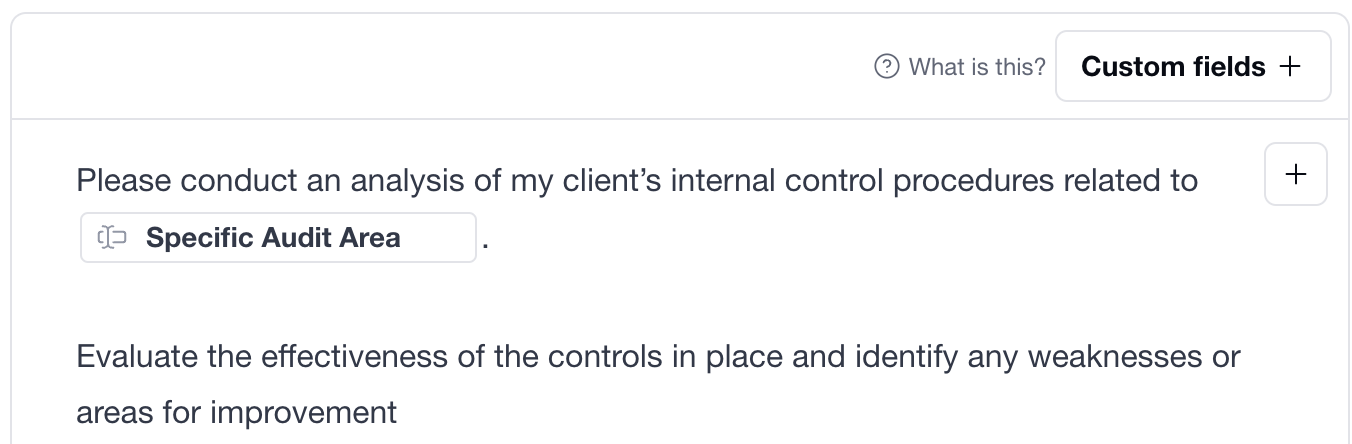
- Add editable fields: To make specific parts of the template editable, selectCustom fields +. Custom fields let you adjust specific details without altering the entire prompt structure.In the following example,Specific Audit Areais an editable field, letting you update it easily for different scenarios.
- Include source references: If your question requires document references, selectMention selectorfrom the custom fields options. This signals that users should attach or link relevant documents when using the template. You can insert the name of the contract or source document, ensuring that CoCounsel pulls from the correct information.

- Review your template carefully to ensure all editable fields and source placeholders function properly.
- When finished, selectCreate Template.noteIf you're looking for Template inspiration, we recommend checking out the Public Templates available. The Thomson Reuters Editorial team created these based on common use cases we've seen.