
Template library
Use the Template library to search, filter, and open templates that quickly create document workspaces or conversations.
Access the template library
To open the Template library, select
Templates
in the sidebar.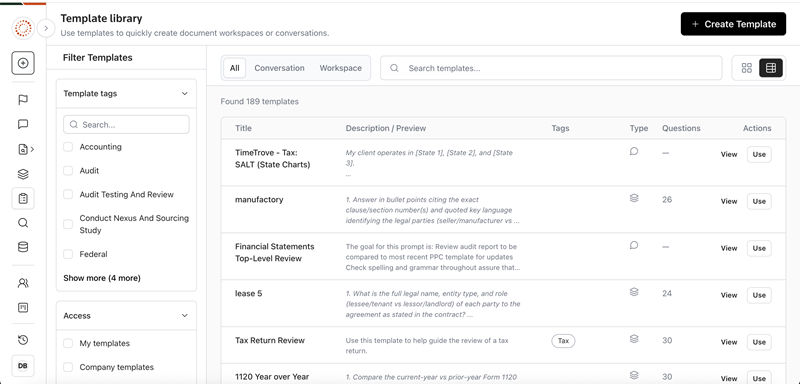
Filter templates
The
Filter Templates
panel lets you narrow results by tag or access scope. To reset all filters and the search field at once, select Clear all
.The panel contains 2 collapsible filter sections:
- Template tags
- Select 1 or more checkboxes to narrow the results to templates that transfer any of the selected tags. Tags are listed alphabetically.
- Only the 1st 5 tags appear by default — selectShow more (N more)to reveal the rest, andShow lessto collapse them again. You can also type in theSearchfield within this section to find a specific tag.
- AccessFilter templates by access scope. You can select 1 or more of the following options:
- My templates
- Company templates
- CoCounsel templates

Search and view options
A toolbar across the main pane provides options for filtering by type, searching, and switching the display layout.
- Type tabsSelect a tab to filter results by template type. Available tabs areAll(default),Conversation, andWorkspace. SelectingConversationorWorkspacelimits results to that type only.
- SearchEnter text in the search field to match text against template titles and descriptions. The search is case-insensitive and results update as you enter it.
- View modeSwitch betweenGrid viewandTable view. Grid view is the default and displays templates as multi-column cards. Table view displays templates as rows in a table. Your last selected view mode is remembered across visits. The type tab, search field, and filters reset to their defaults each time you return to the page.
Results
Selecting the
All
tab with no active filters or search terms displays “Found N templates” in the results area. When you apply a filter or search term, a row of active filter chips replaces that count — 1 chip per active tag, search term, or access option. Select the x
on any chip to remove that filter individually. To reset all filters and the search field at once, select Clear all
.Each template in the results area supports the following actions:
- ViewOpens aViewing — [template name]window that displays the template'sTitle,Description,Tags, andPromptas read-only fields. From this window you can:
- SelectUse templateto run the template.
- SelectDuplicateto create a copy of the template. This option is available to all users.
- SelectCancelto close the window without taking action.
Users with edit permission on the template can also accessEditandUnpublishfrom this window. SelectingEditswitches the window into edit mode, making all fields editable. Users without edit permission have a lock icon instead. - Use templateRuns the template directly.
Grid view
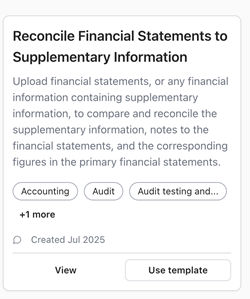
In Grid view, each template appears as a card displaying the following information:
- Full template title
- Description
- Tags — up to 3 tags are shown. If the template has more, select+N moreto expand all tags inline, andShow lessto collapse them again
- Template type icon and the time the template was created (for example, “Created 2 hours ago”)
Each card includes a
View
button and a Use template
button. Placeholder cards appear while templates are retrieved.Table view
In Table view, templates appear as rows with the following columns:
Column | Details |
|---|---|
Title | The template name. Long titles are truncated. |
Description/Preview | A preview of the template description. This column is hidden on narrower screens. |
Tags | All tags associated with the template are displayed as stacked badges. Long tag names are truncated within their badge. |
Type | Displays an icon indicating the template type: a chat bubble icon for Conversation templates, or a stacked layers icon for Workspace templates. |
Questions | Displays a count for Workspace templates. Displays an em-dash (—) for Conversation templates. This column is hidden on narrower screens. |
Actions | A View button and aUse button. |
No results
If your current filters and search return no templates, the results area displays the message “No templates match your filters”. Select
Clear all filters
to reset all filters and the search field and return to the full list of templates.