
Manage your workspace
Learn how to manage your workspace effectively after the initial analysis.
Once a document has been analyzed, it's important to make sure the information is accurate and organized. This allows for easier reviewing up or downstream.
Review status
Once you’ve created your workspace, we recommend reviewing each response using the citations to ensure the answers are accurate. After your review, you can use the dropdown to change the review status to
Approved
or Flagged
and the question or response will show up in the corresponding tab.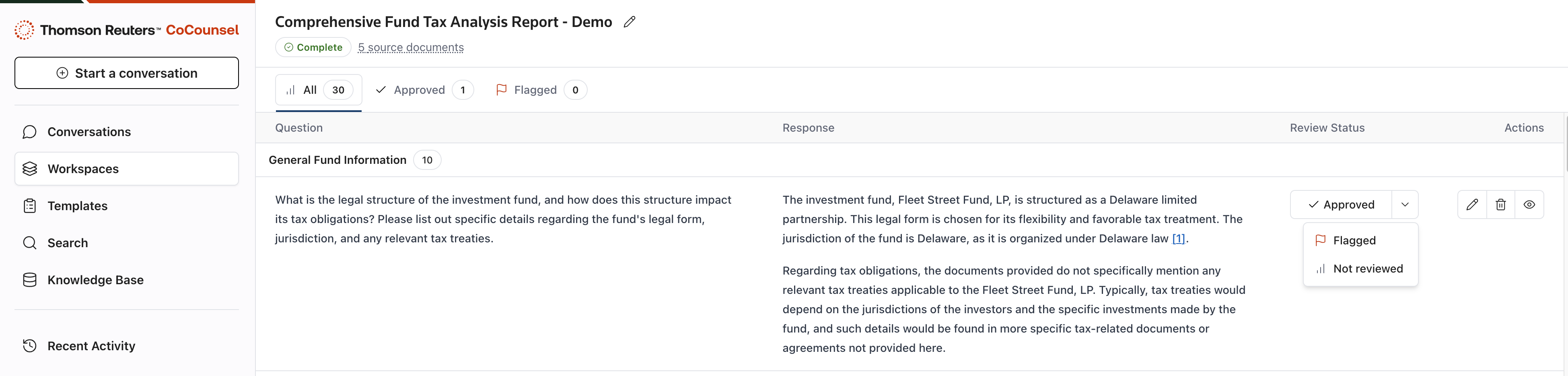
Actions
There are 3 actions you can perform against each question or response in CoCounsel:
- Edit the question and re-run the prompt.
- Delete the question.
- Deep dive into the individual question .
Export
Once you’ve approved your responses and are satisfied with your workspace, select
Export to Excel
to create a report that can be used to support your work.Once you export the responses, you can open the file in Excel and use the report for additional supporting information.
Save as a template
Once you’ve exported your workspace and are satisfied with the responses, you can save the questions in this workspace as a Template for future use. Select the 3 circle icon on the top of the screen then select
Save as Template
. These questions can be used for future analysis and will be stored in the Templates tab.
Best Practices for Managing your workspace
- Add a relevant title to include the following:
- Client name.
- What's being analyzed.
- Carefully review each response. Use the deep dive feature to review each response.
- Save the questions as a template. Standardize your analysis and build/iterate your templates to be as comprehensive as possible
- Don’t be afraid to edit your question. Responses are heavily dependent on the prompt, if you don’t like the response or if you flag it, try reframing your question to be more specific.