
Workspaces
Workspaces provide the most efficient way to analyze a single document or multiple documents in a folder that includes contracts, management reports, audit reports and more. With our innovative approach to utilizing AI, you can:
- Maximize your time to value: Efficiently retrieve data from source documents.
- Sweep for mines: Ask AI suggested prompts to ensure you're asking the right questions.
- Audit PBC documents with confidence: Create templates specific to client use cases and enable your team to ensure accounting completeness.
Get started
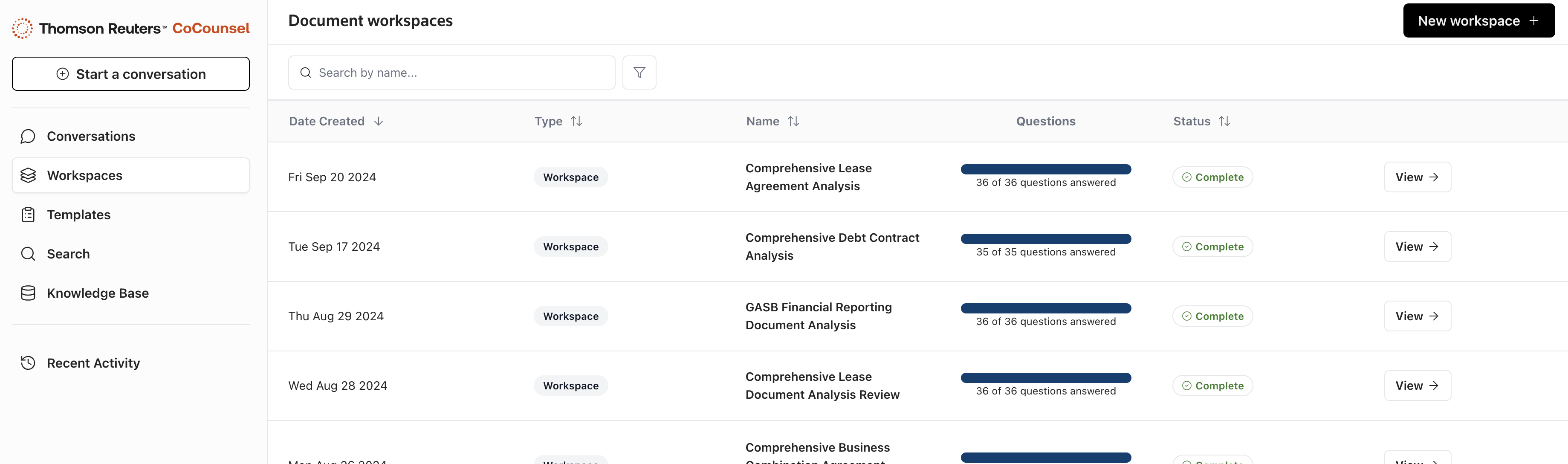
- You can create a new document workspace by selecting theWorkspacestab thenNew Workspace+or on theDocument Workspacescreen then selectingNew Document Workspace.
- To add a document to your workspace, you can drag and drop a PDF or Word document directly into CoCounsel, or you can choose from your document library.
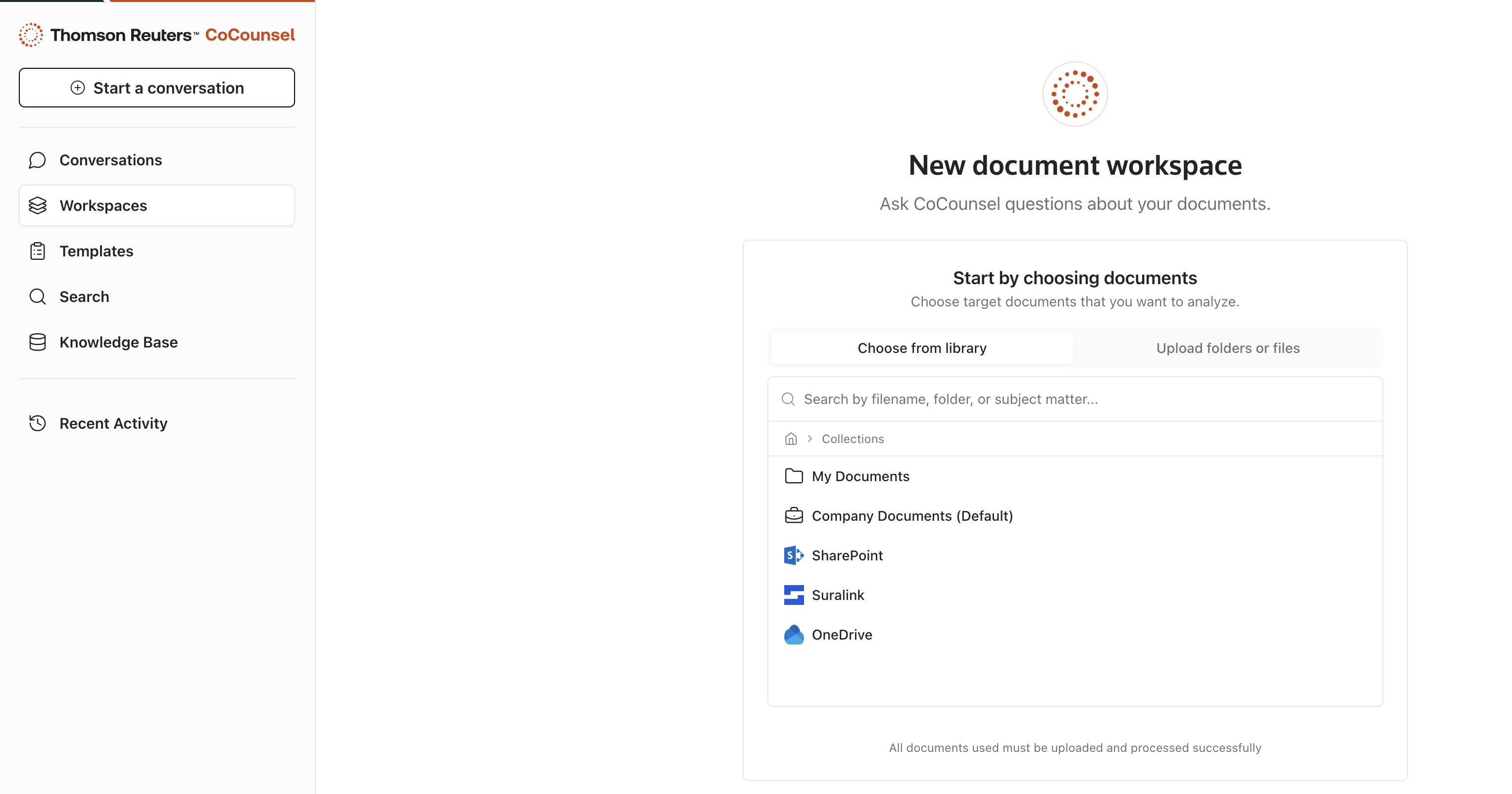
- You can also select a folder to have CoCounsel analyze questions across all of the documents inside of the folder.
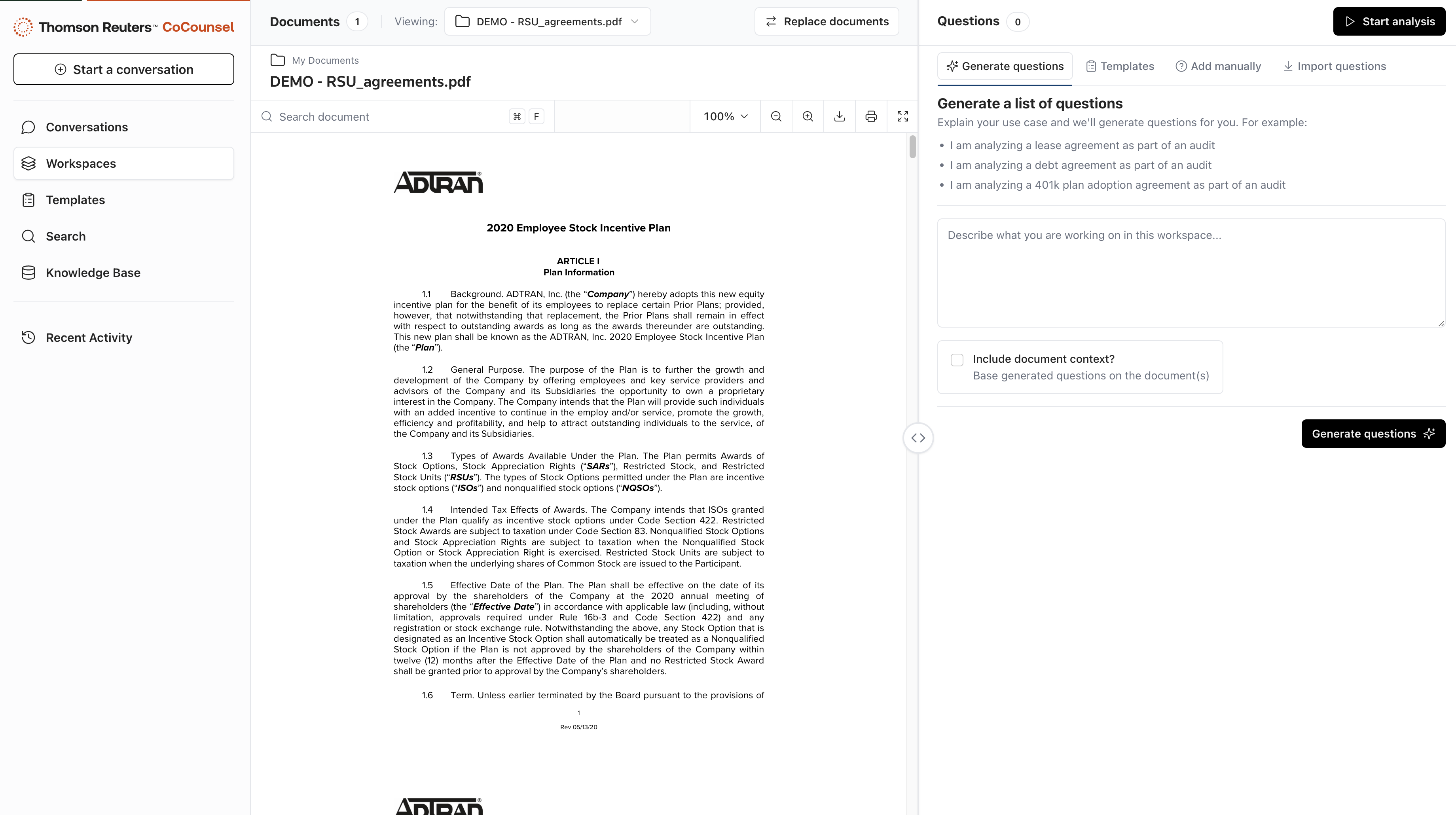
- Once your document is uploaded into CoCounsel’s workspace page, the documents will display on the left-hand side of the page. On the right hand side, you can craft a list of questions in a variety of ways:
- Use AI-generated suggestions to get started, as well as ensure you're asking the right questions.
- Add questions manually by entering directly into the text field and pressing the “Enter” key or selecting+ Add question.
- Import a list of questions (PDF, CSV, or Excel). Select the column in your spreadsheet that contains the questions. If your Excel file has multiple sheets, you’ll need to select the appropriate sheet in theSelect a Sheetdropdown. You can also add additional questions after importing a list of questions.
- Utilize templates created internally or any of CoCounsel’s pre-loaded templates.
- Analyze your document with the questions provided. Analyze the responses and use our sophisticated tools to get the answers you're looking for. Once the responses have been analyzed by CoCounsel, you can:
- Review the responses and change the status to aApprovedorRejectedstatus.
- Edit or update your questions.
- Delete questions.
- Add new questions.
- View by “Not Reviewed”, “Approved” and “Rejected”.
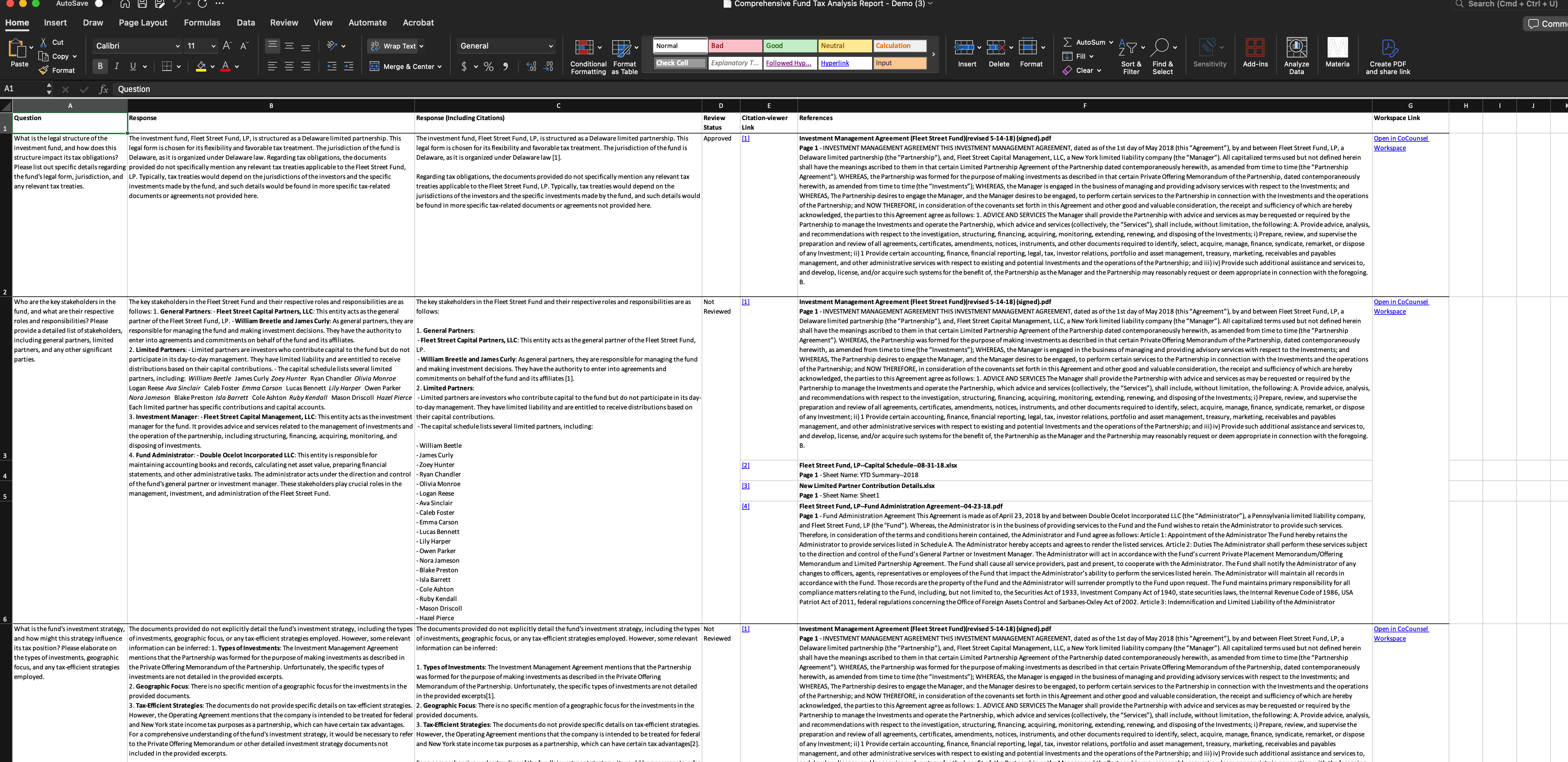
- Export to Excel.
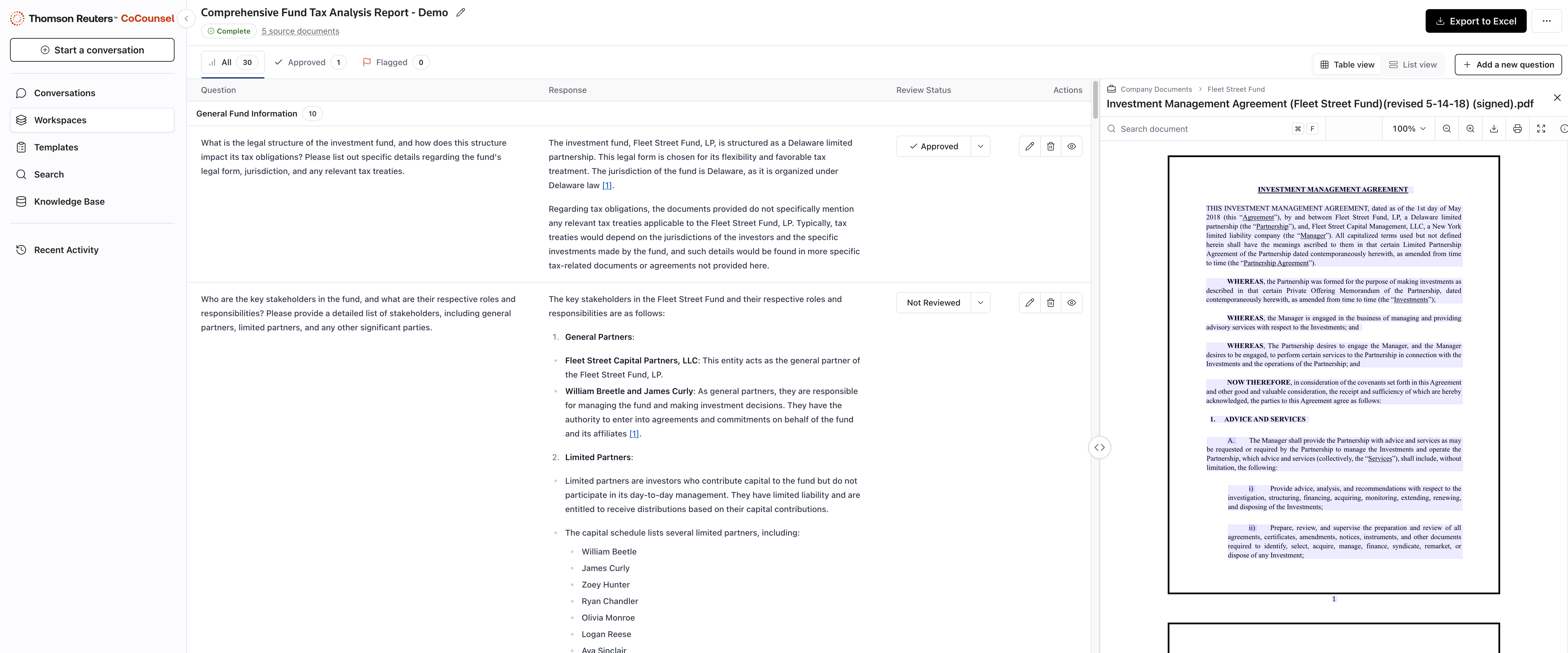
- Once exported to excel, you now have an export that answers all of your questions about a document with the proper citations and sources, along with the status of review.
Troubleshooting
On the rare occasion that an answer generation fails, an error message will appear on the row item. In those cases, you can manually edit the answer to mitigate the issue. If an answer is taking longer than anticipated to generate, try refreshing the page. If you continue to run into issues, contact CoCounselTaxAudSup@thomsonreuters.com.