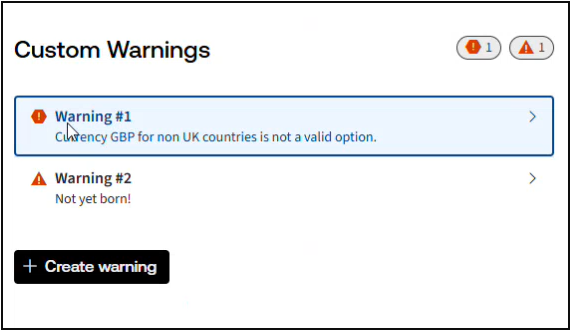
Add Custom Warnings to Questionnaire
To ensure end users provide valid answers in a questionnaire, template authors use a combination of tools such as warnings, variable constraints, and clear guidance. Warnings are particularly helpful for flagging answer combinations that may be acceptable individually but problematic when considered together.
By setting validation rules in the condition tab and offering well-crafted instructions in warning message section, you help users understand what is expected and automatically check their inputs. This integrated approach not only improves the quality of the data collected but also enhances the overall user experience.
Compulsory and Non-compulsory warnings
Compulsory and Non-compulsory warnings
There are two types of questionnaire warnings:
- Compulsory(requires resolution): This will force the user to provide compliant answers before being allowed to assemble a document. If the user closes the questionnaire without resolving a compulsory warning, the answers will be saved, but no documents will be generated.noteInHighQ DocAuto, even compulsory warnings will be bypassed and the document will still be generated.
- Non-compulsory(advisory): This will flag an issue with the answers but will not prevent the documents from being generated. They should be used in cases where you want the user to review the answers provided and perhaps seek additional guidance for their specific situation. It is still possible to proceed to document generation without changing the answers.
In the questionnaire, warnings are displayed in the top left. A compulsory warning will be marked with a hexagon icon  , and a non-compulsory warning will be marked with a triangle icon
 .
.
, and a non-compulsory warning will be marked with a triangle icon.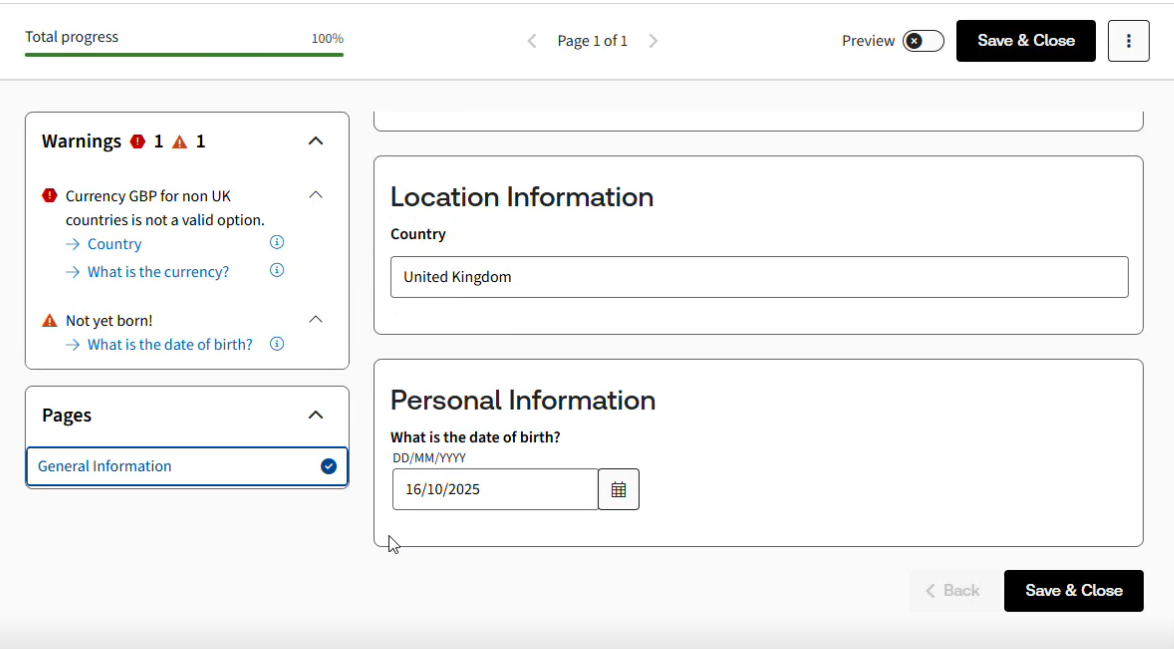
Create a Custom warning
To set up a custom warning, navigate to the hamburger menu  and select Custom warnings option from the drop-down.
and select Custom warnings option from the drop-down.
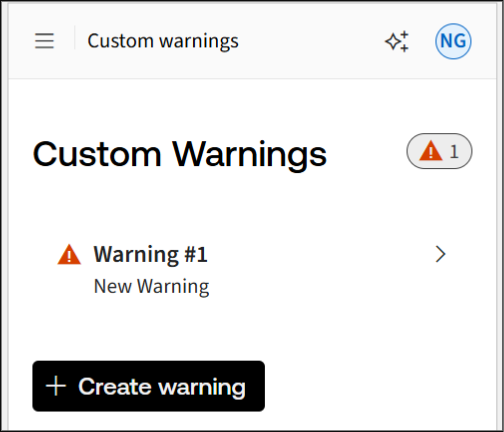
Select Create warning. The new warning appears in the list.
General tab
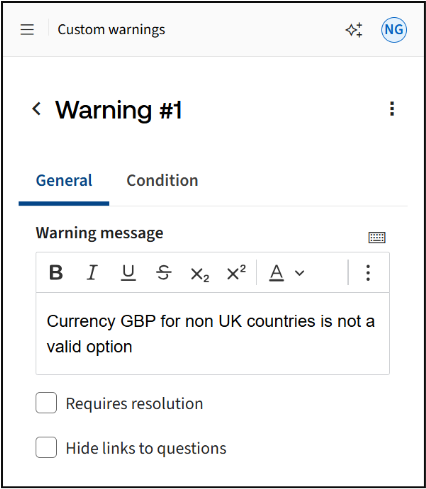
On the General tab, add a custom warning message to display to users when the warning is triggered.
The
Requires resolution
checkbox should be ticked if this should be a compulsory warning.
In scenarios where a complex expression is used as a warning condition, consider hiding navigation links to questions related to the warning condition. For instance, if the condition uses the collect function across a large data set, the list of relevant questions may become extensive and potentially confusing for the user. By selecting the
Hide links to questions
checkbox, only the warning message will be displayed in the questionnaire warning to avoid user confusion.
Condition tab
On the Condition tab, you can define condition(s) to trigger a warning by selecting variables from the list or creating a new one, choosing an operator, and entering the required value in the input field.
To add multiple conditions to a warning, select
Add condition
. Between each condition, you will see an And/Or toggle that lets you control how the conditions relate to each other. By default, the operator is set to "And".
All conditions on the Custom Warning screen are saved automatically. If any condition has an error, it will be highlighted so you can fix it before the warning can work correctly. A warning will only appear in the questionnaire if all the conditions are met.
Alternatively, to combine multiple conditions, enable the Advanced mode toggle and manually enter a logical expression that evaluates the answers to determine whether the warning should be triggered.

Deleting Conditions
You can delete a condition by clicking the Delete icon on the right side of the condition card header. Conditions can only be deleted when there is more than one, so the Delete button will be disabled if there is only one condition. After deleting a condition, the remaining conditions are automatically renumbered in order. The And/Or operator associated with the deleted condition is also removed automatically.
Delete a Warning
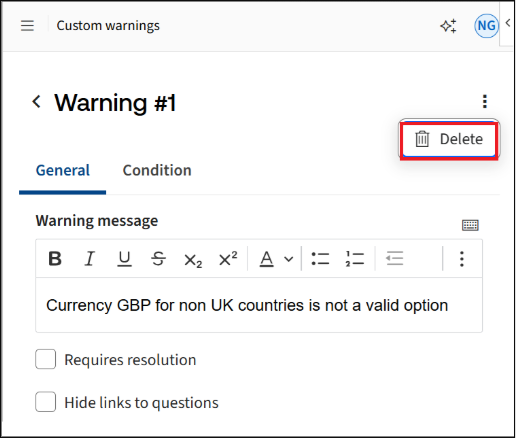
To delete an existing warning, click on the more action button and select Delete.
You can create multiple warnings as needed. All warnings will be displayed in the custom warnings list.