
Using lookup tables in Author Online
Lookup tables in Author Online are structured datasets that help authors map values, offer validated options, guide users through questionnaires, and insert pre-formatted text. For example, if a user has selected a geographical location, that answer can be used to find other data (such as the currency or capital city) for that location. This data can be presented on the questionnaire or in the assembled document.
Authors can create and manage these tables directly in the interface using intuitive menus, enhancing template flexibility and reducing manual effort through reusable data mappings.
Create a Lookup table
To create a new lookup table, navigate to the hamburger menu  and select
and select Lookup tables
from the drop-down menu.
Once the new lookup table window appears, you can name the table and define the number of rows and columns. These can be edited later as needed.
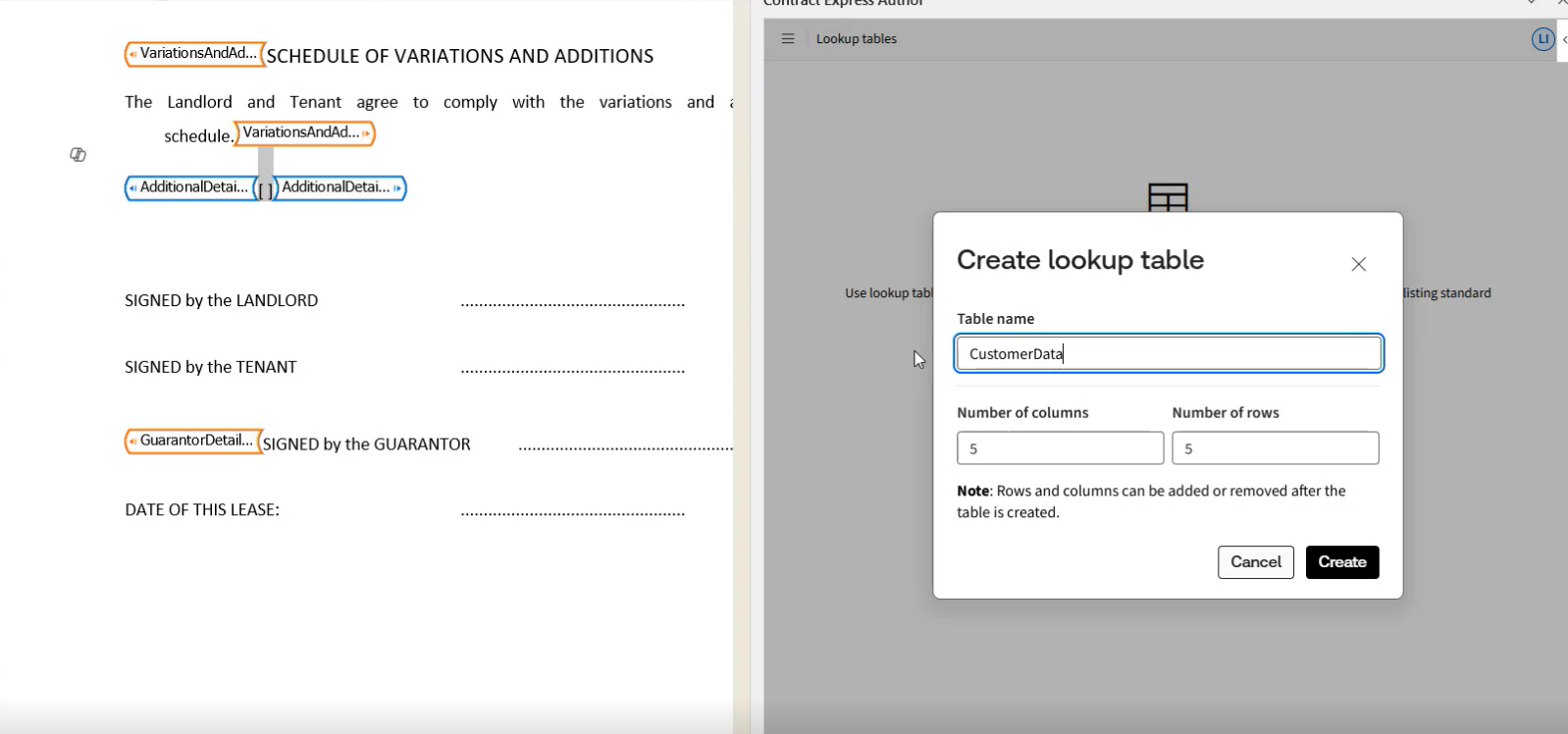
Once you click  .
.
Create
, a new lookup table will be created. The table name can then be changed or deleted by choosing the appropriate options from the menu .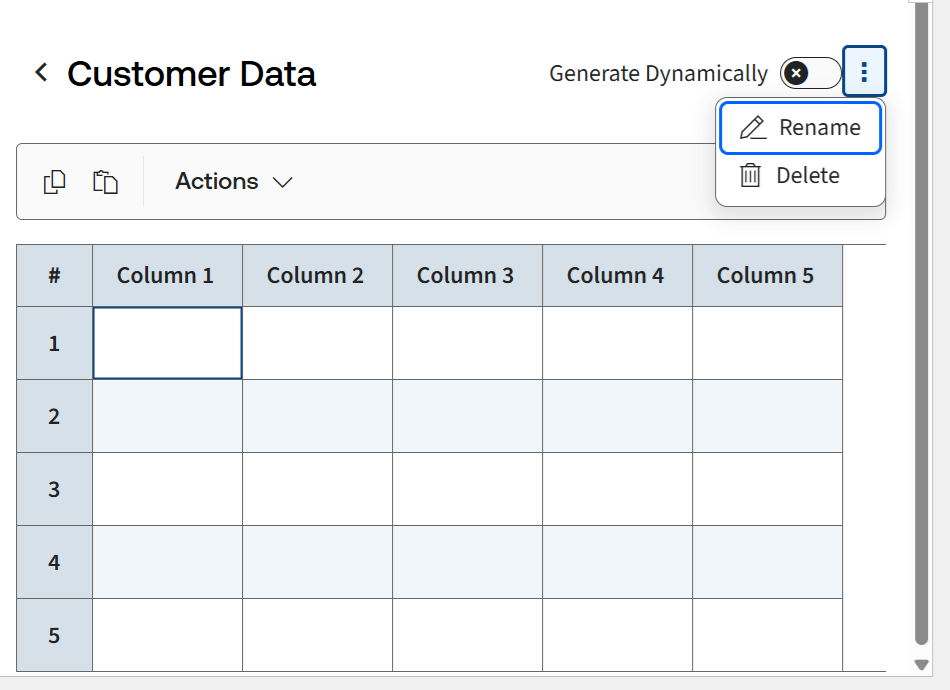
note
Users can create multiple lookup tables to support different data requirements.
Edit Columns and Rows
You can rename columns by right-clicking the column header and selecting
Rename column
from the actions list. To modify rows, right-click on a row to access available row actions and make the changes you need.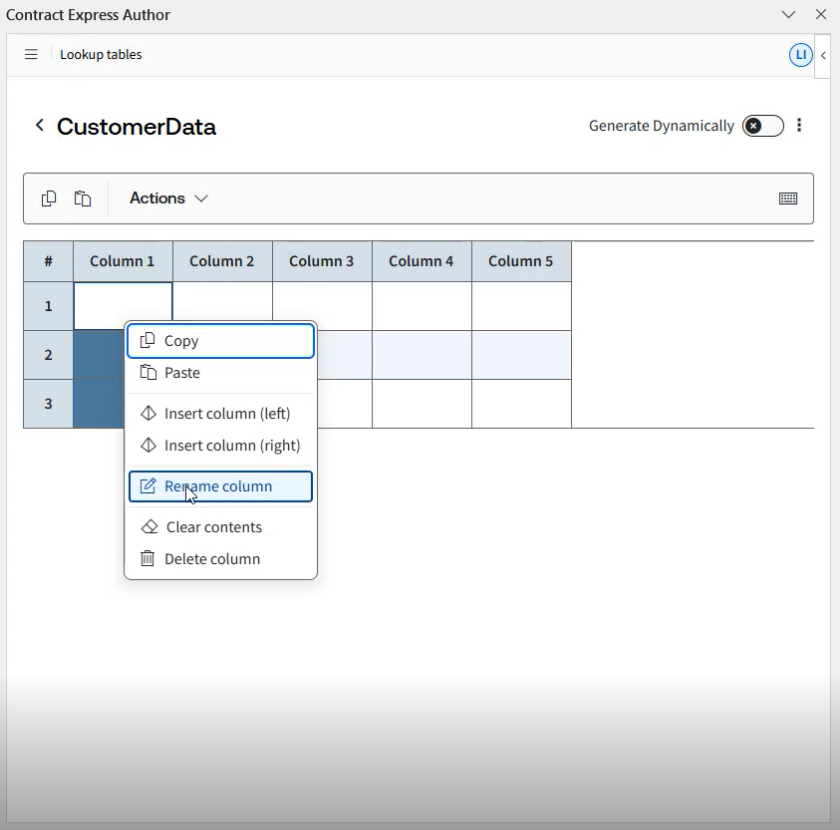
Additional columns can be inserted as required. You can add columns to either the left or right of the lookup table. To clear the contents of a column, right-click on the column and select the
Clear contents
option from the context menu. Alternatively, you can delete a column by right-clicking and choosing the Delete column
option.Rows can also be added or deleted similarly. Right-click on a row and select either insert above or below. Select a single row or multiple rows by clicking on a row and dragging the mouse, then select
Delete row
to delete the row(s) or Clear contents
to clear the content of the row(s).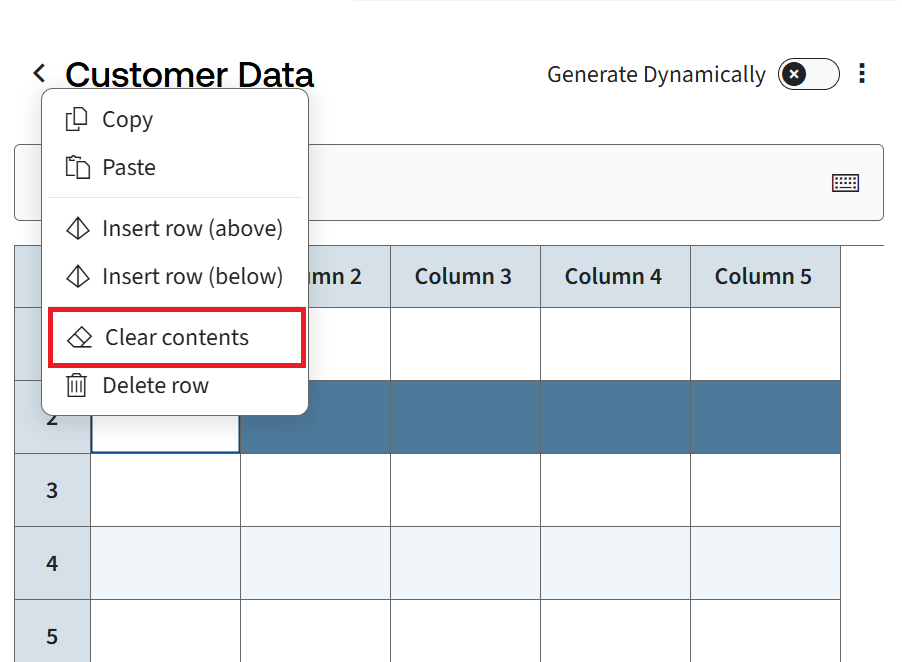
note
The
Delete column
and Delete row
options will delete the entire selected column or row. Clear contents
will only remove content available in the respective column or row and will not affect the structure of the table.Alternatively, you can also add columns and rows from the
Actions
menu.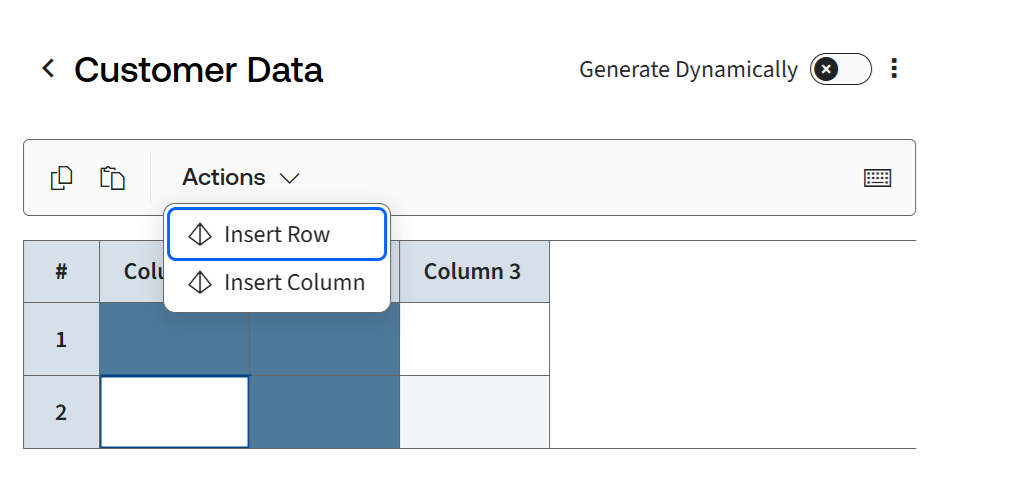
Add data to a Lookup table
Once the lookup table is created, you can start adding data into the table.
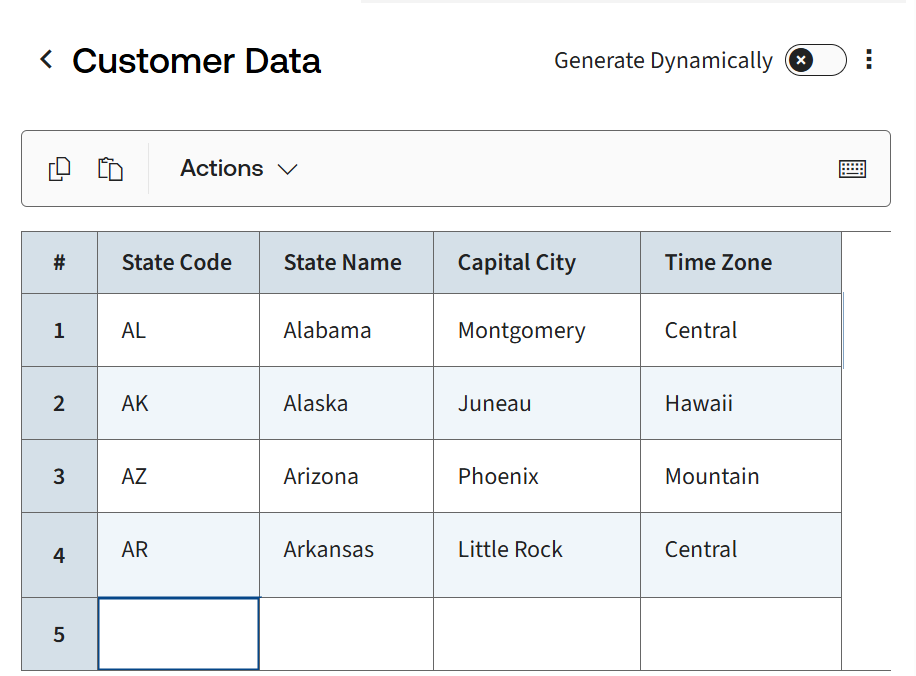
You can copy multiple cells, including column headers, from an Excel spreadsheet or other sources and paste them into a lookup table using specific options:
- Copying data with column headers
- To copy both data and column headers, use theCopy tableoption in the task pane.

- To paste the copied table, including column headers, use thePaste tableoption available in the task pane.

- Copying data without column headers
- If you only need to copy data without the column headers, you can select the relevant cells in the table, right-click and selectCopy, or useCTRL + C.
- To paste this data into the lookup table, select any cell and either useCTRL + Vor right-click and use thePasteoption.
noteThe right-click options and keyboard shortcuts (CTRL + C and CTRL + V) are for copying and pasting data only and do not support column headers. To include headers, please use the 'Copy table' and 'Paste table' options in the task pane.
note
- When working with lookup tables in Author Online, users may encounter paste restrictions due to permission settings. The system now displays an error message when such limits occur. To enable permission panel in Word:
- Open Microsoft Word.
- Navigate toFile→Options→Trust Center→Trust Center Settings→Trusted Add-in Catalogs.
- Check the boxNext time Office starts, clear all previously started web add-ins cache.
- ClickOKand restart Word.
- Column headers aren't supported yet, meaning you cannot paste data into column headers. You can manually enter the data for now.
Build a Dynamic Lookup table
Dynamic Lookup tables are supported, allowing you to define external table statements for advanced automation scenarios, such as selecting data from external sources. To use this feature, click the
Generate Dynamically
button to toggle it on or off.The selection will open an expression window where you can enter a select expression against an External Table that has been defined in the Contract Express application.
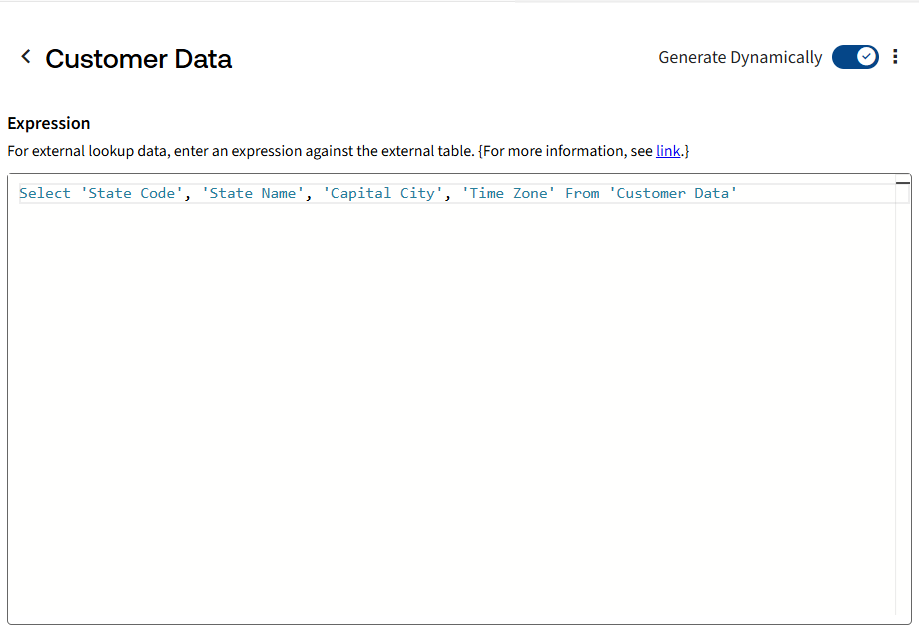
When you use a dynamic lookup table, the system checks and saves the results the first time you ask for information. If you ask for more information from the same table during that session, it uses the saved results instead of checking the database again.
Referencing Lookup table data in your template
To see examples of how to use lookup data in a template, refer to the Select Operator (full-form expression) and the [Dot] Operator (abbreviated expression).
For more information on lookup tables in Author Desktop, see lookup tables.