
Using the HighQ iSheet import tool in Author Online
The
Import iSheet Columns
tool allows you to import HighQ iSheet columns and their settings into the Questionnaire tab, where they can be reused as variables.
note
To use the iSheet import column tool, you must first be connected to a HighQ instance.
Log in to HighQ
To log in to HighQ, navigate to the hamburger menu  and click on
and click on Import iSheet columns
from the drop-down menu.You will be prompted to log in to the HighQ instance. Click
Continue.
This will log out from the existing instance and log into the High DocAuto instance.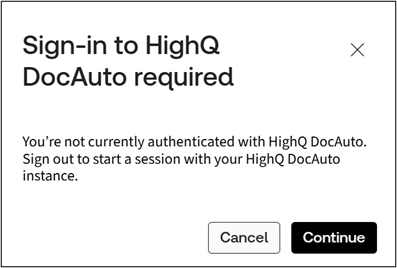
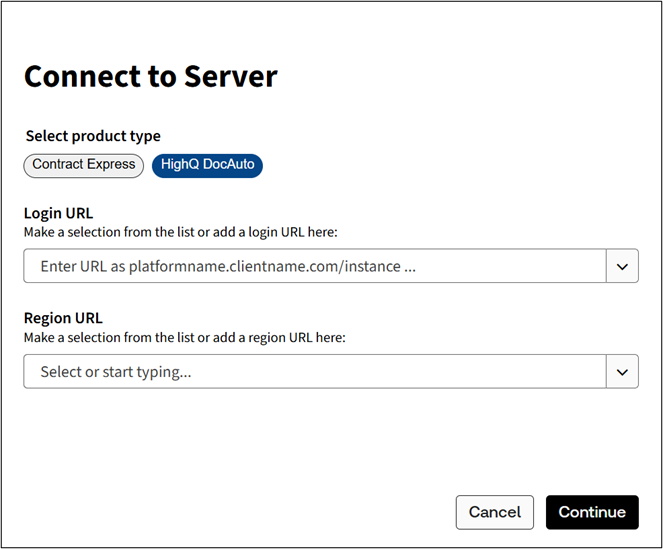
Now, enter your HighQ login URL and Regional URL (for example: eu1.contractexpress.com) and select
Continue
.
Once the connection is established, click on
Import iSheet columns
again from the hamburger menu. A window will pop up to enter the required information.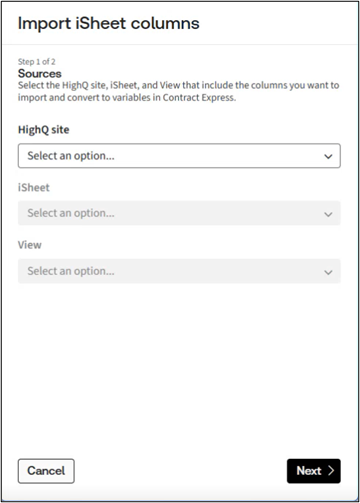
Select the HighQ site, iSheet, and view from the dropdown list. Then click
Next
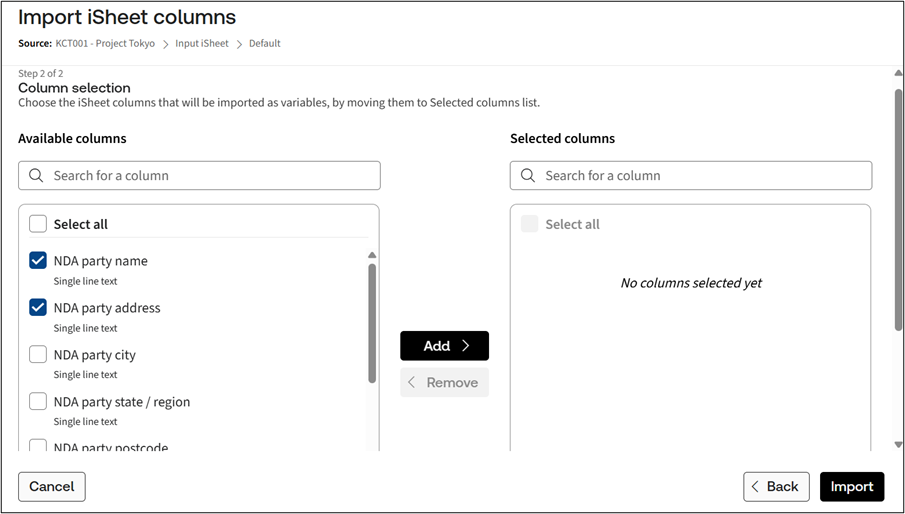
to display the available columns from the iSheet.Choose columns to import
You can either select all columns by clicking
Select all
or individual columns by manually selecting. Once you are done selecting columns, click Add
. Alternatively, to remove any columns, select the column you wish to remove and click Remove
.
After selecting the columns, click
Import
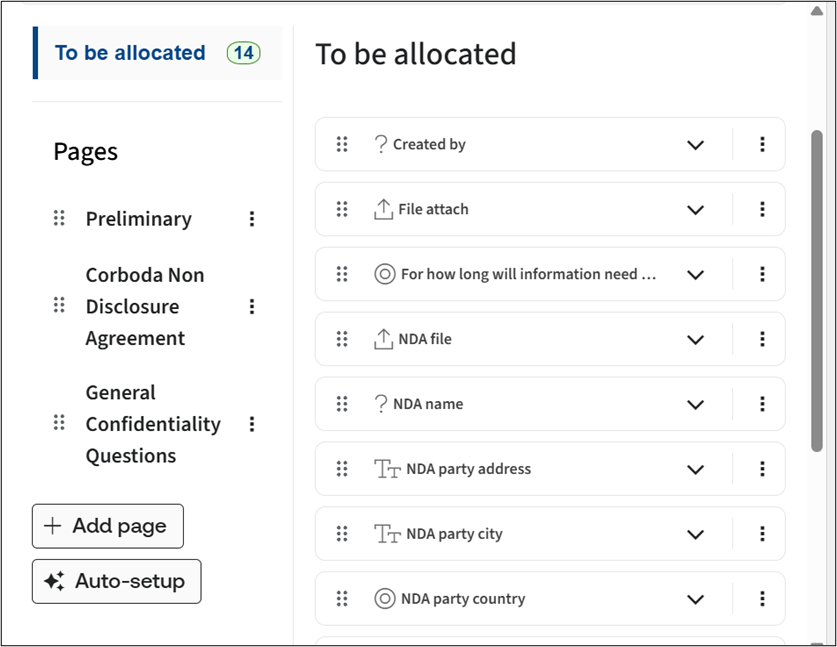
to complete the process.All the imported columns will be available in the Questionnaire as unallocated. You can then use the new AI-enabled Auto-setup feature to arrange your Questionnaire.
note
- Most variable types and parameters will be mapped between HighQ and Contract Express but there may be some that do not have corresponding matches and therefore will not pull through.
- iSheet Import overwrites any existing Contract Express variables that have the exact same name as the iSheet column names that are being imported.
- You can run iSheet Import multiple times to refresh the definitions and parameters of any iSheet columns that have been imported previously or to update the variable types and parameters after running Convert Template. See Convert templates to use Contract Express markup.