
Multi select Variable
A multi-select option allows users to select multiple values from predefined options, storing all the selected values as a list or an array.
Let's say we want to allow the tenant to select multiple countries of incorporation from a pre-defined list of values under '
TenantCountryOfIncorporation
' variable, representing the countries they have previously moved between.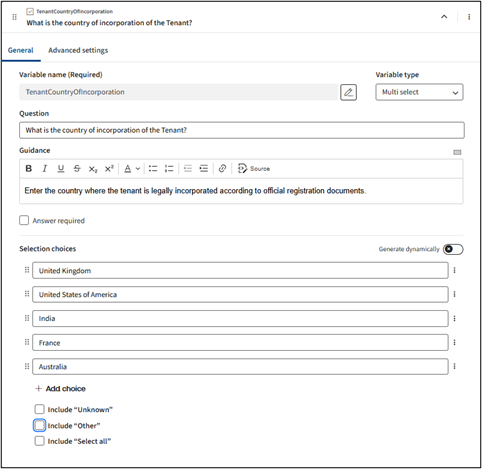
- Question: Specifies the question text that is displayed on the questionnaire shown to end users.
- Guidance: Specifies the guidance text displayed on the questionnaire, which supports rich text formatting through the controls provided above the text box.noteIf you want to make a specific question compulsory for the user, tick theAnswer requiredbox. Required questions show a red asterisk and prevent submission until answered.

- Selection choices: These are based on a group of sub-attributes that collectively determine which option(s) appear on the questionnaire:
- Static / Editable list items- Static options are entered into text boxes, where they can be reordered, deleted, or set as default using theMore Optionsbutton at the right end of each selection box.
- Generate dynamically– This option displays an expression window to collect choices from existing variables or define an expression from an external table or an internal lookup table configured in Contract Express and provides an input text field that supports active text instead of predefined selection choices.
- Unknown- When this option is selected, an option appears in the questionnaire for the user to indicate that the selection is unknown. This prevents the text field from being pre-filled with a default value. You can also customise the label to replace the default text with your preferred wording (e.g., Not Specified or N/A).
- Other- When this option is enabled, the questionnaire displays an extra option allowing users to enter choices not listed. This option is labelledOther(for English UK/USA), and the label can be customised via the edit box.
- Select all- When this option is selected, anAllcheckbox appears on the questionnaire, allowing users to select all options with one click. The labelAll(default for English UK/USA) can be customised by entering a custom value in the edit box.
And the options are displayed as below in the questionnaire: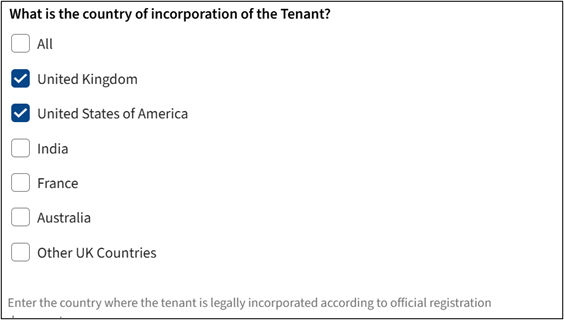
Advanced settings
This section is divided into three different categories. On the Questionnaire, lists questions and input fields shown to end users in Author Online to collect structured feedback or data, which may vary by content type. In the Document, outlines the values that will be included in the final document generated after the questionnaire is completed and the template is assembled. Repeated groups help authors organise content that could be repeated.
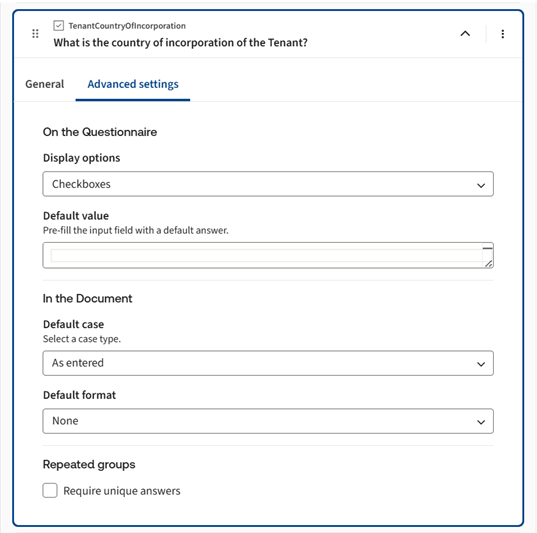
On the Questionnaire
Display Options
It determines how values are presented and collected in the questionnaire. For multi-select, the available options are:
Input Type | Description | Options Presented |
|---|---|---|
Checkboxes | The user is presented with a group of checkboxes, where none, one, many, or all can be checked. | 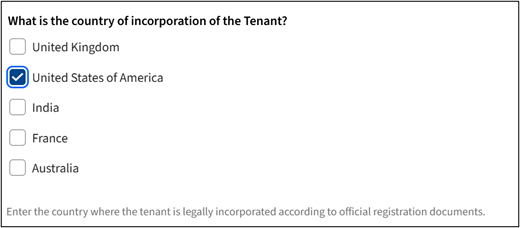 |
List | The user is presented with a select box containing options from which none, one, many, or all can be chosen.
note To select multiple items, press and hold the Ctrl key as you click each option. | 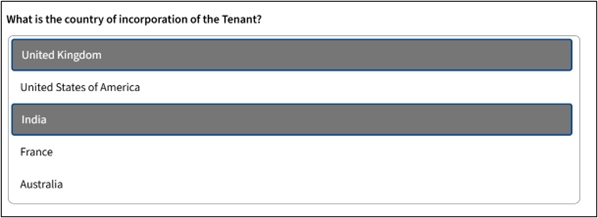 |
Ordered list | The user is presented with a select box containing options from which none, one, many, or all can be chosen. Selected options are moved to the right, where up and down arrows can be used to change their order. Add and remove options can be used to modify the selected options. | 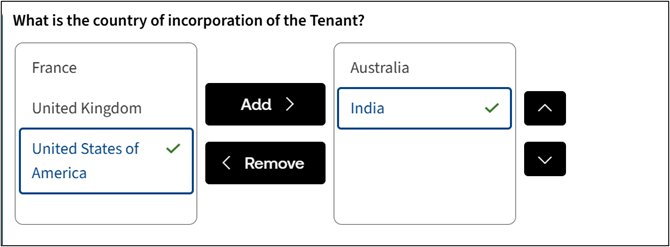 |
Default Value
Default values are pre-filled entries that appear in questionnaire fields when accessed for the first time. You can later type these values manually in the edit boxes or derive them using expressions in the questionnaires. If a variable remains unanswered, because the user removed the default or skipped the relevant questionnaire page, the default value will not appear in the final document. This ensures only confirmed user inputs are included.
For a multi-select variable type, you can set multiple default values from the pre-defined options in the list by choosing  in the individual selection boxes. For details, see Set Default Selections for Text Variables.
Set as default
from the more options menu in the individual selection boxes. For details, see Set Default Selections for Text Variables.In the Document
Default case
The default case specifies the casing of variable values in a generated document when no local case is defined. The available options are:
Format Option | Description |
|---|---|
Capitalize Each Word (capitals) | The first letter of all words will appear capitalised in the generated document. |
Uppercase (upper) | All letters will appear in uppercase in the generated document. |
Lowercase (lower) | All letters will appear in lowercase in the generated document. |
As entered | All letters will appear as they are entered on the questionnaire in the generated document. |
Title case (proper) | The first letter of all major words will be capitalised in the generated document. |
First letter capitalize (firstletter) | The first letter of each word will be capitalised in the generated document. |
If no default case is selected, the value will be generated as entered in the questionnaire by default.
For detailed instructions, see Field format and case overview.
Default format
The default format attribute determines how variable values appear in a generated document when no local formatting is applied. The default format is interpreted based on the variable type. You can choose from popular formats using the dropdown menu or create your own by selecting the
Create new
option. Clicking the Edit format
button will open the Format dialog, and the newly created format will be selected as the default.If you choose
None
as the default format, the generated document will undo the previous selection and remove the selected format.You can manage both newly created and existing formats by selecting the format and clicking
Edit format
. This will open the Edit Format dialog box, which provides options to Delete, Save, or Cancel.- Delete– Removes the selected format.
- Save– saves the custom formats in the Format table according to applicable conditions.
- Cancel– Discards the custom formats, and they will not be stored in the Format table.
note
When custom formats are created for a data type, they will be displayed as options in the 'format' dropdown. These options are ordered by the most recently added and appear immediately in the default format list. If any format is modified, it will be re-ordered to appear as the most recently modified in the dropdown.
If a user deletes all formats associated with a specific data type, and no formats are listed in the Format table, the dropdown will automatically revert to displaying the pre-loaded/default format list.
For , the available pre-defined formats are:
multi-select
Pre-defined formats | Result |
|---|---|
Punctuation with "and" (, | and ) | John, Mary and David |
Punctuation with Oxford comma (, |, and |.| and ) | Anna, John, and Lisa. |
Line breaks (^L) | Anna John |
Line breaks with punctuation (;^L|; and^L|.) | Anna; John; and Lisa. |
See list format and multiline text format for details on how to apply different formatting options.
Related Content
-
Variables in Author Online
Format: Article